
Testing the New iOS 18.1 Hearing Aid Functionality
With iOS 18.1, Apple is adding a new set of hearing health features to the AirPods Pro 2. The iOS 18.1 release candidate for developers and public beta testers includes the full hearing aid functionality, so we thought we'd give it a try to see just how it works.
Subscribe to the MacRumors YouTube channel for more videos.
To use the new hearing health features, you need to connect your AirPods Pro 2 to an iPhone running iOS 18.1, or an iPad with iPadOS 18.1. From there, if you tap into the AirPods Pro section, you'll see an option to take a hearing test, which should be your first stop.
Apple's hearing test mimics the hearing tests you might have had conducted at a doctor's office or by an audiologist, and it's meant to determine whether you have any hearing loss. If you do have hearing loss, the test determines which frequencies you're struggling with.
With the AirPods in your ears, you can tap "Get Started" to take the hearing test. The test takes approximately five minutes, starting first with the left ear and then moving on to the right ear. You'll hear a series of tones at different frequencies and sound levels, and the idea is to tap the iPhone's screen whenever you hear a sound. The tones that you hear test for four frequencies, including 500Hz, 1kHz, 2kHz, and 4kHz.
Apple puts your iPhone in Do Not Disturb mode for the test, and also uses your AirPods to make sure it's quiet enough for the test to be conducted. The test is designed for adults that are 18 years or older, and it shouldn't be done when you have allergies, a cold, an ear infection, or a sinus issue, which can affect the results. Apple also recommends waiting to take the test at least 24 hours after you've been exposed to loud noise like a concert or construction, as this can also impact the hearing test.
After going through the hearing test steps, you'll get your Hearing Test results, with separate decibel levels detected for each ear. If you get a 5 dBHL reading for each ear, for example, you have little to no hearing loss and will not need adjustments to your AirPods.
Apple says that results up to 25 dBHL indicate little to no hearing loss. 26 to 40 dBHL is a sign of mild hearing loss, while results of 41 to 60 dBHL suggest moderate hearing loss. 61 to 80 dBHL is severe hearing loss, and a result above 80 dBHL is considered profound hearing loss.
For context, a whisper is around 20 decibels, while a person breathing is somewhere around 10 decibels. Rainfall is 50 decibels, and a standard conversation is 60 decibels. With no hearing loss, you can hear a whisper, and with mild loss, you can still hear and repeat words spoken in a normal voice from three feet away. With moderate loss, you can hear and repeat words spoken in a raised voice from three feet away.
If your test shows mild to moderate hearing loss, you'll have the option to turn on the Hearing Aid feature of the AirPods Pro. With this enabled, the AirPods Pro can use the data from your test to boost the frequencies that you have trouble hearing, making it easier to hear voices and other sounds around you.
There's also a Media Assist feature that goes along with the Hearing Aid function, and it adjusts music, videos, and calls so you can hear them better. You can also turn on the Hearing Aid feature using an audiogram from an audiologist if you don't want to take the test on the iPhone.
Note that if your test showed no hearing loss, Apple will not recommend changes to your AirPods tuning, and there will not be an option to turn on the Hearing Aid feature.
To see even more information from your Hearing Test, you can go to the Hearing section of the Health app and tap into the test to see a graph of which frequencies you had the most trouble with.
Along with Hearing Assistance, the AirPods Pro 2 also offer Hearing Protection as part of Apple's Hearing Health feature set. This includes a Loud Sound Reduction option that is enabled automatically. Loud Sound Reduction listens for loud noises around you in Transparency and Adaptive Modes, and reduces the level of the noise to prevent hearing loss.
If you're at a concert, for example, Loud Sound Reduction will drop the noise to a healthier level so that it won't impact your hearing. The same goes for other loud sounds like nearby construction work.
Apple says that in Transparency Mode, you'll see 11-15 decibels of sound reduction in an environment where the noise level is at 100 decibels, while in Adaptive Mode, noise reduction will range from 25 to 29 decibels. With Active Noise Cancellation, noise reduction is 25 to 30 decibels.
The amount of noise reduction can vary based on the fit of the AirPods Pro 2 and the environment that you're in. The AirPods Pro 2 don't provide enough sound reduction for "extremely loud impulse sounds" like gunfire, jackhammers, or fireworks, nor do they work well enough for sustained noise levels louder than 110 decibels.
In the Health app under the Environmental Sound Reduction section, you can see the amount of sound reduction you've gotten from your AirPods Pro from hour to hour.
If you have the iOS 18.1 developer or public beta and AirPods Pro 2, you can try out the new hearing test and hearing aid feature right now. Otherwise, this functionality is set to become available to the public when iOS 18.1 launches next week.
Related Roundup: AirPods Pro
Buyer's Guide: AirPods Pro (Neutral)
Related Forum: AirPods
This article, "Testing the New iOS 18.1 Hearing Aid Functionality" first appeared on MacRumors.com
Discuss this article in our forums
https://www.macrumors.com/2024/10/21/ios-18-1-hearing-aid-feature/
Qualcomm Says New Snapdragon 8 Elite SoC Has 'World's Fastest Mobile CPU'
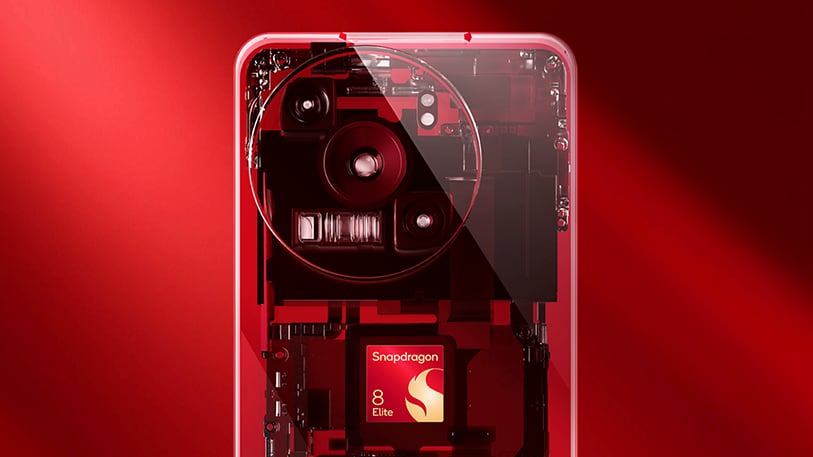
Qualcomm today unveiled the Snapdragon 8 Elite mobile platform, which features a next-generation custom Qualcomm-designed Oryon CPU instead of the semi-custom Kryo Arm-based chips from prior SoCs. According to Qualcomm, the Snapdragon 8 Elite features the "world's fastest mobile CPU," outperforming even the A18 Pro chip in the iPhone 16 Pro series.
The Oryon CPU is built on a 3-nanometer process, much like Apple's most recent chips. It has eight cores in total, including two prime cores and six performance cores, and it is able to reach peak CPU speeds of 4.32 GHz. Qualcomm also claims that it has the "industry's largest shared cache" to enable "insanely fast data retrieval." There's also a new "Adreno" GPU, and Qualcomm says it uses a "revolutionary sliced architecture" for faster performance and battery life optimizations.
Qualcomm built the chip with generative AI in mind, and it has an included Qualcomm AI Engine with Multimodal Gen AI that Qualcomm says can better understand voice, text, and images, viewing the world through the camera on a smartphone to help with tasks.
Compared to prior-generation Qualcomm chips, the Snapdragon 8 Elite features 45 percent faster CPU performance and 44 percent better power efficiency.
Tag: Qualcomm
This article, "Qualcomm Says New Snapdragon 8 Elite SoC Has 'World's Fastest Mobile CPU'" first appeared on MacRumors.com
Discuss this article in our forums
https://www.macrumors.com/2024/10/21/qualcomm-snapdragon-8-elite/
iPad Mini 7 Will Have Day One Update
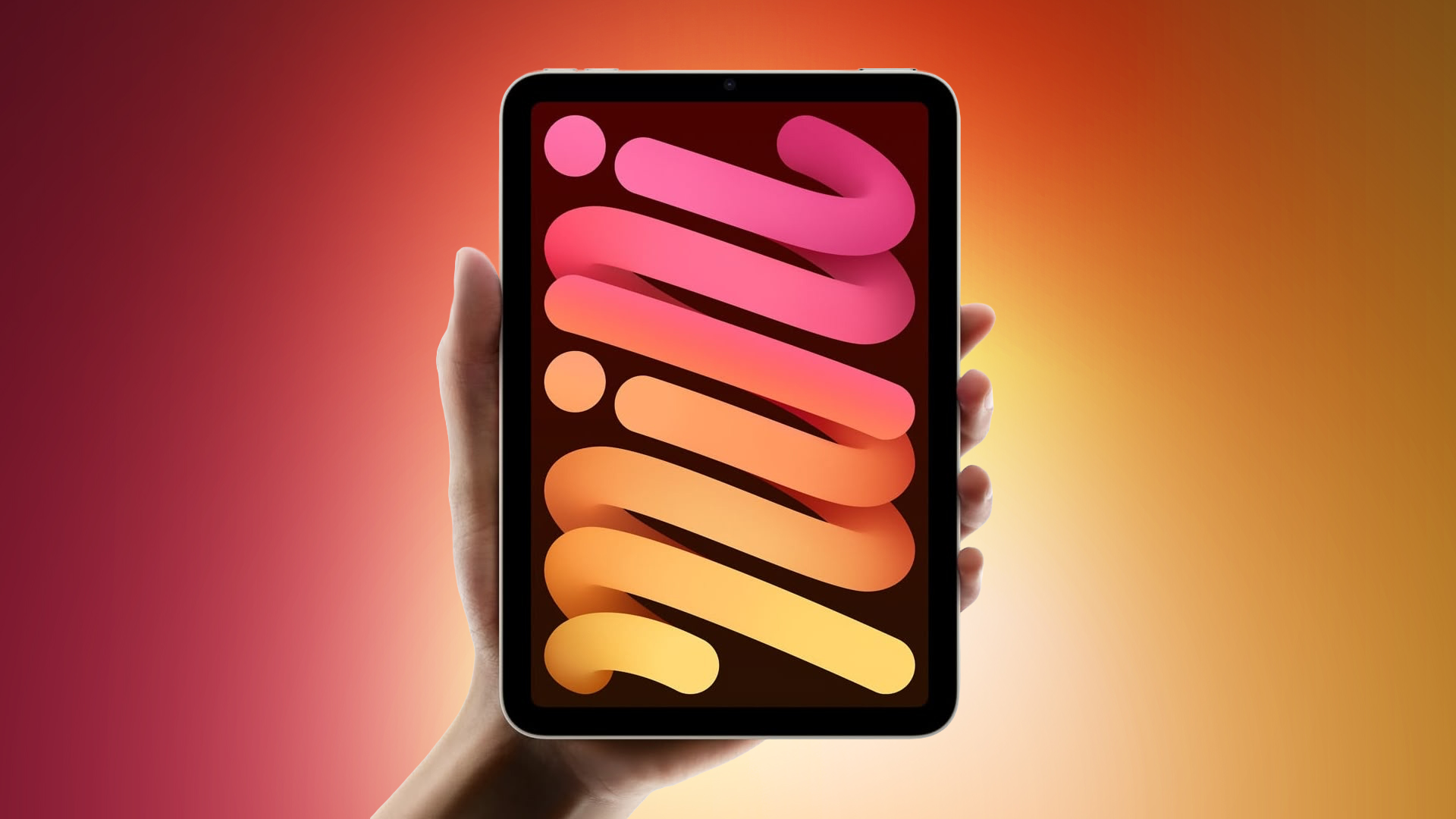
Apple is set to release the iPad mini 7 on Wednesday, and new iPad mini owners will have an update waiting right out of the box. Apple is shipping the iPad mini 7 with a version of iOS 18.0, which is no longer the current version of iOS 18.
iPad mini owners will need to install iOS 18.0.1, and Apple has a special version of the update ready to go, with a version number of 22A8380. iOS 18.0.1 included some important bug fixes and security updates, so it'll be worth updating to right away if you're getting a new iPad mini.
After that day one update, iPad mini owners will need to install a second update next Monday, which is when Apple will release iOS 18.1. iOS 18.1 is the first version of iOS 18 that includes Apple Intelligence features, which the iPad mini 7 will support with its A17 Pro chip.
Apple Pencil Pro. The iPad mini 7 is priced starting at $499.
Related Roundup: iPad mini
Buyer's Guide: iPad Mini (Buy Now)
Related Forum: iPad
This article, "iPad Mini 7 Will Have Day One Update" first appeared on MacRumors.com
Discuss this article in our forums
https://www.macrumors.com/2024/10/21/ipad-mini-7-day-one-update/
WhatsApp for iOS Gets New Home Screen Widget for Chats, Camera Updates
Popular messaging app WhatsApp was today updated to add a new Home Screen widget that's specific to chats. The widget is available on the iPhone after updating to version 24.21.81, which came out this afternoon.
After updating the widget can be added to the Home Screen using the Edit interface. Users can choose from Recents, Favorites, Pinned, or Frequently Contacted to get quick access to their preferred chats.
WhatsApp has also added support for using 0.5x to 3x zoom with the built-in camera, and there is an option to mention others in Status by tapping the @ button in the composer.
Tag: WhatsApp
This article, "WhatsApp for iOS Gets New Home Screen Widget for Chats, Camera Updates" first appeared on MacRumors.com
Discuss this article in our forums
https://www.macrumors.com/2024/10/21/whatsapp-ios-home-screen-widget/
Hulu and Disney+ No Longer Support Signups and Payment Using App Store

Disney is no longer allowing its customers to sign up for and purchase subscriptions to Hulu or Disney+ through Apple's App Store, cutting out any subscription fees that Disney would have needed to pay to Apple for using in-app purchase.
The change was noted on Reddit over the weekend, and there are details on the Disney+ and Hulu websites. Both the Disney+ and Hulu websites say that new and returning subscribers cannot sign up for and pay through Apple, but existing Apple-billed subscribers are not affected.
Hulu and Disney+ customers can still watch content on Apple devices by signing into their Hulu and Disney+ accounts in the iOS apps. Disney directs customers to its websites in order to see all plans and sign up for a subscription directly.
For digital purchases like subscription services, Apple collects a 15 to 30 percent fee from each transaction. By removing the option to sign up for streaming services using the in-app purchase system, Disney will not have to pay a fee to Apple.
Tags: App Store, Disney, Disney Plus, Hulu
This article, "Hulu and Disney+ No Longer Support Signups and Payment Using App Store" first appeared on MacRumors.com
Discuss this article in our forums
https://www.macrumors.com/2024/10/21/hulu-disney-plus-no-app-store-signup/
Apple Working on New Magic Mouse 2, Magic Trackpad 2 and Magic Keyboard

Apple may soon release new versions of the Magic Mouse, Magic Keyboard, and Magic Trackpad, according to code found in the iOS 18.1 release candidate by MacRumors contributor Aaron Perris.
There are references to a new Magic Mouse 2, Magic Trackpad 2, and several Magic Keyboards, which would include versions with Touch ID and number pads, as well as models without.
While there is no information in iOS 18.1 about what to expect for these devices, we are expecting them to be refreshed with USB-C ports. Apple has been updating all of its devices to replace Lightning with USB-C, and all of those accessories currently use Lightning for recharging purposes. Apple could also move the port location on the Magic Mouse, as the Lightning port located on the bottom of the device has long been a subject of ridicule.
We'll likely see Apple introduce the new Magic Mouse, Magic Trackpad, and Magic Keyboard alongside new M4 Mac models. Rumors suggest that Apple plans to release M4 versions of the MacBook Pro, Mac mini, and iMac at some point in October.
This article, "Apple Working on New Magic Mouse 2, Magic Trackpad 2 and Magic Keyboard" first appeared on MacRumors.com
Discuss this article in our forums
https://www.macrumors.com/2024/10/21/apple-new-magic-mouse-trackpad-keyboard/
Apple Seeds macOS Sequoia 15.1 Release Candidate
Apple today provided developers and public beta testers with the release candidate version of an upcoming macOS Sequoia 15.1 update, with the new software coming one week after Apple released the seventh beta.
Registered developers can opt-in to the macOS Sequoia beta through the Software Update section of the System Settings app. An Apple ID associated with an Apple Developer account is required to get the beta.
first Apple Intelligence features, adding support for Writing Tools, new Siri features, Smart Replies in Mail and Messages, Priority messages in the Mail app, Memory Movie and Clean Up in Photos, and more.
does not include Image Playground, Genmoji, or more advanced Siri functionality.
Related Roundup: macOS Sequoia
Related Forum: macOS Sequoia
This article, "Apple Seeds macOS Sequoia 15.1 Release Candidate" first appeared on MacRumors.com
Discuss this article in our forums
https://www.macrumors.com/2024/10/21/apple-seeds-macos-sequoia-15-1-release-candidate/
Apple Seeds watchOS 11.1, visionOS 2.1, and tvOS 18.1 Release Candidates
Apple today seeded release candidate versions of upcoming watchOS 11.1, visionOS 2.1, and tvOS 18.1 updates to developers and public beta testers for testing purposes. The new software comes approximately week after Apple released the fourth betas.
watchOS 11.1 can be installed by going to the Apple Watch app and selecting the Software Update section under "General" in Settings. tvOS 18.1 can be downloaded and installed through the Apple TV Settings app, and visionOS 2.1 can be installed by going to the Software Update section of the Settings app on the Vision Pro and opting into Beta Updates.
So far, no major new features have been discovered in these three updates, though there are undoubtedly some minor feature tweaks and bug fixes that we'll learn about when Apple's release notes become available.
macOS Sequoia 15.1, which will introduce Apple Intelligence. There are no Apple Intelligence features in watchOS, tvOS, and visionOS as of yet.
MacRumors readers when updates are available so those who are developers can download new software upon release.
This article, "Apple Seeds watchOS 11.1, visionOS 2.1, and tvOS 18.1 Release Candidates" first appeared on MacRumors.com
Discuss this article in our forums
https://www.macrumors.com/2024/10/21/apple-watchos-11-1-release-candidate/
Tesla Plans to Release Apple Watch App That Will Work as a Digital Key

Tesla last week updated its iPhone app with new Control Center controls on iOS 18. In addition, the latest version of the app added hidden code references to an upcoming Apple Watch version of the app, according to MacRumors contributor Aaron Perris.
The code indicates that it will be possible to use the Apple Watch as a digital key to remotely unlock compatible Tesla vehicles. Currently, this functionality is only available through unofficial, third-party Apple Watch apps on the App Store.
seemed open to Tesla releasing an Apple Watch app, and the code confirms that development is underway. It is unclear when the app will be released, should it move beyond the internal development stage.
Tag: Tesla
This article, "Tesla Plans to Release Apple Watch App That Will Work as a Digital Key" first appeared on MacRumors.com
Discuss this article in our forums
https://www.macrumors.com/2024/10/21/tesla-planning-apple-watch-app/
AirPods Pro vs. AirPods Max Buyer's Guide: 30+ Differences Compared
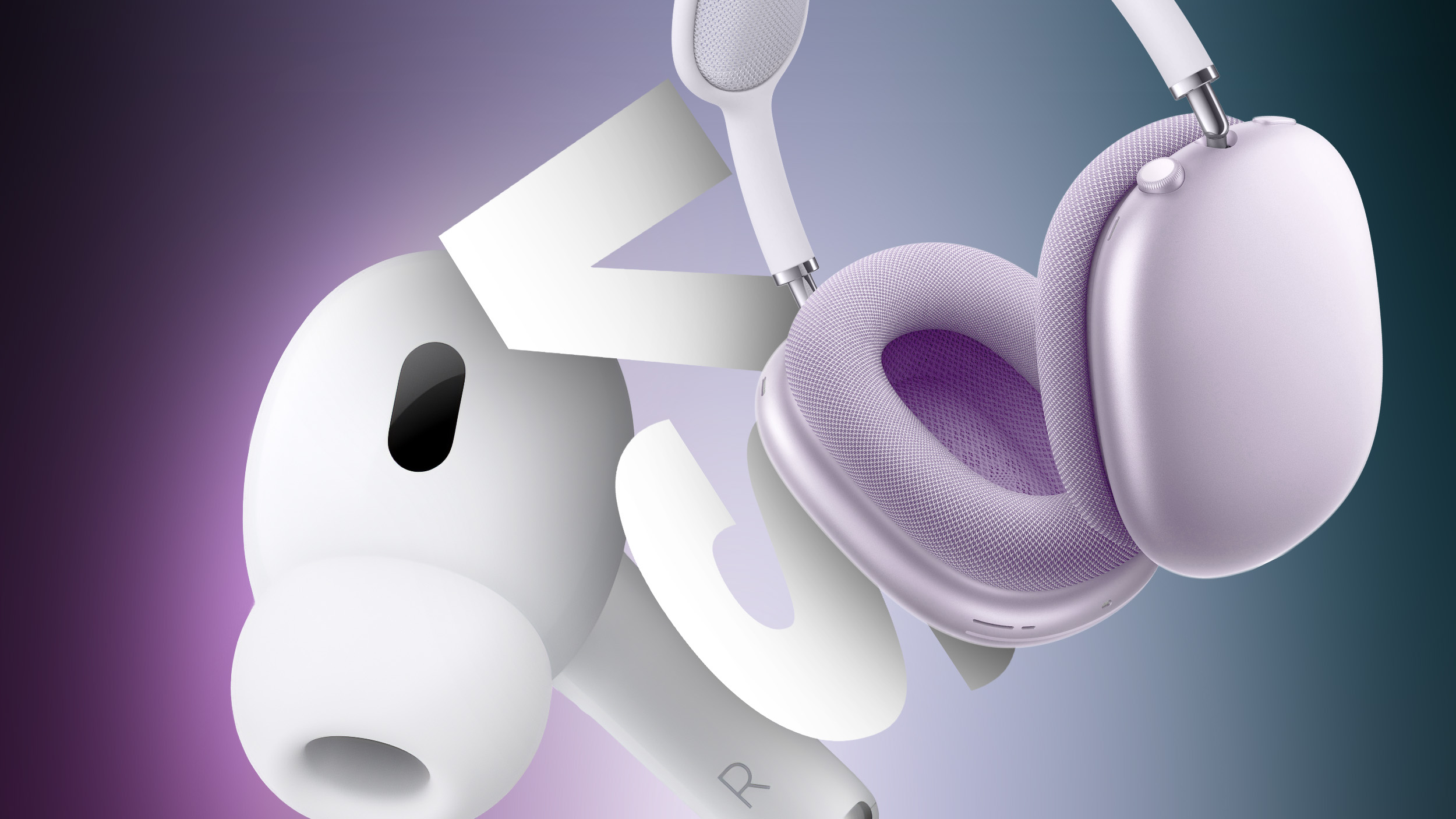
The AirPods Pro and AirPods Max are Apple's highest-end headphone options, so which should you choose?
Almost three years after the launch of the first-generation AirPods Pro, Apple unveiled the second-generation model alongside the iPhone 14 lineup and several new Apple Watches in 2022, and swapped the Lightning port for USB-C a year later in 2023. Although the second-generation AirPods Pro feature the same design as their predecessor, they improve on features like Active Noise Cancellation, in-ear detection, and battery life, while introducing new functionality like Adaptive Transparency, volume adjustment touch controls, and precision finding.
Siri, and automatic switching. In September 2024, the company refreshed the AirPods Max's selection of color options and swapped the Lightning port for USB-C.
As the two high-end AirPods options, should you consider purchasing the $249 third-generation AirPods Pro, or do you need the AirPods Max, which still sell for $549? Our guide helps to answer the question of how to decide which of these AirPods are best for you.
AirPods Pro 2 (2022, 2023)
AirPods Max (2020, 2024)
Plastic design
Aluminum, stainless steel, and silicone design
IPX4 sweat and water resistant earbuds and charging case
Available in White only
Lightning: Available in Silver, Space Gray, Sky Blue, Pink, and Green
USB-C: Starlight, Midnight, Blue, Purple, and Orange
In-ear fit with silicone ear tips (four size options)
Over-ear fit
Clip-on silicone ear tips (four size options)
Magnetic fabric ear cups
Skin-detect sensors
Optical IR sensors
~10mm custom high-excursion Apple drivers and high dynamic range amplifiers
20mm dynamic Apple drivers and more powerful high dynamic range amplifiers
Dual beamforming microphones and inward-facing microphones
Nine microphones (eight used for Active Noise Cancellation, three used for voice pickup)
H2 chips
H1 chips
Bluetooth 5.3
Bluetooth 5.0
Lightning: 2.4GHz connectivity
USB-C: 2.4GHz and 5GHz connectivity
2.4GHz connectivity
USB-C: Lossless audio support with Apple Vision Pro
"Hey Siri" and "Siri" voice commands
"Hey Siri" voice commands
Force sensor for media and listening mode controls
Noise control button for listening mode controls
Touch controls for volume adjustment
Digital Crown for media controls and volume adjustment
Transparency and Adaptive Transparency
Transparency
Adaptive Audio
Conversation Awareness
Conversation Boost
Loud Sound Reduction
Hearing Protection (coming fall 2024)
Hearing Test (coming fall 2024)
Hearing Aid (coming fall 2024)
Lanyard loop
U1 chip for Precision Finding
Speaker in charging case for Find My
Up to 6 hours of listening time on a single charge
Up to 20 hours hours of listening time on a single charge
5 minutes in the case provides around 1 hour of listening time
5 minutes of charge time provides around 1.5 hours of listening time
Charge with Apple Watch charger, MagSafe charger, Qi wireless charging mats, and Lightning or USB-C (depending on model)
Charge via USB-C or Lightning only (depending on model)
MagSafe Charging Case
Smart Case to preserve battery charge in ultra-low-power state
$249
$549
While there is some overlap between the AirPods Pro and AirPods Max with features like Active Noise Cancellation and Transparency, the entirely different fit and form factor of the headphones should make it easier for most customers to decide which device they prefer.
The AirPods Max offer a wide range of color options and a more premium design, as well as much longer continuous battery life from a single charge. Owing to its over-ear design and significantly larger drivers, the AirPods Max deliver markedly better audio quality than the AirPods Pro, so if your main priority is audio quality, the AirPods Max will undoubtedly be the best choice. If you actively dislike the in-ear design of the AirPods Pro, the AirPods Max may also be more comfortable.
On the other hand, the AirPods Pro offer a high-level of convenience and portability due to their small size and charging case. The audio quality of AirPods Pro cannot rival AirPods Max, but features like Adaptive Audio, Loud Sound Reduction, and Conversation Boost are ideal for when you're on the go. Due to their lightweight, in-ear design and sweat and water resistance, the AirPods Pro are also perfect for workouts.
The AirPods Pro are much more versatile when it comes to charging, with four different ways to charge, compared to the AirPods Max's obligatory USB-C or Lightning port option, depending on whether you buy the latest version. Due to their size, weight, less durable design, and limited portability, the AirPods Max are best used at home for high-fidelity, prolonged listening sessions, while the AirPods Pro offer a more balanced experience with a high level of convenience and portability.
It is also worth noting that the AirPods Pro have many more features than the AirPods Max, such as "Siri" voice commands, Precision Finding, Bluetooth 5.3, and lossless audio support, as well as the new hearing protection, testing, and aid features.
using our Deals roundup.
Related Roundups: AirPods Max, AirPods Pro
Buyer's Guide: AirPods Max (Buy Now), AirPods Pro (Neutral)
Related Forum: AirPods
This article, "AirPods Pro vs. AirPods Max Buyer's Guide: 30+ Differences Compared" first appeared on MacRumors.com
Discuss this article in our forums
Tim Cook Admits Truth About Vision Pro Following Lackluster Sales

The Wall Street Journal's Ben Cohen this summer interviewed Apple CEO Tim Cook about innovation, the Vision Pro, Apple Intelligence, and more.
Image Credit: Vanity Fair
Cohen said Apple's approach to innovation can be described in four words: "Not first, but best."
"We're perfectly fine with not being first," said Cook. "As it turns out, it takes a while to get it really great. It takes a lot of iteration. It takes worrying about every detail. Sometimes, it takes a little longer to do that. We would rather come out with that kind of product and that kind of contribution to people versus running to get something out first. If we can do both, that's fantastic. But if we can only do one, there's no doubt around here. If you talk to 100 people, 100 of them would tell you: It's about being the best."
Cook admitted that the Vision Pro headset is not a mass-market product due to its high price.
"At $3,500, it's not a mass-market product," said Cook. "Right now, it's an early-adopter product. People who want to have tomorrow's technology today—that's who it's for. Fortunately, there's enough people who are in that camp that it's exciting."
would be under 500,000 units this year.
Cook said Apple Intelligence makes the experience of using Apple products "profoundly different."
"I think we'll look back and it will be one of these air pockets that happened to get you on a different technology curve," said Cook.
The wide-ranging interview touches on many other topics, including Cook's daily routine, lessons he learned from Steve Jobs, and more.
Bloomberg today also published a story about Cook's role on Nike's board of directors, which he joined in 2005. The report states that Cook supported the appointment of Elliott Hill as Nike's new CEO this month, after the shoe maker experienced declining sales and profit this year. Cook is often spotted wearing Nike shoes, and Apple has partnered with Nike on several products and accessories over the past few decades.
Related Roundup: Apple Vision Pro
Tag: Tim Cook
Buyer's Guide: Vision Pro (Buy Now)
Related Forum: Apple Vision Pro
This article, "Tim Cook Admits Truth About Vision Pro Following Lackluster Sales" first appeared on MacRumors.com
Discuss this article in our forums
https://www.macrumors.com/2024/10/21/tim-cook-admits-truth-about-vision-pro/
Get the Apple Pencil Pro for $94.99 on Amazon, Plus Low Prices on Magic Keyboards, AirTag, and More
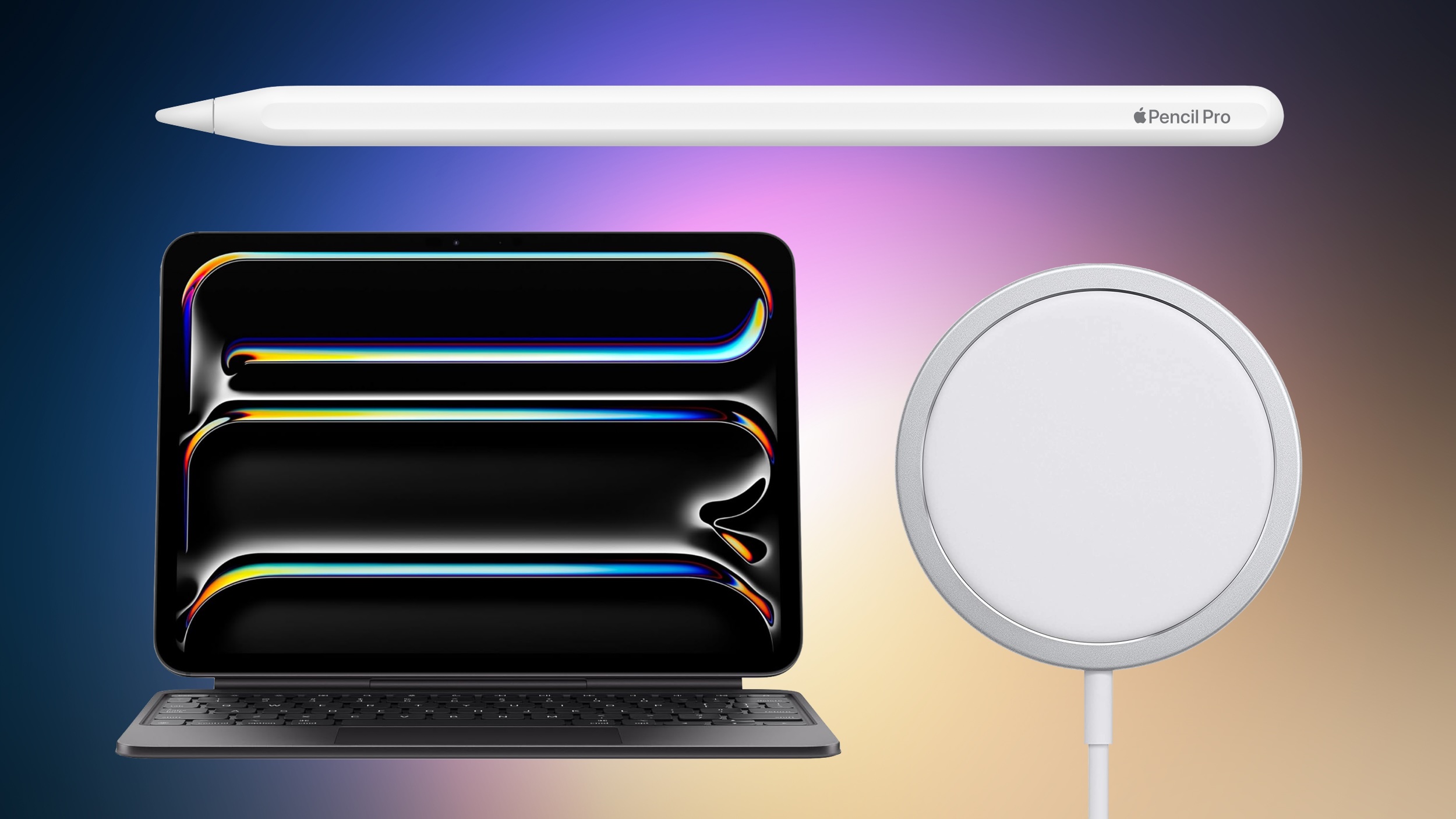
Amazon this week has a few solid deals on popular Apple accessories, including the Apple Pencil Pro, M4 iPad Pro Magic Keyboards, AirTag, and MagSafe Charger.
Note: MacRumors is an affiliate partner with some of these vendors. When you click a link and make a purchase, we may receive a small payment, which helps us keep the site running.
Apple Pencil
Starting with the Apple Pencil Pro, you can get this accessory for $94.99, down from $129.00. Although this is not an all-time low price, it's just $5 higher compared to that record low Prime Day price we saw earlier in the month. Amazon also has the USB-C Apple Pencil available for $69.00, down from $79.00.
$34 OFF
Apple Pencil Pro for $94.99
$10 OFF
Apple Pencil (USB-C) for $69.00
Magic Keyboard
Moving to the new 2024 Magic Keyboards, you can get the 11-inch model in Black for $259.99, down from $299.00. This is a new all-time low price on this version of the accessory, and it beats the Prime Day price by about $10.
$39 OFF
11-inch M4 iPad Pro Magic Keyboard for $259.99
$299.99 in both colors, down from $349.00. This is another record low price on the Magic Keyboard, and you'll find similar delivery estimates of late October for this model.
$49 OFF
13-inch M4 iPad Pro Magic Keyboard for $299.99
MagSafe Charger
Amazon introduced a few deals on Apple's new lineup of MagSafe Chargers earlier in the month, and one discount is still around. This week, you can get 2-meter model for $39.00, down from $49.00.
$10 OFF
2-meter MagSafe Charger for $39.00
The new MagSafe Chargers provide overall faster charging speeds with compatible iPhone models. When paired with a 30W power adapter, iPhone 16 models can charge at up to 25W wirelessly over MagSafe, which is 10W faster than a regular non-MagSafe Qi2 wireless charger.
AirTag
Finally, Amazon has both the AirTag 1 Pack and 4 Pack on sale this week at solid second-best prices. You can get the 1 Pack for $24.99 and the 4 Pack for $79.98.
$4 OFF
AirTag 1 Pack for $24.99
$19 OFF
AirTag 4 Pack for $79.98
Apple Deals roundup where we recap the best Apple-related bargains of the past week.
Related Roundup: Apple Deals
This article, "Get the Apple Pencil Pro for $94.99 on Amazon, Plus Low Prices on Magic Keyboards, AirTag, and More" first appeared on MacRumors.com
Discuss this article in our forums
https://www.macrumors.com/2024/10/21/get-the-apple-pencil-pro-for-94/
Apple Confirms AirPods Pro 2 Hearing Features Launching in iOS 18.1 Next Week
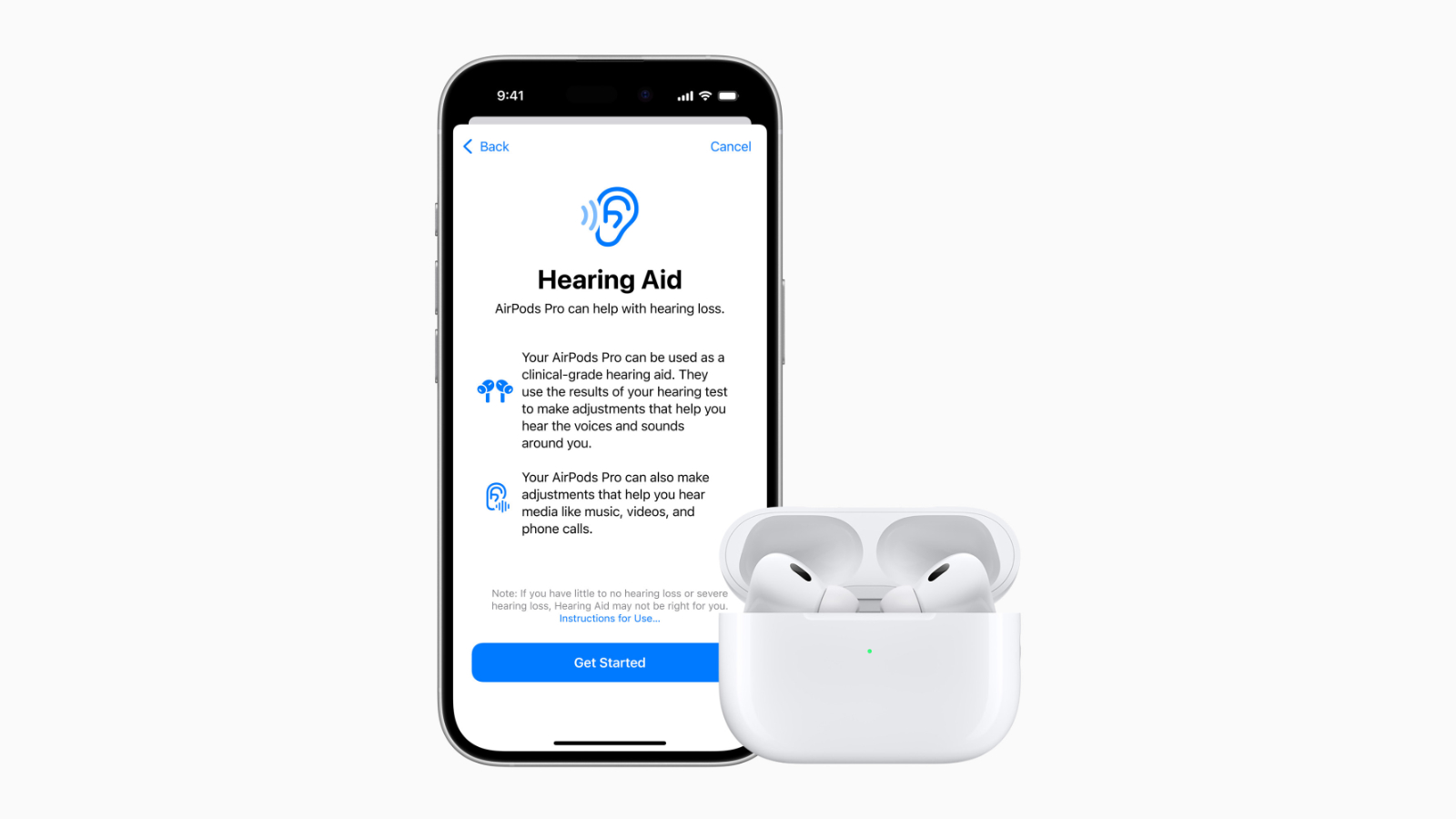
Apple will release iOS 18.1 next week, introducing a suite of advanced hearing health capabilities to the AirPods Pro 2 and the first Apple Intelligence features.
The timing of the update was confirmed by reviewers who were given early access to the AirPods Pro 2's new hearing health features, which are now known to be included in the update. The update will include three core features: hearing protection, hearing testing, and hearing aid functionality. Apple obtained FDA authorization for the new features last month.
iPhone. The test works by playing a series of tones across different frequencies and prompting users to respond, much like a clinical hearing test performed by audiologists. The results are stored in the Health app, and users can adjust their AirPods' audio settings accordingly.
If the test indicates hearing loss, the AirPods Pro 2 can automatically configure themselves to act as hearing aids, boosting specific sounds in real time. As Apple's Vice President of Health, Dr. Sumbul Desai, explained during Apple's event announcing the feature: "After you take a hearing test, your AirPods Pro are transformed into a personalized hearing aid, boosting the specific sounds you need in real time, like parts of speech, or elements within your environment."
The Verge, Wired, TechRadar, CNBC, and Tom's Guide, for first impressions of the feature.
Siri to answer questions about Apple products, smart replies to emails and messages, a revamped Clean Up tool in Photos, and more. Further Apple Intelligence features, such as an enhanced version of Siri with ChatGPT integration, will arrive in another update at a later date.
Related Roundup: AirPods Pro
Tags: Apple Intelligence, Hearing
Buyer's Guide: AirPods Pro (Neutral)
Related Forum: AirPods
This article, "Apple Confirms AirPods Pro 2 Hearing Features Launching in iOS 18.1 Next Week" first appeared on MacRumors.com
Discuss this article in our forums
https://www.macrumors.com/2024/10/21/airpods-pro-hearing-features-launching-in-ios-18-1/
New Entry-Level iPad With Apple Intelligence Likely Coming Late 2025
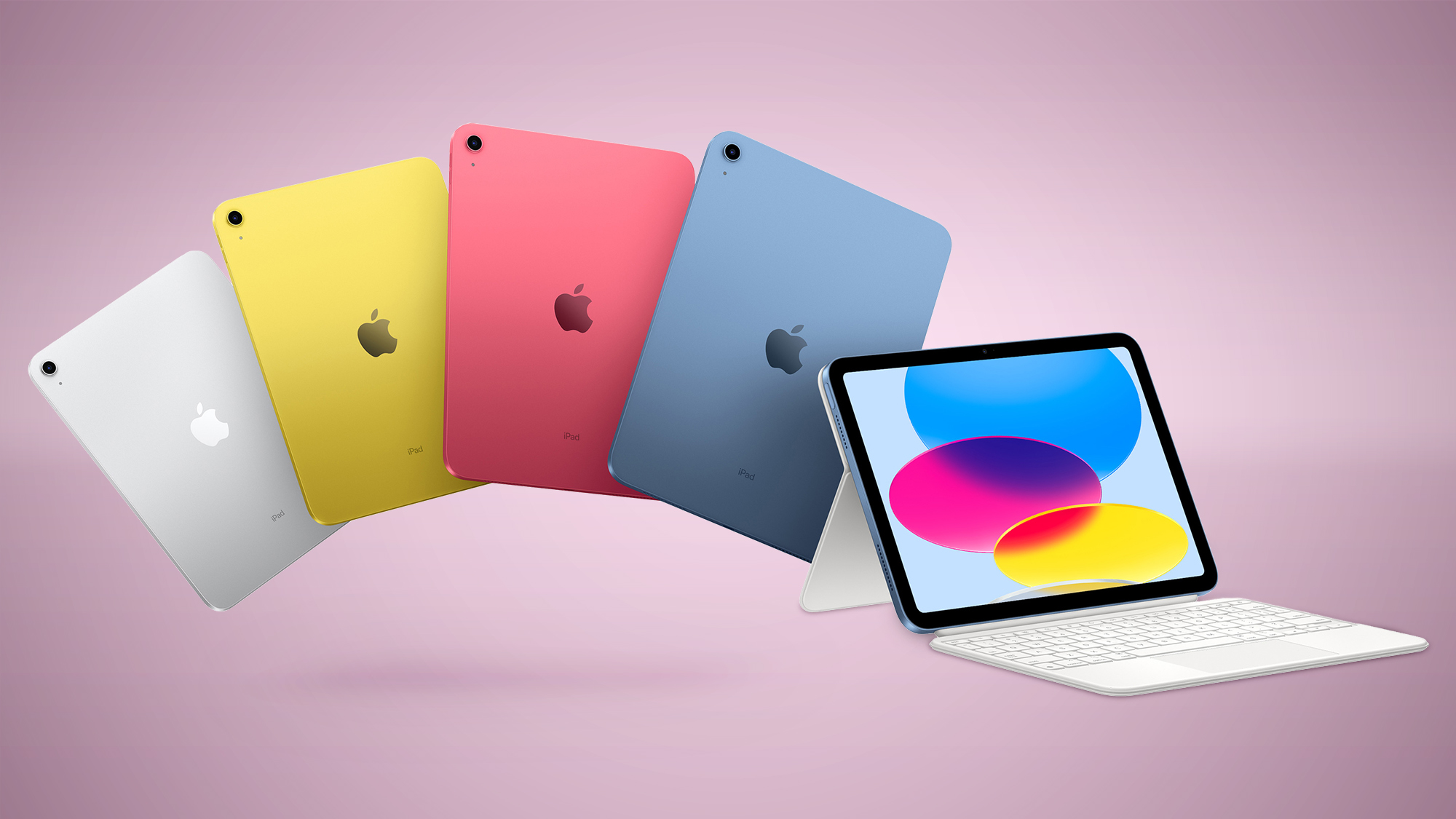
Apple's most affordable iPad model will receive an update with Apple Intelligence capabilities in late 2025, Bloomberg reporter Mark Gurman has suggested.
Writing in his latest Power On newsletter, Gurman said that the iPhone SE is expected to gain Apple Intelligence features in March 2025, with the entry-level iPad following "later in the year." Gurman went on to suggest that nearly every Apple device with a screen will support Apple Intelligence by 2026.
The timeline indicates a significant gap since the last refresh of the entry-level iPad, which occurred in October 2022. The delayed update could be attributed to the technical requirements of implementing AI capabilities in a budget-friendly $349 device.
The current 10th-generation iPad has an A14 chip that was first used in the iPhone 12 lineup, and it's getting outdated. The logical choice for the next iPad is the A16 that was used in the iPhone 15 models, but if Apple wants to make Apple Intelligence as accessible as possible, an A17 Pro chip or A18 chip would likely be necessary.
announced the latest iPad mini with Apple Intelligence support via a standalone press release. The company also lowered the price of the existing iPad 10 and stopped including a charger with the device in Europe. It's highly unlikely that Apple would have changed its iPad lineup in this way if an iPad 11 was imminent.
Related Roundup: iPad
Tag: Mark Gurman
Buyer's Guide: iPad (Caution)
Related Forum: iPad
This article, "New Entry-Level iPad With Apple Intelligence Likely Coming Late 2025" first appeared on MacRumors.com
Discuss this article in our forums
https://www.macrumors.com/2024/10/21/entry-level-ipad-apple-intelligence-late-2025/
Apple Unlikely to Launch Larger iPhone SE 4 'Plus' Model, Despite Rumor
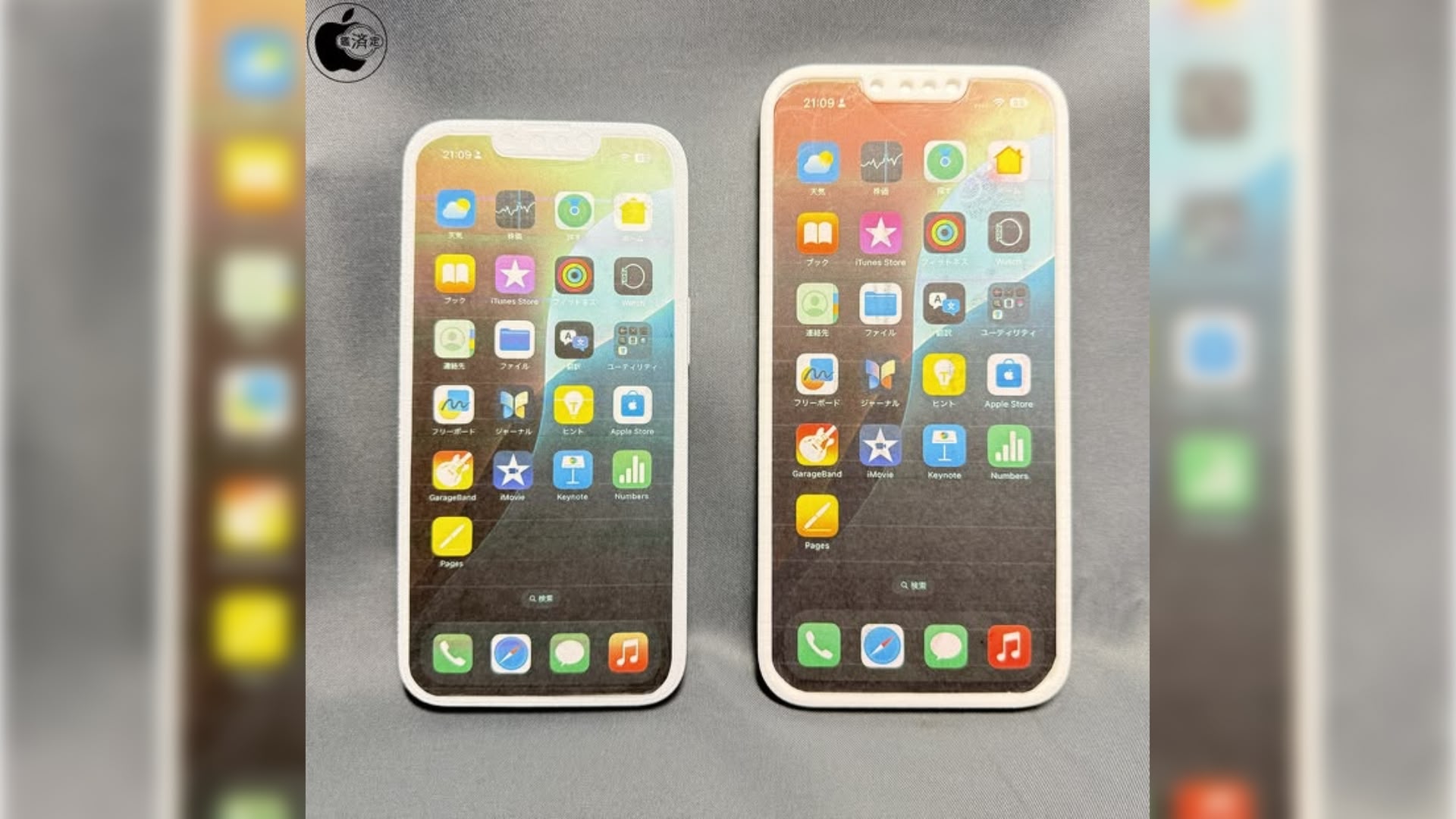
A new rumor suggests Apple might be developing a larger "Plus" version of the upcoming iPhone SE 4, but the claim appears highly dubious given previous reports and Apple's typical strategy for its budget iPhone line.
Alleged dummy iPhone SE 4 units via Mac Otakara
Mac Otakara shared images of alleged iPhone SE 4 dummy units on Sunday, claiming there could be both 6.1-inch and 6.7-inch models in development. The blog cites unverified sources from Alibaba for its information.
While the dummy units align with previous rumors about the iPhone SE 4's design – showing a device matching the iPhone 14's dimensions with a notched display and single rear camera – the claim of a larger model contradicts all prior reporting on Apple's plans. No other leakers or supply chain reports have mentioned a larger SE model.
Mac Otakara has provided accurate information in the past, but has also shared some claims that didn't pan out. The blog itself notes that the "final precision design and size expansion have not been decided," suggesting a degree of uncertainty even in their own reporting. Mac Otakara further underlined its lack of conviction by telling MacRumors: "It is possible that only the 6.1-inch model will actually be released."
previous reports of poor sales of Plus models in its flagship smartphone lineup.
rumor roundup.
Related Roundup: iPhone SE
Tag: Mac Otakara
Buyer's Guide: iPhone SE (Don't Buy)
Related Forum: iPhone
This article, "Apple Unlikely to Launch Larger iPhone SE 4 'Plus' Model, Despite Rumor" first appeared on MacRumors.com
Discuss this article in our forums
https://www.macrumors.com/2024/10/21/sketchy-rumor-iphone-se-4-plus/
Gurman: Apple Believes Its AI Technology Is Two Years Behind Rivals
Some Apple employees believe that the company's in-house generative AI technology powering Apple Intelligence is more than two years behind industry leaders, according to Bloomberg's Mark Gurman.
Writing in his latest Power On newsletter, Gurman's sources within Apple tell him that the company's own studies suggest its upcoming AI features lack the "wow factor" of rival technologies currently offered by the likes of Google, OpenAI, and Meta.
For example, internal studies at Apple reportedly show that OpenAI's ChatGPT is 25% more accurate than the new Siri and can answer 30% more questions. Of course, Apple has already conceded as much, given that part of its strategy includes a partnership with OpenAI to integrate ChatGPT into its operating systems, providing users with the option to tap into greater generative AI assistance if they want it.
Despite the setback, Gurman notes that Apple is in the unique position of presiding over a vast ecosystem of tightly integrated devices, which gives it the advantage of being able to quickly deploy new technologies across its product line. This could prove advantageous as the company works to close the AI gap with competitors, and its history of successfully entering new markets suggests it shouldn't be counted out.
iPad mini 7 announcement. The first set of AI features are expected to roll out to these devices next week.
Tags: Apple Intelligence, Mark Gurman
This article, "Gurman: Apple Believes Its AI Technology Is Two Years Behind Rivals" first appeared on MacRumors.com
Discuss this article in our forums
https://www.macrumors.com/2024/10/21/apple-artificial-intelligence-years-behind-rivals/
Top Stories: New iPad Mini, Upcoming Mac Updates, and More
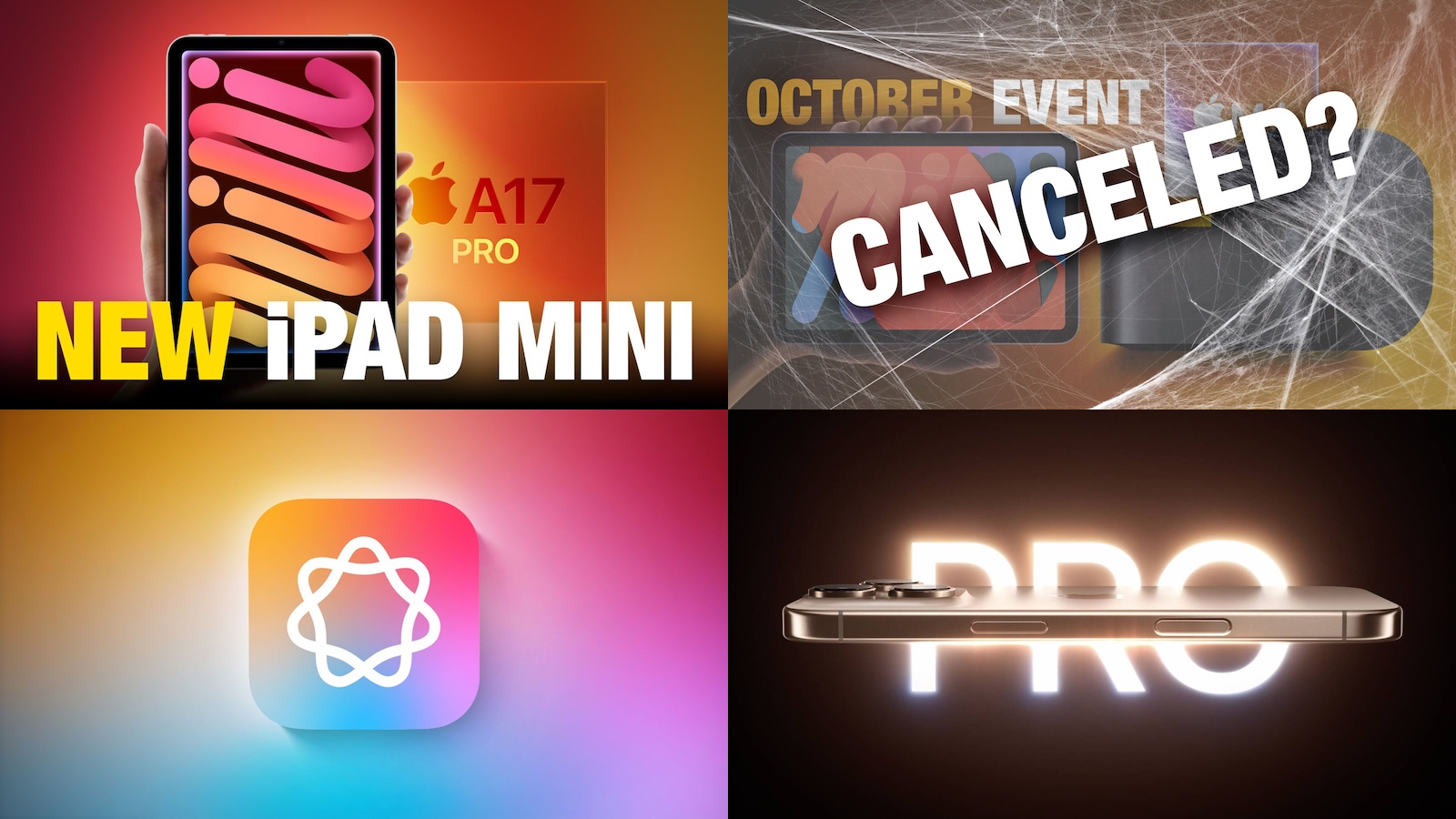
The first of a number of imminent Apple product updates arrived this week with the seventh-generation iPad mini, but what else is still in store and when can we expect to see them?
On the software side, the public release of iOS 18.1 and related updates with the first Apple Intelligence features is drawing ever closer, and we can expect more of those features to arrive with iOS 18.2 before the end of the year, so read on below for all the details on these stories and more!
Apple Unveils New iPad Mini With A17 Pro Chip and Apple Intelligence
Surprise! While we were expecting an update for the iPad mini at some sort of Apple event toward the end of the month, Apple dropped the announcement via press release this week sooner than expected.
With the iPad mini having received a design overhaul in the last generation released in 2021, this year's design remains the same, but there are number of internal upgrades led by an A17 Pro chip to add support for upcoming Apple Intelligence features.
a number of smaller changes such as faster USB-C data speeds, so be sure to check out our full buyer's guide comparison to see what's changed between the sixth- and seventh-generation iPad mini models.
Is an Apple Event Still Likely This October Following This Week's Surprise iPad Mini 7 Announcement?
The new iPad mini launching via press release this week is just one sign calling into question whether Apple is going to hold its rumored October product event at all.
While we hadn't heard many specific rumors, another product on the potential event docket had been an 11th-generation iPad, but with Apple cutting the price of the 10th-generation model in Europe and removing the power adapter from the box there this week, a near-term update for that product now appears unlikely.
expecting a host of M4-based Mac updates to arrive very shortly, including a major redesign for the Mac mini, so there still seems to be enough for Apple to show off in a short virtual event if it chooses to do so.
iOS 18.1 Includes Option to Set 'Primary' Email Address and Change iCloud Email
As we continue to inch toward a public release for iOS 18.1 and related updates, we're still discovering new features and tweaks in the update. One of the latest is a new option to change the main email address associated with your Apple Account, which is particularly handy for those who do a lot of document collaboration and other tasks that make your Apple Account address visible to other people.
Apple seeded the seventh iOS 18.1 beta this week as it reportedly aims for a public release on Monday, October 28.
iOS 18.2 Expected to Add These Additional Apple Intelligence Features
With the first round of Apple Intelligence features coming later this month in iOS 18.1, there's plenty more yet to come in future updates.
iOS 18.2 is up next, with a release expected sometime in December, and it should bring a number of new Apple Intelligence features including support for localized English in a several countries beyond the United States, image generation capabilities with Image Playground and Genmoji, Visual Intelligence for pulling up information on the world around you via the iPhone 16's camera, and integration with ChatGPT.
iPhone 17 Pro Models Rumored to Introduce These 5 New Features
Yes, the iPhone 16 lineup has only been out for a month, but some users are wanting to hold off for another year and are looking ahead at what they might be able to expect with next year's iPhone 17 lineup.
So far there are at least five key changes rumored to be coming to the iPhone 17 and/or iPhone 17 Pro models, including upgraded front cameras, an improved Telephoto rear camera and increased RAM on one or both Pro models, and more.
continuing to hear rumors about what features that new model may include.
MacRumors Newsletter
Each week, we publish an email newsletter like this highlighting the top Apple stories, making it a great way to get a bite-sized recap of the week hitting all of the major topics we've covered and tying together related stories for a big-picture view.
top stories like the above recap delivered to your email inbox each week, subscribe to our newsletter!
Tag: Top Stories
This article, "Top Stories: New iPad Mini, Upcoming Mac Updates, and More" first appeared on MacRumors.com
Discuss this article in our forums
https://www.macrumors.com/2024/10/19/top-stories-new-ipad-mini-7/
Top Stories: New iPad Mini, Upcoming Mac Updates, and More
The first of a number of imminent Apple product updates arrived this week with the seventh-generation iPad mini, but what else is still in store and when can we expect to see them?
On the software side, the public release of iOS 18.1 and related updates with the first Apple Intelligence features is drawing ever closer, and we can expect more of those features to arrive with iOS 18.2 before the end of the year, so read on below for all the details on these stories and more!
Apple Unveils New iPad Mini With A17 Pro Chip and Apple Intelligence
Surprise! While we were expecting an update for the iPad mini at some sort of Apple event toward the end of the month, Apple dropped the announcement via press release this week sooner than expected.
With the iPad mini having received a design overhaul in the last generation released in 2021, this year's design remains the same, but there are number of internal upgrades led by an A17 Pro chip to add support for upcoming Apple Intelligence features.
a number of smaller changes such as faster USB-C data speeds, so be sure to check out our full buyer's guide comparison to see what's changed between the sixth- and seventh-generation iPad mini models.
Is an Apple Event Still Likely This October Following This Week's Surprise iPad Mini 7 Announcement?
The new iPad mini launching via press release this week is just one sign calling into question whether Apple is going to hold its rumored October product event at all.
While we hadn't heard many specific rumors, another product on the potential event docket had been an 11th-generation iPad, but with Apple cutting the price of the 10th-generation model in Europe and removing the power adapter from the box there this week, a near-term update for that product now appears unlikely.
expecting a host of M4-based Mac updates to arrive very shortly, including a major redesign for the Mac mini, so there still seems to be enough for Apple to show off in a short virtual event if it chooses to do so.
iOS 18.1 Includes Option to Set 'Primary' Email Address and Change iCloud Email
As we continue to inch toward a public release for iOS 18.1 and related updates, we're still discovering new features and tweaks in the update. One of the latest is a new option to change the main email address associated with your Apple Account, which is particularly handy for those who do a lot of document collaboration and other tasks that make your Apple Account address visible to other people.
Apple seeded the seventh iOS 18.1 beta this week as it reportedly aims for a public release on Monday, October 28.
iOS 18.2 Expected to Add These Additional Apple Intelligence Features
With the first round of Apple Intelligence features coming later this month in iOS 18.1, there's plenty more yet to come in future updates.
iOS 18.2 is up next, with a release expected sometime in December, and it should bring a number of new Apple Intelligence features including support for localized English in a several countries beyond the United States, image generation capabilities with Image Playground and Genmoji, Visual Intelligence for pulling up information on the world around you via the iPhone 16's camera, and integration with ChatGPT.
iPhone 17 Pro Models Rumored to Introduce These 5 New Features
Yes, the iPhone 16 lineup has only been out for a month, but some users are wanting to hold off for another year and are looking ahead at what they might be able to expect with next year's iPhone 17 lineup.
So far there are at least five key changes rumored to be coming to the iPhone 17 and/or iPhone 17 Pro models, including upgraded front cameras, an improved Telephoto rear camera and increased RAM on one or both Pro models, and more.
continuing to hear rumors about what features that new model may include.
MacRumors Newsletter
Each week, we publish an email newsletter like this highlighting the top Apple stories, making it a great way to get a bite-sized recap of the week hitting all of the major topics we've covered and tying together related stories for a big-picture view.
top stories like the above recap delivered to your email inbox each week, subscribe to our newsletter!
Tag: Top Stories
This article, "Top Stories: New iPad Mini, Upcoming Mac Updates, and More" first appeared on MacRumors.com
Discuss this article in our forums
https://www.macrumors.com/2024/10/19/top-stories-new-ipad-mini-7/
22 Tips to Make Your iPhone 16's Battery Last Longer
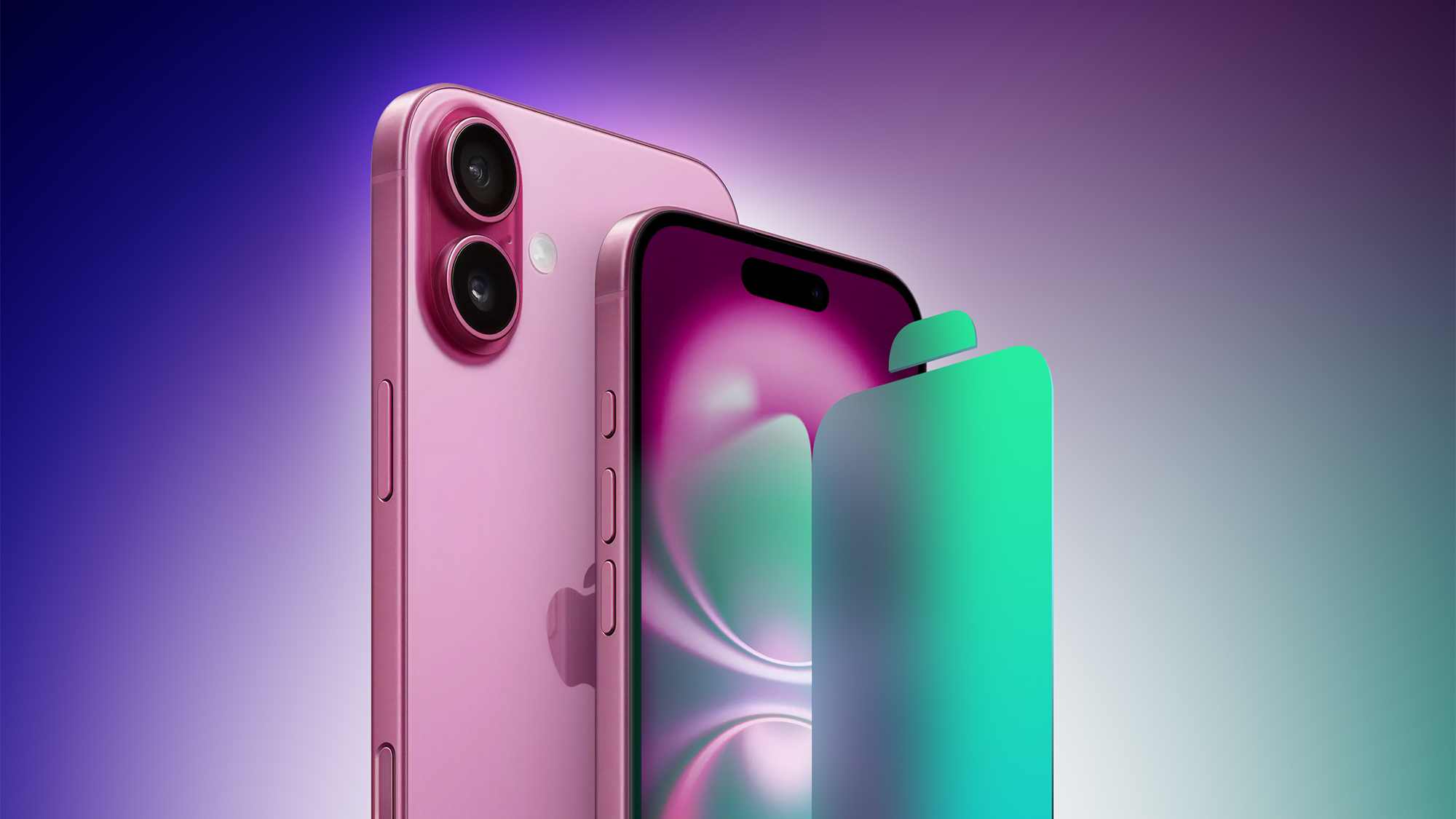
When Apple releases new iPhones and new operating system updates, there are often complaints about how long the battery lasts. Apple made improvements to battery life across the iPhone 16 lineup, and while these iPhones last longer than ever, some people are still seeing battery issues.
Battery life problems can be caused by new features Apple has added or bugs that have yet to be addressed. Whatever the cause, we've created a list of suggestions for maximizing your iPhone's battery life. There aren't many battery saving options that don't disable key features on the iPhone, but in situations where every minute counts, it's useful to have options.
iOS 18 and the iPhone 16 models, but they will help you preserve battery whether you have an iPhone 16 or an older device.
1. Turn Off iPhone Mirroring
iPhone Mirroring allows you to control your iPhone from your Mac, and get your iPhone notifications on your Mac's display. Since it's on Mac, it seems like it shouldn't be using iPhone battery, but there is a connection there to relay notifications. Notifications still show up when the iPhone Mirroring app is closed on the Mac, so that constant connection might impact battery.
One reader experiencing battery life issues on the MacRumors forums said turning off iPhone Mirroring made a notable difference. If you're not often using this option, it's worth turning it off.
General > AirPlay and Continuity and tap on Edit. From there, delete the Macs that your iPhone connects to. You can also swipe to delete a Mac from the list.
2. Delete Home Screen and Lock Screen Widgets
In iOS 18, Apple made it so you can place app icons and widgets anywhere on the iPhone's hidden grid, so you might be using widgets more often than before. If that's the case, it's worth noting that widgets can have an impact on battery life.
If you're not using a particular widget on your Home Screen or Lock Screen regularly, it might be best to remove it to preserve battery life. On the Home Screen, you can long press and tap the "-" button to remove a widget.
On the Lock Screen, you can actually set up several different Lock Screen options, so you could create one that has widgets and one that doesn't, using the latter when you're low on battery. To add or edit Lock Screens, long press on the Lock Screen and choose either the "Customize" or the "+" button.
MacRumors forums, one user said turning off Lock Screen widgets dropped overnight battery usage from 20 percent to 10 percent.
3. Use Dark Mode and Dark Mode Icons
Turning on Dark Mode has long been a suggested way to preserve battery life, because OLED displays draw less power when displaying darker colored pixels. A 2021 Purdue study found that using Dark Mode on a sunny day outside can save you up 47 percent battery power, which can make a major difference.
Lower levels of brightness in Light Mode use the same battery as higher levels of brightness in Dark Mode, which explains why Dark Mode can save battery even when screen brightness is turned up. When your screen brightness is lower, such as when you're in a dim room, swapping to Dark Mode doesn't save as much battery life, but it still draws a little less power.
In iOS 18, you can set a Dark option for your icons that turns them darker when Dark Mode is enabled (or all the time, if you prefer). Dark icons are easier on the eyes when Dark Mode is on, and it might save just a little extra battery life.
4. Be Mindful of Control Center Controls
iOS 18 has a customizable Control Center where you can use the Controls Gallery to choose your controls, including third-party controls. You can change the size of Control Center toggles, and use multiple pages.
Some Control Center toggles are animated, and animations can have an effect on battery life. It's probably not a major impact, but worth knowing about. One of the bigger offenders is the full-size Music Control Center toggle, which shows album art and has playback controls.
Home app controls also need to update whenever the Control Center updates, and these controls that refresh might drain some battery.
Customize Control Center by long pressing on the display and tapping the "-" button by any controls you want to remove.
5. Remove Your Lock Screen Controls
In iOS 18, you can finally swap out or remove the Camera and Flashlight buttons on the iPhone. If you've ever accidentally activated one of those buttons while your iPhone's in your pocket, you know that leaving on the Flashlight or the Camera for an extended period can definitely impact battery life.
If you're prone to hitting those buttons, it's worth removing them. You can do so by long pressing on the Lock Screen, tapping on Customize, and then tapping the "-" button next to the icons.
6. Turn Off ProMotion Display
If you have an iPhone 16 Pro or another "Pro" iPhone that supports a 120Hz ProMotion refresh rate, turning it down to 60Hz might extend your battery life. Since Low Power Mode limits the display refresh rate to 60Hz, it's definitely a measure that works to preserve battery.
Turning on Low Power Mode is one way to disable ProMotion, but there's a more permanent Accessibility setting. Open the Settings app, go to Accessibility, tap on Motion, and then toggle on "Limit Frame Rate."
7. Disable Live Activities
Live Activities let apps keep an ongoing notification on the Lock Screen or Dynamic Island. Combined with the Always-On display of the iPhone 14 Pro, 15 Pro, and 16 Pro, Live Activities can drain your battery.
Live Activities can be turned off by following these steps:
Open up the Settings app.
Go to Face ID & Passcode.
Enter your passcode to unlock the iPhone.
Scroll down and toggle off Live Activities.
This will prevent Live Activities from showing up on the Lock Screen, but you'll want to take this one step further. In the individual app sections in the Settings app, you can disable Live Activities on an app-by-app basis, or avoid using Live Activities features within apps.
You can't fully disable the Dynamic Island, but you can swipe left on any running animation to dismiss it.
8. Turn Off Proximity AirDrop Sharing
When you hold two iPhones running iOS 17 or later together, the iPhone initiates a proximity-based AirDrop or contact transfer protocol. If you're continually triggering this, it can drain battery. Should you find yourself in a situation where your iPhone is near another iPhone often enough that AirDrop continually pops up, you might want to turn it off.
To do so, go to Settings > General > AirDrop and toggle off "Bringing Devices Together."
9. Take Advantage of Offline Maps
Since iOS 17, you've been able to download Apple Maps for offline usage. It's useful for when you don't have a cellular connection, but it can save battery even if you do. If you're traveling in an area where you have a somewhat spotty connection, downloading a map for that spot and then turning off cellular will preserve your battery life without impacting your ability to get turn-by-turn directions.
walks you through downloading a map for offline usage, but it's as simple as searching for a location in Maps, tapping the download button, and then selecting the area of the map to download.
10. Disable Haptic Keyboard Feedback
Apple has a keyboard option that gives you haptic feedback when you tap the on-screen keys. It vibrates with each key tap for a more satisfying typing experience, but what you might not know is that it drains battery.
Apple has a support document that says keyboard haptics can affect battery life, so it's not something you want to use when you don't have battery to spare. It's not on by default, but if you've enabled it, you can turn it off by following these steps:
Open up the Settings app.
Tap on Sounds & Haptics.
Tap on Keyboard Feedback.
Toggle off Haptic.
11. Turn Off Always-On Display
As the name suggests, the Always-On display on some Pro iPhone models leaves the time, your wallpaper, widgets, and Live Activities visible on the Lock Screen even when your iPhone is locked.
The display uses a 1Hz refresh rate to preserve battery, and Apple has neat tricks like turning off the display when a connected Apple Watch is no longer nearby (signaling that the iPhone owner is out of the room) or the iPhone is in a pocket, but Always-On display still drains battery faster than an Always-Off display.
You can turn off the Always-On display by following these steps:
Open up the Settings app.
Tap on Display & Brightness.
Tap on Always On Display.
Toggle off Always On Display.
Just how much battery Always-On display drains will depend on your use case, so it may or may not be worth turning off.
12. Use Focus Modes
Using Apple's built-in Focus option can cut down on the number of notifications that you're receiving during the day, and fewer notifications means less opportunity for apps to wake up your display and cause battery drain.
Focus modes let you choose which apps and people can send you notifications and when, so during work hours you can make sure you're only getting work notifications, and during personal time, you can limit your work notifications. Focus filters even let you filter out select emails, messages, calendars, and more.
With Apple Intelligence, Apple is adding a new "Reduce Interruptions" Focus Mode that can intelligently filter out what's not important, while still delivering what you need to see immediately. Toggling this on removes all of the hassle of setting up a Focus mode, but it has all of the benefit.
You can also use the "Intelligent Breakthrough and Silencing" toggle with every Focus mode you make to get the same effect, so you'll never miss something important. Apple Intelligence is coming in iOS 18.1, set to be released in late October.
You'll still get all of your notifications when a Focus mode ends, but all in one alert rather than multiple. Turning off unwanted notifications from apps a great method for saving battery life, and Focus modes are useful for reducing incoming notifications without missing things.
You can find all of the Focus features in the Focus section of the Settings app.
13. Use Scheduled Summary
Along with Focus modes, you should also make sure that any app that sends non-important notifications is relegated to the Scheduled Summary, which saves up notifications and sends them to you once or twice a day.
You can toggle on Scheduled Summary for apps in the Notifications section of the Settings app, where you can specify which apps should have their notifications include in Scheduled Summary and when you want them delivered.
Another option is turning off notifications entirely for apps that are sending you less than useful info like reminders to play games.
14. Limit When and How Often Apps Can Access Location
It's always good to check in on privacy and access settings to make sure apps and services aren't doing things you don't want them to be doing.
Limiting the apps that have access to your location and how often apps can access that data can save battery life.
Open up the Settings app.
Choose Privacy & Security.
Tap Location Services.
Review the list and edit settings by tapping on the name of each app in the list.
You have four possible choices for location settings for each app, though not all four choices will always be available for every app depending on what it does. You can select the following: Never, Ask Next Time Or When I Share, While Using the App, and Always.
Never will prevent an app from ever accessing your location, and unless there's a specific need for an app to know where you are, such as a mapping app, setting location access to Never is the best choice.
Ask Next Time Or When I Share will prompt an app to ask you with a pop-up the next time that it wants your location, so you can temporarily approve it. With this setting, location access is off until expressly allowed via the pop-up.
While Using the App allows the app to detect your location only when the app is open and being actively used. If you close the app or switch over to another app, location access ends.
Always lets an app to have access to your location at all times, regardless of whether it's open or closed. This will result in the most battery drain and should be limited to only the apps that you need the most.
lot of apps will ask for location information that don't really need it to function, so clearing the cruft will save battery life and preserve your privacy.
You can also turn off Location Services all together, but it's not ideal because it can impact crucial apps like Maps.
15. Limit Apps Using Bluetooth
Your iPhone lets you know when apps have requested Bluetooth access, and there are quite a few apps that want Bluetooth access for location tracking, scanning for Chromecast devices, or other not-so-useful reasons.
Checking on the apps using Bluetooth is worthwhile to make sure that you don't have a sneaky app connecting to Bluetooth sources without your permission and draining battery. To get to Bluetooth settings:
Open the Settings app.
Tap on Privacy & Security.
Tap Bluetooth.
Apps like Facebook, MAX, Hulu, and others don't need Bluetooth access for the most part, so toggle off any app that isn't related to some kind of actual Bluetooth accessory. If a feature in an app stops working, you can just turn Bluetooth right back on.
16. Use Low Power Mode
Using Low Power Mode liberally is an obvious choice for maintaining battery without having to change a lot of settings, and you can toggle it on from Control Center, the Battery section of the Settings app, or using Siri. Low Power Mode cuts down on background activity, turns off your display after inactivity more quickly, limits display refresh rate, limits email fetch, cuts down on visual effects, and more.
Low Power Mode can be set to turn on at a certain battery percentage using Shortcuts, which is a useful way to have it automatically turn on when you need it.
17. Use Wi-Fi and Airplane Mode
If you're at home or work, make sure you connect to Wi-Fi instead of cellular. Nothing drains a battery quite like a 5G connection, especially when signal is weak.
Should you find yourself somewhere with no Wi-Fi and you also have low cellular signal, turning on Airplane Mode or turning off your cellular connection temporarily can save battery because your iPhone isn't constantly trying to connect to cellular towers.
It's only useful if you don't need a cellular connection, but it can help with battery drain, and most of the time, there's not a lot you can do with super low signal.
18. Manage Apps Draining Battery
Your iPhone tells you which apps are using the most battery so you can make sure nothing is secretly draining your battery without your knowledge. You can check your battery usage statistics by opening up the Settings app and tapping on the Battery section.
Battery usage charts let you see your battery level over the last 24 hours or for the last 10 days, plus you can see which apps have used the most battery life. If there's an app that you don't need that's draining an excessive amount of battery, delete it. If you do need the app, moderate how often you're using it and what permissions it has like location.
19. Limit Background Activity
Most apps use background refresh to update even when they're not open, and limited background activity and background refresh is a longtime favorite option for cutting down on battery usage.
You can turn off Background App Refresh all together or choose which apps can refresh in the background.
Open the Settings app.
Select General.
Tap on Background App Refresh.
From there, you can tap on the Background App Refresh option to turn Background App Refresh off altogether or choose to have it activate only when connected to Wi-Fi, which doesn't drain battery as much as downloading over cellular.
You can also choose to turn Background App Refresh on just for your most used apps by tapping on the toggle next to each app in the list.
20. Change Your Mail Settings
Along with turning off Background App Refresh, changing when and how often the Mail app checks for new emails can save you some battery.
Open up the Settings app.
Tap Mail.
Tap Accounts.
Tap "Fetch New Data" at the bottom.
You can turn off Push (which lets you know right away when a new email message is available) and adjust Fetch settings on a per account basis for accounts that don't support Push (like Gmail accounts).
Adjusting the Fetch settings to have longer intervals before checking for new messages can help save battery life, as can turning off Fetch all together in favor of manual checks that will download new messages only when the Mail app is opened.
You can choose the following settings: Automatically, Manually, Hourly, Every 30 Minutes, and Every 15 Minutes.
21. Remove AirTags
If you have an AirTag, it's probably pinging your iPhone regularly, which can impact battery life. If it's not actively in use, consider removing the AirTag from your iPhone until the next time you need it. That also goes for any Find My-connected devices.
AirTags can be managed by opening up Find My and navigating to the items tab.
22. Preserve Battery Longevity
With the iPhone 15 and iPhone 16 models, you can preserve your battery health with an optimized charging feature that prevents charging up past 80 percent. We tested the 80 percent charging limit over the course of a year, and while it makes a little bit of a difference, it's not a huge help keeping your maximum battery up over time.
It's not worth turning on if you need full battery for a long day out, but it's possibly worth turning on if you're often using your iPhone at home. There are also settings for limiting your charge to 85, 90, or 95 percent. Anything under 100 percent could have an impact on longterm battery health over several years.
Battery > Charging and select a limit using the slider.
A Note on Apple Intelligence
Starting with iOS 18.1, Apple is rolling out the first Apple Intelligence features. It will kick off with Writing Tools and a new Siri design, but later this year, we'll also get image generation capabilities and ChatGPT integration.
AI processing can be GPU intensive, so it's possible that Apple Intelligence will impact battery life, depending on how much you're using it. It's something to keep in mind when Apple Intelligence becomes available.
iOS 18 Battery Drain Complaints
There have been a lot of recent complaints about battery drain caused by iOS 18, particularly from iPhone 16 users, so it is entirely possible that there is an underlying bug that will be addressed in a future update.
In the meantime, some of the tips in this article might help on days when your battery is just draining too fast.
Wrap Up
There are a lot of minor changes to make to cut down on battery use, but everything you do on your iPhone is going to drain battery. It's important to figure out what works for you, what features you don't need, and where you can compromise to get the most out of your battery.
This article, "22 Tips to Make Your iPhone 16's Battery Last Longer" first appeared on MacRumors.com
Discuss this article in our forums
https://www.macrumors.com/guide/iphone-16-battery-saving-tips/
22 Tips to Make Your iPhone 16's Battery Last Longer
When Apple releases new iPhones and new operating system updates, there are often complaints about how long the battery lasts. Apple made improvements to battery life across the iPhone 16 lineup, and while these iPhones last longer than ever, some people are still seeing battery issues.
Battery life problems can be caused by new features Apple has added or bugs that have yet to be addressed. Whatever the cause, we've created a list of suggestions for maximizing your iPhone's battery life. There aren't many battery saving options that don't disable key features on the iPhone, but in situations where every minute counts, it's useful to have options.
iOS 18 and the iPhone 16 models, but they will help you preserve battery whether you have an iPhone 16 or an older device.
1. Turn Off iPhone Mirroring
iPhone Mirroring allows you to control your iPhone from your Mac, and get your iPhone notifications on your Mac's display. Since it's on Mac, it seems like it shouldn't be using iPhone battery, but there is a connection there to relay notifications. Notifications still show up when the iPhone Mirroring app is closed on the Mac, so that constant connection might impact battery.
One reader experiencing battery life issues on the MacRumors forums said turning off iPhone Mirroring made a notable difference. If you're not often using this option, it's worth turning it off.
General > AirPlay and Continuity and tap on Edit. From there, delete the Macs that your iPhone connects to. You can also swipe to delete a Mac from the list.
2. Delete Home Screen and Lock Screen Widgets
In iOS 18, Apple made it so you can place app icons and widgets anywhere on the iPhone's hidden grid, so you might be using widgets more often than before. If that's the case, it's worth noting that widgets can have an impact on battery life.
If you're not using a particular widget on your Home Screen or Lock Screen regularly, it might be best to remove it to preserve battery life. On the Home Screen, you can long press and tap the "-" button to remove a widget.
On the Lock Screen, you can actually set up several different Lock Screen options, so you could create one that has widgets and one that doesn't, using the latter when you're low on battery. To add or edit Lock Screens, long press on the Lock Screen and choose either the "Customize" or the "+" button.
MacRumors forums, one user said turning off Lock Screen widgets dropped overnight battery usage from 20 percent to 10 percent.
3. Use Dark Mode and Dark Mode Icons
Turning on Dark Mode has long been a suggested way to preserve battery life, because OLED displays draw less power when displaying darker colored pixels. A 2021 Purdue study found that using Dark Mode on a sunny day outside can save you up 47 percent battery power, which can make a major difference.
Lower levels of brightness in Light Mode use the same battery as higher levels of brightness in Dark Mode, which explains why Dark Mode can save battery even when screen brightness is turned up. When your screen brightness is lower, such as when you're in a dim room, swapping to Dark Mode doesn't save as much battery life, but it still draws a little less power.
In iOS 18, you can set a Dark option for your icons that turns them darker when Dark Mode is enabled (or all the time, if you prefer). Dark icons are easier on the eyes when Dark Mode is on, and it might save just a little extra battery life.
4. Be Mindful of Control Center Controls
iOS 18 has a customizable Control Center where you can use the Controls Gallery to choose your controls, including third-party controls. You can change the size of Control Center toggles, and use multiple pages.
Some Control Center toggles are animated, and animations can have an effect on battery life. It's probably not a major impact, but worth knowing about. One of the bigger offenders is the full-size Music Control Center toggle, which shows album art and has playback controls.
Home app controls also need to update whenever the Control Center updates, and these controls that refresh might drain some battery.
Customize Control Center by long pressing on the display and tapping the "-" button by any controls you want to remove.
5. Remove Your Lock Screen Controls
In iOS 18, you can finally swap out or remove the Camera and Flashlight buttons on the iPhone. If you've ever accidentally activated one of those buttons while your iPhone's in your pocket, you know that leaving on the Flashlight or the Camera for an extended period can definitely impact battery life.
If you're prone to hitting those buttons, it's worth removing them. You can do so by long pressing on the Lock Screen, tapping on Customize, and then tapping the "-" button next to the icons.
6. Turn Off ProMotion Display
If you have an iPhone 16 Pro or another "Pro" iPhone that supports a 120Hz ProMotion refresh rate, turning it down to 60Hz might extend your battery life. Since Low Power Mode limits the display refresh rate to 60Hz, it's definitely a measure that works to preserve battery.
Turning on Low Power Mode is one way to disable ProMotion, but there's a more permanent Accessibility setting. Open the Settings app, go to Accessibility, tap on Motion, and then toggle on "Limit Frame Rate."
7. Disable Live Activities
Live Activities let apps keep an ongoing notification on the Lock Screen or Dynamic Island. Combined with the Always-On display of the iPhone 14 Pro, 15 Pro, and 16 Pro, Live Activities can drain your battery.
Live Activities can be turned off by following these steps:
Open up the Settings app.
Go to Face ID & Passcode.
Enter your passcode to unlock the iPhone.
Scroll down and toggle off Live Activities.
This will prevent Live Activities from showing up on the Lock Screen, but you'll want to take this one step further. In the individual app sections in the Settings app, you can disable Live Activities on an app-by-app basis, or avoid using Live Activities features within apps.
You can't fully disable the Dynamic Island, but you can swipe left on any running animation to dismiss it.
8. Turn Off Proximity AirDrop Sharing
When you hold two iPhones running iOS 17 or later together, the iPhone initiates a proximity-based AirDrop or contact transfer protocol. If you're continually triggering this, it can drain battery. Should you find yourself in a situation where your iPhone is near another iPhone often enough that AirDrop continually pops up, you might want to turn it off.
To do so, go to Settings > General > AirDrop and toggle off "Bringing Devices Together."
9. Take Advantage of Offline Maps
Since iOS 17, you've been able to download Apple Maps for offline usage. It's useful for when you don't have a cellular connection, but it can save battery even if you do. If you're traveling in an area where you have a somewhat spotty connection, downloading a map for that spot and then turning off cellular will preserve your battery life without impacting your ability to get turn-by-turn directions.
walks you through downloading a map for offline usage, but it's as simple as searching for a location in Maps, tapping the download button, and then selecting the area of the map to download.
10. Disable Haptic Keyboard Feedback
Apple has a keyboard option that gives you haptic feedback when you tap the on-screen keys. It vibrates with each key tap for a more satisfying typing experience, but what you might not know is that it drains battery.
Apple has a support document that says keyboard haptics can affect battery life, so it's not something you want to use when you don't have battery to spare. It's not on by default, but if you've enabled it, you can turn it off by following these steps:
Open up the Settings app.
Tap on Sounds & Haptics.
Tap on Keyboard Feedback.
Toggle off Haptic.
11. Turn Off Always-On Display
As the name suggests, the Always-On display on some Pro iPhone models leaves the time, your wallpaper, widgets, and Live Activities visible on the Lock Screen even when your iPhone is locked.
The display uses a 1Hz refresh rate to preserve battery, and Apple has neat tricks like turning off the display when a connected Apple Watch is no longer nearby (signaling that the iPhone owner is out of the room) or the iPhone is in a pocket, but Always-On display still drains battery faster than an Always-Off display.
You can turn off the Always-On display by following these steps:
Open up the Settings app.
Tap on Display & Brightness.
Tap on Always On Display.
Toggle off Always On Display.
Just how much battery Always-On display drains will depend on your use case, so it may or may not be worth turning off.
12. Use Focus Modes
Using Apple's built-in Focus option can cut down on the number of notifications that you're receiving during the day, and fewer notifications means less opportunity for apps to wake up your display and cause battery drain.
Focus modes let you choose which apps and people can send you notifications and when, so during work hours you can make sure you're only getting work notifications, and during personal time, you can limit your work notifications. Focus filters even let you filter out select emails, messages, calendars, and more.
With Apple Intelligence, Apple is adding a new "Reduce Interruptions" Focus Mode that can intelligently filter out what's not important, while still delivering what you need to see immediately. Toggling this on removes all of the hassle of setting up a Focus mode, but it has all of the benefit.
You can also use the "Intelligent Breakthrough and Silencing" toggle with every Focus mode you make to get the same effect, so you'll never miss something important. Apple Intelligence is coming in iOS 18.1, set to be released in late October.
You'll still get all of your notifications when a Focus mode ends, but all in one alert rather than multiple. Turning off unwanted notifications from apps a great method for saving battery life, and Focus modes are useful for reducing incoming notifications without missing things.
You can find all of the Focus features in the Focus section of the Settings app.
13. Use Scheduled Summary
Along with Focus modes, you should also make sure that any app that sends non-important notifications is relegated to the Scheduled Summary, which saves up notifications and sends them to you once or twice a day.
You can toggle on Scheduled Summary for apps in the Notifications section of the Settings app, where you can specify which apps should have their notifications include in Scheduled Summary and when you want them delivered.
Another option is turning off notifications entirely for apps that are sending you less than useful info like reminders to play games.
14. Limit When and How Often Apps Can Access Location
It's always good to check in on privacy and access settings to make sure apps and services aren't doing things you don't want them to be doing.
Limiting the apps that have access to your location and how often apps can access that data can save battery life.
Open up the Settings app.
Choose Privacy & Security.
Tap Location Services.
Review the list and edit settings by tapping on the name of each app in the list.
You have four possible choices for location settings for each app, though not all four choices will always be available for every app depending on what it does. You can select the following: Never, Ask Next Time Or When I Share, While Using the App, and Always.
Never will prevent an app from ever accessing your location, and unless there's a specific need for an app to know where you are, such as a mapping app, setting location access to Never is the best choice.
Ask Next Time Or When I Share will prompt an app to ask you with a pop-up the next time that it wants your location, so you can temporarily approve it. With this setting, location access is off until expressly allowed via the pop-up.
While Using the App allows the app to detect your location only when the app is open and being actively used. If you close the app or switch over to another app, location access ends.
Always lets an app to have access to your location at all times, regardless of whether it's open or closed. This will result in the most battery drain and should be limited to only the apps that you need the most.
lot of apps will ask for location information that don't really need it to function, so clearing the cruft will save battery life and preserve your privacy.
You can also turn off Location Services all together, but it's not ideal because it can impact crucial apps like Maps.
15. Limit Apps Using Bluetooth
Your iPhone lets you know when apps have requested Bluetooth access, and there are quite a few apps that want Bluetooth access for location tracking, scanning for Chromecast devices, or other not-so-useful reasons.
Checking on the apps using Bluetooth is worthwhile to make sure that you don't have a sneaky app connecting to Bluetooth sources without your permission and draining battery. To get to Bluetooth settings:
Open the Settings app.
Tap on Privacy & Security.
Tap Bluetooth.
Apps like Facebook, MAX, Hulu, and others don't need Bluetooth access for the most part, so toggle off any app that isn't related to some kind of actual Bluetooth accessory. If a feature in an app stops working, you can just turn Bluetooth right back on.
16. Use Low Power Mode
Using Low Power Mode liberally is an obvious choice for maintaining battery without having to change a lot of settings, and you can toggle it on from Control Center, the Battery section of the Settings app, or using Siri. Low Power Mode cuts down on background activity, turns off your display after inactivity more quickly, limits display refresh rate, limits email fetch, cuts down on visual effects, and more.
Low Power Mode can be set to turn on at a certain battery percentage using Shortcuts, which is a useful way to have it automatically turn on when you need it.
17. Use Wi-Fi and Airplane Mode
If you're at home or work, make sure you connect to Wi-Fi instead of cellular. Nothing drains a battery quite like a 5G connection, especially when signal is weak.
Should you find yourself somewhere with no Wi-Fi and you also have low cellular signal, turning on Airplane Mode or turning off your cellular connection temporarily can save battery because your iPhone isn't constantly trying to connect to cellular towers.
It's only useful if you don't need a cellular connection, but it can help with battery drain, and most of the time, there's not a lot you can do with super low signal.
18. Manage Apps Draining Battery
Your iPhone tells you which apps are using the most battery so you can make sure nothing is secretly draining your battery without your knowledge. You can check your battery usage statistics by opening up the Settings app and tapping on the Battery section.
Battery usage charts let you see your battery level over the last 24 hours or for the last 10 days, plus you can see which apps have used the most battery life. If there's an app that you don't need that's draining an excessive amount of battery, delete it. If you do need the app, moderate how often you're using it and what permissions it has like location.
19. Limit Background Activity
Most apps use background refresh to update even when they're not open, and limited background activity and background refresh is a longtime favorite option for cutting down on battery usage.
You can turn off Background App Refresh all together or choose which apps can refresh in the background.
Open the Settings app.
Select General.
Tap on Background App Refresh.
From there, you can tap on the Background App Refresh option to turn Background App Refresh off altogether or choose to have it activate only when connected to Wi-Fi, which doesn't drain battery as much as downloading over cellular.
You can also choose to turn Background App Refresh on just for your most used apps by tapping on the toggle next to each app in the list.
20. Change Your Mail Settings
Along with turning off Background App Refresh, changing when and how often the Mail app checks for new emails can save you some battery.
Open up the Settings app.
Tap Mail.
Tap Accounts.
Tap "Fetch New Data" at the bottom.
You can turn off Push (which lets you know right away when a new email message is available) and adjust Fetch settings on a per account basis for accounts that don't support Push (like Gmail accounts).
Adjusting the Fetch settings to have longer intervals before checking for new messages can help save battery life, as can turning off Fetch all together in favor of manual checks that will download new messages only when the Mail app is opened.
You can choose the following settings: Automatically, Manually, Hourly, Every 30 Minutes, and Every 15 Minutes.
21. Remove AirTags
If you have an AirTag, it's probably pinging your iPhone regularly, which can impact battery life. If it's not actively in use, consider removing the AirTag from your iPhone until the next time you need it. That also goes for any Find My-connected devices.
AirTags can be managed by opening up Find My and navigating to the items tab.
22. Preserve Battery Longevity
With the iPhone 15 and iPhone 16 models, you can preserve your battery health with an optimized charging feature that prevents charging up past 80 percent. We tested the 80 percent charging limit over the course of a year, and while it makes a little bit of a difference, it's not a huge help keeping your maximum battery up over time.
It's not worth turning on if you need full battery for a long day out, but it's possibly worth turning on if you're often using your iPhone at home. There are also settings for limiting your charge to 85, 90, or 95 percent. Anything under 100 percent could have an impact on longterm battery health over several years.
Battery > Charging and select a limit using the slider.
A Note on Apple Intelligence
Starting with iOS 18.1, Apple is rolling out the first Apple Intelligence features. It will kick off with Writing Tools and a new Siri design, but later this year, we'll also get image generation capabilities and ChatGPT integration.
AI processing can be GPU intensive, so it's possible that Apple Intelligence will impact battery life, depending on how much you're using it. It's something to keep in mind when Apple Intelligence becomes available.
iOS 18 Battery Drain Complaints
There have been a lot of recent complaints about battery drain caused by iOS 18, particularly from iPhone 16 users, so it is entirely possible that there is an underlying bug that will be addressed in a future update.
In the meantime, some of the tips in this article might help on days when your battery is just draining too fast.
Wrap Up
There are a lot of minor changes to make to cut down on battery use, but everything you do on your iPhone is going to drain battery. It's important to figure out what works for you, what features you don't need, and where you can compromise to get the most out of your battery.
This article, "22 Tips to Make Your iPhone 16's Battery Last Longer" first appeared on MacRumors.com
Discuss this article in our forums
https://www.macrumors.com/guide/iphone-16-battery-saving-tips/