
iPhone 16 Camera Control: Everything You Need to Know
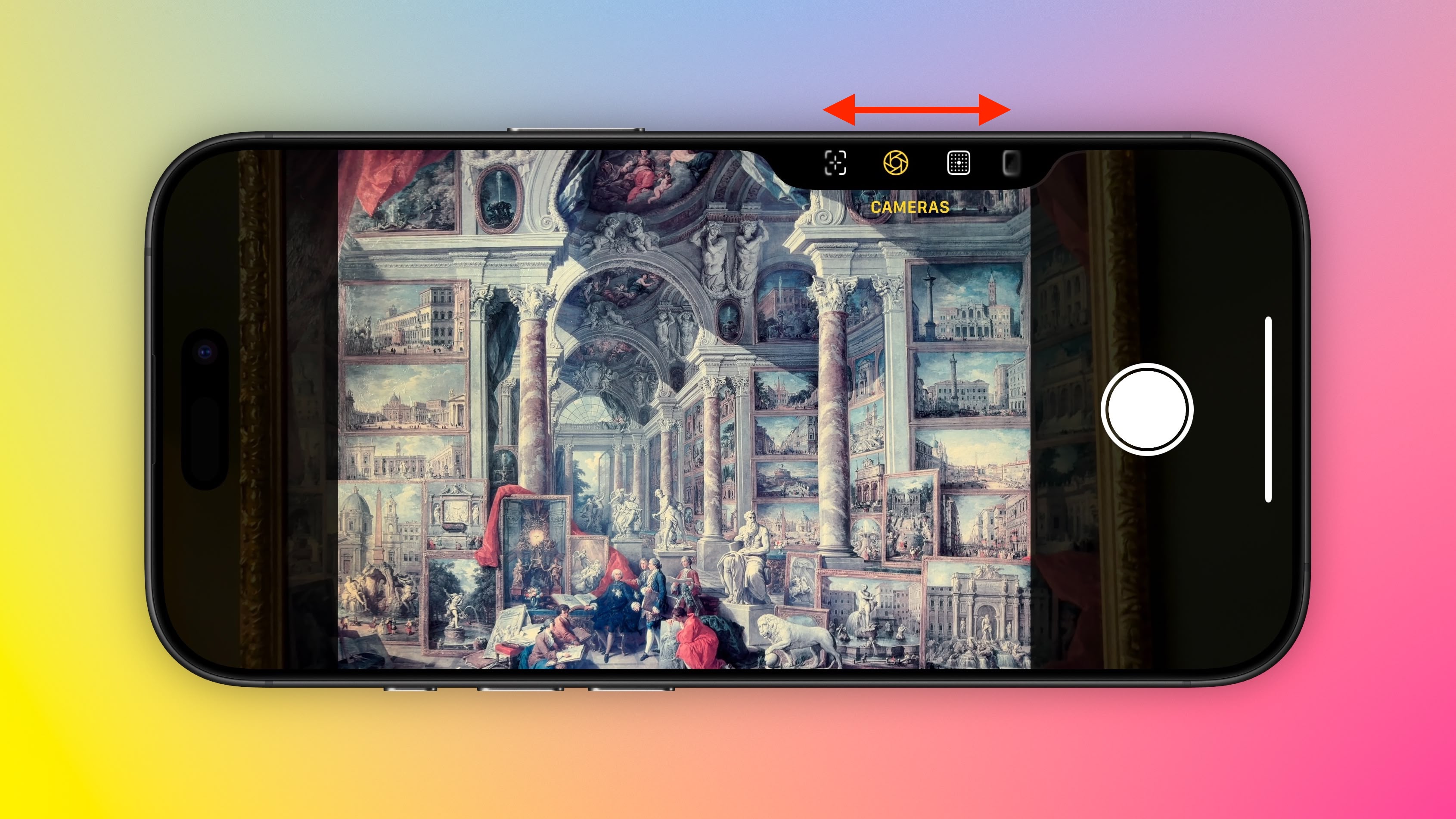
Apple's latest iPhone 16 models include a new Camera Control button (located on the lower right-hand side when holding the phone in portrait mode). The new button aims to make it easier to adjust photography settings when shooting with the iPhone in both portrait and landscape orientation.
Subscribe to the MacRumors YouTube channel for more videos.
A simple press of the Camera Control button brings up the Camera app when the iPhone is unlocked. Once the Camera app is open, another press takes a picture, while pressing and holding the button records video for as long as you hold it down.
Within the Camera app, a light press on the button engages a haptic click that also allows for adjusting things like manual exposure and zoom, thanks to a handy sliding interface that operates similarly to a camera dial. This gesture also reveals a clean preview of the scene you're capturing by hiding all on-screen Camera app tools.
You can also use the button as a touch interface on the menu the Camera Control button brings up: A light double press invokes a range of photographic adjustment tools in a subtle UI. You can swipe through this menu and select individual options with a further light press. You can also choose between multiple styles and adjust the tone. All of these tools are adjustable with a swipe, while a double light press returns you to the main Camera Control menu:
Exposure
Depth
Zoom
Cameras
Styles
Tone
The Camera Control button can also be used to trigger third-party camera apps, giving more flexibility to users who prefer other photography tools. It's also integrated with Visual Intelligence (an aspect of forthcoming Apple Intelligence), allowing users to pull up contextual information about objects or scenes in front of the camera.
Adjusting Camera Control Pressure
If you're having trouble engaging the light-press functions, or you find that the button is a little too sensitive for you, you can adjust the level of pressure that it responds to. If you feel that it's overly sensitive, you can make it firmer; if it's not sensitive enough, you can make it respond to lighter presses. The following steps show you how it's done.
Open Settings on your iPhone.
Tap Accessibility.
Under "Physical & Motor," tap Camera Control.
Switch from the Default setting to the Lighter or Firmer options.
If you stay on this menu screen, you can try out the different pressure levels of the Camera Control button without engaging the Camera app, so make sure you give all three options a try before settling on one.
How to Disable Clean Preview
By default, using the Camera Control button in the Camera app engages Clean Preview mode. This option hides everything in the Camera UI when the Camera Control button is lightly pressed, so you don't need to worry about accidentally touching camera lens adjustments while shooting. Another advantage is that it removes all distractions from the screen, leaving only the image — perfect for composing a shot.
Clean Preview enabled (left) vs. Clean Preview disabled
What if you do want to have access to all the various Camera app adjustments while also using Camera Control? Fortunately, there's an easy way to disable Clean Preview and make the other Camera tools visible. The following steps show you how it's done.
On your iPhone, open Settings.
Tap Camera.
Tap Camera Control.
Toggle off the switch next to Clean Preview.
Clean Preview option in Settings ➝ Camera ➝ Camera Control.
How to Disable Light Press Adjustments
If you find yourself accidentally engaging the Camera Control adjustments when taking a picture in high-motion environments (like inadvertently zooming in or changing exposure settings), you can remove light press functionality from the Camera Control button entirely. Here's how it's done:
Open Settings on your iPhone.
Tap Accessibility.
Under "Physical & Motor," tap Camera Control.
Toggle off the switch next to Show Adjustments.
This option removes the Camera Control interface and its corresponding light-press adjustments, so now you don't need to worry about accidentally engaging them while shooting. This essentially makes the Camera Control button a simple shutter button after you have opened the Camera app with the first press.
Show Adjustments option in Settings -> Accessibility -> Camera Control.
Change Camera Control Launch Camera Gesture
If you find yourself accidentally opening the Camera app by unintentionally pressing the Camera Control button, you can either disable the button entirely (see below), or you can change the single-click gesture that invokes the Camera app to a double-click gesture. The following steps show you how to do the latter:
On your iPhone, open Settings.
Tap Camera.
Tap Camera Control.
Under "Launch Camera," tap Double Click.
That's all there is to it. A single click of the Camera Control button will now do nothing, while a double click will get you into the Camera app or any other third-party camera app that you have assigned to the button.
Changing Camera Control Functionality
While the new button aims to make it easier to adjust photography settings when shooting, if you want, you can make it work as a simple QR code scanner or a Magnifier.
For people whose job involves frequently interact with QR codes, this Camera Control feature could be a game-changer. In warehouse environments, for example, employees could quickly scan inventory tags without navigating through multiple app screens, significantly speeding up stock checks and order processing. The neat thing is that the Camera Control button retains its zoom function in the app, and it also allows for one-handed operation.
Magnifier tool (left) vs. Code scanner
As for Magnifier access, Camera Control could prove invaluable in various scenarios. For people with visual impairments, the feature allows for instant magnification of small text on menus, product labels, or medication instructions without them having to fumble through apps.
Camera Control also retains its zoom adjustment function in the Magnifier tool, and adds a menu that includes Magnifier options for brightness, contrast, filters, torch, and more if you add them via the Magnifier's settings menu.
Here's how to re-assign the Camera Control button for QR code scanning or magnifying:
On your iPhone, open Settings.
Tap Camera.
Tap Camera Control.
Select Code Scanner or Magnifier.
That's all there is to it. Now when you click Camera Control, depending on your preference the QR code scanner app or the Magnifier app will be instantly invoked.
How to Disable Camera Control
If you find yourself accidentally opening the Camera app by unintentionally pressing the Camera Control button, or if you just don't find yourself using it for whatever reason, you can turn off the button's functionality completely. The following steps show you how it's done.
Open Settings on your iPhone.
Tap Accessibility.
Under "Physical & Motor," tap Camera Control.
Toggle off the switch next to Camera Control.
Having done that, the Camera Control button will no longer engage the Camera app and its corresponding functionality, so you no longer have to worry about pressing it – it won't do anything.
Settings ➝ Accessibility ➝ Camera Control.
Related Roundups: iPhone 16, iPhone 16 Pro
Tag: Camera Control
Buyer's Guide: iPhone 16 (Buy Now), iPhone 16 Pro (Buy Now)
This article, "iPhone 16 Camera Control: Everything You Need to Know" first appeared on MacRumors.com
Discuss this article in our forums
https://www.macrumors.com/how-to/iphone-16-using-new-camera-control-button/
Amazon Takes Up to $250 Off 15-Inch M3 MacBook Air, Get 512GB Model for $1,449
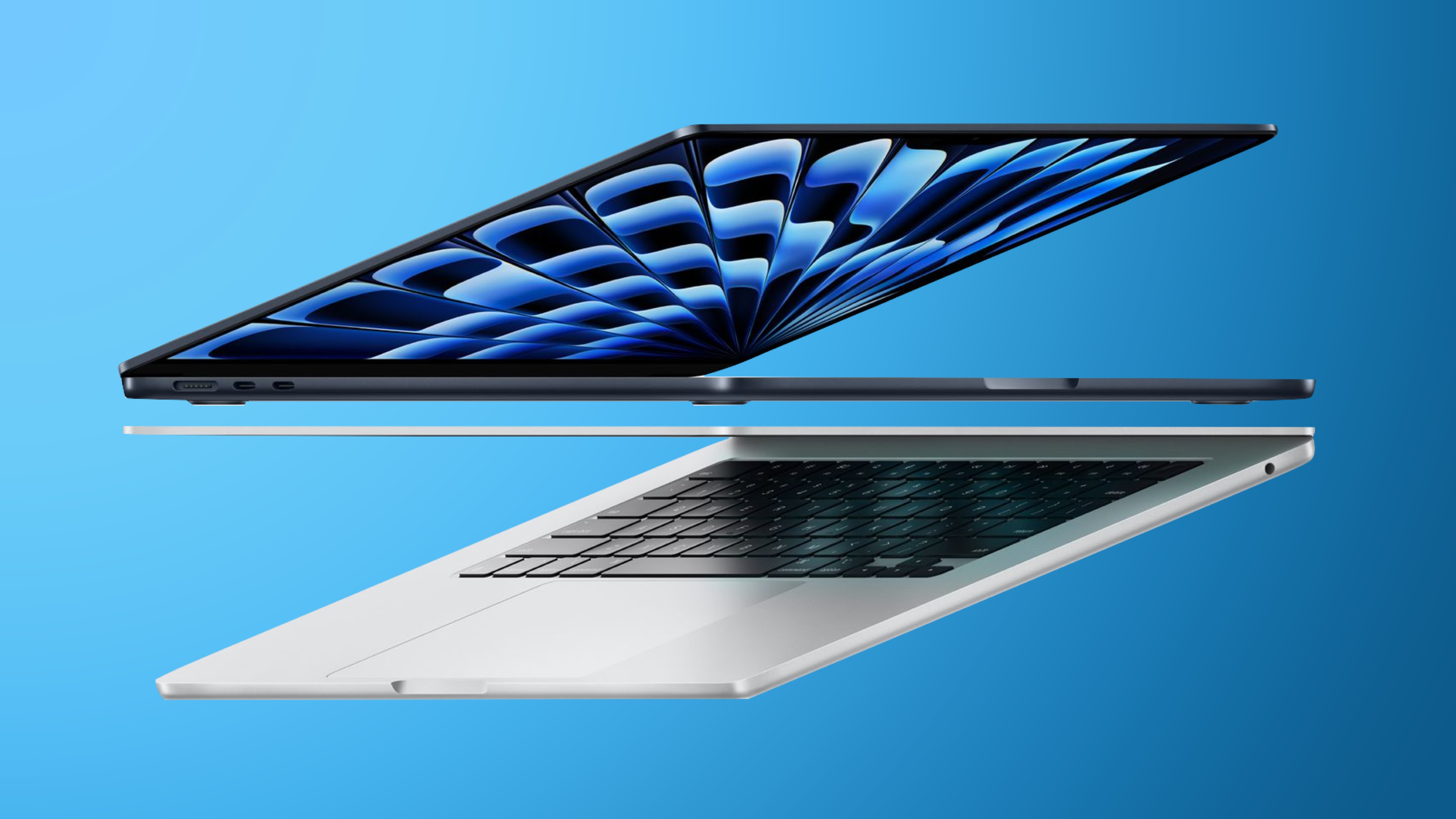
Amazon today has the 512GB 15-inch M3 MacBook Air for the all-time low price of $1,449.00, down from $1,699.00. This computer is available in Midnight, Space Gray, and Starlight at this price point, with an estimated delivery between September 27 and 29.
Note: MacRumors is an affiliate partner with Amazon. When you click a link and make a purchase, we may receive a small payment, which helps us keep the site running.
$1,099.00 in Space Gray, down from $1,299.00. This one is a second-best price on the notebook, and you'll find the same delivery estimate for most residences in the United States.
$250 OFF
15-inch M3 MacBook Air (512GB) for $1,449.00
Apple updated these MacBook Air models back in March with faster M3 chips. The MacBook Air is an ideal computer for most people who need to accomplish day-to-day tasks and don't need a more pro-level computer for video or photo editing.
Deals Roundup to shop for even more Apple-related products and accessories.
Related Roundup: Apple Deals
This article, "Amazon Takes Up to $250 Off 15-Inch M3 MacBook Air, Get 512GB Model for $1,449" first appeared on MacRumors.com
Discuss this article in our forums
Apple Releases Second iOS 18.1, iPadOS 18.1, and macOS Sequoia Public Betas With Apple Intelligence
Apple today released the second public betas of iOS 18.1, iPadOS 18.1, and macOS Sequoia 15.1, allowing non-developers to test the software ahead of its October launch. The second beta comes a day after Apple provided the software to developers.
Public beta testers who have signed up for Apple's beta testing program can download the iOS 18.1, iPadOS 18.1, and macOS Sequoia 15.1 updates by opening up the Settings app, tapping into the Software Update section and selecting the Public Beta option. Apple has also released watchOS 11.1 and tvOS 18.1 betas for public beta testers.
Siri updates, summaries, AI-powered Focus modes, and smart replies. To use Apple Intelligence features, you need an iPhone 15 Pro, an iPhone 16 model, or M-series Mac or iPad.
Writing Tools are available whenever text can be selected and edited, and the feature can be used for spell checking, correcting grammar, rewriting your work with a new tone, and summarizing text.
Siri has been overhauled with a new design that includes a subtle glow around the display, and Type to Siri means you don't have to speak to Siri to get answers. Siri can follow along if you stumble over your words, and can maintain context between requests. Safari can summarize articles, and there's a new Reduce Interruptions Focus Mode that intelligently highlights only important notifications.
Photos has a Memory Movie feature for creating slideshows based on text descriptions, and there is a Clean Up tool for unwanted objects in your photos.
All iOS 18.1 users can now access phone call recording and transcribing, with recorded calls saved in the Notes app, but summarizing phone calls from those transcriptions is an Apple Intelligence feature. The update also brings spatial photo capabilities to the iPhone 15 Pro and Pro Max.
update to iPhone Mirroring, adding support for drag and drop file transfers between the iPhone and the Mac. iPhone 16 users will see a Control Center reset option and a Camera Control icon to activate the front-facing camera for selfies.
found in our Apple Intelligence guide. Image Playground, Genmoji, and other new Siri features have not yet been implemented.
Related Roundups: iOS 18, iPadOS 18, macOS Sequoia
Related Forums: iOS 18, iPadOS 18, macOS Sequoia
This article, "Apple Releases Second iOS 18.1, iPadOS 18.1, and macOS Sequoia Public Betas With Apple Intelligence" first appeared on MacRumors.com
Discuss this article in our forums
https://www.macrumors.com/2024/09/24/apple-releases-ios-18-1-public-beta-2/
Apple Pulls HomePod Software 18.1 Beta 2 Following 'Bricking' Complaints
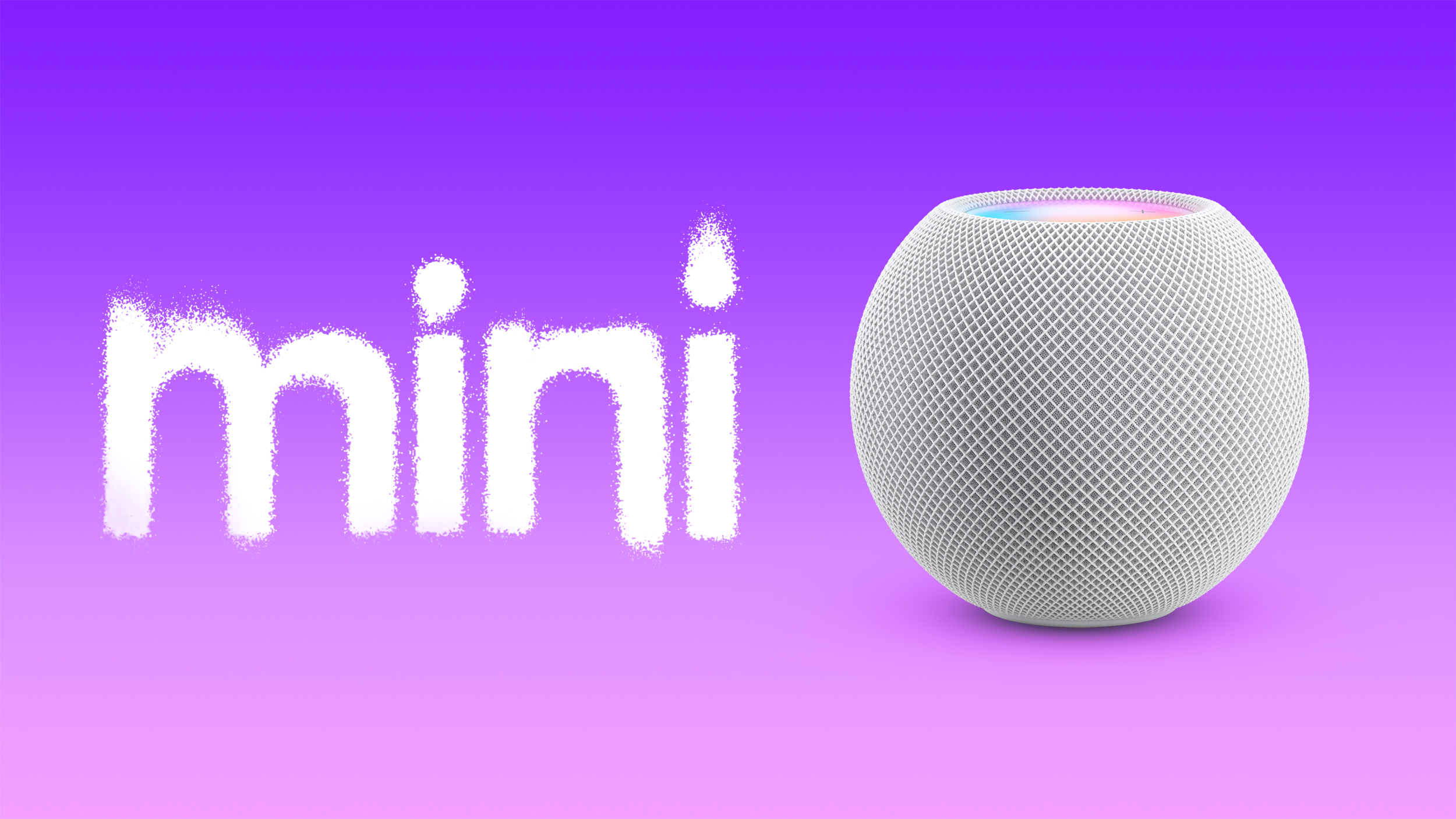
Apple on Monday seeded the second beta of HomePod software version 18.1 to developers for testing, but it has since pulled the beta.
Across the MacRumors Forums and X, some users complained that installing this beta on their HomePod mini resulted in the speaker going into a "bricked" state, meaning that it no longer functioned. A few users said they were eventually able to restore the HomePod mini using the Apple Configurator app on a Mac.
Nicolás Alvarez. MacRumors contributor Aaron Perris confirmed that the beta is still unavailable as of writing, and it is unclear when it will be released again.
similar issue with iPadOS 18, which "bricked" some of the latest iPad Pro models with the M4 chip earlier this month. Apple pulled the update for those devices as it works on a solution, we previously reported.
Related Roundups: HomePod, HomePod mini
Buyer's Guide: HomePod (Neutral), HomePod Mini (Caution)
Related Forum: HomePod, HomeKit, CarPlay, Home & Auto Technology
This article, "Apple Pulls HomePod Software 18.1 Beta 2 Following 'Bricking' Complaints" first appeared on MacRumors.com
Discuss this article in our forums
https://www.macrumors.com/2024/09/24/apple-pulls-homepod-18-1-beta-2/
Apple Music Classical 2.0 Adds Thousands of Full Album Booklets
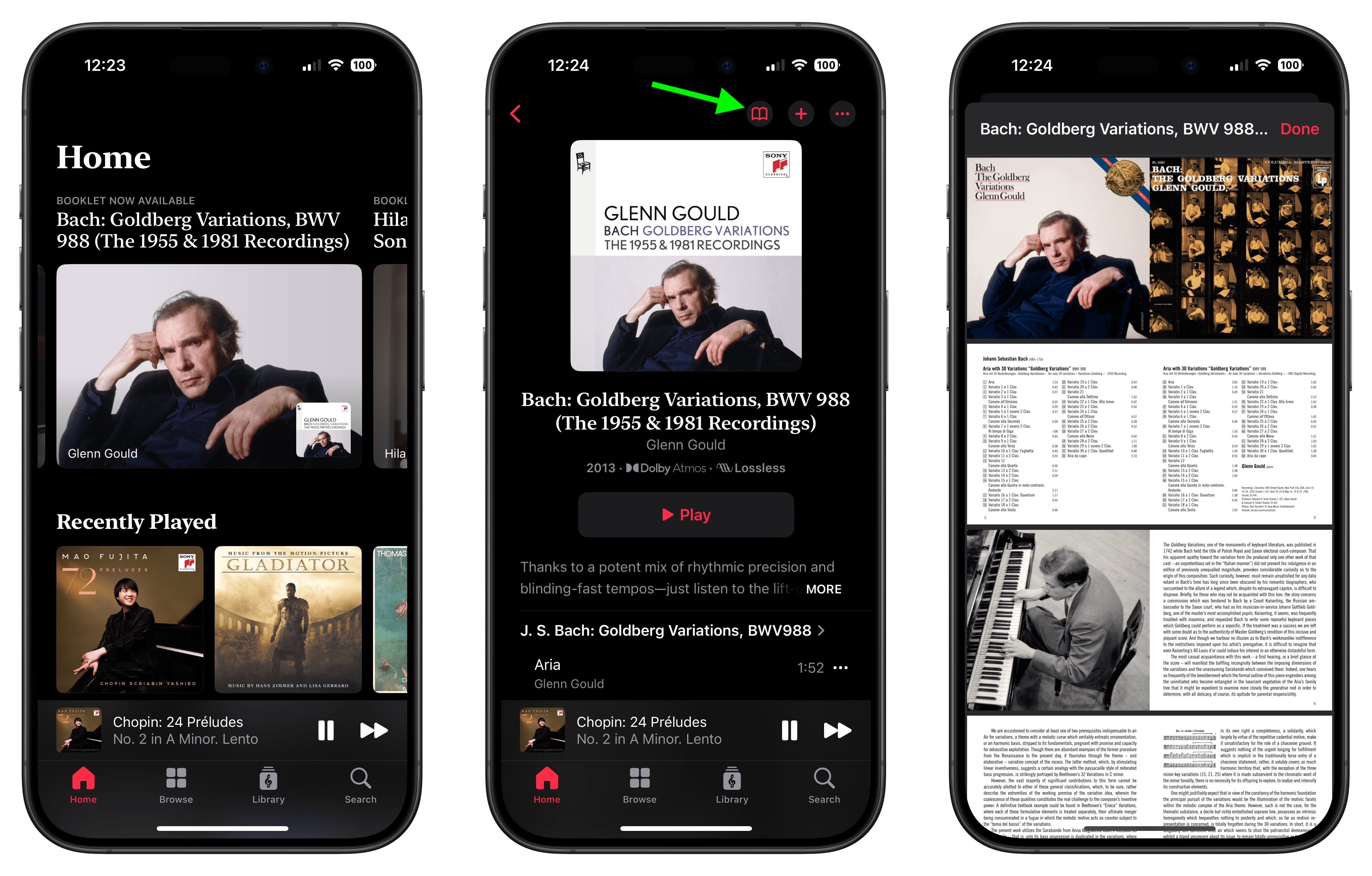
Apple Music Classical, the classical music streaming service introduced in early 2023, received a version 2.0 update today that brings a couple of worthwhile new features to the iPhone and iPad app.
This latest version of the app adds album booklets for thousands of albums. When a booklet is available for an album you've selected, you'll see an open book icon in the top-right corner of the screen. Tapping that will download the booklet, which can be viewed by using zoom gestures and scrolled to reveal more content.
In addition to album booklets, version 2.0 also adds a new Recently Added section to the Library.
The Apple Music Classical app offers Apple Music subscribers access to over five million classical music tracks, including new high-quality releases, in addition to hundreds of curated playlists, thousands of exclusive albums, and other features like composer bios and deep dives on key works.
The app offers a simpler interface for interacting with classical music specifically. Unlike the vanilla Apple Music app, Apple Music Classical allows you to search by composer, work, conductor, catalog number, and more. You can get more detailed information from editorial notes and descriptions.
Tag: Apple Music Classical
This article, "Apple Music Classical 2.0 Adds Thousands of Full Album Booklets" first appeared on MacRumors.com
Discuss this article in our forums
https://www.macrumors.com/2024/09/24/apple-music-classical-2-full-album-booklets/
Tim Cook and Jimmy Fallon Talk iPhones and Hot Dog Predictions
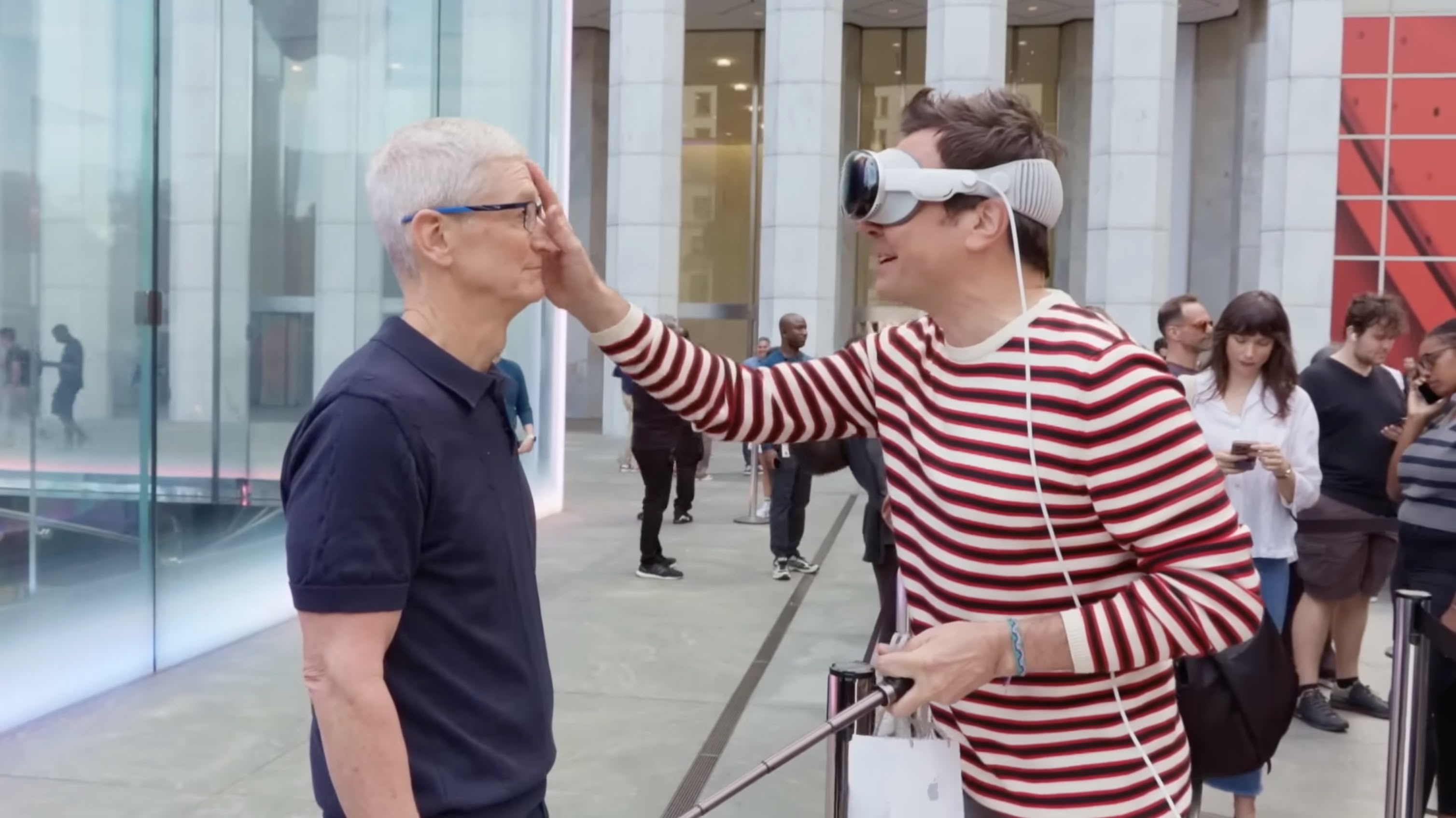
In a lighthearted walk-and-talk around New York City, The Tonight Show's Jimmy Fallon caught up with Apple CEO Tim Cook on Friday to chat about the new iPhone 16 and Cook's love for the iconic Fifth Avenue Apple Store. Fallon – wearing Apple Vision Pro – met Cook with mock disbelief while picking up his new iPhone, with Cook personally handing him the device.
As they strolled to Apple's Upper East Side store, Cook explained that he tries to visit the Fifth Avenue location during every major launch. Fallon joked about Cook's rockstar-like reception from fans, but Cook humbly attributed it to people's love for Apple.
The two discussed Cook's 27-year journey at Apple, during which Cook admitted he never expected to become CEO. On the tech front, Cook expressed excitement about Apple Intelligence, which is set to begin rolling out next month. Cook talked up upcoming features like automatic email summarization and fun new creative tools such as Genmoji and Image Playground.
The chat ended on a playful note, with Fallon showing off his "psychic" skills by guessing Cook's mustard preference on hot dogs, before gifting him some New York-themed swag — though not all of it made the cut for Cook's local look. You can watch the five-minute walk-and-talk in the video embedded above.
Tag: Tim Cook
This article, "Tim Cook and Jimmy Fallon Talk iPhones and Hot Dog Predictions" first appeared on MacRumors.com
Discuss this article in our forums
https://www.macrumors.com/2024/09/24/tim-cook-walk-and-talk-jimmy-fallon/
iOS 18: Capture iPhone Audio Playback When Shooting Video
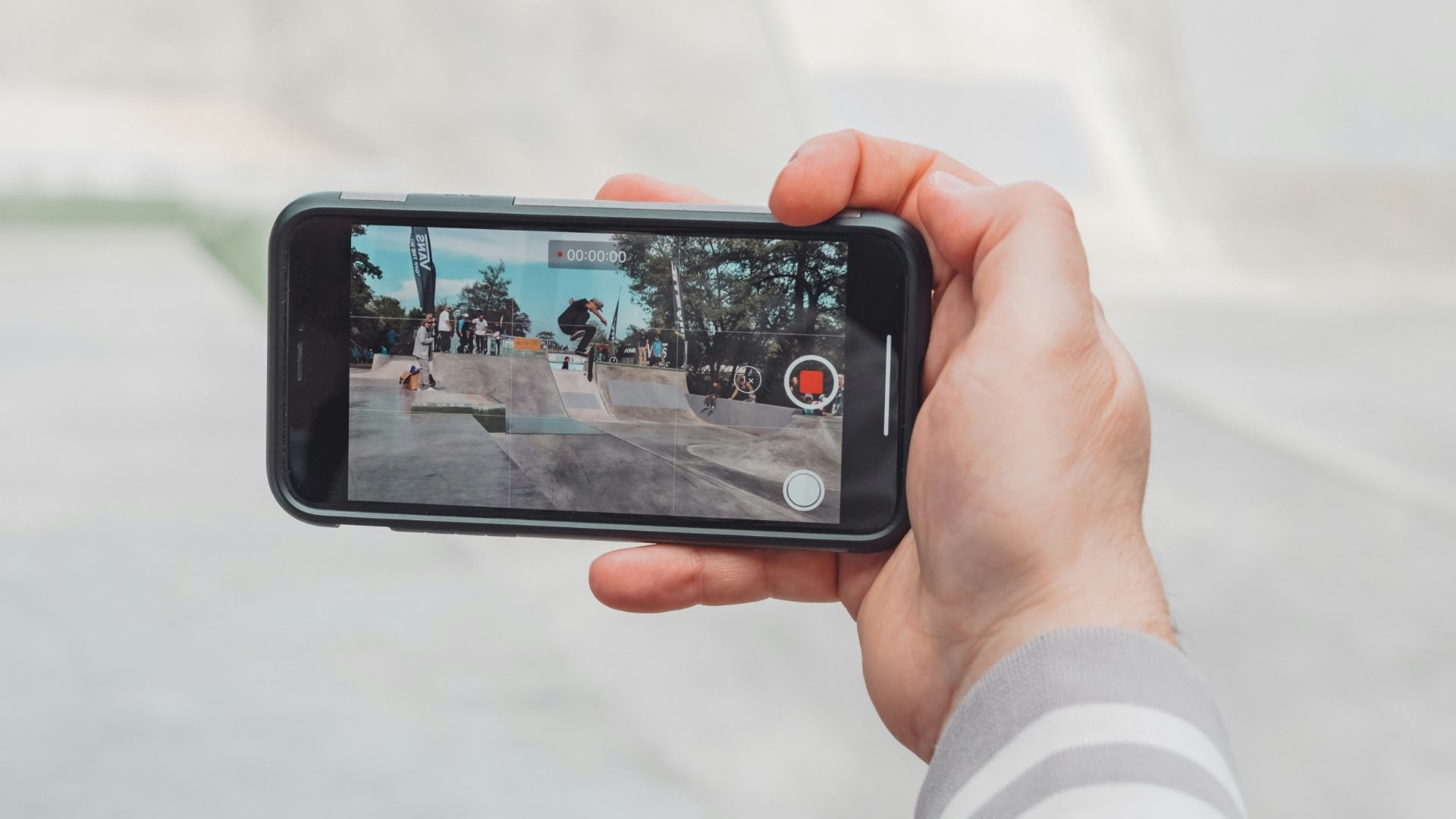
In iOS 18, Apple has introduced a new feature that allows you to continue playing audio from your iPhone's speakers while recording video in the Camera app. Whether you're creating a music video or simply want background music for your recordings, this new option offers you greater creative control over your iPhone videos.
Photo by Jan Kopřiva
Previously in iOS 17, starting a video recording would automatically pause any audio playback on your iPhone. However, iOS 18 allows you to change this behavior, thanks to a new Camera setting.
Here's how to enable audio playback during video recording in iOS 18:
Open the Settings app on your iPhone.
Scroll down and tap Camera.
Tap Record Sound.
Toggle on the Allow Audio Playback option.
Once enabled, your iPhone will no longer automatically pause audio when you start recording video in the Camera app. Bear in mind that when playing audio through your iPhone's speaker while recording, the audio will be captured in mono.
This article, "iOS 18: Capture iPhone Audio Playback When Shooting Video" first appeared on MacRumors.com
Discuss this article in our forums
https://www.macrumors.com/how-to/record-iphone-audio-playback-videos-ios/
Despite New Ceramic Shield, iPhone 16 Models Still Vulnerable to Drops
Apple's latest iPhone 16 models feature a second-generation Ceramic Shield material, which Apple says is even tougher than the prior-generation Ceramic Shield. Device insurance provider Allstate Protection Plans today published the results of its annual device drop test, giving us insight into the durability of the new iPhones.
Allstate tested the iPhone 16 Pro Max, which is Apple's largest iPhone to date at 6.9 inches. It continues to have a glass front and back, and though Apple has introduced better Ceramic Shield material that's infused with ceramic for durability, it's still no match for a concrete sidewalk.
Using a "DropBot" to simulate drops from a height of six feet, Allstate conducted several tests. In the front-down drop test, the iPhone 16 Pro Max display shattered and there were visible scuffs along the titanium frame. This drop rendered the iPhone 16 Pro Max unusable, though haptic responses were still felt so it could be repaired.
In the back-down drop test, the iPhone 16 Pro Max's rear glass shattered after one drop and suffered damage to the camera housing. It did remain functional, including the camera, but it was not safe to handle with bare hands due to the broken glass.
AppleCare+ or a protective case. Drop tests of all kinds are hard to use to determine durability in a real world situation, as the angle of the drop, the height, and the surface that an iPhone is falling on are always going to vary.
Allstate has stopped doing dunk tests because iPhone models now have such solid water resistance, and the iPhone 16 models continue to offer the same IP67 water resistance as prior models. Other YouTube videos have tested the iPhone 16 models with drops, hammering, scratches, and other damage for those interested.
AppleCare+ for the iPhone 16 and 16 Plus is $179 for two years or $8.99 per month, and for the iPhone 16 Pro and Pro Max, it's $199 or $9.99. With AppleCare+, an iPhone 16 Pro Max display replacement costs $29, and without, it's $379. Cracked back glass replacement is $29 with AppleCare+ and $199 without, and if both the front and back are cracked, it's $499 ($58 with AppleCare+).
Related Roundups: iPhone 16, iPhone 16 Pro
Buyer's Guide: iPhone 16 (Buy Now), iPhone 16 Pro (Buy Now)
This article, "Despite New Ceramic Shield, iPhone 16 Models Still Vulnerable to Drops" first appeared on MacRumors.com
Discuss this article in our forums
Sonos Execs Launched Ill-Received App Despite Employee Protests
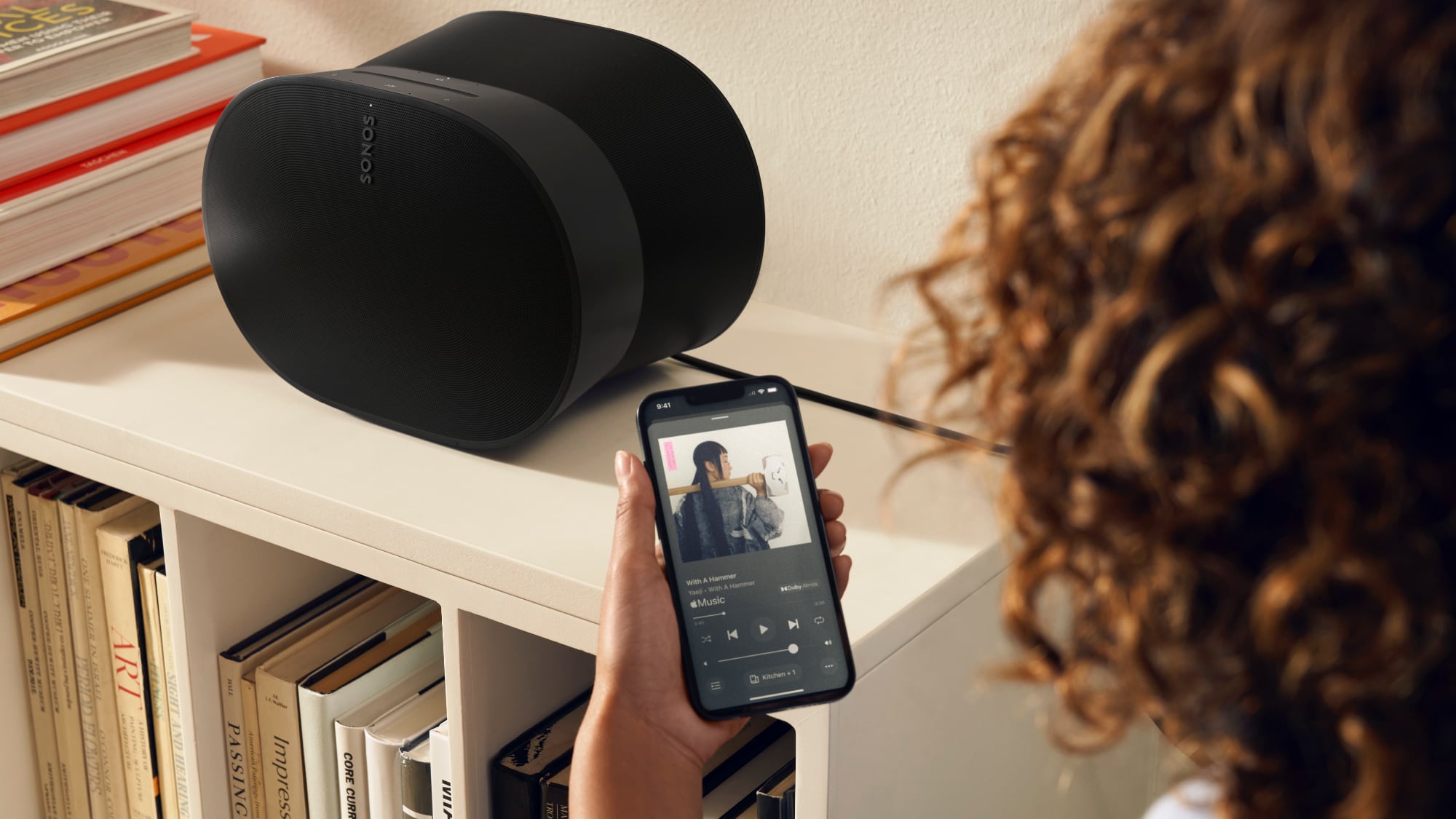
Back in May, Sonos launched a new version of its mobile app, and it's been wildly unpopular with Sonos customers because of ongoing bugs and the removal of several features. Today, Bloomberg delved into what went wrong at Sonos ahead of when the app launched, and why it came out anyway.
Sonos had to come out with a new app when it launched the Sonos Ace headphones because of "technical debt." The company basically spent time working on new features instead of updating outdated code written in obsolete languages, leading to infrastructure issues. Sonos put off addressing the underlying technical debt, but introducing the headphones required the Sonos app and the cloud setup behind it to be overhauled.
At the time the app was in development, Sonos laid off some of its employees to cut costs and also did some internal restructuring that was "causing chaos" by separating people who had worked together for years. As the app's launch approached, employees protested "forcefully," even resorting to yelling and screaming, because it was clear the app wasn't ready to launch.
Bloomberg that Sonos was prioritizing promises to investors and attracting new customers rather than ensuring equipment owned by longtime Sonos customers continued to work. One employee said they were afraid to push back further on the app's launch because it could lead to them losing their job.
Bloomberg that the app was delayed, from early 2024 to May 2024, and that there had been no "yelling" or "screaming" in meetings. Sonos apparently had a list of what it considered "essential" bugs that needed to be fixed pre-launch, but it decided that less critical bugs could wait until the app was released. "Our list of essential bugs, obviously, was not comprehensive enough," Lazarus told Bloomberg.
Sonos expects to miss its annual revenue target by $200 million after the app debacle. In August, it laid off some employees, and it told others that yearly bonuses and merit-based pay raises have been canceled.
apologized to Sonos customers in July and committed to regular updates to address bugs and add missing features. The company considered bringing back the old app as it worked on the new version, but it turned out that wasn't possible because of the updates made to the cloud servers.
decided to delay two upcoming product launches in 2024 to instead focus on improving the Sonos app, and the company has "pulled together the very best and most experienced engineers" that it has to work on the app until it is fixed.
Tag: Sonos
This article, "Sonos Execs Launched Ill-Received App Despite Employee Protests" first appeared on MacRumors.com
Discuss this article in our forums
https://www.macrumors.com/2024/09/23/sonos-app-development-insight/
Amnesia App Offers Easy Way to Get Rid of Monthly Access Reminders for Screen Capture Apps
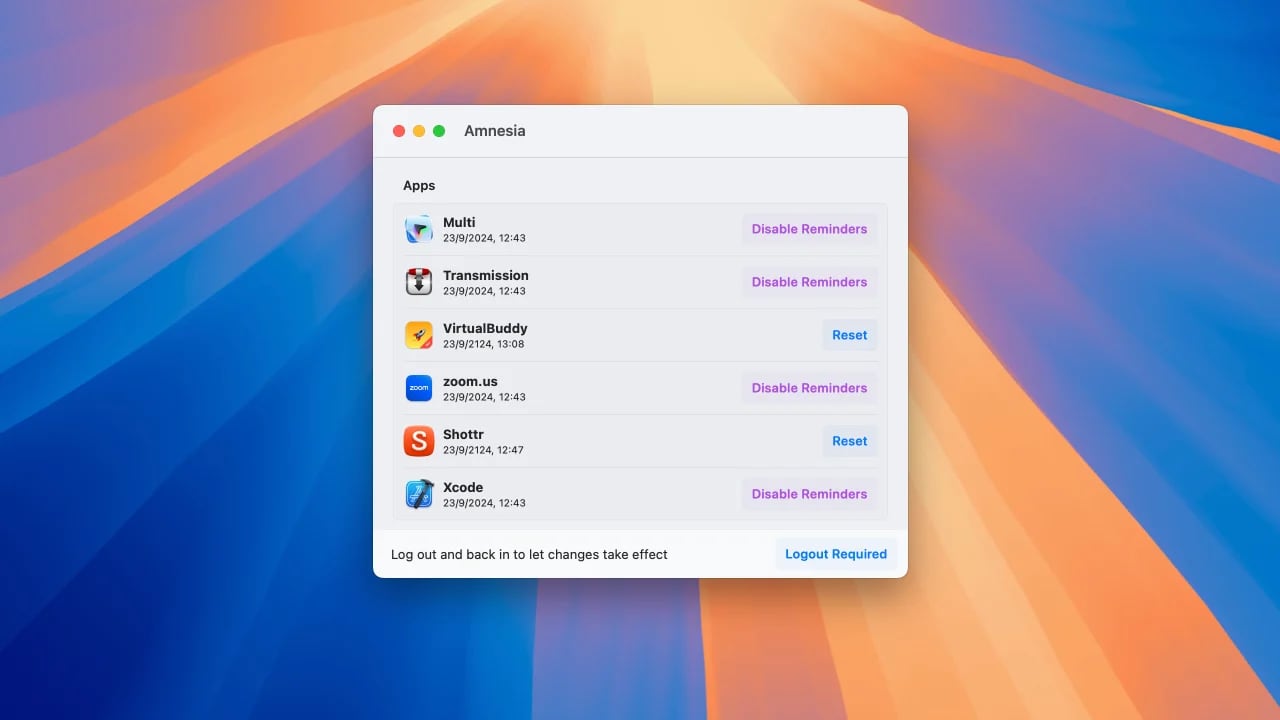
In macOS Sequoia, Apple requires users to regularly reauthorize permissions for screen recording apps, a change that has not been popular with some Mac app users. During the beta testing process, these reminders came up weekly, but later in the beta, Apple changed those reminders to monthly.
If you're someone who prefers not to get these reminders for screen recording apps at all, you can use the Amnesia app for the Mac to get rid of them. The app basically changes the .plist file for the screen capture app access feature, and it's a pay what you want situation.
can follow instructions shared by Jeff Johnson, known for Stop The Madness. Both Amnesia and the command line version of the fix require disabling reminders on an app by app basis, but it's a little more straightforward to do with the Amnesia app.
This article, "Amnesia App Offers Easy Way to Get Rid of Monthly Access Reminders for Screen Capture Apps" first appeared on MacRumors.com
Discuss this article in our forums
https://www.macrumors.com/2024/09/23/amnesia-screen-capture-app-reminders/
YouTube Raises Premium Prices in Over 15 Countries

YouTube is raising the cost of its Premium plan in multiple countries around the world, with the new pricing surfacing over the weekend (via Android Authority). Prices are up in Europe, South America, and and some countries in Asia and the Middle East.
Price hikes are being tracked over on Reddit, and so far customers in the following countries are being warned about higher prices: Belgium, Colombia, the Czech Republic, Denmark, Indonesia, Ireland, Italy, Malaysia, the Netherlands, Norway, Saudi Arabia, Singapore, Sweden, Switzerland, Thailand, and the United Arab Emirates.
The biggest single plan price increase is in Norway, where prices are up 42 percent. YouTube Premium in Norway used to cost approximately $11.33 per month, but now it is just over $16. In Sweden, the family plan now costs $27.38 per month, up from $17.57. On average, single person plans have increased 18 percent, while family plans are up 43 percent.
Many YouTube Premium customers affected by the price changes have said on Reddit that they plan to cancel given the significant increases to family plans.
Tag: YouTube
This article, "YouTube Raises Premium Prices in Over 15 Countries" first appeared on MacRumors.com
Discuss this article in our forums
https://www.macrumors.com/2024/09/23/youtube-premium-price-hike/
Apple Prevents Downgrading to iOS 17.6.1 Following iOS 18 Release
Apple today stopped signing iOS 17.6.1 and iPadOS 17.6.1 for all devices except the latest-generation iPad Pro models with the M4 chip.
Apple routinely stops signing older iOS releases over time in order to prevent users from downgrading to an outdated software version. iOS 17.6.1 no longer being signed comes one week after Apple released iOS 18 to the public.
iPadOS 18 has been temporary pulled for those devices.
Related Forums: iOS 17, iPadOS 17
This article, "Apple Prevents Downgrading to iOS 17.6.1 Following iOS 18 Release" first appeared on MacRumors.com
Discuss this article in our forums
https://www.macrumors.com/2024/09/23/apple-stops-signing-ios-17-6-1/
AirPods 4 With Active Noise Cancellation Get First Discount at Amazon ($10 Off)
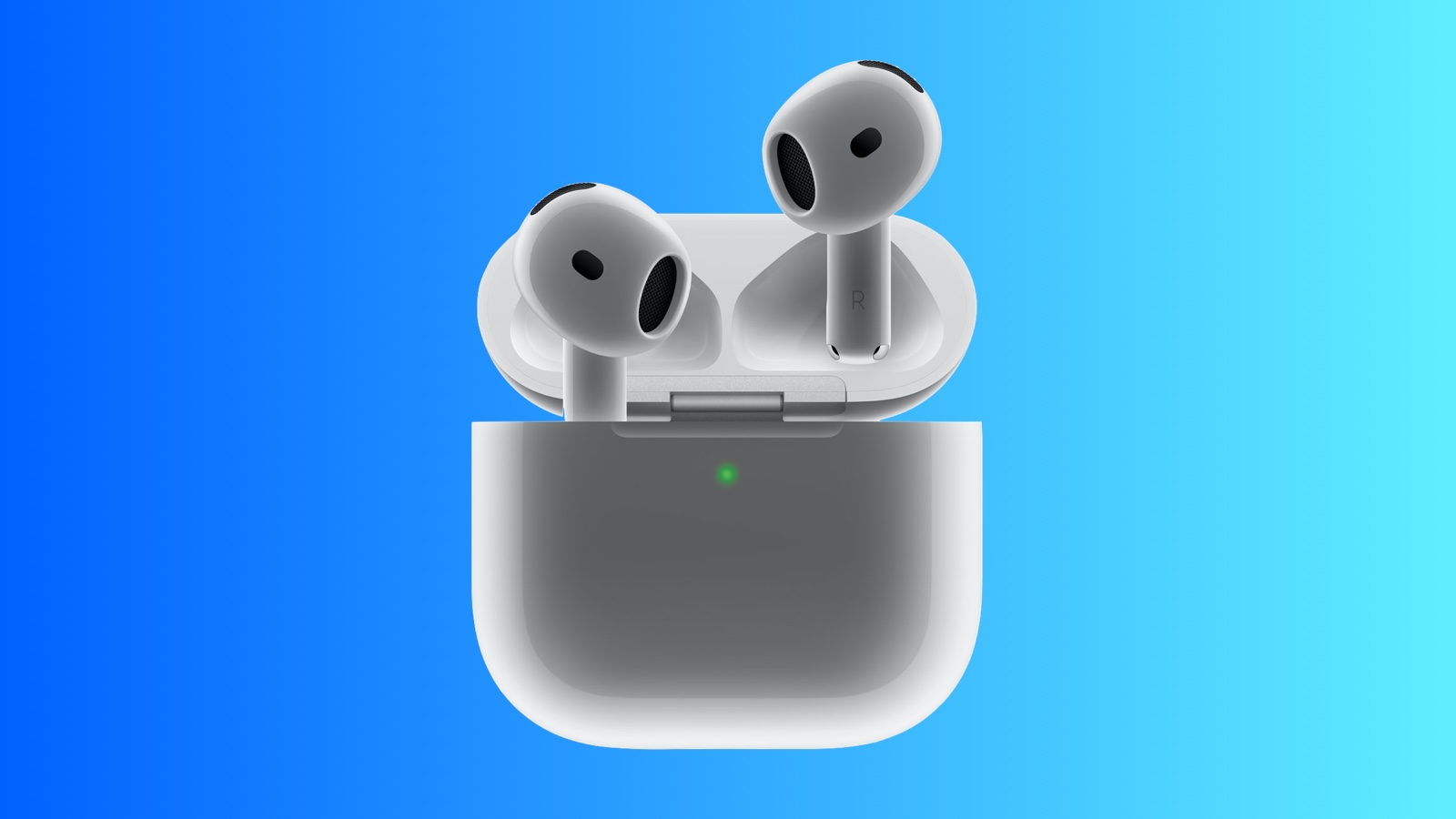
Just three days after their official launch, Apple's higher-tier AirPods 4 earbuds with Active Noise Cancellation (ANC) have received their first discount at Amazon, knocking $10 off their regular price to bring them down to $169.00. The cheaper model without Active Noise Cancellation has not yet been discounted and remains at its normal $129.00 price.
Note: MacRumors is an affiliate partner with Amazon. When you click a link and make a purchase, we may receive a small payment, which helps us keep the site running.
$10 OFF
AirPods 4 with ANC for $169.00
In addition to ANC-related features like Adaptive Audio, Transparency, and Conversation Awareness, the higher-tier AirPods 4 also add wireless charging capabilities and a speaker for Find My to the AirPods case.
The two models of the AirPods 4 launched this month as successors to the AirPods 2 and AirPods 3, offering a more comfortable fit, an H2 chip supporting improved audio capabilities, dust resistance, and more.
$189.99, but if you prefer the open-ear design of the regular AirPods and are looking to pick up a pair that supports ANC for the first time outside of the AirPods Pro and AirPods Max options, this is your first opportunity to save a few dollars.
Related Roundup: Apple Deals
This article, "AirPods 4 With Active Noise Cancellation Get First Discount at Amazon ($10 Off)" first appeared on MacRumors.com
Discuss this article in our forums
https://www.macrumors.com/2024/09/23/airpods-4-anc-first-amazon-discount/
When Will iOS 18.1 With Apple Intelligence Be Released?
iOS 18 was released to the public earlier this month, but the first Apple Intelligence features will not be available until iOS 18.1.
Below, we outline when to expect iOS 18.1 to be released.
iOS 18.1: Apple Intelligence
Here are some of the key Apple Intelligence features in the iOS 18.1 beta so far:
A few Siri enhancements, including improved understanding for both follow-up requests and when you stumble over your words
Writing tools for rewriting, summarizing, and proofreading text
Notification summaries for Messages, Mail, and many other apps
Suggested replies in the Messages and Mail apps
A new "Clean Up" tool in the Photos app that can remove unwanted people or objects from photos and use generative AI to fill in the background
The ability to create a Memories movie in the Photos app by typing a description
Phone call recording and transcription
A new Focus mode called Reduce Interruptions that surfaces important notifications only
See our full list of Apple Intelligence features included in the iOS 18.1 beta for even more.
additional languages on a gradual basis between iOS 18.2 and iOS 18.4.
iOS 18.1: Release Timing
During its iPhone 16 event earlier this month, Apple confirmed that iOS 18.1 will be released in October, but it did not provide a specific day.
Based on the timing of previous updates, iOS 18.1 will likely be released in late October:
iOS 17.1: October 25, 2023
iOS 16.1: October 24, 2022
iOS 15.1: October 25, 2021
iOS 14.1: October 20, 2020
iOS 18.1: Compatible iPhones
same iPhone models as iOS 17 does, but Apple Intelligence requires an iPhone 15 Pro, iPhone 15 Pro Max, or any iPhone 16 model.
This article, "When Will iOS 18.1 With Apple Intelligence Be Released?" first appeared on MacRumors.com
Discuss this article in our forums
https://www.macrumors.com/2024/09/23/when-will-ios-18-1-be-released/
Apple Gearing Up to Add Hearing Aid Feature to AirPods Pro 2
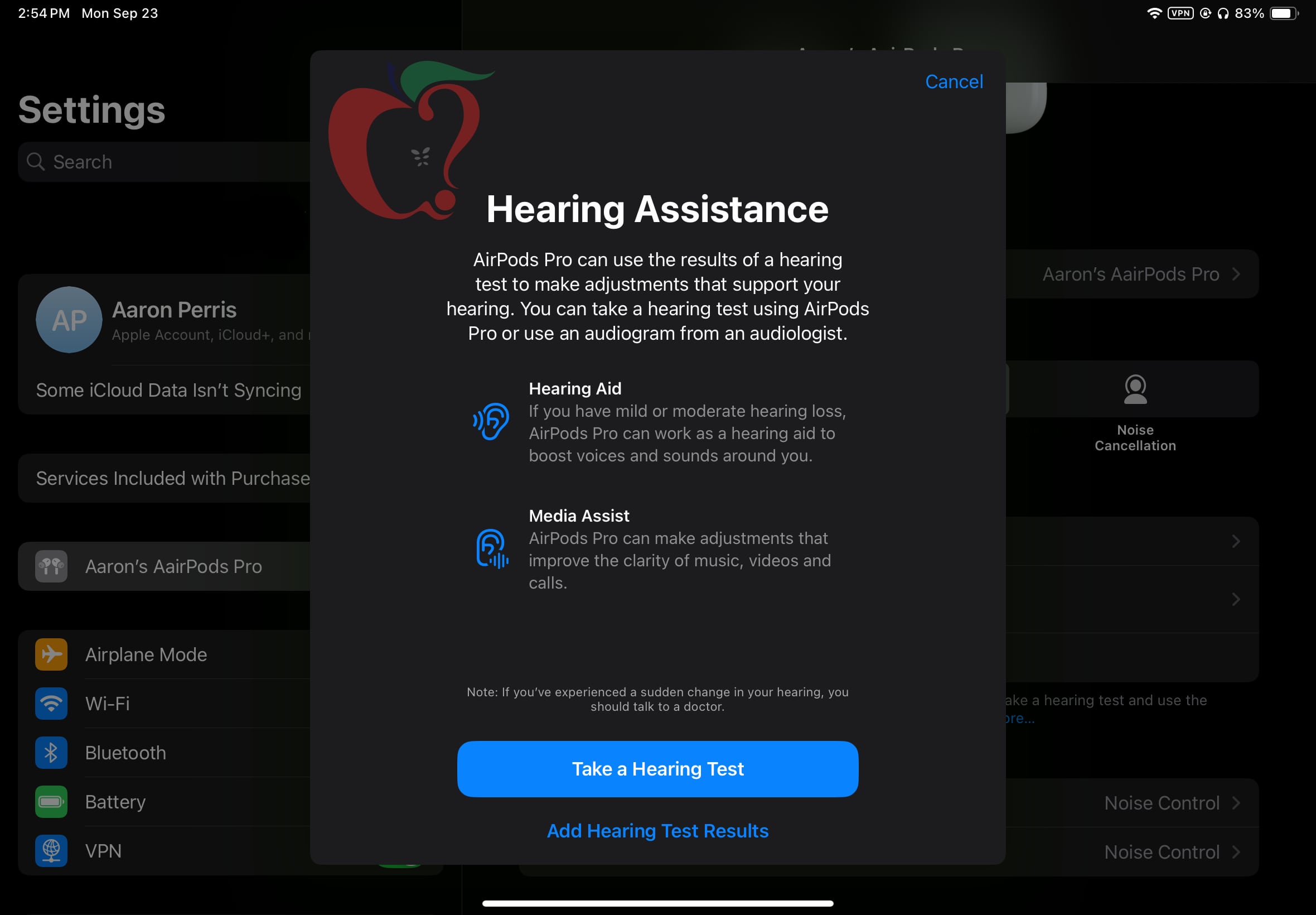
Apple is working behind the scenes to get ready to introduce Hearing Assistance functionality to the AirPods Pro 2. The latest iOS 18.1 beta does not have the feature enabled at the current time, but it is hidden in the update and Apple could potentially activate it in a future iOS 18.1 beta.
We were able to access the hidden AirPods Pro 2 Hearing Assistance feature set in the fifth iOS 18.1 and iPadOS 18.1 betas, and we tested it out.
When Hearing Assistance launches, users will be prompted to take a hearing test or upload an audiogram from an audiologist. Apple says the results will be used to turn on a hearing aid feature for those with mild to moderate hearing loss, but for all users, it can be used to make sound adjustments to improve music, video, and call clarity.
The test takes approximately five minutes to do, and it prompts users to tap the screen each time they hear a tone. The AirPods Pro 2 are only recommended for mild to moderate hearing loss, and those with more serious hearing loss likely won't be able to use the Hearing Aid feature.
After the hearing test, users will have the option to turn on the Hearing Aid option if it is required. Hearing Aid adjusts the voices and sounds around the user to account for the tones and frequencies that are not able to be heard.
Apple has already received FDA authorization for the AirPods Pro 2 to function as an over-the-counter hearing aid, and it could be rolled out at any time. Apple has said the feature will come out this fall, so it would make sense for it to be introduced in a future iOS 18.1 beta.
Related Roundup: AirPods Pro
Buyer's Guide: AirPods Pro (Neutral)
Related Forum: AirPods
This article, "Apple Gearing Up to Add Hearing Aid Feature to AirPods Pro 2" first appeared on MacRumors.com
Discuss this article in our forums
https://www.macrumors.com/2024/09/23/apple-airpods-pro-2-hearing-aid-feature/
Drag and Drop Files Now Work With iPhone Mirroring in Latest macOS Sequoia 15.1 and iOS 18.1 Betas
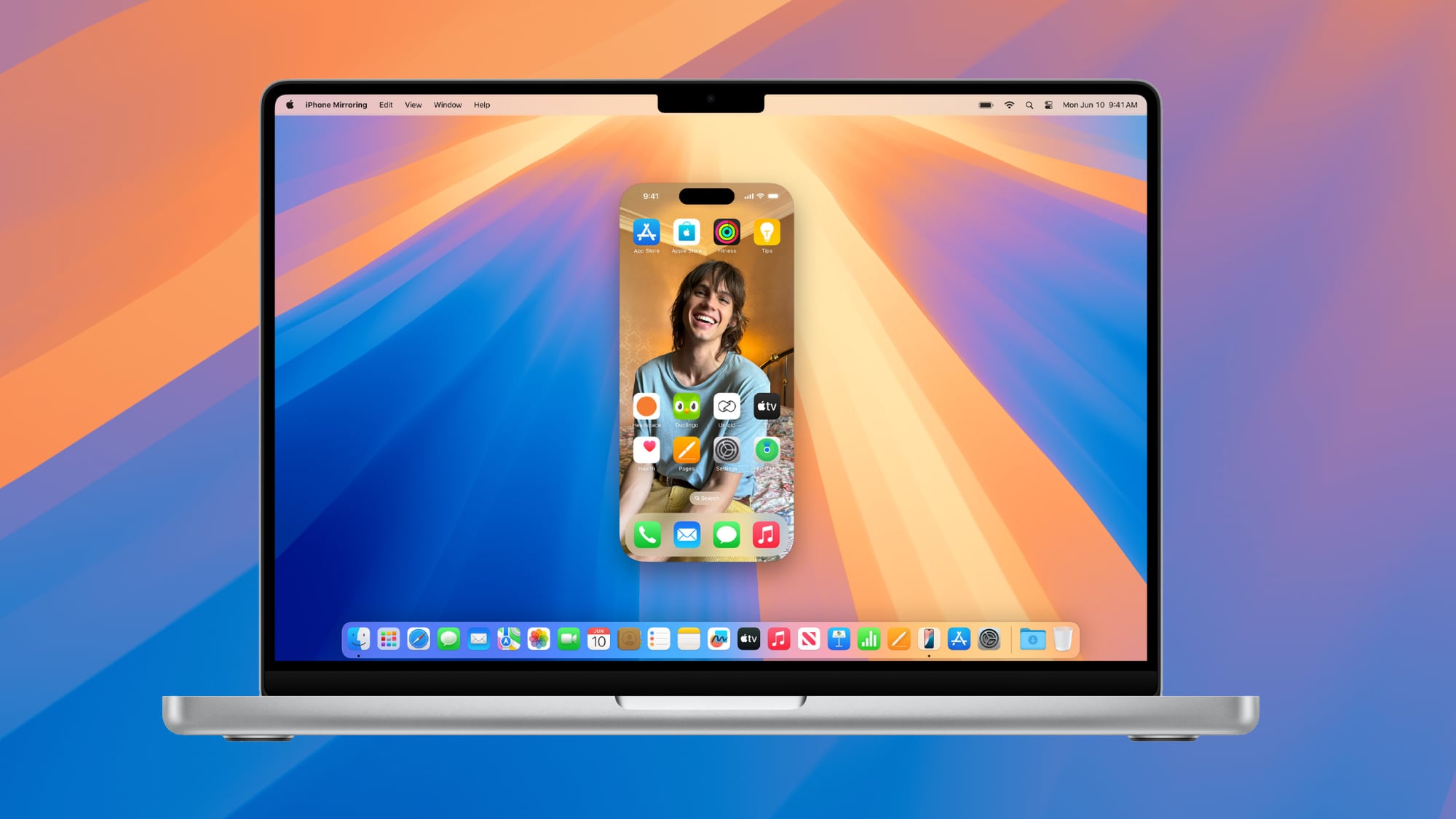
With macOS 15.1 and iOS 18.1 beta 5, Apple has enabled drag and drop, a much anticipated iPhone Mirroring feature. After updating to the new software, you can drag files from an iPhone to a Mac and vice versa.
iPhone Mirroring makes it simple to move files from one device to another because it works even when the iPhone is locked and charging. To use the feature, update to the fifth macOS 15.1 and iOS 18.1 betas and then activate iPhone Mirroring.
Photos app on the iPhone, it'll transfer over. If you want to transfer a PDF, just open the Files app and then drag the PDF from the Mac to the iPhone. Dragging a file from iPhone to Mac works in much the same way, you simply drag it over where you want it.
The new iPhone Mirroring feature is active in the developer beta now, and public beta testers should be able to try it out later this week. iOS 18.1 and macOS Sequoia 15.1 are expected to see a public launch in October.
Related Roundups: iOS 18, iPadOS 18, macOS Sequoia
Related Forums: iOS 18, iPadOS 18, macOS Sequoia
This article, "Drag and Drop Files Now Work With iPhone Mirroring in Latest macOS Sequoia 15.1 and iOS 18.1 Betas" first appeared on MacRumors.com
Discuss this article in our forums
https://www.macrumors.com/2024/09/23/drag-and-drop-files-iphone-mirroring/
iOS 18.1 Beta 5 Adds New Selfie Option for Camera Control
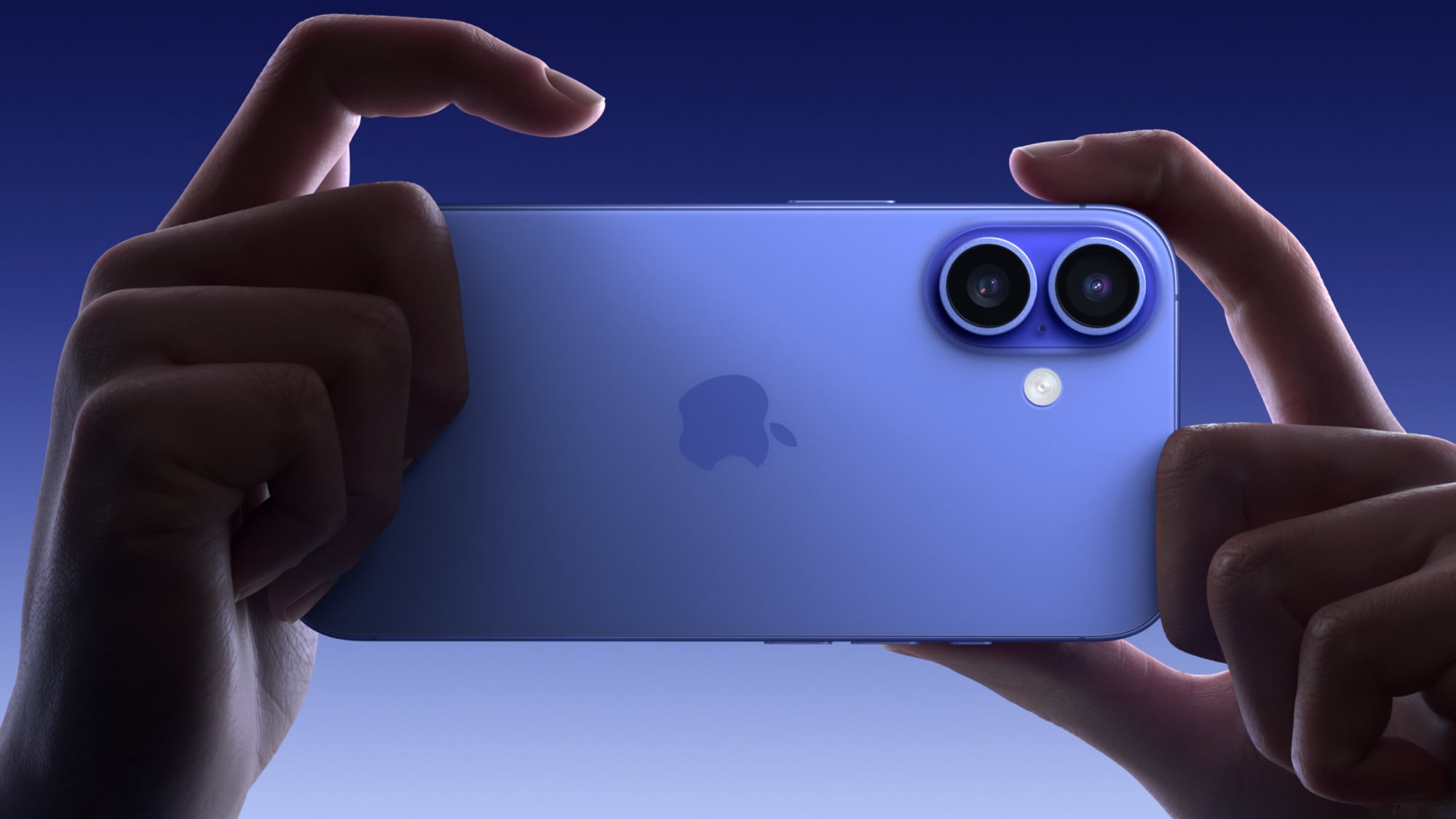
With the fifth beta of iOS 18.1, Apple has made a small tweak to the Camera Control button that was introduced on the iPhone 16, iPhone 16 Plus, iPhone 16 Pro, and iPhone 16 Pro Max.
When you dig into the Camera Control settings, there is now a way to set it to the front-facing camera without having to interact with the iPhone's display.
To get to the selfie camera, open up the Camera app with a press on the Camera Control button, and then use a swipe gesture on the button to scroll through the lenses. The person icon at the very top swaps to the front-facing selfie camera.
Note that if you have Camera Control set to a different setting, you will need to open up the Camera app, activate Camera Control, and then tap on the screen to swap tools. The selfie camera and lens options are under the "Cameras" heading. The last tool you used will be the tool Camera Control opens with.
Related Roundups: iPhone 16, iPhone 16 Pro
Buyer's Guide: iPhone 16 (Buy Now), iPhone 16 Pro (Buy Now)
This article, "iOS 18.1 Beta 5 Adds New Selfie Option for Camera Control" first appeared on MacRumors.com
Discuss this article in our forums
https://www.macrumors.com/2024/09/23/ios-18-1-beta-5-selfie-camera-control/
Latest iOS 18.1 Beta Adds Control Center Reset and New Connectivity Options
In the fifth beta of iOS 18.1, Apple has made some changes to the new customizable Control Center, refining it ahead of when iOS 18.1 is set to come out in October.
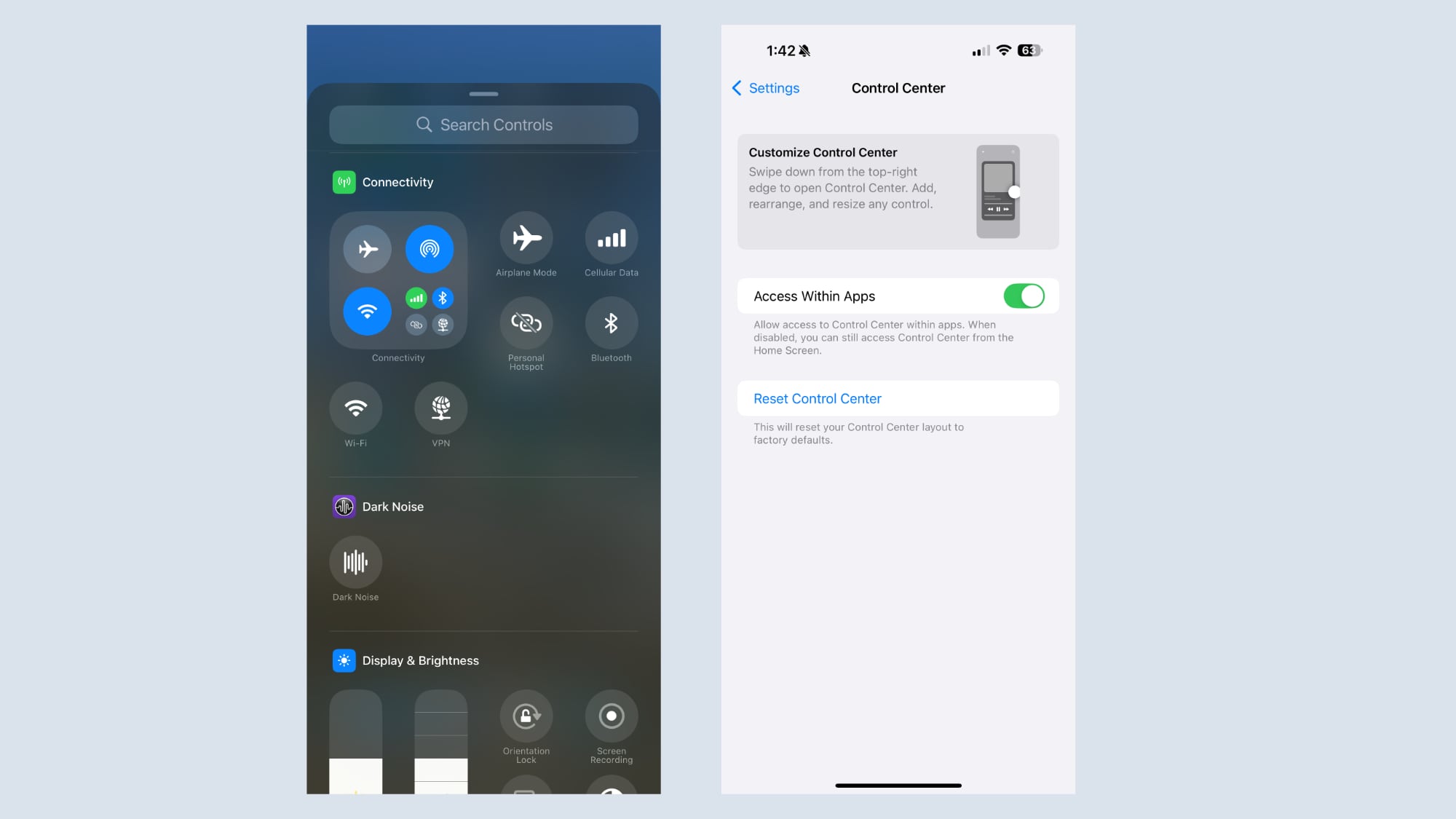
In the Control Center section of the Settings app, there is now an option to return to the default setup. If you make a bunch of confusing changes to Control Center and don't want to go through the trouble of moving everything around, you can now use the reset option to get back to the default options that Apple provides when installing iOS 18.
Apple has also added separate Control Center connectivity controls for Wi-Fi and VPN connectivity. In prior versions of iOS 18, these controls were baked into an all-in-one connectivity button, but now they can be added to the Control Center. The new Wi-Fi and VPN options cannot be added to the Lock Screen or the Action Button.
Related Roundups: iOS 18, iPadOS 18
Tag: Control Center
Related Forums: iOS 18, iPadOS 18
This article, "Latest iOS 18.1 Beta Adds Control Center Reset and New Connectivity Options" first appeared on MacRumors.com
Discuss this article in our forums
https://www.macrumors.com/2024/09/23/ios-18-1-control-center-changes/
Apple Seeds Fifth Developer Betas of iOS 18.1 and iPadOS 18.1 With Apple Intelligence
Apple today provided developers with the fourth betas of iOS 18.1 and iPadOS 18.1 to continue testing Apple Intelligence features. The fifth betas come a week after Apple seeded the fourth iOS 18.1 and iPadOS 18.1 betas.
The updates can be downloaded from the Settings app on a compatible device by going to General > Software Update. Note that Apple Intelligence features still an iPhone 15 Pro or iPhone 16 to run.
Apple Intelligence includes Writing Tools that are available wherever text can be selected and edited, and it can be used for spell checking, fixing grammar, rewriting with a new tone, and summarizing text.
Siri has a new design with a subtle glow around the display, and there is a Type to Siri feature so you don't have to speak to Siri. Siri can follow along if you stumble over your words, and can maintain context between requests. Safari can summarize articles, and there's a new Reduce Interruptions Focus Mode.
Photos has a Memory Movie feature for creating slideshows based on text descriptions, and you can record, transcribe, and summarize phone calls. Transcription and summarization are also available for any audio recording.
found in our Apple Intelligence guide. Image Playground, Genmoji, and other new Siri features have not yet been implemented.
Related Roundups: iOS 18, iPadOS 18
Related Forums: iOS 18, iPadOS 18
This article, "Apple Seeds Fifth Developer Betas of iOS 18.1 and iPadOS 18.1 With Apple Intelligence" first appeared on MacRumors.com
Discuss this article in our forums
https://www.macrumors.com/2024/09/23/apple-seeds-ios-18-1-beta-5/
Apple Seeds Second Beta of watchOS 11.1 to Developers
Apple today seeded the second beta of an upcoming watchOS 11.1 update to developers for testing purposes. The second beta comes a week after Apple released the first watchOS 11.1 beta alongside iOS 18.1 and iPadOS 18.1 betas.
To install the watchOS 11.1 update, developers need to open the Apple Watch app, go to the Software Update section under "General" in Settings, and toggle on the watchOS 11 Developer Beta. An Apple ID linked to a developer account is required.
Once beta updates have been activated, watchOS 11.1 can be downloaded under the same Software Update section. To install software, an Apple Watch needs to have 50 percent battery life and it must be placed on an Apple Watch charger.
Related Roundup: watchOS 11
Related Forum: Apple Watch
This article, "Apple Seeds Second Beta of watchOS 11.1 to Developers" first appeared on MacRumors.com
Discuss this article in our forums
https://www.macrumors.com/2024/09/23/apple-seeds-watchos-11-1-beta-2/