


#TIL
There is `lightning-multifundchannel` just for this purpose. But I was searching for incorrect keywords. Read more [here](https://docs.corelightning.org/reference/lightning-multifundchannel )

International smoking time...
But [wiki](https://en.wikipedia.org/wiki/420_(cannabis_culture)) contains much more information about it



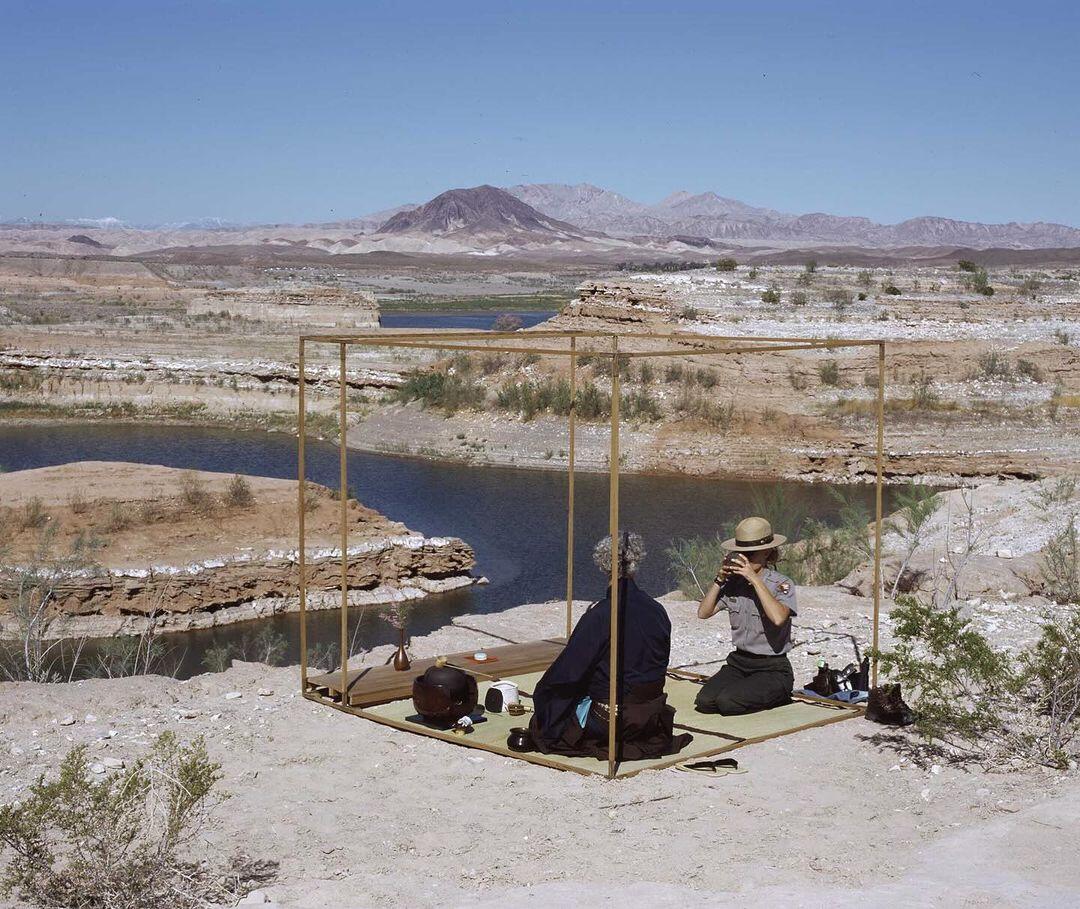
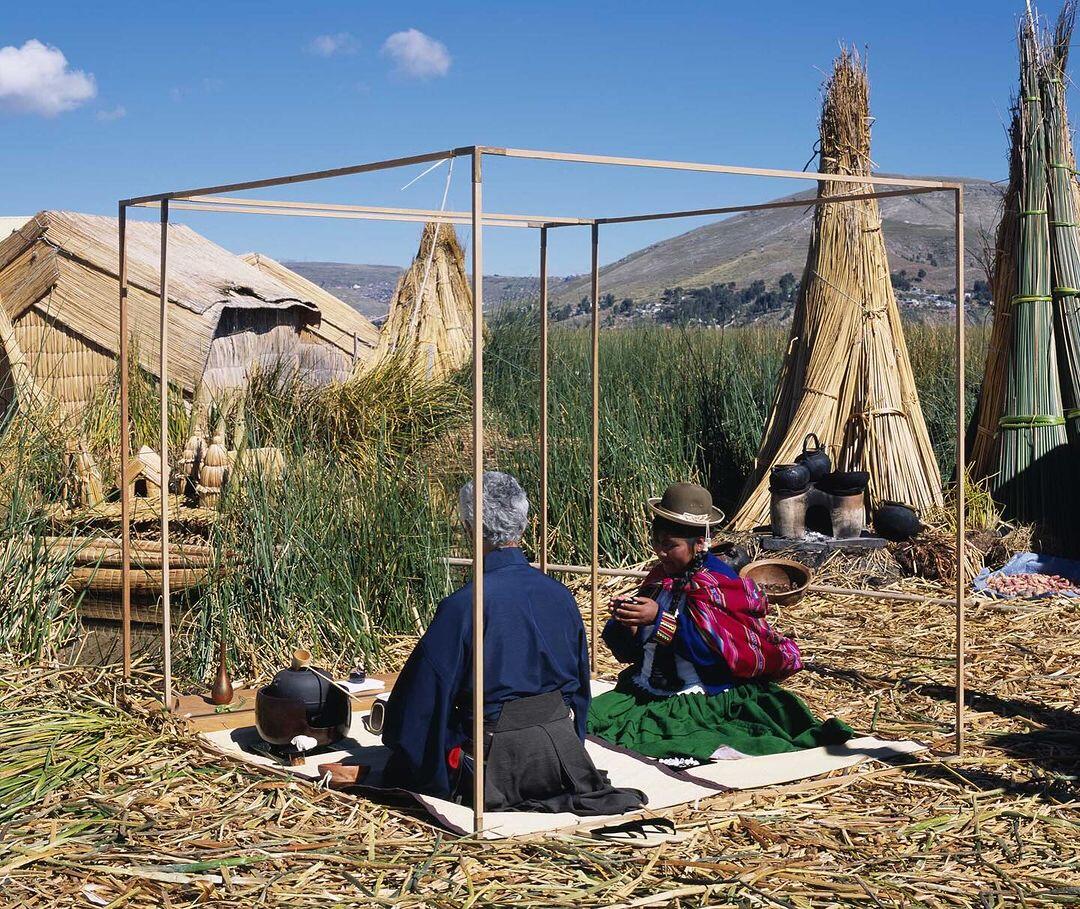

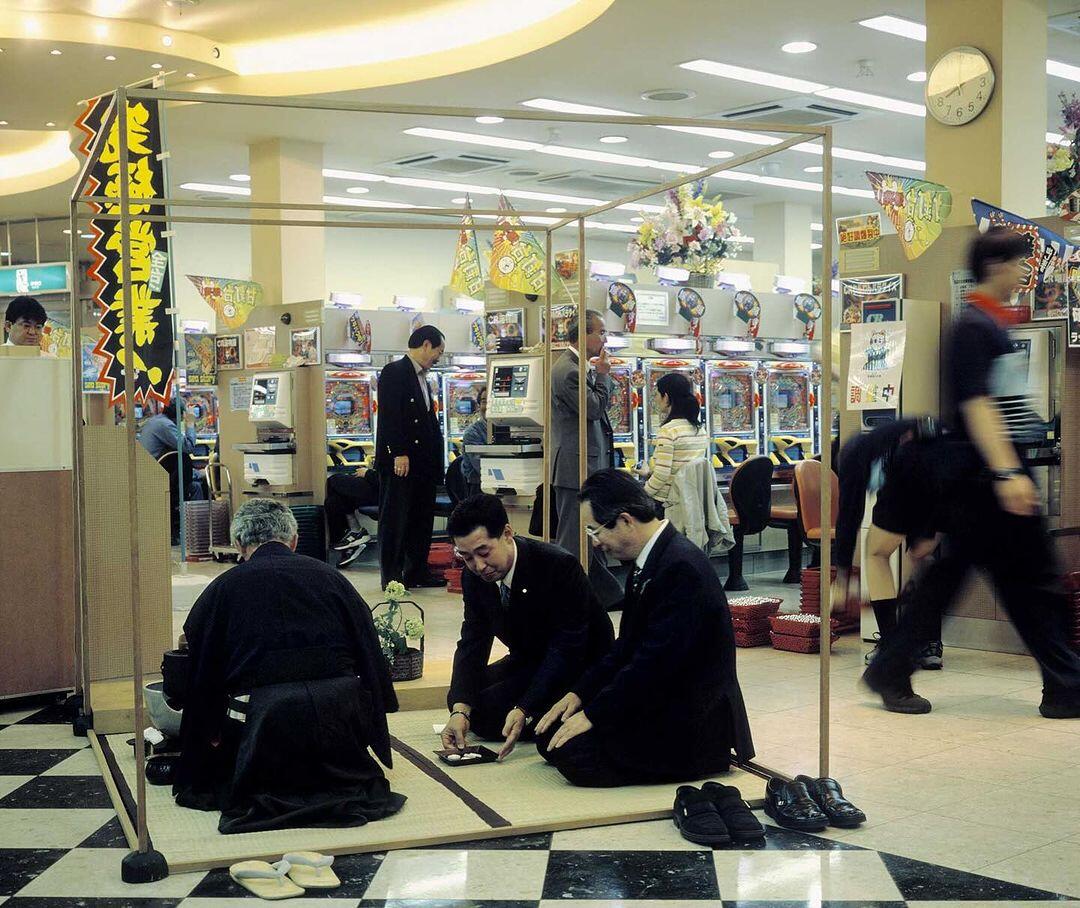

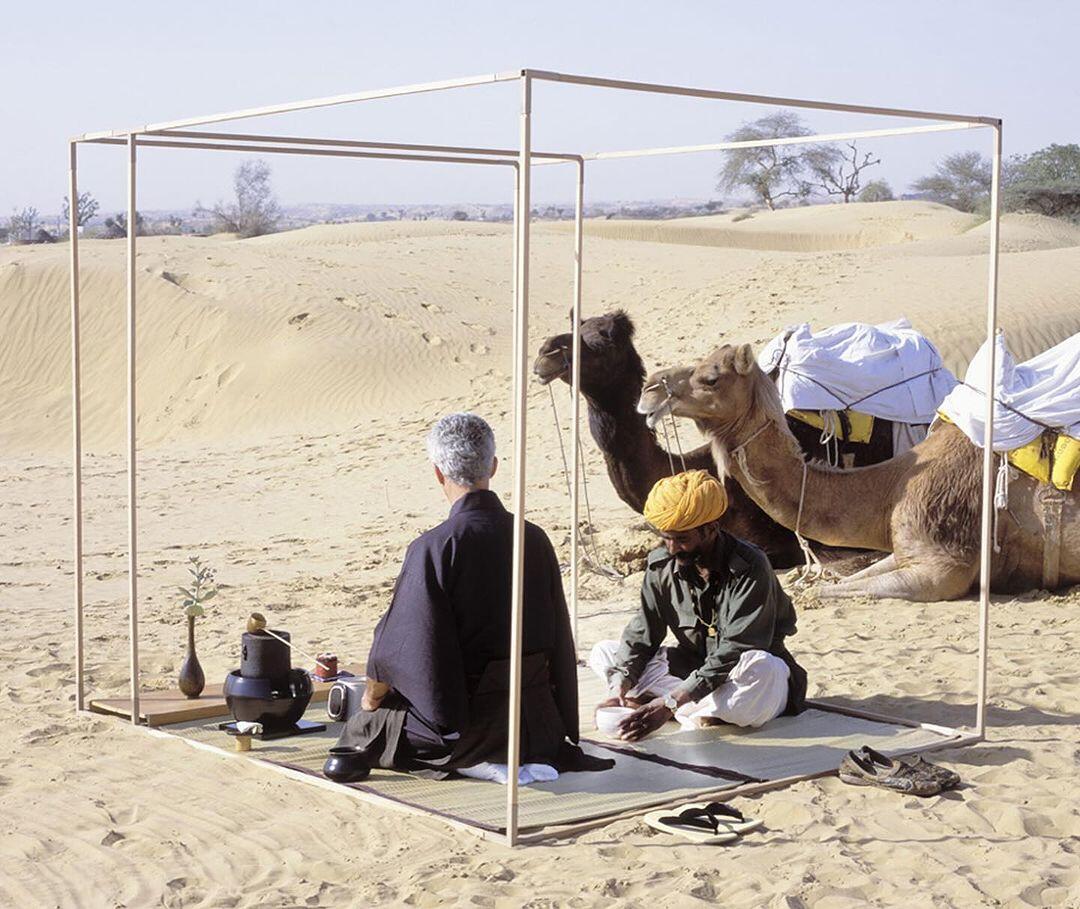

Beautiful! This piece reminds me to visit tea-room sometime very soon. Thank you!
nostr:note186m0vnzmeewdm2megwfwfj3ujdgwdwfr5hhcrd44rngcj77gz3kq46ac86

# TrezorSuite how to for qubesOS R4.2 (it should work with same instruction on R4.1)
It is not in scope of this text to go too deep into QubesOS rabbit hole...
You should always understand and double check what you type in your terminal, especially in Dom0
Keep in mind and stay vigilant when following any tutorial published online or downloading files from internet, always verify source URL, hashes or signatures)
Use at your own risk!
This setup is using QubesOS R4.2: disposable sys-usb which is based on debian-12-minimal template. Qube TS (AppVM) is using whonix-workstation-17 as template (it's good practice to work with clones, in this case it is ww17-TS).
You may find usefull utilities like qvm-copy or qvm-move when getting files to qubes which does not have networking enabled.
In order to make use of your Trezor HW Wallet follow instruction below:
in dom0:
1. sudo qubes-dom0-update
2. qvm-template install debian-12-minimal
3a. qvm-clone debian-12-minimal d12m-usb
3b. qvm-clone whonix-workstation-17 ww17-TS
4. qvm-run --pass-io -u root d12m-usb "apt update && apt install --no-install-recommends qubes-usb-proxy qubes-input-proxy-sender qubes-core-agent-nautilus zenity policykit-1 libblockdev-crypto2 ntfs-3g socat -y"
5. qvm-shutdown --wait d12m-usb
6. qvm-create --template d12m-usb --label red d12m-usb-dvm
7. qvm-prefs d12m-usb-dvm template_for_dispvms true
8. qvm-features d12m-usb-dvm appmenus-dispvm 1
9. qvm-prefs d12m-usb-dvm netvm none
10. echo "$anyvm $anyvm allow,user=trezord,target=sys-usb" > /etc/qubes-rpc/policy/trezord-service
11. do not forget to shut down your existing sys-usb and replace its template in settings with d12m-usb-dvm
in QubesManager:
1. create new AppVM using template: ww17-TS
in d12m-usb:
1. install trezor-bridge (sudo dpkg -i trezor-bridge_2.0.27_amd64.deb) you may need to transfer it from other qube with network enabled
2. echo -e "systemctl enable trezord.service \nsystemctl start trezord.service" | sudo tee -a /rw/config/rc.local
3. sudo vi /etc/udev/rules.d/51-trezor.rules (you can get udev rules from official source: https://data.trezor.io/udev/51-trezor.rules )
4. sudo chmod +x /etc/udev/rules.d/51-trezor.rules
5. sudo poweroff
in d12m-usb-dvm:
1. sudo mkdir -p /usr/local/etc/qubes-rpc
2. echo "socat - TCP:localhost:21325" | sudo tee /usr/local/etc/qubes-rpc/trezord-service
3. sudo chmod +x /usr/local/etc/qubes-rpc/trezord-service
4. sudo poweroff
in ww17-TS:
1. sudo apt install pip
2. sudo poweroff
in TS:
1. echo 'socat TCP-LISTEN:21325,fork EXEC:"qrexec-client-vm sys-usb trezord-service" &' | sudo tee -a /rw/config/rc.local
2. pip install --user trezor
2a. on qR4.2 you may experience error with above cmd. you can try this workaround: pip install --user trezor --break-system-packages
3. download or copy from other qube Trezor-Suite-24.*.AppImage, verify and give it executable bit ( chmod u+x /path/to/Trezor-Suite-*.AppImage )
4. poweroff
Make sure all templates are shut down, restart sys-usb and TS AppVM and you can start your hardware wallet with Trezor-Suite on QubesOS.
Now you should be ready and profit! ;)
# This guide has been inspired by multiple articles on Qubes Forum. To name few: Ursidae's post that I found here: https://forum.qubes-os.org/t/ultimate-guide-on-using-trezor-on-qubes/18310 and https://forum.qubes-os.org/t/debian-10-minimal-configuration/2603
updated version with fixed issues:
# TrezorSuite how to for qubesOS R4.2 (it should work with same instruction on R4.1)
It is not in scope of this text to go too deep into QubesOS rabbit hole...
You should always understand and double check what you type in your terminal, especially in Dom0
Keep in mind and stay vigilant when following any tutorial published online or downloading files from internet, always verify source URL, hashes or signatures)
Use at your own risk!
This setup is using QubesOS R4.2: disposable sys-usb which is based on debian-12-minimal template. Qube TS (AppVM) is using whonix-workstation-17 as template (it's good practice to work with clones, in this case it is ww17-TS).
You may find usefull utilities like qvm-copy or qvm-move when getting files to qubes which does not have networking enabled.
In order to make use of your Trezor HW Wallet follow instruction below:
in dom0:
1. sudo qubes-dom0-update
2. qvm-template install debian-12-minimal
3a. qvm-clone debian-12-minimal d12m-usb
3b. qvm-clone whonix-workstation-17 ww17-TS
4. qvm-run --pass-io -u root d12m-usb "apt update && apt install --no-install-recommends qubes-usb-proxy qubes-input-proxy-sender qubes-core-agent-nautilus zenity policykit-1 libblockdev-crypto2 ntfs-3g socat -y"
5. qvm-shutdown --wait d12m-usb
6. qvm-create --template d12m-usb --label red d12m-usb-dvm
7. qvm-prefs d12m-usb-dvm template_for_dispvms true
8. qvm-features d12m-usb-dvm appmenus-dispvm 1
9. qvm-prefs d12m-usb-dvm netvm none
in QubesManager:
1. create new AppVM using template: ww17-TS
in d12m-usb:
1. install trezor-bridge (sudo dpkg -i trezor-bridge_2.0.27_amd64.deb) you may need to transfer it from other qube with network enabled
2. echo -e "systemctl enable trezord.service \nsystemctl start trezord.service" | sudo tee -a /rw/config/rc.local
3. sudo vi /etc/udev/rules.d/51-trezor.rules (you can get udev rules from official source: https://data.trezor.io/udev/51-trezor.rules )
4. sudo chmod +x /etc/udev/rules.d/51-trezor.rules
5. sudo poweroff
in d12m-usb-dvm:
1. sudo mkdir -p /usr/local/etc/qubes-rpc
2. echo "socat - TCP:localhost:21325" | sudo tee /usr/local/etc/qubes-rpc/trezord-service
3. sudo chmod +x /usr/local/etc/qubes-rpc/trezord-service
4. sudo poweroff
again in dom0:
1. do not forget to shut down your existing sys-usb and replace its template in settings with d12m-usb-dvm
2. echo '@anyvm @anyvm allow,user=trezord,target=sys-usb' > /etc/qubes-rpc/policy/trezord-service
3. qvm-run --pass-io -u root ww17-TS "apt update && apt install --no-install-recommends pip -y"
4. qvm-shutdown --wait ww17-TS
in TS:
1. echo 'socat TCP-LISTEN:21325,fork EXEC:"qrexec-client-vm sys-usb trezord-service" &' | sudo tee -a /rw/config/rc.local
2. pip install --user trezor
2a. on qR4.2 you may experience error with above cmd. you can try this workaround: pip install --user trezor --break-system-packages
3. download or copy from other qube Trezor-Suite-24.*.AppImage, verify and give it executable bit ( chmod u+x /path/to/Trezor-Suite-*.AppImage )
4. poweroff
9:25 PM
Make sure all templates are shut down, restart sys-usb and TS AppVM and you can start your hardware wallet with Trezor-Suite on QubesOS.
Now you should be ready and profit! ;)
# This guide has been inspired by multiple articles on Qubes Forum. To name few: Ursidae's post that I found here: https://forum.qubes-os.org/t/ultimate-guide-on-using-trezor-on-qubes/18310and https://forum.qubes-os.org/t/debian-10-minimal-configuration/2603

Master and servant (DM started playing in my head)


totally! :D
nostr:note134u3sdmarvvn0smt0epyjdkwlr4950fdp0tyltgund7spfrazfrs9wlac3

Taky to právě poslouchám 🎧
# TrezorSuite how to for qubesOS R4.2 (it should work with same instruction on R4.1)
It is not in scope of this text to go too deep into QubesOS rabbit hole...
You should always understand and double check what you type in your terminal, especially in Dom0
Keep in mind and stay vigilant when following any tutorial published online or downloading files from internet, always verify source URL, hashes or signatures)
Use at your own risk!
This setup is using QubesOS R4.2: disposable sys-usb which is based on debian-12-minimal template. Qube TS (AppVM) is using whonix-workstation-17 as template (it's good practice to work with clones, in this case it is ww17-TS).
You may find usefull utilities like qvm-copy or qvm-move when getting files to qubes which does not have networking enabled.
In order to make use of your Trezor HW Wallet follow instruction below:
in dom0:
1. sudo qubes-dom0-update
2. qvm-template install debian-12-minimal
3a. qvm-clone debian-12-minimal d12m-usb
3b. qvm-clone whonix-workstation-17 ww17-TS
4. qvm-run --pass-io -u root d12m-usb "apt update && apt install --no-install-recommends qubes-usb-proxy qubes-input-proxy-sender qubes-core-agent-nautilus zenity policykit-1 libblockdev-crypto2 ntfs-3g socat -y"
5. qvm-shutdown --wait d12m-usb
6. qvm-create --template d12m-usb --label red d12m-usb-dvm
7. qvm-prefs d12m-usb-dvm template_for_dispvms true
8. qvm-features d12m-usb-dvm appmenus-dispvm 1
9. qvm-prefs d12m-usb-dvm netvm none
10. echo "$anyvm $anyvm allow,user=trezord,target=sys-usb" > /etc/qubes-rpc/policy/trezord-service
11. do not forget to shut down your existing sys-usb and replace its template in settings with d12m-usb-dvm
in QubesManager:
1. create new AppVM using template: ww17-TS
in d12m-usb:
1. install trezor-bridge (sudo dpkg -i trezor-bridge_2.0.27_amd64.deb) you may need to transfer it from other qube with network enabled
2. echo -e "systemctl enable trezord.service \nsystemctl start trezord.service" | sudo tee -a /rw/config/rc.local
3. sudo vi /etc/udev/rules.d/51-trezor.rules (you can get udev rules from official source: https://data.trezor.io/udev/51-trezor.rules )
4. sudo chmod +x /etc/udev/rules.d/51-trezor.rules
5. sudo poweroff
in d12m-usb-dvm:
1. sudo mkdir -p /usr/local/etc/qubes-rpc
2. echo "socat - TCP:localhost:21325" | sudo tee /usr/local/etc/qubes-rpc/trezord-service
3. sudo chmod +x /usr/local/etc/qubes-rpc/trezord-service
4. sudo poweroff
in ww17-TS:
1. sudo apt install pip
2. sudo poweroff
in TS:
1. echo 'socat TCP-LISTEN:21325,fork EXEC:"qrexec-client-vm sys-usb trezord-service" &' | sudo tee -a /rw/config/rc.local
2. pip install --user trezor
2a. on qR4.2 you may experience error with above cmd. you can try this workaround: pip install --user trezor --break-system-packages
3. download or copy from other qube Trezor-Suite-24.*.AppImage, verify and give it executable bit ( chmod u+x /path/to/Trezor-Suite-*.AppImage )
4. poweroff
Make sure all templates are shut down, restart sys-usb and TS AppVM and you can start your hardware wallet with Trezor-Suite on QubesOS.
Now you should be ready and profit! ;)
# This guide has been inspired by multiple articles on Qubes Forum. To name few: Ursidae's post that I found here: https://forum.qubes-os.org/t/ultimate-guide-on-using-trezor-on-qubes/18310 and https://forum.qubes-os.org/t/debian-10-minimal-configuration/2603
Two Germans walk into a London bar:
- Two glasses of white wine please.
- Dry?
- Nein
- Nine?
TIL vignette price change
 #m=image%2Fjpeg&dim=1170x1315&alt=%F0%9F%98%89&blurhash=%7B7RC%7DJxt%7EE%25MRj%253oMof00%252s%3Baee.WAR%25j%5B00-qD%24oeM_R%25Rjay00jEs.jGoejbofWB00s%3AjYe.oMofj%5Bj%5D00V%40ocRP%253WBs%3Bog00spRiRixuWAofj%5BDknjWARjR%25WBs%3BWB4nRixboMaxoMj%5Bay&x=8bb6673420733ecc7dae9e1571d9bdda4034c0a1ba28921a9a7f3f5fa7a3c6ce
How to make miners happy tutorial 🙃
This is very cool blog:
Bitcoin mining on an Apollo Guidance Computer: 10.3 seconds per hash
I am collecting tips for home server with following requirements:
- not very hungry (energy-wise)
- not noizy (flat friendly)
- at least 16GB RAM w/ possibility for future upgrades
- disabled IME (coreboot, ...)
- more SATA, the better
- nice to have: few NVMe slots for cache

nostr:note1r83hyu3trfzfvxh7npllj89reg84vdmfs4h2769wwehtlpznjspsfx48gs
RUD
Rapid unscheduled disassembly 😎
🚀➕❓➡️💥
- do you know what is CDO?
-?
- it's OCD, but in alphabetical order. As it should be!!!


I guess it's important to choose where one wishes to live (past/present/future).
I can see that some oppressors are stuck in past even though there were certain milestones reached and agreed upon, but for some reason not honored.
For example borders in central Europe has been adjusted after 2. WW. Can you imagine any of the states will try to move them?