
Everything New in the iOS 18 Messages App
iOS 18 is bringing major changes to the Messages app, with Apple adding Tapback reaction changes new formatting, updated effects, satellite support, better texting with green bubble people, and eventually, several fun Apple Intelligence features.
This guide highlights everything that's new in the iOS 18 Messages app, and what's coming later.
Send Later
iOS 18 adds the option to schedule an iMessage to be sent to someone at a later time or date. If you know someone's birthday is coming up, for example, you can schedule a happy birthday text to them ahead of the date so it's ready to go.
Scheduling a message can be only be done in conversations with other iMessage users, and it is not an option when texting with an Android user. It works in both individual and group chats, as long as all participants have an Apple device and access to iMessage.
To schedule a message, follow these steps:
Open up a conversation in the Messages app.
Tap on the "+" button on the left side of the text box.
Tap on More.
Choose Send Later.
Type in your Message.
To change the send time, tap on the blue bubble that defaults to Tomorrow 9:00 am. From there, you will have a slider that lets you input a date and a time.
With your time selected and your message typed in, tap on the blue arrow to schedule it.
iPhone is offline without a Wi-Fi or cellular connection.
Scheduled messages are displayed at the bottom of a conversation. If you want to change the time of a message or cancel it, tap on the "Edit" button. You will have options to edit the time, delete the message, or send it immediately.
Tapback Reactions
Tapbacks are those little characters you can use to respond to a message by long pressing on it, so you don't need to type out a whole response to something that can be answered with a thumbs up or a heart. iOS 18 has two key updates for Tapbacks.
Updated Design
The six standard Tapback icons now feature color and more detail. You can see the new look when long pressing on a text to respond, and in the Tapbacks that you receive.
When you tap on a Tapback you've received on a message, you can now see who sent what, which is useful if you are in a group chat and get multiple Tapback responses.
Emoji Support
Along with the six classic Tapback responses, you can now choose any emoji character when using Tapback. After long pressing to respond to a message, swipe to the left to see common emoji responses or tap on the generic emoji icon thought bubble to bring up the emoji picker.
You can choose any emoji, but you can also select from your stickers or your Memoji. Tap on the Memoji icon at the bottom left to get to Memoji, or the sticker icon to see your sticker selections. To add one as a Tapback, just tap on your selection.
Stickers can be hard to see at the small size of a Tapback, but most emoji characters and Memoji work well.
RCS
RCS, or Rich Communication Services, is a new text message protocol replacing SMS and MMS. You'll see it when texting people who don't have iMessage, such as Android users. RCS has nothing to do with iMessage conversations, aka the conversations you have with other Apple device owners (blue bubbles), but it does improve texts with green bubble Android users.
RCS is a more modern technology than SMS, and it allows for more feature parity in iPhone to Android text message conversations. Many of the frustrations you might have encountered when texting someone with an Android device are resolved with RCS, such as errors sending photos and videos.
Here's what you'll get with RCS:
Support for higher resolution photos and videos.
Support for larger file sizes and file sharing.
Audio messages.
Real-time typing indicators.
Read receipts.
Ability to send messages over cellular or Wi-Fi (SMS is cellular only). There is no cost to send an RCS message over Wi-Fi.
Improved group chats.
Again, RCS only comes into play when you're texting someone who has an Android device. iMessage is still the default for conversations between Apple device owners, and blue bubbles and green bubbles are not changing.
have a full guide on RCS if you want to know more about what to expect.
Messages via Satellite
Messages via satellite is a new feature that lets you send texts even when you don't have a Wi-Fi or cellular connection, leveraging the satellites that Apple uses for the Emergency SOS via satellite feature.
Messages via satellite is available on the iPhone 14 or later, and you can send and receive both iMessage and SMS messages, so you're not limited to texting with just iPhone users.
Right now, Messages via satellite is free, just like Emergency SOS via satellite. Apple offers two free years of satellite access with an iPhone 14 or later, but the company has expanded free access for the iPhone 14 until November 2025. Apple has not provided any insight into how much it will eventually charge for satellite access.
Smart Replies (Apple Intelligence - iOS 18.1)
Using Apple Intelligence, your iPhone can analyze the content in a message that you've received, suggesting Smart Reply options that you can tap for a quick response.
If someone asks a question like "Do you want to go to the movies?" Messages suggests responses like "Sure!" or "Sorry, busy tomorrow." Smart Replies aren't an option for every message that you receive, but Apple often has a suggestion.
Smart Replies show up at the top of the keyboard, where suggestions have been in prior versions of iOS. Smart Replies are similar to suggestions, but are more intelligent and are often complete phrases and responses rather than word suggestions that pop up as you type.
To use a Smart Reply, just tap it and it'll populate the text box so you can send it. If you don't care for the suggestion, just ignore it, and type in your own response. You'll still see suggestions once you disregard a Smart Reply.
Smart Replies are an Apple Intelligence Messages feature in iOS 18.1, which Apple is currently beta testing.
Writing Tools (Apple Intelligence - iOS 18.1)
Writing Tools aren't specific to the Messages app, but are a systemwide option anywhere you can input text. In Messages, you can write out a text and then select it with a tap and drag gesture to bring up the Writing Tools interface.
Here's what Writing Tools can do for a text message:
Proofread what you've written for spelling and grammar errors, including word choice and sentence structure.
Rewrite with a different tone, with options that include Friendly, Professional, and Concise.
Summarize what you've written. You can get a quick summary, pull out key points, create a list of topics, or make a table.
You can tap on the various options to use the Writing Tools, and you can preview changes and decide not to use them or swap them in for what you've written.
The Writing Tools feature is set to be available in iOS 18.1.
Notification Summaries (Apple Intelligence - iOS 18.1)
If you have multiple notifications from the Messages app, Apple Intelligence will summarize them for you so you can catch up at a glance and see what's most important without having to read through everything.
This works for both individual conversations and group conversations, and you can see the summaries on the Lock Screen. You'll get notification summaries in iOS 18.1.
Emoji Design Updates
When you send a single emoji to someone in iOS 18, the emoji now appears much larger than before so the detail is easier to see. Emojis in other quantities are still displayed at the same size.
Apple has also updated the emoji picker. Emoji are displayed larger and with more space between them, plus the Sticker and Memoji interfaces have been integrated into the emoji window.
Tapping on the two icons on the bottom left of the emoji picker will take you to Memoji and Stickers, respectively. You can create Memoji and make new stickers directly from the two sections that are in the emoji picker. For stickers, select the sticker section and tap on the blank sticker icon. For Memoji, tap into the Memoji section, tap the three dots, and then choose New, Edit, or Duplicate.
Stickers and Memoji as Emoji
Stickers and Memoji have new dedicated sections in the emoji picker because you can now use a sticker or a Memoji just like an emoji. If you add a sticker when typing a text, for example, it is added to the end of your text rather than sent as a separate image.
You can still send a full-size sticker as long as you send it separate from text.
Stickers and Memoji sent as emoji only display as emoji on devices running iOS 18, iPadOS 18, macOS Sequoia, visionOS 2, and watchOS 11. On earlier versions of iOS, stickers are sent as separate images as before.
Text Formatting
You can enhance your text messages with new formatting options. After typing something, tap on the "A" icon above the keyboard. What you've typed is selected, and you can add bold, italic, underline, or strikethrough formatting.
To add formatting to just one word, double tap on the word to select it and then tap on the "A" icon. You can also use the Text Effects option from the popup menu. Formatting can be used with emoji, but the bold and italic options don't do anything.
Text Effects
Along with the bold, italic, underline, and strikethrough formatting, there are new animated text effects that can be applied to your entire message, a single word, a phrase, or even an emoji or sticker.
Just select the text that you want to add an effect to with a double tap and then tap on the "A" icon to get to the text effects interface.
Options include Big, Small, Shake, Nod, Explode, Ripple, Bloom, and Jitter.
In a conversation with someone running iOS 18 or one of its sister updates, the text or emoji that has an effect applied to it will continually animate when viewed. These effects do not work on earlier versions of Apple's operating systems and simply don't show up.
Math Notes
The systemwide Math Notes feature that lets your iPhone solve equations for you works in Messages. To see it in action, type in an equation and you'll get an immediate answer when you add in an equals sign.
Math Notes also works for conversions in the Messages app, including currency conversions, temperature conversions, measurement conversions, and more. You can use it by typing in your conversion, such as "20 euros to dollars" and then adding in an equals sign to get the result.
Link Card Update
Apple tweaked the design of link cards in the Messages app, and the cards now have colorful backgrounds that match the color of the main image in the link, if available.
You can see link card previews before a link is sent, and if you long press, you can get customization options. Link cards can be converted to a simpler card style or transformed into a text link that only shows the hyperlink with no preview at all.
Image Playground (Apple Intelligence - Coming Later This Year)
Image Playground is an upcoming Apple Intelligence feature that is designed to let you create images using text-based prompts, much like you can do with other AI image generation platforms.
Apple is integrating Image Playground into the Messages app, so you can create and send images without having to swap over to another app. Apple Intelligence can glean the gist of your conversation from the Messages app and come up with suggestions for images that you might want to send.
Image Playground can even incorporate images of your friends and family, so if you're chatting with a friend, you can create a silly image that uses the friend's contact photo. Apple adds a style to each image, so there is no option to generate something that could be mistaken for a real photo.
You can choose from Animation, Illustration, and Sketch styles, and all image generation is done on-device.
Genmoji (Apple Intelligence - Coming Later This Year)
Based on Image Playground, Genmoji lets you create custom emoji with a text prompt. Have you always wanted an emoji of a mint chocolate chip ice cream cone? It can be made with Genmoji.
Need a cat made from pizza, or a flower that's not a rose or a sunflower? Genmoji will make it possible. With the Genmoji interface, you can describe a Genmoji and Apple Intelligence will generate several options for you to choose from.
You can even create an emoji based on the contact image of a friend or family member, similar to Image Playground.
Genmoji behave just like emoji and can be used in place of emoji.
Apple Intelligence Notes
To use the upcoming Apple Intelligence features Apple will add to iOS 18 in iOS 18.1 and beyond, you need an iPhone 15 Pro, iPhone 15 Pro Max, or any iPhone 16 model. M-series iPads and Macs also support Apple Intelligence.
Read More
Additional information on new features that Apple has added in iOS 18 can be found in our iOS 18 roundup.
Related Roundups: iOS 18, iPadOS 18
Related Forums: iOS 18, iPadOS 18
This article, "Everything New in the iOS 18 Messages App" first appeared on MacRumors.com
Discuss this article in our forums
Everything New in the iOS 18 Messages App
iOS 18 is bringing major changes to the Messages app, with Apple adding Tapback reaction changes new formatting, updated effects, satellite support, better texting with green bubble people, and eventually, several fun Apple Intelligence features.
This guide highlights everything that's new in the iOS 18 Messages app, and what's coming later.
Send Later
iOS 18 adds the option to schedule an iMessage to be sent to someone at a later time or date. If you know someone's birthday is coming up, for example, you can schedule a happy birthday text to them ahead of the date so it's ready to go.
Scheduling a message can be only be done in conversations with other iMessage users, and it is not an option when texting with an Android user. It works in both individual and group chats, as long as all participants have an Apple device and access to iMessage.
To schedule a message, follow these steps:
Open up a conversation in the Messages app.
Tap on the "+" button on the left side of the text box.
Tap on More.
Choose Send Later.
Type in your Message.
To change the send time, tap on the blue bubble that defaults to Tomorrow 9:00 am. From there, you will have a slider that lets you input a date and a time.
With your time selected and your message typed in, tap on the blue arrow to schedule it.
iPhone is offline without a Wi-Fi or cellular connection.
Scheduled messages are displayed at the bottom of a conversation. If you want to change the time of a message or cancel it, tap on the "Edit" button. You will have options to edit the time, delete the message, or send it immediately.
Tapback Reactions
Tapbacks are those little characters you can use to respond to a message by long pressing on it, so you don't need to type out a whole response to something that can be answered with a thumbs up or a heart. iOS 18 has two key updates for Tapbacks.
Updated Design
The six standard Tapback icons now feature color and more detail. You can see the new look when long pressing on a text to respond, and in the Tapbacks that you receive.
When you tap on a Tapback you've received on a message, you can now see who sent what, which is useful if you are in a group chat and get multiple Tapback responses.
Emoji Support
Along with the six classic Tapback responses, you can now choose any emoji character when using Tapback. After long pressing to respond to a message, swipe to the left to see common emoji responses or tap on the generic emoji icon thought bubble to bring up the emoji picker.
You can choose any emoji, but you can also select from your stickers or your Memoji. Tap on the Memoji icon at the bottom left to get to Memoji, or the sticker icon to see your sticker selections. To add one as a Tapback, just tap on your selection.
Stickers can be hard to see at the small size of a Tapback, but most emoji characters and Memoji work well.
RCS
RCS, or Rich Communication Services, is a new text message protocol replacing SMS and MMS. You'll see it when texting people who don't have iMessage, such as Android users. RCS has nothing to do with iMessage conversations, aka the conversations you have with other Apple device owners (blue bubbles), but it does improve texts with green bubble Android users.
RCS is a more modern technology than SMS, and it allows for more feature parity in iPhone to Android text message conversations. Many of the frustrations you might have encountered when texting someone with an Android device are resolved with RCS, such as errors sending photos and videos.
Here's what you'll get with RCS:
Support for higher resolution photos and videos.
Support for larger file sizes and file sharing.
Audio messages.
Real-time typing indicators.
Read receipts.
Ability to send messages over cellular or Wi-Fi (SMS is cellular only). There is no cost to send an RCS message over Wi-Fi.
Improved group chats.
Again, RCS only comes into play when you're texting someone who has an Android device. iMessage is still the default for conversations between Apple device owners, and blue bubbles and green bubbles are not changing.
have a full guide on RCS if you want to know more about what to expect.
Messages via Satellite
Messages via satellite is a new feature that lets you send texts even when you don't have a Wi-Fi or cellular connection, leveraging the satellites that Apple uses for the Emergency SOS via satellite feature.
Messages via satellite is available on the iPhone 14 or later, and you can send and receive both iMessage and SMS messages, so you're not limited to texting with just iPhone users.
Right now, Messages via satellite is free, just like Emergency SOS via satellite. Apple offers two free years of satellite access with an iPhone 14 or later, but the company has expanded free access for the iPhone 14 until November 2025. Apple has not provided any insight into how much it will eventually charge for satellite access.
Smart Replies (Apple Intelligence - iOS 18.1)
Using Apple Intelligence, your iPhone can analyze the content in a message that you've received, suggesting Smart Reply options that you can tap for a quick response.
If someone asks a question like "Do you want to go to the movies?" Messages suggests responses like "Sure!" or "Sorry, busy tomorrow." Smart Replies aren't an option for every message that you receive, but Apple often has a suggestion.
Smart Replies show up at the top of the keyboard, where suggestions have been in prior versions of iOS. Smart Replies are similar to suggestions, but are more intelligent and are often complete phrases and responses rather than word suggestions that pop up as you type.
To use a Smart Reply, just tap it and it'll populate the text box so you can send it. If you don't care for the suggestion, just ignore it, and type in your own response. You'll still see suggestions once you disregard a Smart Reply.
Smart Replies are an Apple Intelligence Messages feature in iOS 18.1, which Apple is currently beta testing.
Writing Tools (Apple Intelligence - iOS 18.1)
Writing Tools aren't specific to the Messages app, but are a systemwide option anywhere you can input text. In Messages, you can write out a text and then select it with a tap and drag gesture to bring up the Writing Tools interface.
Here's what Writing Tools can do for a text message:
Proofread what you've written for spelling and grammar errors, including word choice and sentence structure.
Rewrite with a different tone, with options that include Friendly, Professional, and Concise.
Summarize what you've written. You can get a quick summary, pull out key points, create a list of topics, or make a table.
You can tap on the various options to use the Writing Tools, and you can preview changes and decide not to use them or swap them in for what you've written.
The Writing Tools feature is set to be available in iOS 18.1.
Notification Summaries (Apple Intelligence - iOS 18.1)
If you have multiple notifications from the Messages app, Apple Intelligence will summarize them for you so you can catch up at a glance and see what's most important without having to read through everything.
This works for both individual conversations and group conversations, and you can see the summaries on the Lock Screen. You'll get notification summaries in iOS 18.1.
Emoji Design Updates
When you send a single emoji to someone in iOS 18, the emoji now appears much larger than before so the detail is easier to see. Emojis in other quantities are still displayed at the same size.
Apple has also updated the emoji picker. Emoji are displayed larger and with more space between them, plus the Sticker and Memoji interfaces have been integrated into the emoji window.
Tapping on the two icons on the bottom left of the emoji picker will take you to Memoji and Stickers, respectively. You can create Memoji and make new stickers directly from the two sections that are in the emoji picker. For stickers, select the sticker section and tap on the blank sticker icon. For Memoji, tap into the Memoji section, tap the three dots, and then choose New, Edit, or Duplicate.
Stickers and Memoji as Emoji
Stickers and Memoji have new dedicated sections in the emoji picker because you can now use a sticker or a Memoji just like an emoji. If you add a sticker when typing a text, for example, it is added to the end of your text rather than sent as a separate image.
You can still send a full-size sticker as long as you send it separate from text.
Stickers and Memoji sent as emoji only display as emoji on devices running iOS 18, iPadOS 18, macOS Sequoia, visionOS 2, and watchOS 11. On earlier versions of iOS, stickers are sent as separate images as before.
Text Formatting
You can enhance your text messages with new formatting options. After typing something, tap on the "A" icon above the keyboard. What you've typed is selected, and you can add bold, italic, underline, or strikethrough formatting.
To add formatting to just one word, double tap on the word to select it and then tap on the "A" icon. You can also use the Text Effects option from the popup menu. Formatting can be used with emoji, but the bold and italic options don't do anything.
Text Effects
Along with the bold, italic, underline, and strikethrough formatting, there are new animated text effects that can be applied to your entire message, a single word, a phrase, or even an emoji or sticker.
Just select the text that you want to add an effect to with a double tap and then tap on the "A" icon to get to the text effects interface.
Options include Big, Small, Shake, Nod, Explode, Ripple, Bloom, and Jitter.
In a conversation with someone running iOS 18 or one of its sister updates, the text or emoji that has an effect applied to it will continually animate when viewed. These effects do not work on earlier versions of Apple's operating systems and simply don't show up.
Math Notes
The systemwide Math Notes feature that lets your iPhone solve equations for you works in Messages. To see it in action, type in an equation and you'll get an immediate answer when you add in an equals sign.
Math Notes also works for conversions in the Messages app, including currency conversions, temperature conversions, measurement conversions, and more. You can use it by typing in your conversion, such as "20 euros to dollars" and then adding in an equals sign to get the result.
Link Card Update
Apple tweaked the design of link cards in the Messages app, and the cards now have colorful backgrounds that match the color of the main image in the link, if available.
You can see link card previews before a link is sent, and if you long press, you can get customization options. Link cards can be converted to a simpler card style or transformed into a text link that only shows the hyperlink with no preview at all.
Image Playground (Apple Intelligence - Coming Later This Year)
Image Playground is an upcoming Apple Intelligence feature that is designed to let you create images using text-based prompts, much like you can do with other AI image generation platforms.
Apple is integrating Image Playground into the Messages app, so you can create and send images without having to swap over to another app. Apple Intelligence can glean the gist of your conversation from the Messages app and come up with suggestions for images that you might want to send.
Image Playground can even incorporate images of your friends and family, so if you're chatting with a friend, you can create a silly image that uses the friend's contact photo. Apple adds a style to each image, so there is no option to generate something that could be mistaken for a real photo.
You can choose from Animation, Illustration, and Sketch styles, and all image generation is done on-device.
Genmoji (Apple Intelligence - Coming Later This Year)
Based on Image Playground, Genmoji lets you create custom emoji with a text prompt. Have you always wanted an emoji of a mint chocolate chip ice cream cone? It can be made with Genmoji.
Need a cat made from pizza, or a flower that's not a rose or a sunflower? Genmoji will make it possible. With the Genmoji interface, you can describe a Genmoji and Apple Intelligence will generate several options for you to choose from.
You can even create an emoji based on the contact image of a friend or family member, similar to Image Playground.
Genmoji behave just like emoji and can be used in place of emoji.
Apple Intelligence Notes
To use the upcoming Apple Intelligence features Apple will add to iOS 18 in iOS 18.1 and beyond, you need an iPhone 15 Pro, iPhone 15 Pro Max, or any iPhone 16 model. M-series iPads and Macs also support Apple Intelligence.
Read More
Additional information on new features that Apple has added in iOS 18 can be found in our iOS 18 roundup.
Related Roundups: iOS 18, iPadOS 18
Related Forums: iOS 18, iPadOS 18
This article, "Everything New in the iOS 18 Messages App" first appeared on MacRumors.com
Discuss this article in our forums
Everything New in the iOS 18 Messages App
iOS 18 is bringing major changes to the Messages app, with Apple adding Tapback reaction changes new formatting, updated effects, satellite support, better texting with green bubble people, and eventually, several fun Apple Intelligence features.
This guide highlights everything that's new in the iOS 18 Messages app, and what's coming later.
Send Later
iOS 18 adds the option to schedule an iMessage to be sent to someone at a later time or date. If you know someone's birthday is coming up, for example, you can schedule a happy birthday text to them ahead of the date so it's ready to go.
Scheduling a message can be only be done in conversations with other iMessage users, and it is not an option when texting with an Android user. It works in both individual and group chats, as long as all participants have an Apple device and access to iMessage.
To schedule a message, follow these steps:
Open up a conversation in the Messages app.
Tap on the "+" button on the left side of the text box.
Tap on More.
Choose Send Later.
Type in your Message.
To change the send time, tap on the blue bubble that defaults to Tomorrow 9:00 am. From there, you will have a slider that lets you input a date and a time.
With your time selected and your message typed in, tap on the blue arrow to schedule it.
iPhone is offline without a Wi-Fi or cellular connection.
Scheduled messages are displayed at the bottom of a conversation. If you want to change the time of a message or cancel it, tap on the "Edit" button. You will have options to edit the time, delete the message, or send it immediately.
Tapback Reactions
Tapbacks are those little characters you can use to respond to a message by long pressing on it, so you don't need to type out a whole response to something that can be answered with a thumbs up or a heart. iOS 18 has two key updates for Tapbacks.
Updated Design
The six standard Tapback icons now feature color and more detail. You can see the new look when long pressing on a text to respond, and in the Tapbacks that you receive.
When you tap on a Tapback you've received on a message, you can now see who sent what, which is useful if you are in a group chat and get multiple Tapback responses.
Emoji Support
Along with the six classic Tapback responses, you can now choose any emoji character when using Tapback. After long pressing to respond to a message, swipe to the left to see common emoji responses or tap on the generic emoji icon thought bubble to bring up the emoji picker.
You can choose any emoji, but you can also select from your stickers or your Memoji. Tap on the Memoji icon at the bottom left to get to Memoji, or the sticker icon to see your sticker selections. To add one as a Tapback, just tap on your selection.
Stickers can be hard to see at the small size of a Tapback, but most emoji characters and Memoji work well.
RCS
RCS, or Rich Communication Services, is a new text message protocol replacing SMS and MMS. You'll see it when texting people who don't have iMessage, such as Android users. RCS has nothing to do with iMessage conversations, aka the conversations you have with other Apple device owners (blue bubbles), but it does improve texts with green bubble Android users.
RCS is a more modern technology than SMS, and it allows for more feature parity in iPhone to Android text message conversations. Many of the frustrations you might have encountered when texting someone with an Android device are resolved with RCS, such as errors sending photos and videos.
Here's what you'll get with RCS:
Support for higher resolution photos and videos.
Support for larger file sizes and file sharing.
Audio messages.
Real-time typing indicators.
Read receipts.
Ability to send messages over cellular or Wi-Fi (SMS is cellular only). There is no cost to send an RCS message over Wi-Fi.
Improved group chats.
Again, RCS only comes into play when you're texting someone who has an Android device. iMessage is still the default for conversations between Apple device owners, and blue bubbles and green bubbles are not changing.
have a full guide on RCS if you want to know more about what to expect.
Messages via Satellite
Messages via satellite is a new feature that lets you send texts even when you don't have a Wi-Fi or cellular connection, leveraging the satellites that Apple uses for the Emergency SOS via satellite feature.
Messages via satellite is available on the iPhone 14 or later, and you can send and receive both iMessage and SMS messages, so you're not limited to texting with just iPhone users.
Right now, Messages via satellite is free, just like Emergency SOS via satellite. Apple offers two free years of satellite access with an iPhone 14 or later, but the company has expanded free access for the iPhone 14 until November 2025. Apple has not provided any insight into how much it will eventually charge for satellite access.
Smart Replies (Apple Intelligence - iOS 18.1)
Using Apple Intelligence, your iPhone can analyze the content in a message that you've received, suggesting Smart Reply options that you can tap for a quick response.
If someone asks a question like "Do you want to go to the movies?" Messages suggests responses like "Sure!" or "Sorry, busy tomorrow." Smart Replies aren't an option for every message that you receive, but Apple often has a suggestion.
Smart Replies show up at the top of the keyboard, where suggestions have been in prior versions of iOS. Smart Replies are similar to suggestions, but are more intelligent and are often complete phrases and responses rather than word suggestions that pop up as you type.
To use a Smart Reply, just tap it and it'll populate the text box so you can send it. If you don't care for the suggestion, just ignore it, and type in your own response. You'll still see suggestions once you disregard a Smart Reply.
Smart Replies are an Apple Intelligence Messages feature in iOS 18.1, which Apple is currently beta testing.
Writing Tools (Apple Intelligence - iOS 18.1)
Writing Tools aren't specific to the Messages app, but are a systemwide option anywhere you can input text. In Messages, you can write out a text and then select it with a tap and drag gesture to bring up the Writing Tools interface.
Here's what Writing Tools can do for a text message:
Proofread what you've written for spelling and grammar errors, including word choice and sentence structure.
Rewrite with a different tone, with options that include Friendly, Professional, and Concise.
Summarize what you've written. You can get a quick summary, pull out key points, create a list of topics, or make a table.
You can tap on the various options to use the Writing Tools, and you can preview changes and decide not to use them or swap them in for what you've written.
The Writing Tools feature is set to be available in iOS 18.1.
Notification Summaries (Apple Intelligence - iOS 18.1)
If you have multiple notifications from the Messages app, Apple Intelligence will summarize them for you so you can catch up at a glance and see what's most important without having to read through everything.
This works for both individual conversations and group conversations, and you can see the summaries on the Lock Screen. You'll get notification summaries in iOS 18.1.
Emoji Design Updates
When you send a single emoji to someone in iOS 18, the emoji now appears much larger than before so the detail is easier to see. Emojis in other quantities are still displayed at the same size.
Apple has also updated the emoji picker. Emoji are displayed larger and with more space between them, plus the Sticker and Memoji interfaces have been integrated into the emoji window.
Tapping on the two icons on the bottom left of the emoji picker will take you to Memoji and Stickers, respectively. You can create Memoji and make new stickers directly from the two sections that are in the emoji picker. For stickers, select the sticker section and tap on the blank sticker icon. For Memoji, tap into the Memoji section, tap the three dots, and then choose New, Edit, or Duplicate.
Stickers and Memoji as Emoji
Stickers and Memoji have new dedicated sections in the emoji picker because you can now use a sticker or a Memoji just like an emoji. If you add a sticker when typing a text, for example, it is added to the end of your text rather than sent as a separate image.
You can still send a full-size sticker as long as you send it separate from text.
Stickers and Memoji sent as emoji only display as emoji on devices running iOS 18, iPadOS 18, macOS Sequoia, visionOS 2, and watchOS 11. On earlier versions of iOS, stickers are sent as separate images as before.
Text Formatting
You can enhance your text messages with new formatting options. After typing something, tap on the "A" icon above the keyboard. What you've typed is selected, and you can add bold, italic, underline, or strikethrough formatting.
To add formatting to just one word, double tap on the word to select it and then tap on the "A" icon. You can also use the Text Effects option from the popup menu. Formatting can be used with emoji, but the bold and italic options don't do anything.
Text Effects
Along with the bold, italic, underline, and strikethrough formatting, there are new animated text effects that can be applied to your entire message, a single word, a phrase, or even an emoji or sticker.
Just select the text that you want to add an effect to with a double tap and then tap on the "A" icon to get to the text effects interface.
Options include Big, Small, Shake, Nod, Explode, Ripple, Bloom, and Jitter.
In a conversation with someone running iOS 18 or one of its sister updates, the text or emoji that has an effect applied to it will continually animate when viewed. These effects do not work on earlier versions of Apple's operating systems and simply don't show up.
Math Notes
The systemwide Math Notes feature that lets your iPhone solve equations for you works in Messages. To see it in action, type in an equation and you'll get an immediate answer when you add in an equals sign.
Math Notes also works for conversions in the Messages app, including currency conversions, temperature conversions, measurement conversions, and more. You can use it by typing in your conversion, such as "20 euros to dollars" and then adding in an equals sign to get the result.
Link Card Update
Apple tweaked the design of link cards in the Messages app, and the cards now have colorful backgrounds that match the color of the main image in the link, if available.
You can see link card previews before a link is sent, and if you long press, you can get customization options. Link cards can be converted to a simpler card style or transformed into a text link that only shows the hyperlink with no preview at all.
Image Playground (Apple Intelligence - Coming Later This Year)
Image Playground is an upcoming Apple Intelligence feature that is designed to let you create images using text-based prompts, much like you can do with other AI image generation platforms.
Apple is integrating Image Playground into the Messages app, so you can create and send images without having to swap over to another app. Apple Intelligence can glean the gist of your conversation from the Messages app and come up with suggestions for images that you might want to send.
Image Playground can even incorporate images of your friends and family, so if you're chatting with a friend, you can create a silly image that uses the friend's contact photo. Apple adds a style to each image, so there is no option to generate something that could be mistaken for a real photo.
You can choose from Animation, Illustration, and Sketch styles, and all image generation is done on-device.
Genmoji (Apple Intelligence - Coming Later This Year)
Based on Image Playground, Genmoji lets you create custom emoji with a text prompt. Have you always wanted an emoji of a mint chocolate chip ice cream cone? It can be made with Genmoji.
Need a cat made from pizza, or a flower that's not a rose or a sunflower? Genmoji will make it possible. With the Genmoji interface, you can describe a Genmoji and Apple Intelligence will generate several options for you to choose from.
You can even create an emoji based on the contact image of a friend or family member, similar to Image Playground.
Genmoji behave just like emoji and can be used in place of emoji.
Apple Intelligence Notes
To use the upcoming Apple Intelligence features Apple will add to iOS 18 in iOS 18.1 and beyond, you need an iPhone 15 Pro, iPhone 15 Pro Max, or any iPhone 16 model. M-series iPads and Macs also support Apple Intelligence.
Read More
Additional information on new features that Apple has added in iOS 18 can be found in our iOS 18 roundup.
Related Roundups: iOS 18, iPadOS 18
Related Forums: iOS 18, iPadOS 18
This article, "Everything New in the iOS 18 Messages App" first appeared on MacRumors.com
Discuss this article in our forums
Everything New in the iOS 18 Messages App
iOS 18 is bringing major changes to the Messages app, with Apple adding Tapback reaction changes new formatting, updated effects, satellite support, better texting with green bubble people, and eventually, several fun Apple Intelligence features.
This guide highlights everything that's new in the iOS 18 Messages app, and what's coming later.
Send Later
iOS 18 adds the option to schedule an iMessage to be sent to someone at a later time or date. If you know someone's birthday is coming up, for example, you can schedule a happy birthday text to them ahead of the date so it's ready to go.
Scheduling a message can be only be done in conversations with other iMessage users, and it is not an option when texting with an Android user. It works in both individual and group chats, as long as all participants have an Apple device and access to iMessage.
To schedule a message, follow these steps:
Open up a conversation in the Messages app.
Tap on the "+" button on the left side of the text box.
Tap on More.
Choose Send Later.
Type in your Message.
To change the send time, tap on the blue bubble that defaults to Tomorrow 9:00 am. From there, you will have a slider that lets you input a date and a time.
With your time selected and your message typed in, tap on the blue arrow to schedule it.
iPhone is offline without a Wi-Fi or cellular connection.
Scheduled messages are displayed at the bottom of a conversation. If you want to change the time of a message or cancel it, tap on the "Edit" button. You will have options to edit the time, delete the message, or send it immediately.
Tapback Reactions
Tapbacks are those little characters you can use to respond to a message by long pressing on it, so you don't need to type out a whole response to something that can be answered with a thumbs up or a heart. iOS 18 has two key updates for Tapbacks.
Updated Design
The six standard Tapback icons now feature color and more detail. You can see the new look when long pressing on a text to respond, and in the Tapbacks that you receive.
When you tap on a Tapback you've received on a message, you can now see who sent what, which is useful if you are in a group chat and get multiple Tapback responses.
Emoji Support
Along with the six classic Tapback responses, you can now choose any emoji character when using Tapback. After long pressing to respond to a message, swipe to the left to see common emoji responses or tap on the generic emoji icon thought bubble to bring up the emoji picker.
You can choose any emoji, but you can also select from your stickers or your Memoji. Tap on the Memoji icon at the bottom left to get to Memoji, or the sticker icon to see your sticker selections. To add one as a Tapback, just tap on your selection.
Stickers can be hard to see at the small size of a Tapback, but most emoji characters and Memoji work well.
RCS
RCS, or Rich Communication Services, is a new text message protocol replacing SMS and MMS. You'll see it when texting people who don't have iMessage, such as Android users. RCS has nothing to do with iMessage conversations, aka the conversations you have with other Apple device owners (blue bubbles), but it does improve texts with green bubble Android users.
RCS is a more modern technology than SMS, and it allows for more feature parity in iPhone to Android text message conversations. Many of the frustrations you might have encountered when texting someone with an Android device are resolved with RCS, such as errors sending photos and videos.
Here's what you'll get with RCS:
Support for higher resolution photos and videos.
Support for larger file sizes and file sharing.
Audio messages.
Real-time typing indicators.
Read receipts.
Ability to send messages over cellular or Wi-Fi (SMS is cellular only). There is no cost to send an RCS message over Wi-Fi.
Improved group chats.
Again, RCS only comes into play when you're texting someone who has an Android device. iMessage is still the default for conversations between Apple device owners, and blue bubbles and green bubbles are not changing.
have a full guide on RCS if you want to know more about what to expect.
Messages via Satellite
Messages via satellite is a new feature that lets you send texts even when you don't have a Wi-Fi or cellular connection, leveraging the satellites that Apple uses for the Emergency SOS via satellite feature.
Messages via satellite is available on the iPhone 14 or later, and you can send and receive both iMessage and SMS messages, so you're not limited to texting with just iPhone users.
Right now, Messages via satellite is free, just like Emergency SOS via satellite. Apple offers two free years of satellite access with an iPhone 14 or later, but the company has expanded free access for the iPhone 14 until November 2025. Apple has not provided any insight into how much it will eventually charge for satellite access.
Smart Replies (Apple Intelligence - iOS 18.1)
Using Apple Intelligence, your iPhone can analyze the content in a message that you've received, suggesting Smart Reply options that you can tap for a quick response.
If someone asks a question like "Do you want to go to the movies?" Messages suggests responses like "Sure!" or "Sorry, busy tomorrow." Smart Replies aren't an option for every message that you receive, but Apple often has a suggestion.
Smart Replies show up at the top of the keyboard, where suggestions have been in prior versions of iOS. Smart Replies are similar to suggestions, but are more intelligent and are often complete phrases and responses rather than word suggestions that pop up as you type.
To use a Smart Reply, just tap it and it'll populate the text box so you can send it. If you don't care for the suggestion, just ignore it, and type in your own response. You'll still see suggestions once you disregard a Smart Reply.
Smart Replies are an Apple Intelligence Messages feature in iOS 18.1, which Apple is currently beta testing.
Writing Tools (Apple Intelligence - iOS 18.1)
Writing Tools aren't specific to the Messages app, but are a systemwide option anywhere you can input text. In Messages, you can write out a text and then select it with a tap and drag gesture to bring up the Writing Tools interface.
Here's what Writing Tools can do for a text message:
Proofread what you've written for spelling and grammar errors, including word choice and sentence structure.
Rewrite with a different tone, with options that include Friendly, Professional, and Concise.
Summarize what you've written. You can get a quick summary, pull out key points, create a list of topics, or make a table.
You can tap on the various options to use the Writing Tools, and you can preview changes and decide not to use them or swap them in for what you've written.
The Writing Tools feature is set to be available in iOS 18.1.
Notification Summaries (Apple Intelligence - iOS 18.1)
If you have multiple notifications from the Messages app, Apple Intelligence will summarize them for you so you can catch up at a glance and see what's most important without having to read through everything.
This works for both individual conversations and group conversations, and you can see the summaries on the Lock Screen. You'll get notification summaries in iOS 18.1.
Emoji Design Updates
When you send a single emoji to someone in iOS 18, the emoji now appears much larger than before so the detail is easier to see. Emojis in other quantities are still displayed at the same size.
Apple has also updated the emoji picker. Emoji are displayed larger and with more space between them, plus the Sticker and Memoji interfaces have been integrated into the emoji window.
Tapping on the two icons on the bottom left of the emoji picker will take you to Memoji and Stickers, respectively. You can create Memoji and make new stickers directly from the two sections that are in the emoji picker. For stickers, select the sticker section and tap on the blank sticker icon. For Memoji, tap into the Memoji section, tap the three dots, and then choose New, Edit, or Duplicate.
Stickers and Memoji as Emoji
Stickers and Memoji have new dedicated sections in the emoji picker because you can now use a sticker or a Memoji just like an emoji. If you add a sticker when typing a text, for example, it is added to the end of your text rather than sent as a separate image.
You can still send a full-size sticker as long as you send it separate from text.
Stickers and Memoji sent as emoji only display as emoji on devices running iOS 18, iPadOS 18, macOS Sequoia, visionOS 2, and watchOS 11. On earlier versions of iOS, stickers are sent as separate images as before.
Text Formatting
You can enhance your text messages with new formatting options. After typing something, tap on the "A" icon above the keyboard. What you've typed is selected, and you can add bold, italic, underline, or strikethrough formatting.
To add formatting to just one word, double tap on the word to select it and then tap on the "A" icon. You can also use the Text Effects option from the popup menu. Formatting can be used with emoji, but the bold and italic options don't do anything.
Text Effects
Along with the bold, italic, underline, and strikethrough formatting, there are new animated text effects that can be applied to your entire message, a single word, a phrase, or even an emoji or sticker.
Just select the text that you want to add an effect to with a double tap and then tap on the "A" icon to get to the text effects interface.
Options include Big, Small, Shake, Nod, Explode, Ripple, Bloom, and Jitter.
In a conversation with someone running iOS 18 or one of its sister updates, the text or emoji that has an effect applied to it will continually animate when viewed. These effects do not work on earlier versions of Apple's operating systems and simply don't show up.
Math Notes
The systemwide Math Notes feature that lets your iPhone solve equations for you works in Messages. To see it in action, type in an equation and you'll get an immediate answer when you add in an equals sign.
Math Notes also works for conversions in the Messages app, including currency conversions, temperature conversions, measurement conversions, and more. You can use it by typing in your conversion, such as "20 euros to dollars" and then adding in an equals sign to get the result.
Link Card Update
Apple tweaked the design of link cards in the Messages app, and the cards now have colorful backgrounds that match the color of the main image in the link, if available.
You can see link card previews before a link is sent, and if you long press, you can get customization options. Link cards can be converted to a simpler card style or transformed into a text link that only shows the hyperlink with no preview at all.
Image Playground (Apple Intelligence - Coming Later This Year)
Image Playground is an upcoming Apple Intelligence feature that is designed to let you create images using text-based prompts, much like you can do with other AI image generation platforms.
Apple is integrating Image Playground into the Messages app, so you can create and send images without having to swap over to another app. Apple Intelligence can glean the gist of your conversation from the Messages app and come up with suggestions for images that you might want to send.
Image Playground can even incorporate images of your friends and family, so if you're chatting with a friend, you can create a silly image that uses the friend's contact photo. Apple adds a style to each image, so there is no option to generate something that could be mistaken for a real photo.
You can choose from Animation, Illustration, and Sketch styles, and all image generation is done on-device.
Genmoji (Apple Intelligence - Coming Later This Year)
Based on Image Playground, Genmoji lets you create custom emoji with a text prompt. Have you always wanted an emoji of a mint chocolate chip ice cream cone? It can be made with Genmoji.
Need a cat made from pizza, or a flower that's not a rose or a sunflower? Genmoji will make it possible. With the Genmoji interface, you can describe a Genmoji and Apple Intelligence will generate several options for you to choose from.
You can even create an emoji based on the contact image of a friend or family member, similar to Image Playground.
Genmoji behave just like emoji and can be used in place of emoji.
Apple Intelligence Notes
To use the upcoming Apple Intelligence features Apple will add to iOS 18 in iOS 18.1 and beyond, you need an iPhone 15 Pro, iPhone 15 Pro Max, or any iPhone 16 model. M-series iPads and Macs also support Apple Intelligence.
Read More
Additional information on new features that Apple has added in iOS 18 can be found in our iOS 18 roundup.
Related Roundups: iOS 18, iPadOS 18
Related Forums: iOS 18, iPadOS 18
This article, "Everything New in the iOS 18 Messages App" first appeared on MacRumors.com
Discuss this article in our forums
Where is Apple's Next-Generation CarPlay?
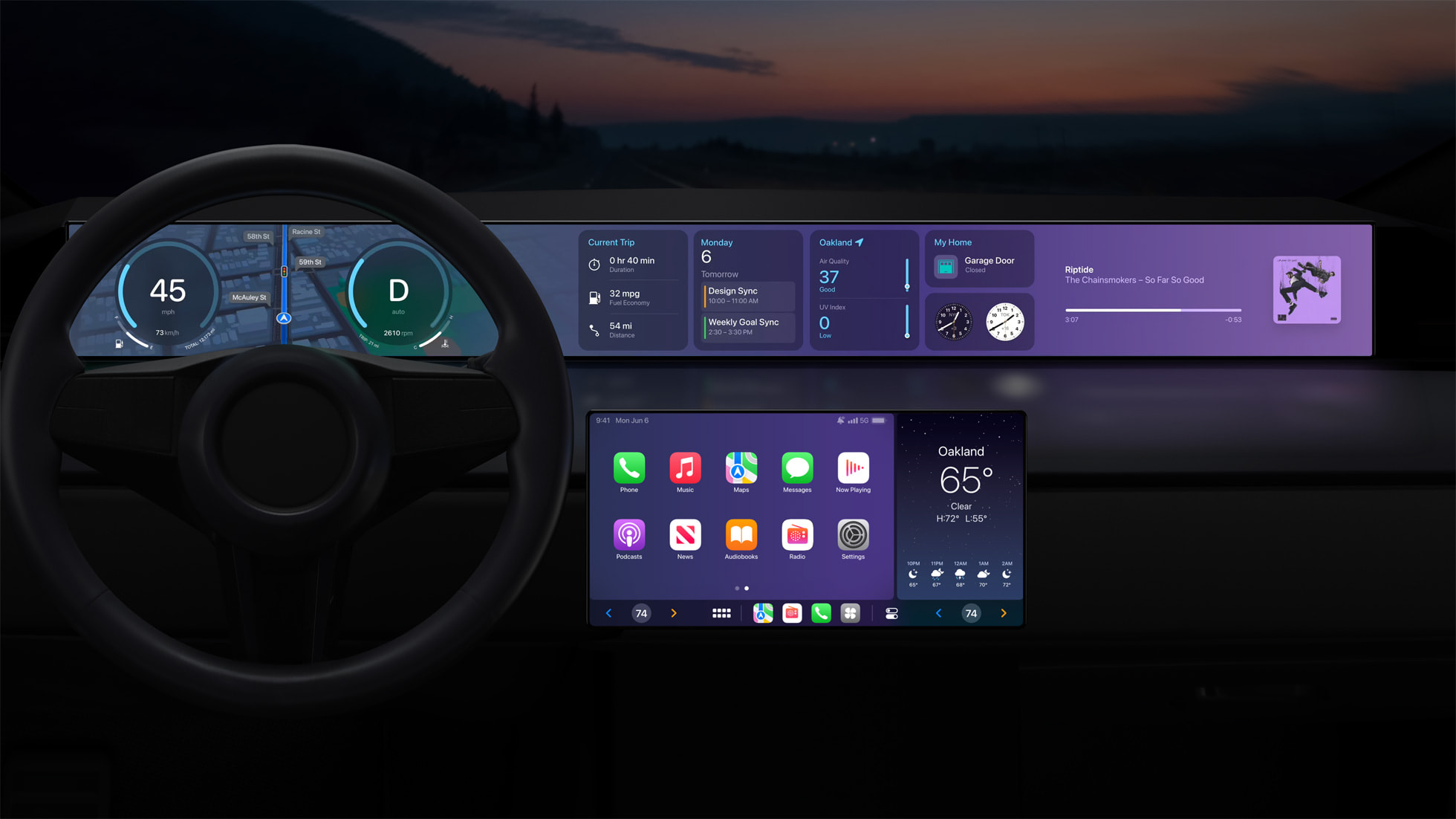
It has been over two years since Apple first previewed next-generation CarPlay at WWDC 2022, and it has still yet to become available in any vehicles.
Below, we recap the latest information about next-generation CarPlay.
Launch Timing
Apple's website continues to say that the first vehicles with next-generation CarPlay support will "arrive in 2024," but it has yet to provide a more specific timeframe. Aston Martin and Porsche previewed next-generation CarPlay vehicle designs late last year, but neither automaker has released any vehicles with support yet.
in WWDC 2024 coding sessions for developers, suggesting that the company remains committed to rolling out the system as of three months ago, but it is clearly taking quite some time.
Next-Generation CarPlay
Next-generation CarPlay will have deeper integration with a vehicle's instrument cluster, climate controls, FM radio, and more. It will also support multiple displays across the dashboard, and offer widgets for apps like Calendar and Weather.
In addition, next-generation CarPlay will be highly customizable, allowing automakers to tailor the design of the system to uniquely match their vehicles.
New Features
Instrument Cluster Integration
Next-generation CarPlay will integrate with a vehicle's instrument cluster, including the speedometer, tachometer, odometer, fuel gauge, engine temperature gauge, oil pressure gauge, and more. Apple says drivers will be able to choose from several gauge cluster designs and layouts, including brand‑specific options.
Climate Controls
You'll be able to access your vehicle's climate controls directly within the new CarPlay interface, allowing you to adjust the temperature of the A/C or heat, fan speed, heated seats, heated steering wheel, and other options.
Multi-Display Support
Next-generation CarPlay will be able to appear across all of the displays in a vehicle, providing a consistent experience across the infotainment system, instrument cluster, and any additional screens on the dashboard. Apple says the new CarPlay will be tailored to each vehicle model to accommodate unique screen shapes and layouts.
Widgets
Widgets will be a key part of the new CarPlay experience, offering at-a-glance information such as trip duration, fuel economy, distance traveled, calendar events, weather, phone calls, the status of a HomeKit-enabled garage door, and more. It will also be possible to view and scroll through the widgets within the instrument cluster.
FM Radio App
Next-generation CarPlay will include an all-new Media app that allows you to easily control the FM radio in your vehicle, such as to change the station.
New Apps
iOS 17.4 for the iPhone added hidden code-level references to eight new CarPlay apps:
Auto Settings: This app will let you manage paired iPhones and adjust vehicle settings.
Car Camera: This app will display the vehicle's rear-view camera feed.
Charge: For electric vehicles, this app will display battery level, charging status, time remaining until the battery is fully charged, and more.
Climate: This app will provide access to a vehicle's climate controls within CarPlay, allowing you to adjust the temperature of the A/C or heating system, fan speed, heated seats, heated steering wheel, and more.
Closures: This app will display if any of the vehicle's doors are opened, and it might also display vehicle warning symbols.
Media: This app will provide access to FM and AM radio station controls within CarPlay, along with other media options like SiriusXM. It is unclear if SiriusXM will offer satellite connectivity, or remain limited to internet streaming. Users will be able to select from a list of music genres, such as Top 40 and Rock.
Tire Pressure: This app will display air pressure for each of the vehicle's tires, and provide low pressure, high pressure, and flat tire warnings.
Trips: This app will provide a variety of driving-related data, including the vehicle's average speed, fuel efficiency or energy efficiency, the total time elapsed and distance traveled on a trip, and more.
Committed Automakers
Aston Martin's next-generation CarPlay preview from December 2023
Acura
Audi
Ford
Honda
Infiniti
Jaguar
Land Rover
Lincoln
Mercedes-Benz
Nissan
Polestar
Porsche
Renault
Volvo
Beyond the addition of Aston Martin, it is unclear if this list has changed since that initial announcement at WWDC 2022.
Related Roundup: CarPlay
Related Forum: HomePod, HomeKit, CarPlay, Home & Auto Technology
This article, "Where is Apple's Next-Generation CarPlay?" first appeared on MacRumors.com
Discuss this article in our forums
https://www.macrumors.com/2024/09/18/when-is-next-generation-apple-carplay-launching/
Apple Releases New AirPods Pro 2 and AirPods 4 Firmware
Apple today released a new firmware update for all AirPods Pro 2 and AirPods 4 models. The AirPods Pro 2 firmware has a build number of 7A302, up from 7A294, and the AirPods 4 firmware has a build number of 7A304.
There is no word yet on what’s included in the firmware, but it comes just a week after Apple last updated the AirPods Pro 2 firmware to add iOS 18 features like support for head gestures and Voice Isolation.
Apple is adding hearing aid and hearing test functionality to the AirPods Pro 2, so this update could potentially introduce those capabilities, or it may lay the groundwork for a future update. Apple plans to introduce hearing aid features to the AirPods Pro 2 this year, and the company has received FDA approval. Hearing aid functionality will not be included in the AirPods 4.
Related Roundups: AirPods 4, AirPods Pro
Buyer's Guide: AirPods (Buy Now), AirPods Pro (Neutral)
Related Forum: AirPods
This article, "Apple Releases New AirPods Pro 2 and AirPods 4 Firmware" first appeared on MacRumors.com
Discuss this article in our forums
https://www.macrumors.com/2024/09/18/apple-airpods-pro-2-firmware-7a302/
AirPods 4 vs. Previous Generations Buyer's Guide: All Upgrades Compared
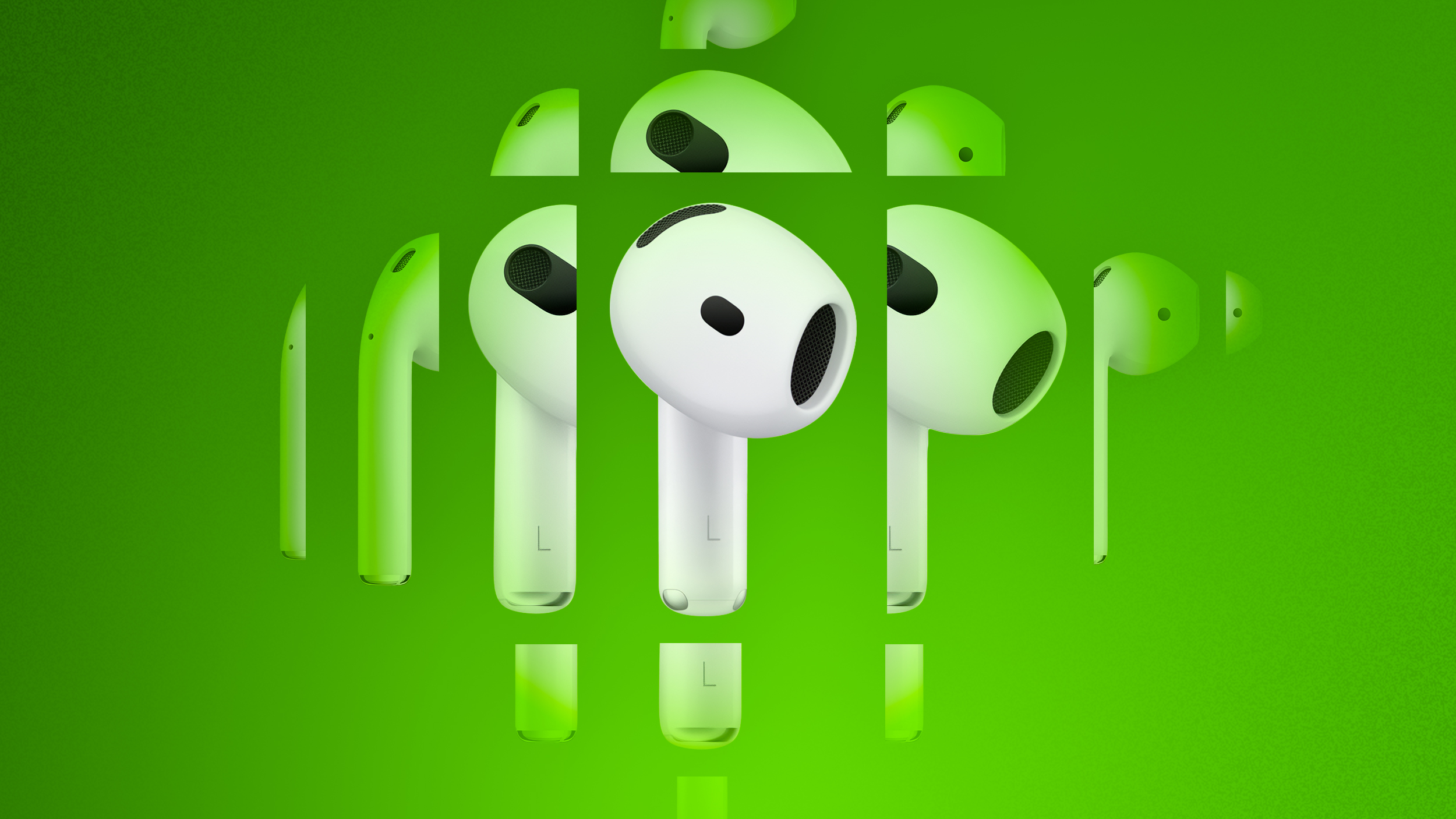
Apple's new AirPods are now available for pre-order. With the release of the AirPods 4 and AirPods 4 with ANC, Apple has made some significant improvements that could make a difference in your daily listening experience.
Key upgrades in the AirPods 4 include a more comfortable fit, improved sound quality with a new low-distortion driver, and enhanced features like Personalized Spatial Audio. For the first time in the standard AirPods range, the AirPods 4 offer optional active noise cancellation for an additional $50, providing a quieter and more immersive experience, especially in noisy environments.
This buyer's guide breaks down those changes, compares them to previous generations, and helps you to decide which model best fits your needs. Whether you're upgrading from the AirPods 2, AirPods 3, or deciding between the AirPods 4 models, this guide helps you to make an informed decision based on your priorities—whether it's sound quality, fit, comfort, or advanced features like ANC. We'll also explain who should consider upgrading to the latest generation.
AirPods
AirPods
AirPods
AirPods With ANC
EarPods-like design (2012) with long "stems"
AirPods Pro-like design (2019) with wider shape, shorter "stems," and improved fit
Further improved, more comfortable fit with narrower shape
Further improved, more comfortable fit with narrower shape
Vent system for pressure equalization
Vent system for pressure equalization
Optical in-ear sensors
Skin-detect sensors
Optical in-ear sensors
Optical in-ear sensors
Inward-facing microphones
Inward-facing microphones
Inward-facing microphones
Tap sensors
Force sensors
Force sensors
Force sensors
Double-tap to play, skip forward, or answer a phone call
Press once to play, pause, or answer a phone call, press twice to skip forward, press three times to skip back, and press and hold for Siri
Press once to play, pause, or answer a phone call, press twice to skip forward, press three times to skip back, and press and hold for Siri
Press once to play, pause, or answer a phone call, press twice to skip forward, press three times to skip back, and press and hold for Siri
Sweat and water resistance (IPX4)
Dust, sweat, and water resistant (IP54)
Dust, sweat, and water resistant (IP54)
Custom high-excursion Apple driver
Redesigned high-excursion Apple driver based on AirPods Pro
New low-distortion driver and acoustic architecture
New low-distortion driver and acoustic architecture
Custom high dynamic range amplifier
Redesigned high dynamic range amplifier based on AirPods Pro
New high dynamic range amplifier
New high dynamic range amplifier
H1 chip
H1 chip
H2 chip
H2 chip
Bluetooth 5.0
Bluetooth 5.0
Bluetooth 5.3
Bluetooth 5.3
2.4GHz connectivity
2.4GHz connectivity
2.4GHz and 5GHz connectivity
2.4GHz and 5GHz connectivity
Adaptive EQ
Adaptive EQ
Adaptive EQ
Spatial audio with dynamic head tracking
Spatial audio with dynamic head tracking
Spatial audio with dynamic head tracking
Active Noise Cancellation
Transparency mode
Adaptive Audio
Conversation Awareness
Personalized Volume
Personalized Volume
Voice Isolation
Voice Isolation
"Hey Siri" command support
"Hey Siri" command support
"Hey Siri" and just "Siri" command support
"Hey Siri" and just "Siri" command support
Up to five hours of listening time with a single charge
Up to six hours of listening time with a single charge (up to five hours with spatial audio)
Up to five hours of listening time with a single charge
Up to five hours of listening time on a single charge with noise control off (up to four hours of listening time on a single charge with Active Noise Cancellation enabled)
Lightning Charging Case
Lightning Charging Case/MagSafe Charging Case with support for Apple Watch charger, Qi‑certified wireless chargers, and MagSafe
USB-C Charging Case
USB‑C Wireless Charging Case with support for Apple Watch charger and Qi‑certified wireless chargers
Wider charging case
Compact charging case (10% smaller in volume)
Compact charging case (10% smaller in volume)
Speaker for Find My
Lightning port
Lightning port
USB-C port
USB-C port
Physical pairing button
Physical pairing button
Capacitive pairing button
Capacitive pairing button
Previously $129, now discontinued
Previously $179, now discontinued
$129
$179
Dimensions
With each generation, Apple has refined the design of both the earbuds and the charging case, making them more compact and lightweight. In the AirPods 4, the earbuds are slightly smaller and more ergonomic, while the charging case has seen a 10% reduction in volume, making it easier to carry around. Below, you'll find a detailed comparison of the dimensions of the AirPods across generations, helping you see how Apple has improved the form factor over time.
Earbuds
AirPods (Second-Generation)
AirPods (Third-Generation)
AirPods (Fourth-Generation)
Height
40.5 mm (1.59 inches)
30.79 mm (1.21 inches)
30.2 mm (1.19 inches)
Width
16.5 mm (0.65 inches)
18.26 mm (0.72 inches)
18.3 mm (0.72 inches)
Depth
18.0 mm (0.71 inches)
19.21 mm (0.76 inches)
18.1 mm (0.71 inches)
Weight
4.0 grams (0.14 ounces)
4.28 grams (0.15 ounces)
4.3 grams (0.15 ounces)
Charging Case
AirPods (Second-Generation) Charging Case
AirPods (Third-Generation) Charging Case
AirPods (Fourth-Generation) Charging Case
Height
53.5 mm (2.11 inches)
46.40 mm (1.83 inches)
46.2 mm (1.82 inches)
Width
44.3 mm (1.74 inches)
54.40 mm (2.14 inches)
50.1 mm (1.97 inches)
Depth
21.3 mm (0.84 inches)
21.38 mm (0.84 inches)
21.2 mm (0.83 inches)
Weight
38.2 grams (1.35 ounces)
37.91 grams (1.34 ounces)
32.3 grams (1.14 ounces)
ANC model: 34.7 grams (1.22 ounces)
Is It Worth Upgrading?
The AirPods 4, especially the ANC version, represent a significant step forward over their predecessors. The most crucial upgrade is the introduction of active noise cancellation (ANC) on the AirPods 4 with ANC, a first for Apple's open-ear earbuds. This elevates the overall listening experience by enabling users to enjoy their music and calls in noisier environments without needing silicone in-ear tips. For many, this alone will justify the upgrade, particularly for users who dislike the fit of in-ear designs like the AirPods Pro.
Another standout improvement is the sound quality. With a newly designed low-distortion driver, the AirPods 4 deliver deeper bass, clearer highs, and better overall clarity than previous models. This is further enhanced by Apple's Adaptive EQ and Personalized Spatial Audio technology, which optimize the sound to each listener's ear. This improvement is significant enough that even casual listeners will notice a marked difference, particularly if they're upgrading from the AirPods 2 or AirPods 3, where sound quality improvements were more incremental.
Fit and comfort have also seen refinements. The AirPods 4 feature a narrower, more ergonomic design that fits a wider range of ears more securely, addressing complaints about the AirPods 3's less secure fit for some users. The charging case has also been made 10% smaller and, in the ANC version, includes a speaker for easier tracking through Apple's Find My app.
Upgrading From AirPods 2
If you're coming from AirPods 2, upgrading to the AirPods 4 is a worthwhile move, with a large number of significant design, sound, and basic quality-of-life improvements. The AirPods 2 lack many features that became standard in subsequent models, such as improved sound quality and spatial audio. Users upgrading from the AirPods 2 will find the AirPods 4 with ANC to be an even bigger leap forward.
Upgrading From AirPods 3
For AirPods 3 users, the decision is more nuanced. The sound quality and comfort improvements are notable but perhaps not enough for all users to justify the switch unless ANC is a priority. If noise isolation and the ability to listen comfortably in busy environments are critical for you, then the AirPods 4 with ANC would be a worthwhile upgrade. For those who don't need ANC and are satisfied with the sound quality of the AirPods 3, sticking with your current model might be more practical unless comfort and fit are a persistent issue.
Upgrading From AirPods Pro
Those using AirPods Pro likely won't find enough reason to switch unless they are seeking a lighter, open-ear design without silicone tips. The AirPods 4 can't match the noise cancellation or seal of the Pro, but they offer a more comfortable alternative for those who prefer an open-ear fit while retaining many of the features Pro users enjoy, such as Personalized Spatial Audio and dynamic head tracking.
AirPods 4 or AirPods 4 With ANC?
Choosing between the AirPods 4 and the AirPods 4 with ANC largely hinges on whether active noise cancellation is a priority for you. If you frequently find yourself in noisy environments—such as commuting on public transport, traveling by plane, or working in cafes—the AirPods 4 with ANC should dramatically improve your experience for just $50 more. Although the noise cancellation isn't as affective as that of the AirPods Pro, it performs surprisingly well for open-ear earbuds and offers enough isolation to make a difference in lower-frequency environments like engine hums and busy streets.
The ability to charge with an Apple Watch or Qi wireless charger is also notable, as is the speaker in the charging case for Find My. These added features generally make the AirPods 4 with ANC worth the extra $50 over the non-ANC model for most enthusiastic tech users.
Related Roundup: AirPods 4
Buyer's Guide: AirPods (Buy Now)
Related Forum: AirPods
This article, "AirPods 4 vs. Previous Generations Buyer's Guide: All Upgrades Compared" first appeared on MacRumors.com
Discuss this article in our forums
https://www.macrumors.com/guide/airpods-4-vs-previous-generations/
Amazon Has Apple's AirPods 2 for $89 and AirPods Pro 2 for $189.99

Apple's newest model of AirPods, the AirPods 4, launch this Friday, but if you want to save some money and are okay with investing in an older model, the AirPods 2 are just $89.00 today on Amazon. This is a $40 discount and a solid second-best price on the AirPods 2.
Note: MacRumors is an affiliate partner with Amazon. When you click a link and make a purchase, we may receive a small payment, which helps us keep the site running.
$189.99, down from $249.00. This has been one of the more consistent AirPods deals that we've tracked in 2024, and it's an overall second-best price on the AirPods Pro 2.
$40 OFF
AirPods 2 for $89.00
$59 OFF
AirPods Pro 2 (USB-C) for $189.99
There are a few advanced features that you'll be missing out on if you buy a pair of AirPods 2 in 2024. This includes personalized Spatial Audio with dynamic head tracking, the force sensor, USB-C charging, as well as improvements to audio and microphone technology. Still, for anyone who just needs a reliable pair of wireless earbuds, they're a great investment at this price.
$129.99, as well as the model with Active Noise Cancellation for $179.99. Both will be released on September 20.
Deals Roundup has more information on the latest Apple-related sales and bargains.
Related Roundup: Apple Deals
This article, "Amazon Has Apple's AirPods 2 for $89 and AirPods Pro 2 for $189.99" first appeared on MacRumors.com
Discuss this article in our forums
https://www.macrumors.com/2024/09/18/amazon-has-apples-airpods-2/
iPhone 16 Pro Reviews: Iterative Upgrades… For Now
The first reviews of the iPhone 16 Pro and iPhone 16 Pro Max were shared today by select media outlets and YouTube channels, ahead of the devices launching on Friday. Also check out our iPhone 16 and iPhone 16 Plus review roundup.
iPhone 16 Pro and Pro Max models feature 6.3-inch and 6.9-inch displays, respectively, up from the 6.1-inch iPhone 15 Pro and 6.7-inch iPhone 15 Pro Max. Other new features include a Camera Control button, an A18 Pro chip optimized for Apple Intelligence, a 48-megapixel Ultra Wide camera, support for 4K at 120 FPS video recording, longer battery life, faster charging over MagSafe, and improved microphones.
Reviews
The Verge's Nilay Patel on the Camera Control:
It's pretty fun to flip the phone on its side and shoot with the button like a normal camera, although the physical button is a bit stiff — a few Verge staffers found themselves moving the phone slightly when pushing all the way down to take a photo, although I thought it was fine.
He concluded that the Camera Control is not a huge improvement:
Overall, the button is very nice to have, but that’s about it right now — as it exists today, it’s not a huge improvement over shooting photos with any other iPhone.
As it exists today, it's a remarkably iterative update to the iPhone 15 Pro — it's hard to find reasons to upgrade from last year’s model. And I'm not at all convinced that it's worth upgrading to the 16 Pro from older Pro models just yet, either — the Camera Control and Action Button are nice, but not game changing, and unless you're excited about dialing in the new Photographic Styles and the new tone control, you might find the even-brighter-and-flatter photos to actually be a step backward in photo processing.
Tom's Guide's Mark Spoonauer battery-life test:
On the Tom's Guide battery life test, which involves continuous web surfing at 150 nits of screen brightness, the new iPhone 16 Pro lasted 14 hours and 7 minutes, which is a big jump from the 10:53 from the iPhone 15 Pro, and enough to just crack our list of the best phone battery life.
While it was believed that the iPhone 16 Pro supports up to 45W wired charging, Spoonauer did not actually see any improvement during his testing.
Gizmodo's Florence Ion on real-world battery life:
For now, I can tell you the iPhone 16 Pro, with its smaller battery pack, performed impressively on a day out into the city. I still had 20% battery toward the end of my transit ride back to the car after six hours out and about with the AirPods 4 with ANC engaged in my ears. I also started the day with 83% on the iPhone 16 Pro, only to end up at 24% battery after seven hours of installing software, shooting photos, taking a phone call, listening to a podcast, and playing a little Apple Arcade.
up to 15% faster than the A17 Pro chip, as Apple advertised. iPhone 16 Pro models continue to have the fastest CPU in any smartphone, and that seems to be evident.
WIRED's Julian Chokkattu on performance:
These phones are powered by the A18 Pro chipset, which is far and away the most powerful smartphone processor according to my benchmark tests, easily blowing away much of the Android competition. It has one extra graphics core compared to the A18 in the iPhone 16, but the CPU cache sizes are larger, which means as a whole, the A18 Pro is still generally faster than the A18.
PetaPixel's Chris Niccolls touched on the iPhone 16 Pro's new 48-megapixel Ultra Wide camera in his photography-focused review:
The ultra-wide camera has also been improved to a new 48-megapixel sensor with autofocus that can deliver decent macro capabilities with more detail than before. The aperture is the same as before at f/2.2. I like now having the option of 48-megapixel RAW files although, in real-world situations, the resolution does not match that of a standard Bayer pattern sensor at 48 megapixels. Oddly, Apple also decided not to implement the option for a 24-megapixel HEIF file, which it does have on the main fusion camera. The extra megapixels are unnecessary for social media applications but at least landscape and macro photographers can squeeze some more detail out of their RAW files.
He also touched on recording 4K video at 120 FPS:
On the video front, the headline addition is the ability to record up to 4K 120p with a very high-quality look thanks to ProRes Log. You can also retime the 120p footage down to 1/5 speed for a 24-frame-per-second timeline right on the phone and it will show it to you in real-time as it is rendering. Speed ramping can be done very simply within the same interface allowing for some dramatic looking slow motion shots.
Engadget's Cherlynn Low on the new "studio-quality" microphones:
For the most part, going to Cinematic or Studio modes from Standard resulted in a noticeable reduction in environmental noise. My favorite is Studio, which generally seemed to improve voice clarity as well, making people sound like they could be talking on a podcast.
Videos
Related Roundup: iPhone 16 Pro
Tag: Reviews
Buyer's Guide: iPhone 16 Pro (Buy Now)
This article, "iPhone 16 Pro Reviews: Iterative Upgrades… For Now" first appeared on MacRumors.com
Discuss this article in our forums
Apple Says iPhone 16 and iPhone 16 Plus Batteries Can Be Removed With Low-Voltage Electrical Current
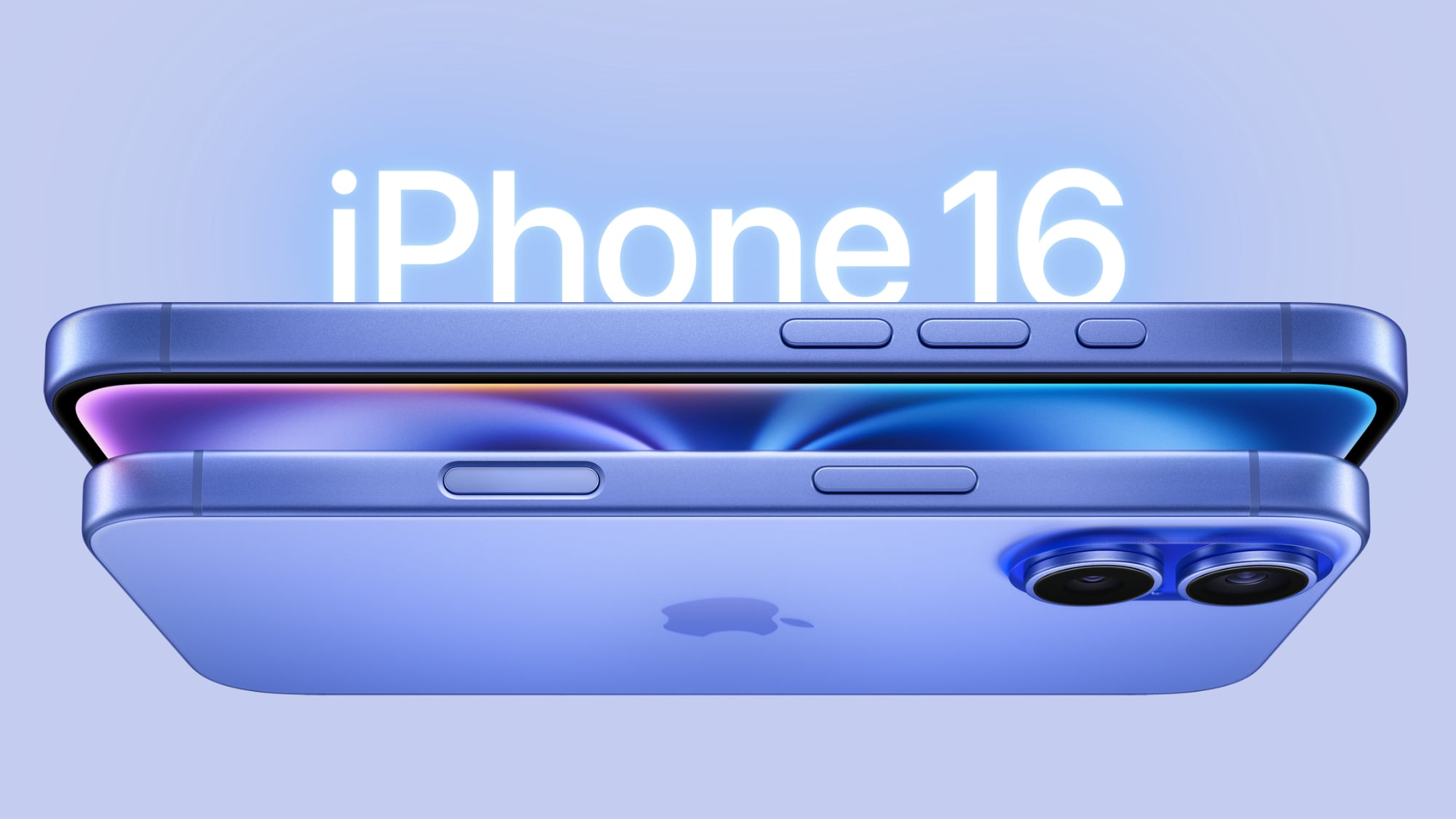
Apple has confirmed to publications including Engadget that the iPhone 16 and iPhone 16 Plus have a new electrically-induced battery removal process.
The batteries use a type of adhesive that can be loosened with low-voltage electrical current, such as from a 9V battery, according to Apple. The battery can then be easily removed from the devices, with this new process considered to be easier than the adhesive pull tabs that are found under batteries in some previous iPhone models.
This news seemingly confirms that the batteries in the iPhone 16 and iPhone 16 Plus have metal enclosures, which should be revealed in teardowns soon.
to TechCrunch.
to comply with EU law. Apple previously announced that all four iPhone 16 models received an internal redesign for improved repairability and better heat dissipation, but specific details were not known until now.
Related Roundup: iPhone 16
Buyer's Guide: iPhone 16 (Buy Now)
This article, "Apple Says iPhone 16 and iPhone 16 Plus Batteries Can Be Removed With Low-Voltage Electrical Current" first appeared on MacRumors.com
Discuss this article in our forums
https://www.macrumors.com/2024/09/18/iphone-16-and-16-plus-9v-battery-removal/
Apple Intelligence Available in These Additional 7 Countries Next Year
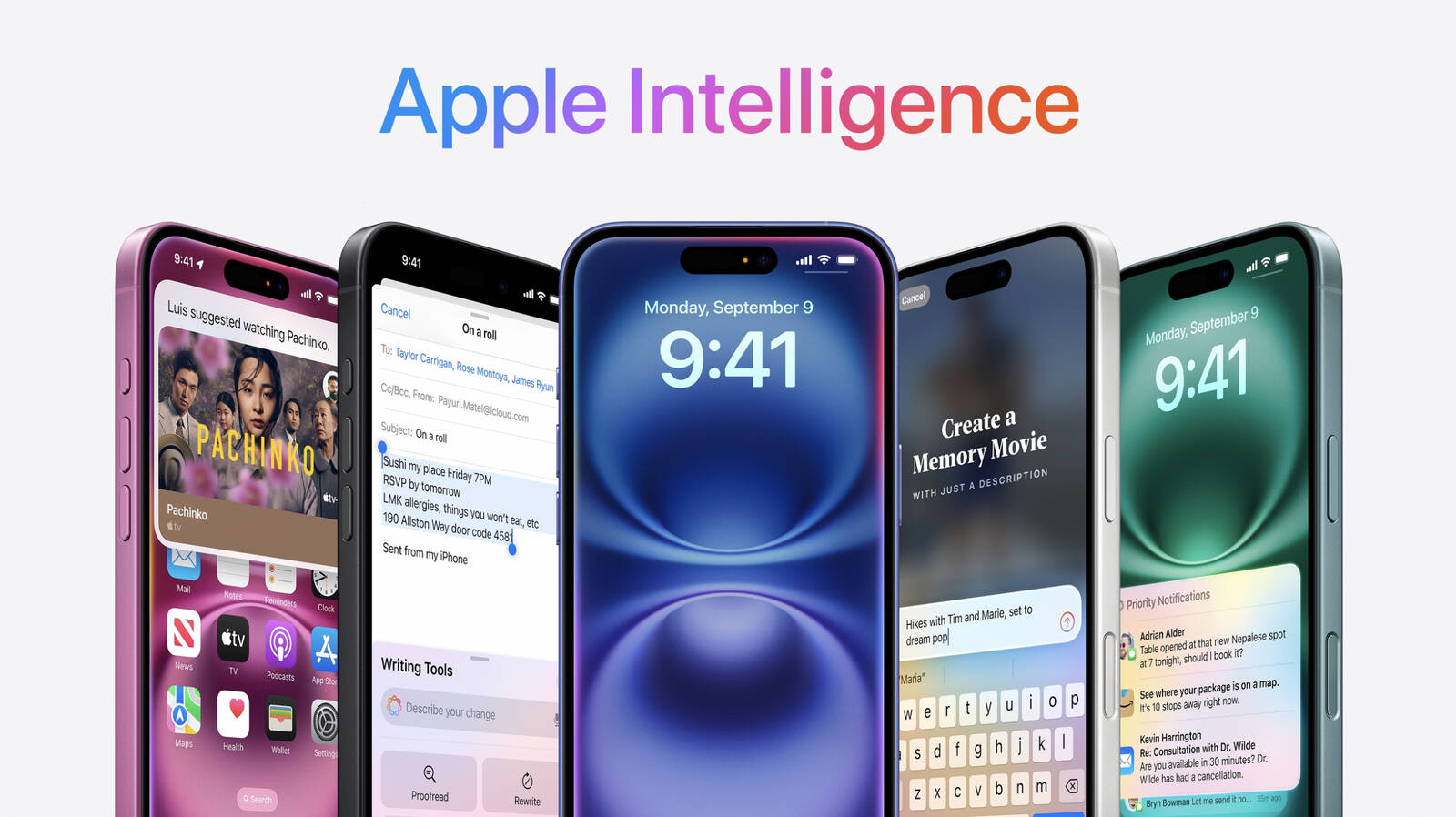
Apple Intelligence will start rolling out to the public in U.S. English only when iOS 18.1 is released in October, but additional languages will be added over the next year. The features are compatible with any iPhone 15 Pro or iPhone 16 model.
Apple told publications including The Verge that Apple Intelligence will support the following previously-unannounced languages in 2025:
India (English)
Singapore (English)
Germany (German)
Italy (Italian)
South Korea (Korean)
Portugal (Portuguese)
Vietnam (Vietnamese)
Apple previously announced that support for English in Australia, Canada, New Zealand, South Africa, and the U.K. will be added in December (likely with iOS 18.2), and that support for Chinese, French, Japanese, and Spanish will be added next year.
iOS 18.1 is already available in beta for developers, and it includes Apple Intelligence features such as writing tools for proofreading text, notification summaries, suggested replies in the Messages app, the ability to record and transcribe phone calls, and a new "Clean Up" tool in the Photos app that can quickly remove objects from a photo.
Here's the full list of countries and languages that are now known:
Australia (December 2024)
Canada (December 2024)
New Zealand (December 2024)
U.K. (December 2024)
South Africa (December 2024)
China (2025)
France (2025)
Japan (2025)
Spain (2025)
India (2025)
Singapore (2025)
Germany (2025)
Italy (2025)
South Korea (2025)
Portugal (2025)
Vietnam (2025)
Due to the Digital Markets Act, Apple Intelligence will not be available on the iPhone and iPad in the EU, with the features limited to Macs with the M1 chip or newer there. Apple said it is discussing this issue with the European Commission.
Tag: Apple Intelligence
This article, "Apple Intelligence Available in These Additional 7 Countries Next Year" first appeared on MacRumors.com
Discuss this article in our forums
https://www.macrumors.com/2024/09/18/apple-intelligence-even-more-countries-next-year/
iOS 18: Use Emoji as Tapback Reactions in Messages
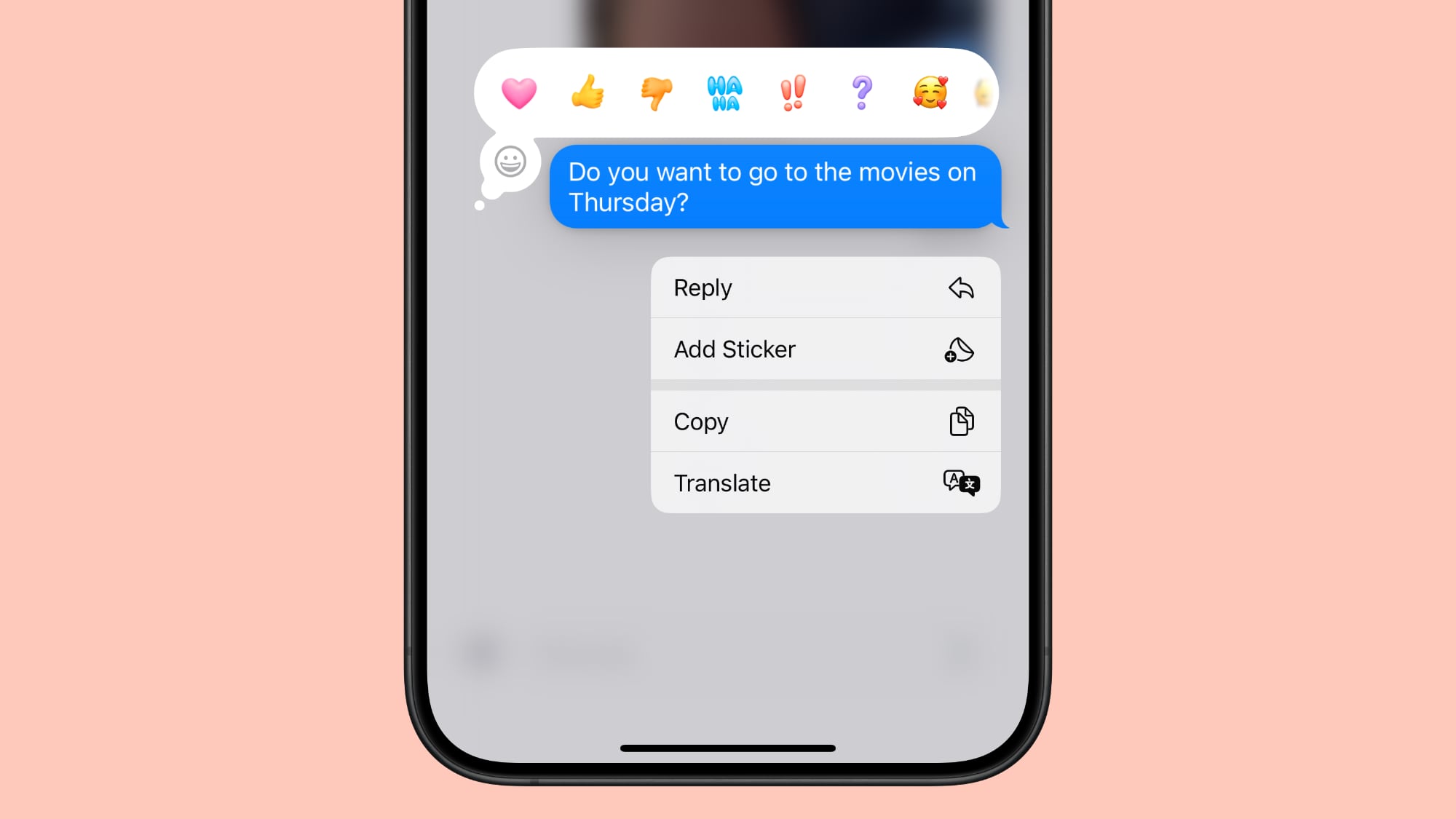
Apple has introduced significant updates to its Messages app in iOS 18, with a particular focus on enhancing the popular Tapback feature. Tapbacks, the quick reactions users can add to messages by long-pressing on them, have received a colorful makeover and expanded functionality.
In iOS 18, the six standard Tapback icons now feature more vibrant colors and intricate details. This visual refresh makes reactions more expressive and engaging, since the new design is visible both when selecting a Tapback and when receiving one from other users.
Perhaps the most notable change however is the addition of emoji support for Tapbacks. While the classic six reactions remain, you now have the option to choose from a wide array of emoji characters, adding a new layer of personalization to your message responses and making them more nuanced and expressive.
Here's how to use emoji as a Tapback reaction to a message you received in iOS 18:
Long press on a message in the conversation thread.
Swipe left across the standard Tapback reactions.
Either select one of the suggested emoji to use, or tap the greyed out emoji at the end of the row to access the emoji keyboard and choose one that better suits your reaction.
text effects and formatting options to the Messages app. Follow the links to learn how to use them.
Tag: Messages
This article, "iOS 18: Use Emoji as Tapback Reactions in Messages" first appeared on MacRumors.com
Discuss this article in our forums
https://www.macrumors.com/how-to/ios-use-new-tapback-reactions-messages/
Apple's A16 Chips Now Being Manufactured in Arizona TSMC Plant
Apple's A16 chips are now being manufactured on American soil at TSMC's Arizona plant, according to Taiwan-based independent journalist Tim Culpan.
The A16 chip, which debuted in the iPhone 14 Pro two years ago, is reportedly being produced in small but meaningful quantities at TSMC's Fab 21 facility in Arizona. The chips are said to be manufactured using the same 4nm N4P process employed in TSMC's Taiwan factories to ensure consistency in quality and performance.
as early as 2024. The facility's production is expected to ramp up significantly when the second stage of its first phase is completed, with full-scale manufacturing projected for the first half of 2025.
The choice to manufacture the A16 chip in Arizona is particularly notable, as it suggests Apple has enough belief in the new US facility to entrust it with one of its most advanced mobile processors, rather than opting for a less critical component.
iPad model or – more likely – the next-generation iPhone SE, given that rumors suggest the iPhone SE 4 will be based on the iPhone 14, in which the A16 processor was first introduced.
Tags: TSMC, United States
This article, "Apple's A16 Chips Now Being Manufactured in Arizona TSMC Plant" first appeared on MacRumors.com
Discuss this article in our forums
https://www.macrumors.com/2024/09/18/apple-a16-chips-manufactured-arizona-tsmc-plant/
Bricked iPhone 16 Can Be Restored Wirelessly Using Another iPhone
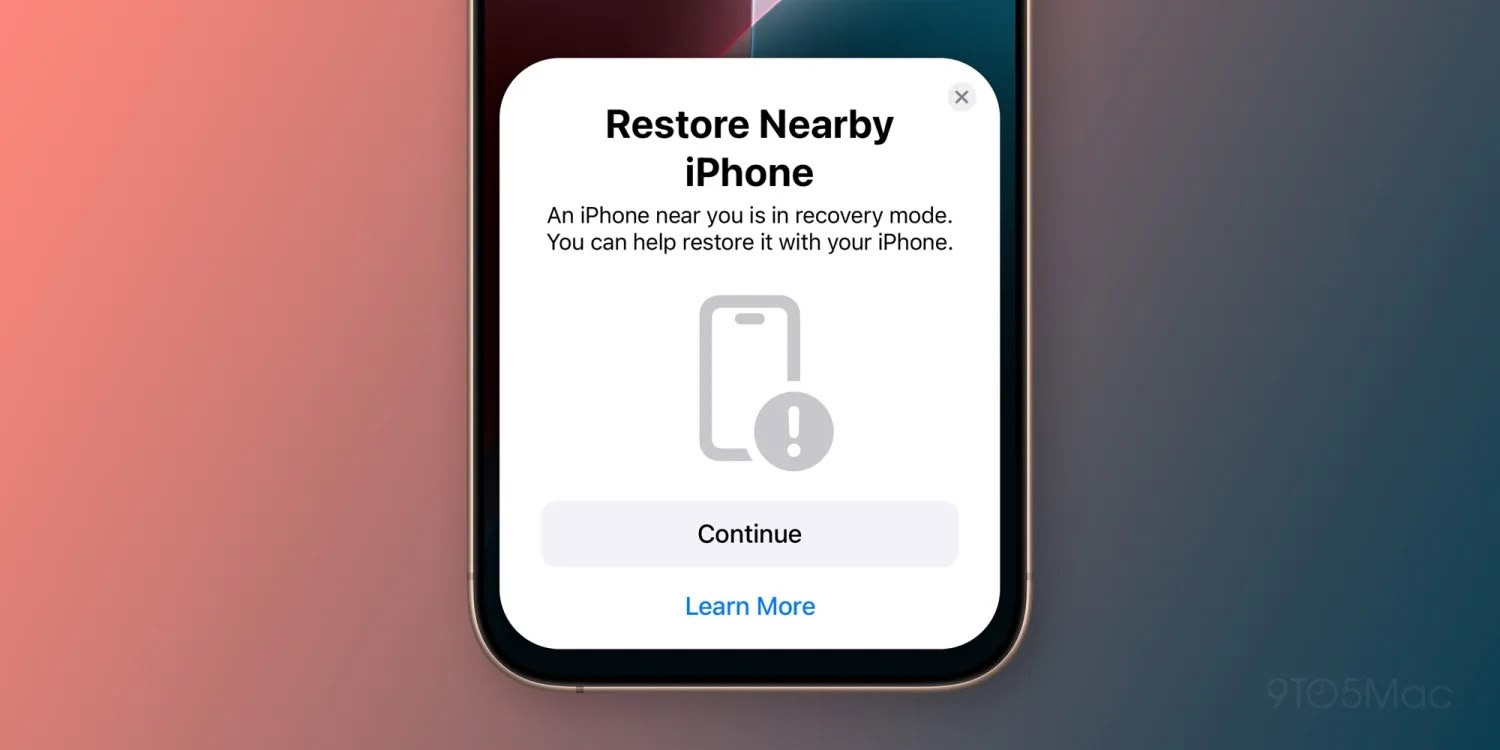
iOS 18 includes a new over-the-air recovery feature designed to revive bricked iPhone 16 devices using another iPhone or an iPad, according to a new report.
Image credit: 9to5Mac
As things stand, if you have a malfunctioning iPhone 15 or earlier model, a Mac or PC needs to be used to restore the firmware, which is inconvenient as some people might not have the appropriate cable to hand or no longer even use a computer.
Apple has made efforts over the years to remove the need to operate iOS devices with computers. For example, it's already possible to use an iPhone to wirelessly restore an Apple Watch or an Apple TV. Now it looks like the same functionality is coming to new iPhone 16 models.
9to5Mac reports that it was able to simulate when an iPhone 16 enters Recovery Mode in iOS 18, which apparently allows users to simply place the iPhone 16 next to another iPhone or iPad to start an over-the-air firmware recovery. The other device downloads a new iOS firmware and transfers it to the bricked device, removing the need to connect it to a computer.
While iOS 18 enables any compatible device to assist in restoring a non-functional iPhone, it appears that wireless restoration is currently limited to iPhone 16 models. Apple's latest devices apparently come equipped with a dedicated recovery partition, capable of managing the entire restoration process independently of the main iOS partition's status.
way back in iOS 13.4. Whether Apple intends to add the functionality to earlier iPhone models is unclear at this time. iOS 18 is available now, while the iPhone 16 series is set to launch on Friday, September 20.
Related Roundups: iOS 18, iPadOS 18, iPhone 16, iPhone 16 Pro
Buyer's Guide: iPhone 16 (Buy Now), iPhone 16 Pro (Buy Now)
Related Forums: iOS 18, iPadOS 18
This article, "Bricked iPhone 16 Can Be Restored Wirelessly Using Another iPhone" first appeared on MacRumors.com
Discuss this article in our forums
https://www.macrumors.com/2024/09/18/iphone-16-restored-wirelessly-another-iphone/
End-to-End Encryption Coming for iPhone-to-Android RCS Messages
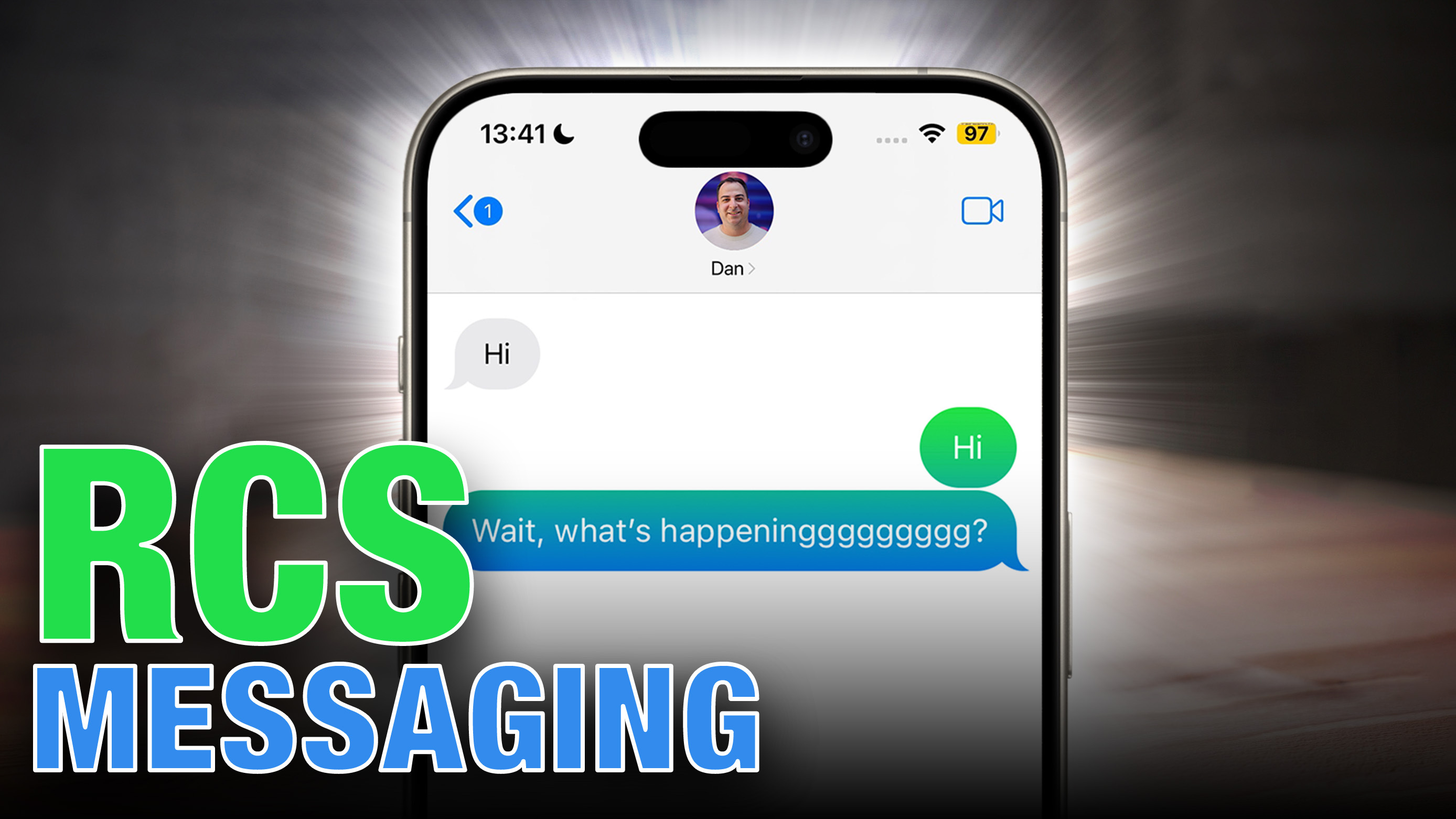
The GSM Association (GSMA), the organization responsible for developing the Rich Communication Services (RCS) standard, announced on Tuesday that it is working to implement end-to-end encryption (E2EE) for messages sent between Android and iPhone devices, though no specific timeline for the implementation has been provided.
The news comes on the heels of Apple's recent adoption of RCS with the launch of iOS 18, which replaced SMS with RCS messaging for texts sent to Android users. While the update brings improvements such as high-resolution media sharing, read receipts, and typing indicators, it notably lacks end-to-end encryption.
GSMA technical director Tom Van Pelt said that the next milestone for RCS Universal Profile is the "first deployment of standardized, interoperable messaging encryption between different computing platforms." This move aims to bridge a significant gap in cross-platform messaging security.
Currently, not all RCS providers offer E2EE. Google Messages, which enabled E2EE by default for RCS conversations last year, is one of the exceptions. Apple's proprietary iMessage system also features E2EE, but this protection does not extend to RCS messages.
Tag: RCS
This article, "End-to-End Encryption Coming for iPhone-to-Android RCS Messages" first appeared on MacRumors.com
Discuss this article in our forums
https://www.macrumors.com/2024/09/18/end-to-end-encryption-rcs-messages/
iOS 18 Passwords App: All the New Features
With iOS 18, Apple introduced a standalone Passwords app that streamlines login and password management. You've been able to store password information on your Apple devices through iCloud Keychain for years, but accessing passwords was a little difficult because the data was tucked away in the Settings app. That's no longer the case, and in iOS 18, it's much simpler to create and manage passwords for websites and more.
This guide goes over everything you need to know about the iOS 18 Passwords app, which is also available in iPadOS 18 and macOS Sequoia 15.
Layout
The Passwords app is installed automatically when upgrading to iOS 18, iPadOS 18, or macOS Sequoia. The app has a simple layout with a search bar right at the top, so you can look up the information that you're looking for.
If you've already used the iCloud Keychain feature, all of your saved logins and passwords are ready to go as soon as you authenticate with Face ID or Touch ID. There are separate sections for passwords and logins (under All), Passkeys, two-factor authentication codes, Wi-Fi passwords, security warnings, and logins that have been deleted.
You can tap in to any of the sections to see what's listed there, and tapping on an individual entry shows the login and password. Each entry has fields for site or app name, username, login, verification code, websites where the login is used, and notes. There's also a one-tap option for changing your password for any given entry.
The layout of the Passwords app is similar to what you see in the Passwords section of the Settings app in iOS 18.
Adding Logins and Passwords
To add a login or password to the Passwords app, it's as simple as tapping on the "+" button at the bottom of the main interface.
The Passwords app populates a new entry with a password automatically, and you just need to add the website name and username, then copy the password and put it in the app, website, or service you're signing up for. Tapping on Save will save the information.
If you want to add information to an existing entry, you can tap into the relevant section, such as All, search for the login you want to update, tap it, and then select the "Edit" option to get to the editing interface for adding notes, changing a password, or adding a verification code.
Passwords and logins are added automatically to the Passwords app when you have iCloud Keychain enabled and you create a new login in Safari or in an app.
Changing Passwords
To change a Password, you just need to open up the Passwords app, search for the login you want to update, tap on Edit, and then tap on the "Change Password..." option. You can also browse through Passwords using the "All" section.
Tapping on Change Password opens up the website associated with the login and password, but you will need to initiate the password change process on the site by logging into your account and finding the appropriate option for updating a password.
Deleting Passwords
To delete a password, go to the "All" section and browse until you find it, or search for a specific login. From the "All" overview, you can swipe from right to left to bring up a delete option. Just tap on delete to remove the password.
You can also tap into any of your logins, choose Edit, and select Delete Password from there. To delete multiple logins, tap on the Select tool at the top right of the display (it looks like a list with a checkmark) and then tap any of the logins you want to delete. When you're done, tap on Delete again to delete them all.
Passwords that you have deleted are stored in a Deleted folder in the Passwords app for 30 days before they're permanently deleted. You can tap into that folder and swipe to delete logins and passwords right away. Alternatively, you can use the select button at the top to delete multiple logins at one time.
Authentication Codes
The Passwords app can provide two-factor authentication codes for sites that make additional security options available. To add a two-factor authentication code, tap on the "Codes" section of the main Passwords interface.
From there, tap on the "+" button. You can either scan a QR code with a camera, which is a common way two-factor authentication apps work, or enter a setup key. Once the code is stored in the Passwords app, you can open up the Codes section at any time to get a temporary code to log in to a site or app.
Two-factor authentication codes also show up when you search for a password and login or browse through logins in the "All" section.
Passkeys
Websites have started transitioning from passwords to passkeys, and the Passwords app stores your passkeys as well as your logins and passwords.
Passkeys are more secure than passwords, and they let you log into your accounts using Face ID or Touch ID authentication on an Apple device. Passkeys basically use a cryptographic key pair, with one public key stored on a server and a private key stored on your device.
Private keys are not shared, they remain on-device only, and can't be sent to other people, protecting your accounts from phishing attempts.
You can see your stored passkeys in the Passkeys section of the Passwords app, and you should swap over to Passkeys for every website that offers the feature.
Password Sharing
The Passwords app lets you set up and share select passwords with trusted contacts. You can create one or more groups of people that include family and friends, providing them with access to shared logins and passwords.
Creating a group can be done by tapping on the folder on the left hand side of the main Passwords interface. Type in a name, and then select people to add. Note that anyone you add needs to be in your contacts list.
From there, you can select logins and passwords that you want to share. Logins and passwords can be removed at any time, and all members of a group can contribute logins. The group creator can remove people from the group at any time.
To share a password with someone in person, you can search for the login that you want to share and then use the Share Sheet to open up an AirDrop interface that will let you AirDrop the login and password information. The Share Sheet is only designed for this kind of in-person sharing.
AutoFill
If you have AutoFill enabled on your devices, your logins and passwords will be entered automatically when you visit a website in Safari that you have stored login information for. AutoFill will pop up an option for the appropriate login and password on any account login field in Safari or in an app.
AutoFill works the same as it did when passwords were limited to the Settings app.
Sorting
In the "All" section of the Passwords app, you can tap on the icon that features two arrows to get to sorting options.
Sorting options include Date Edited, Date Created, Website, or Title, and each of these can be displayed in a Descending or Ascending list by tapping on the desired option.
Syncing
Passwords are synced automatically between all of your Apple devices using iCloud Keychain. You just need to have the option turned on and you need to be logged in to your Apple ID on any device where you want to access your passwords.
You can even get to your logins and passwords on a Windows PC because Apple is adding the Passwords app to iTunes for Windows.
Security
There is a dedicated Security section in the Passwords app, and it lets you know if you have a password that is reused, too weak, or has been compromised in a data leak.
Warnings are accompanied by information letting you know that a password change is in order, and you can tap on the Change Password option to go to the website where you need to update your information.
For any individual login, you'll also see information letting you know if your password is weak or strong.
Importing Passwords
Apple plans to provide a tool for importing passwords from other services like 1Password and LastPass, but as of now, this functionality has not been implemented.
Read More
For more on the new features that Apple is added in iOS 18, we have a dedicated iOS 18 roundup.
Related Roundups: iOS 18, iPadOS 18
Related Forums: iOS 18, iPadOS 18
This article, "iOS 18 Passwords App: All the New Features" first appeared on MacRumors.com
Discuss this article in our forums
RCS in iOS 18: What You Need to Know About Apple's Android Messaging Overhaul
Apple adopted Rich Communication Services (RCS) with the launch of iOS 18, upgrading messaging standards for non-iMessage conversations. Apple's decision to adopt RCS came as a shock when it was first announced in November 2023 because Google had been aggressively pushing Apple to implement RCS for years, but Apple wouldn't budge.
This guide explains everything that you need to know about RCS, including how it works, how to use it on Apple devices, why you might not see it, why Apple decided to adopt it now, and the benefits that you can expect from RCS now that support for the feature is live.
RCS Explained
Rich Communication Services, or RCS, is a communication protocol developed by the GSM Association and championed by Google. As a communication protocol, RCS is used by smartphone manufacturers and carriers to deliver text-based messages, images, and videos between devices. It's basically what now powers the text messages that you send to people with your iPhone and other Apple devices when iMessage is unavailable.
RCS is a replacement for SMS (Short Messaging Service) and MMS (Multimedia Messaging Service), both of which are used for data sharing over cellular networks. RCS combines the features of SMS and MMS, and adds additional functionality. Like SMS, it lets you to send texts to people who don't have iPhones for iMessage.
RCS Features
There are a number of benefits to RCS compared to the prior MMS and SMS features. Much of the improvement can be seen in iPhone to Android chats because for conversations between Apple device owners, iMessage continues to be the default.
Support for higher resolution photos and videos.
Support for larger file sizes and file sharing.
Audio messages.
Cross-platform emoji reactions for text messages.
Real-time typing indicators.
Read receipts.
Ability to send messages over cellular or Wi-Fi (SMS is cellular only). There is no cost to send an RCS message over Wi-Fi.
Improved group chats with option for adding and removing people, and giving chats a name.
RCS vs SMS/MMS
SMS or Short Messaging Service is supported by almost all mobile phones, and it is designed to allow you to send text messages from device to device. It is accompanied by the Mobile Messaging Service extension that supports photos, videos, and longer text messages. Both of these standards have been around for more than two decades and have fallen behind more modern chat apps in terms of features.
RCS is essentially a modernized version of SMS/MMS that carriers and smart phone manufacturers started adopting right around a decade ago, but it has taken time for it to be supported and not all companies have added support, so the more universal (and more limited) SMS/MMS standards have stuck around too.
Perhaps one of the biggest changes is the way that SMS/MMS and RCS work. SMS and MMS are carrier supported and require a cellular connection to function. RCS is supported by carriers, but RCS messages can be sent over a cellular or Wi-Fi connection, similar to iMessages, so there's no specific cellular connection requirement.
RCS is in fact much more like WhatsApp, iMessage, Messenger, and similar chat apps, but baked into a smartphone's default text messaging app. It supports features that SMS/MMS do not, like typing indicators, emoji reactions, high-resolution images, file transfers, video calls, and calls and texts over Wi-Fi.
RCS and iMessage
RCS works alongside iMessage, and it does not replace iMessage. For iPhone to iPhone conversations and texts on any Apple device to another Apple device, iMessage is the default.
If you turn off iMessage on your iPhone, it will default to RCS on supported devices as that is the new text messaging standard for non-iMessage communications.
iMessage will continue to function exactly as it does now with no change for communications between Apple device users.
What RCS Means for iPhone Users
If you have friends or family members that have an Android device, you'll see an improvement in some of the frustrations that come with cross-platform messaging.
Group texts between Android and iPhone users will be less buggy, and there won't be the same limitations on photo and video size that can cause media not to send. The tapback reactions that you use on an iPhone have an emoji reaction equivalent on Android, so tapbacks won't be quite as confusing to your Android using friends.
Read receipts and typing indicators are available for iPhone to Android communications and won't just be limited to iPhone to iPhone iMessages when RCS rolls out.
In general, iPhone owners and those with other Apple devices don't need to think about RCS or worry about it. It's a change that's happening in the background with no user interaction required. Communication is not changing between iPhones, and between iPhone and Android users, messaging is about the same, but improved in terms of reliability.
RCS and Android
Text conversations with Android users are the primary way iPhone users experience RCS in iOS 18. RCS is only available when all participants in the conversation have a device and a carrier that support it, but that encompasses most Android users in the United States. All of the major U.S. carriers support RCS. If you're texting with someone on a carrier that does not support RCS, it will fall back to the old SMS/MMS standard.
Android devices have had RCS for some time as Google and Samsung have supported it for several years and were pushing Apple to adopt it.
Pre-RCS, sharing photos and videos with Android users could be tricky for an iPhone user, as sometimes photos and videos are too large or won't deliver. There were also often issues with group conversations between Android and iPhone users, both in terms of supported features and stability.
Talking to an Android user should be less of a hassle thanks to RCS. Files and images should not fail to send, there are typing indicators, and read receipts are cross-platform.
Green Bubbles vs. Blue Bubbles
While it should now be less frustrating to communicate with "green bubble" people on an Apple device, chat bubble colors are not changing.
iMessage conversations continue to be denoted with blue chat bubbles, and RCS messages continue to be green, the same as SMS/MMS messages. Note that SMS and MMS aren't going away. They'll continue to be available on networks that don't support RCS and in situations where RCS is unavailable.
RCS requires all of the devices participating in a conversation to have support for the feature, and the network needs to support it too. So if you happen to message someone who uses a carrier that doesn't support RCS or who has RCS turned off, it uses SMS.
A Note on Encryption
Google's implementation of RCS for Google Messages supports end-to-end encryption on Android devices, but it is worth noting that Apple is adopting the RCS Universal Profile created by the GSM Association and not a version of RCS modified by Google. RCS messages from iPhone to Android users are NOT encrypted at the current time.
iMessage to iMessage conversations are encrypted, but an iMessage to text message conversation is not. Apple is working with the GSM Association to improve RCS and to add encryption that will work for iPhone to Android conversations.
RCS Worldwide
Google, Samsung, and all U.S. carriers have adopted RCS, but in some countries, local carriers will need to add support before RCS between iPhones and other devices will be functional. If your carrier does not support RCS, you will not see it as an option on your iPhone. Check your RCS settings by going to Settings > Apps > Messages > RCS Messaging. Make sure RCS Messaging is toggled on. If you can't turn it on or don't see it, your carrier may not support it and you will be limited to SMS.
carriers that support RCS on its website.
RCS Features Not Yet Implemented
There are some RCS capabilities that Apple has not yet added support for, as Google has pointed out on its RCS website. Apple may add these features at a later date.
React to media with emoji.
Reply directly to messages in group chats.
End-to-end encryption.
Why Is Apple Supporting RCS Now?
Google has been practically begging Apple to implement support for RCS since 2022, launching a website, starting a social media campaign, filming ads, and setting up billboards all with the aim of convincing Apple to support the messaging standard.
Tim Cook said that adopting RCS was not a priority for Apple. "I don't hear our users asking that we put a lot of energy into that at this point," he said. So what's changed? It isn't entirely clear, but regulatory issues have likely played a factor.
App Store, iMessage, and other proprietary technologies in several countries around the world, so by adopting a universal messaging standard, Apple is showing a willingness to support device interoperability.
This article, "RCS in iOS 18: What You Need to Know About Apple's Android Messaging Overhaul" first appeared on MacRumors.com
Discuss this article in our forums
iOS 18.1 Beta 4 Expands Phone Call Recording and Transcribing to Select Older iPhone Models
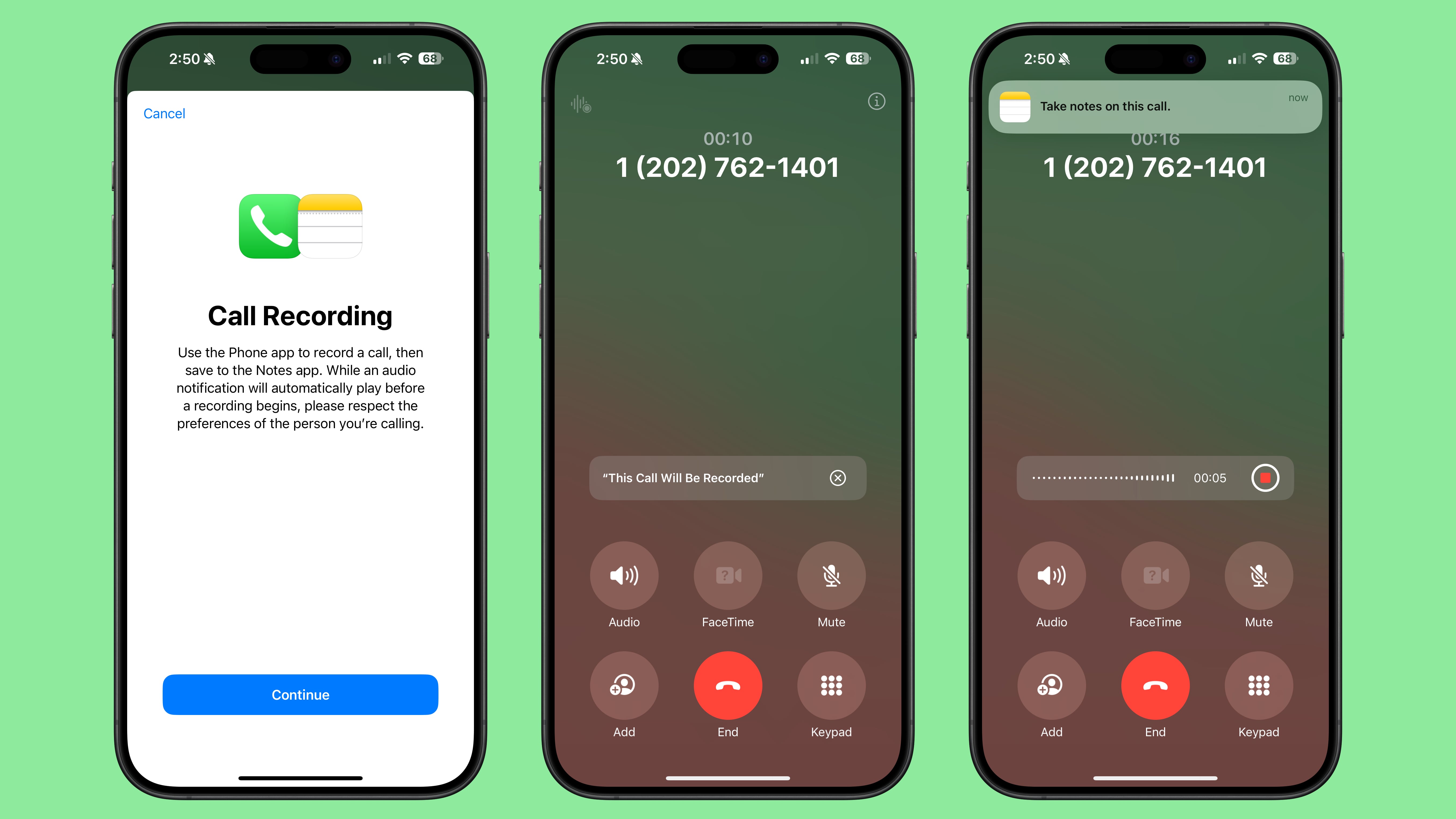
iOS 18.1 beta 4 expands phone call recording and transcribing to select older iPhone models, including the iPhone 15, iPhone 15 Plus, iPhone 14 Pro, iPhone 14 Pro Max, iPhone 13 Pro, and iPhone 13 Pro Max at a minimum. We have seen social media commentary indicating that the feature is now available on the iPhone 12 and newer, but we have yet to confirm that claim.
On compatible iPhone models, you can tap on an icon in the top-left corner of the Phone app during a call to start recording the audio. Upon doing so, an audible message informs all participants on the call that it is being recorded. The call's audio is saved to the Notes app, along with a transcription for those who prefer to read what was said. On models that support Apple Intelligence, including the iPhone 15 Pro, iPhone 15 Pro Max, and all iPhone 16 models, you can also get an AI-generated summary of a transcription. Aside from summaries, however, Apple Intelligence is not required for this feature.
For now, phone call transcription will be available in the U.S., Australia, Mexico, China, Hong Kong, and South Korea, in various languages.
Related Roundups: iOS 18, iPadOS 18
Related Forums: iOS 18, iPadOS 18
This article, "iOS 18.1 Beta 4 Expands Phone Call Recording and Transcribing to Select Older iPhone Models" first appeared on MacRumors.com
Discuss this article in our forums
https://www.macrumors.com/2024/09/17/ios-18-1-beta-4-call-recording-on-more-iphones/
Apple Pulls iPadOS 18 for M4 iPad Pro After Bricking Complaints
Apple stopped signing the iPadOS 18 update for the M4 iPad Pro models, which means the new software is no longer available to be downloaded and installed at the current time.
The update appears to have been pulled following complaints from some iPad Pro owners, who found that the update bricked their devices.
reports on Reddit from iPad Pro users who had an interruption in the installation process, leading to an iPad that refused to turn on. A total replacement was required for affected users.
iOS 18. Apple will make the software available again when the underlying problem has been addressed.
Related Roundups: iOS 18, iPadOS 18
Related Forums: iOS 18, iPadOS 18
This article, "Apple Pulls iPadOS 18 for M4 iPad Pro After Bricking Complaints" first appeared on MacRumors.com
Discuss this article in our forums
https://www.macrumors.com/2024/09/17/apple-pulls-ipados-18-m4-ipad-pro/
iOS 18: How to Use Safari's New Highlights Feature
Safari in iOS 18 introduces a new feature called Highlights, which is designed to enhance your browsing experience by intelligently surfacing key information from webpages. The tool uses machine learning to identify and extract the most relevant details, and present them to you in an easily accessible format.
Think of Highlights as a kind of smart assistant within Safari, saving you time and effort by eliminating the need to manually search through lengthy web content. Whether you're looking up a restaurant, researching a historical figure, or checking out a new movie, Highlights can often quickly provide the essential information you need.
For businesses and locations, it can display address details, operating hours, and quick access to directions.
When browsing pages about people, it might show brief biographical information.
For entertainment content, it can offer direct links to play songs or summarize reviews for movies and TV shows.
Highlights aims to streamline your browsing by providing these bite-sized pieces of information right when you need them.
Here's how to use the new feature in iOS 18:
Open Safari and navigate to a supported webpage.
Look for a purple sparkle over the tool icon in the browser bar. This indicates Highlights are available.
Tap the sparkle to open the Highlights window.
Review the summarized information presented in the Highlights window, and interact with the information you need, such as tapping on directions or playback links.
By keeping an eye out for the sparkle icon as you browse, you can take full advantage of this time-saving feature and quickly access the most pertinent information from websites. Note that Highlights is currently only available in the U.S. and only works for English websites.
This article, "iOS 18: How to Use Safari's New Highlights Feature" first appeared on MacRumors.com
Discuss this article in our forums
https://www.macrumors.com/how-to/use-safari-highlights-feature-ios/