
The MacRumors Show: Our Favorite iOS 18 Features
iOS 18 has now been officially released after months of beta testing. On this week's episode of The MacRumors Show, we talk through our top features in Apple's latest major software update.
Subscribe to The MacRumors Show YouTube channel for more videos
We go through some of iOS 18's significant system changes, including the redesigned Control Center and new Home Screen customization tools, as well as some of the smaller quality-of-life enhancements such as the Passwords app, RCS support, improvements to the Notes app, and emojis as tapbacks in Messages. We also touch on iPhone mirroring in macOS Sequoia, and some of the areas we'd like to see Apple work on for next year's updates. The next major version of iOS 18 will be iOS 18.1, which will start to bring Apple Intelligence to ordinary users around the world. The MacRumors Show has its own YouTube channel, so make sure you're subscribed to keep up with new episodes and clips:
Subscribe to The MacRumors Show YouTube channel!
Apple Podcasts, Spotify, Overcast, or your preferred podcasts app. You can also copy our RSS feed directly into your podcast player.
If you haven't already listened to the previous episode of The MacRumors Show, catch up for our discussion about the Apple Watch Series 10, iPhone 16 lineup, AirPods 4, and everything else that was announced at Apple's "It's Glowtime" event.
MacRumors, often joined by interesting guests such as Luke Miani, Matthew Cassinelli, Brian Tong, Quinn Nelson, Kevin Nether, Jared Nelson, Eli Hodapp, Mike Bell, Sara Dietschy, iJustine, Jon Rettinger, Andru Edwards, Arnold Kim, Ben Sullins, Marcus Kane, Christopher Lawley, Frank McShan, David Lewis, Tyler Stalman, Jon Prosser, Sam Kohl, John Gruber, Federico Viticci, Thomas Frank, Jonathan Morrison, Ross Young, Ian Zelbo, and Rene Ritchie.
@MacRumorsShow, so be sure to give us a follow to keep up with the podcast. You can also head over to The MacRumors Show forum thread to engage with us directly. Remember to rate and review the podcast, and let us know what subjects and guests you would like to see in the future.
Tag: The MacRumors Show
This article, "The MacRumors Show: Our Favorite iOS 18 Features" first appeared on MacRumors.com
Discuss this article in our forums
https://www.macrumors.com/2024/09/20/the-macrumors-show-our-favorite-ios-18-features/
Apple Explains How AirPods 4 Feature 'Great' Active Noise Cancellation Without Ear Tips
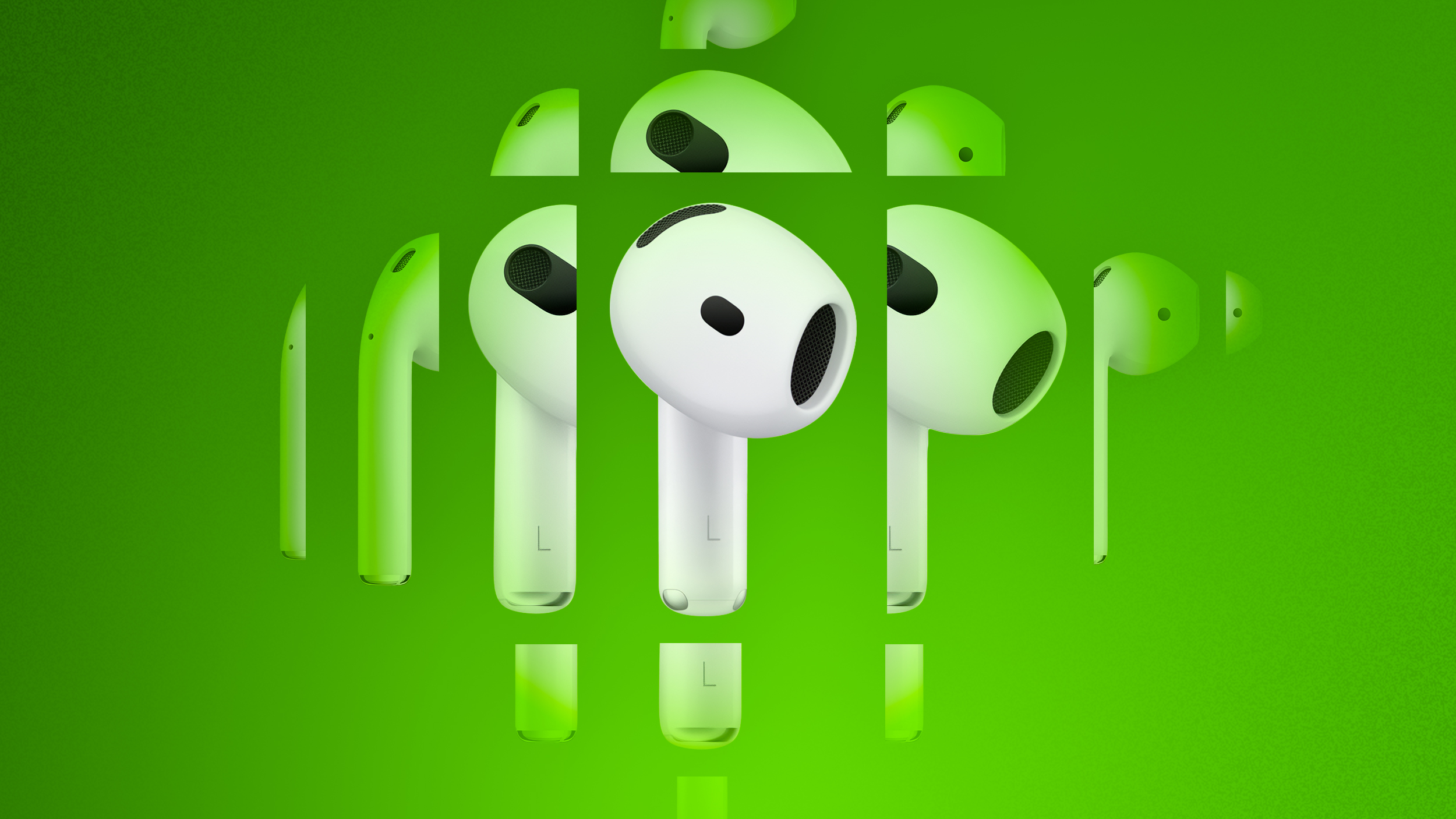
In a recent interview with Engadget, Apple's vice president of hardware engineering Kate Bergeron and AirPods marketing director Eric Treski explained how the company was able to add "great" active noise cancellation (ANC) to the higher-end AirPods 4, even though the earbuds have an "open-ear design" without silicone ear tips.
Apple said the H2 chip and "computational audio" were significant factors in adding ANC to the standard AirPods for the first time.
"It's even computationally more intense in many ways than it is with the AirPods Pro," said Bergeron, in regards to ANC on the AirPods 4.
"It's really, really hard to create this great ANC quality in a non-ear-tip product," said Treski. "The power of the H2 allows that, so we're actually doing a lot with the H2 chip to manage ANC quality and listen from the mics for environmental noise to make sure we're canceling as much as possible."
Apple said the revised shape and acoustic architecture of the AirPods 4 also contributes to the earbuds having effective ANC.
full interview offers additional details about how Apple designed the AirPods 4, which became available in stores today. There are two types of AirPods 4, with only the higher-end $179 ones offering active noise cancellation.
Related Roundup: AirPods 4
Buyer's Guide: AirPods (Buy Now)
Related Forum: AirPods
This article, "Apple Explains How AirPods 4 Feature 'Great' Active Noise Cancellation Without Ear Tips" first appeared on MacRumors.com
Discuss this article in our forums
https://www.macrumors.com/2024/09/20/apple-explains-airpods-4-noise-cancellation/
iPhone 16 Camera Control: Everything You Need to Know
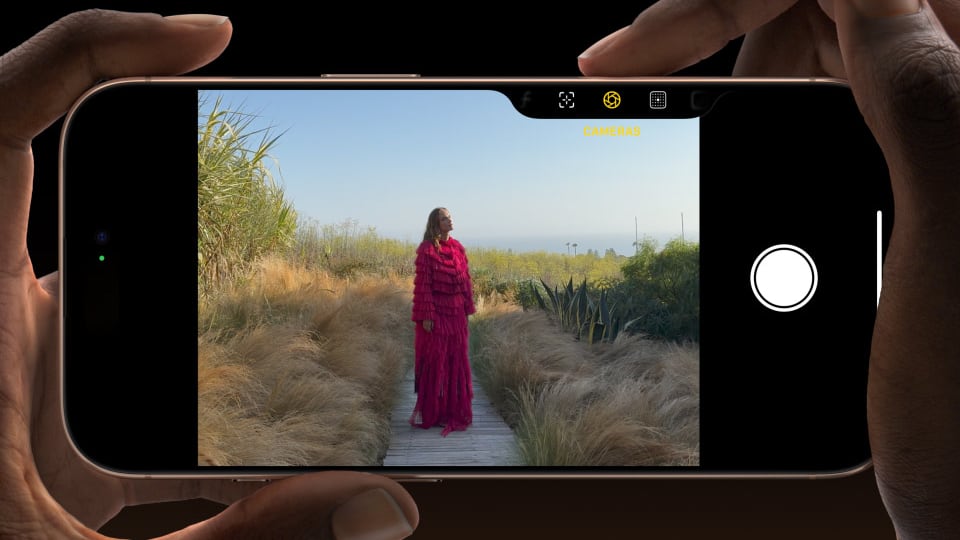
Apple's latest iPhone 16 models include a new Camera Control button (located on the lower right-hand side when holding the phone in portrait mode). The new button aims to make it easier to adjust photography settings when shooting with the iPhone in both portrait and landscape orientation.
A simple press of the Camera Control button brings up the Camera app when the iPhone is unlocked. Once the Camera app is open, another press takes a picture, while pressing and holding the button records video for as long as you hold it down.
Within the Camera app, a light press on the button engages a haptic click that also allows for adjusting things like manual exposure and zoom, thanks to a handy sliding interface that operates similarly to a camera dial. This gesture also reveals a clean preview of the scene you're capturing by hiding all on-screen Camera app tools.
You can also use the button as a touch interface on the menu the Camera Control button brings up: A light double press invokes a range of photographic adjustment tools in a subtle UI. You can swipe through this menu and select individual options with a further light press. You can also choose between multiple styles and adjust the tone. All of these tools are adjustable with a swipe, while a double light press returns you to the main Camera Control menu:
Exposure
Depth
Zoom
Cameras
Styles
Tone
The Camera Control button can also be used to trigger third-party camera apps, giving more flexibility to users who prefer other photography tools. It's also integrated with Visual Intelligence (an aspect of forthcoming Apple Intelligence), allowing users to pull up contextual information about objects or scenes in front of the camera.
Adjusting Camera Control Pressure
If you're having trouble engaging the light-press functions, or you find that the button is a little too sensitive for you, you can adjust the level of pressure that it responds to. If you feel that it's overly sensitive, you can make it firmer; if it's not sensitive enough, you can make it respond to lighter presses. The following steps show you how it's done.
Open Settings on your iPhone.
Tap Accessibility.
Under "Physical & Motor," tap Camera Control.
Switch from the Default setting to the Lighter or Firmer options.
If you stay on this menu screen, you can try out the different pressure levels of the Camera Control button without engaging the Camera app, so make sure you give all three options a try before settling on one.
How to Disable Clean Preview
By default, using the Camera Control button in the Camera app engages Clean Preview mode. This option hides everything in the Camera UI when the Camera Control button is lightly pressed, so you don't need to worry about accidentally touching camera lens adjustments while shooting. Another advantage is that it removes all distractions from the screen, leaving only the image — perfect for composing a shot.
Clean Preview enabled (left) vs. Clean Preview disabled
What if you do want to have access to all the various Camera app adjustments while also using Camera Control? Fortunately, there's an easy way to disable Clean Preview and make the other Camera tools visible. The following steps show you how it's done.
On your iPhone, open Settings.
Tap Camera.
Tap Camera Control.
Toggle off the switch next to Clean Preview.
Clean Preview option in Settings ➝ Camera ➝ Camera Control.
How to Disable Light Press Adjustments
If you find yourself accidentally engaging the Camera Control adjustments when taking a picture in high-motion environments (like inadvertently zooming in or changing exposure settings), you can remove light press functionality from the Camera Control button entirely. Here's how it's done:
Open Settings on your iPhone.
Tap Accessibility.
Under "Physical & Motor," tap Camera Control.
Toggle off the switch next to Show Adjustments.
This option removes the Camera Control interface and its corresponding light-press adjustments, so now you don't need to worry about accidentally engaging them while shooting. This essentially makes the Camera Control button a simple shutter button after you have opened the Camera app with the first press.
Show Adjustments option in Settings -> Accessibility -> Camera Control.
Changing Camera Control Functionality
While the new button aims to make it easier to adjust photography settings when shooting, if you want, you can make it work as a simple QR code scanner or a Magnifier.
For people whose job involves frequently interact with QR codes, this Camera Control feature could be a game-changer. In warehouse environments, for example, employees could quickly scan inventory tags without navigating through multiple app screens, significantly speeding up stock checks and order processing. The neat thing is that the Camera Control button retains its zoom function in the app, and it also allows for one-handed operation.
Magnifier tool (left) vs. Code scanner
As for Magnifier access, Camera Control could prove invaluable in various scenarios. For people with visual impairments, the feature allows for instant magnification of small text on menus, product labels, or medication instructions without them having to fumble through apps.
Camera Control also retains its zoom adjustment function in the Magnifier tool, and adds a menu that includes Magnifier options for brightness, contrast, filters, torch, and more if you add them via the Magnifier's settings menu.
Here's how to re-assign the Camera Control button for QR code scanning or magnifying:
On your iPhone, open Settings.
Tap Camera.
Tap Camera Control.
Select Code Scanner or Magnifier.
That's all there is to it. Now when you click Camera Control, depending on your preference the QR code scanner app or the Magnifier app will be instantly invoked.
Change the Camera Control Launch Camera Gesture
If you find yourself accidentally opening the Camera app by unintentionally pressing the Camera Control button, you can either disable the button entirely (see below), or you can change the single-click gesture that invokes the Camera app to a double-click gesture. The following steps show you how to do the latter:
On your iPhone, open Settings.
Tap Camera.
Tap Camera Control.
Under "Launch Camera," tap Double Click.
That's all there is to it. A single click of the Camera Control button will now do nothing, while a double click will get you into the Camera app or any other third-party camera app that you have assigned to the button.
How to Disable Camera Control
If you find yourself accidentally opening the Camera app by unintentionally pressing the Camera Control button, or if you just don't find yourself using it for whatever reason, you can turn off the button's functionality completely. The following steps show you how it's done.
Open Settings on your iPhone.
Tap Accessibility.
Under "Physical & Motor," tap Camera Control.
Toggle off the switch next to Camera Control.
Having done that, the Camera Control button will no longer engage the Camera app and its corresponding functionality, so you no longer have to worry about pressing it – it won't do anything.
Settings ➝ Accessibility ➝ Camera Control.
Related Roundups: iPhone 16, iPhone 16 Pro
Tag: Camera Control
Buyer's Guide: iPhone 16 (Buy Now), iPhone 16 Pro (Buy Now)
This article, "iPhone 16 Camera Control: Everything You Need to Know" first appeared on MacRumors.com
Discuss this article in our forums
https://www.macrumors.com/how-to/iphone-16-using-new-camera-control-button/
Forgot to Pre-Order an iPhone 16? Apple Store Pickup Available Today at Most Locations
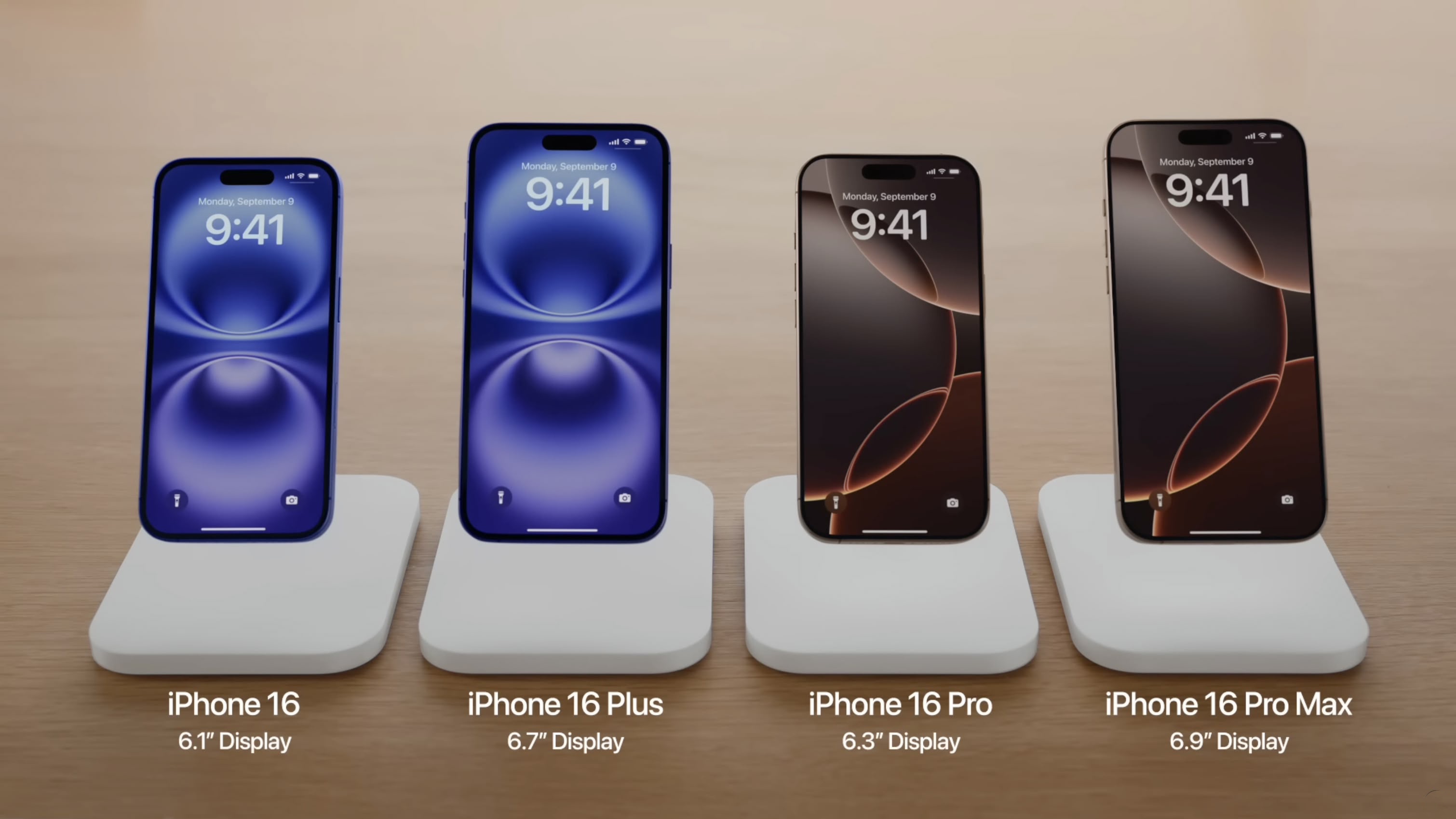
Apple's new iPhone 16, iPhone 16 Plus, iPhone 16 Pro, and iPhone 16 Pro Max models are now being delivered to customers worldwide following the pre-order period that began on Friday, September 13. For those who didn't pre-order the Pro models or chose to wait, many configurations now have estimated delivery dates in October. However, there's good news for customers wanting their devices sooner: select Apple Store locations globally are offering same-day or next-day pickup options.
As of writing, Apple's online stores in the United States and Canada haven't yet been updated to show pickup availability, but shortages aren't expected and there is unlikely to be much variation state by state. Meanwhile across the pond, all iPhone 16 colors and configurations are available for Apple Store pickup today in countries including France, Germany, Italy, Spain, and the United Kingdom.
To order a product with Apple Store pickup, add the product to your bag on Apple.com or in the Apple Store app, proceed to checkout, select the "I'll pick it up" option, enter your ZIP or postal code, choose an available Apple Store location, select a pickup date, and select a 15-minute check-in window. Payment is completed online, and a valid government-issued photo ID and the order number may be required upon pickup.
iPhone 16 models may also be available for walk-in customers at Apple Store locations with sufficient inventory, but availability can't be guaranteed. Walk-in customers may be placed into a separate queue with lower priority upon arrival to the store.
The standard iPhone 16 and iPhone 16 Plus are a big update over previous standard models, coming with many features that were once limited to Pro models. New capabilities include a customizable Action button, a new Camera Control button for quick access to camera functions, a 48MP Fusion camera, macro photography, a new A18 chip capable of powering Apple Intelligence (forthcoming), and more.
Related Roundups: iPhone 16, iPhone 16 Pro
Buyer's Guide: iPhone 16 (Buy Now), iPhone 16 Pro (Buy Now)
This article, "Forgot to Pre-Order an iPhone 16? Apple Store Pickup Available Today at Most Locations" first appeared on MacRumors.com
Discuss this article in our forums
https://www.macrumors.com/2024/09/20/iphone-16-apple-store-pickup-today/
iPhone 16 and iPhone 16 Pro Orders Start Arriving to Customers
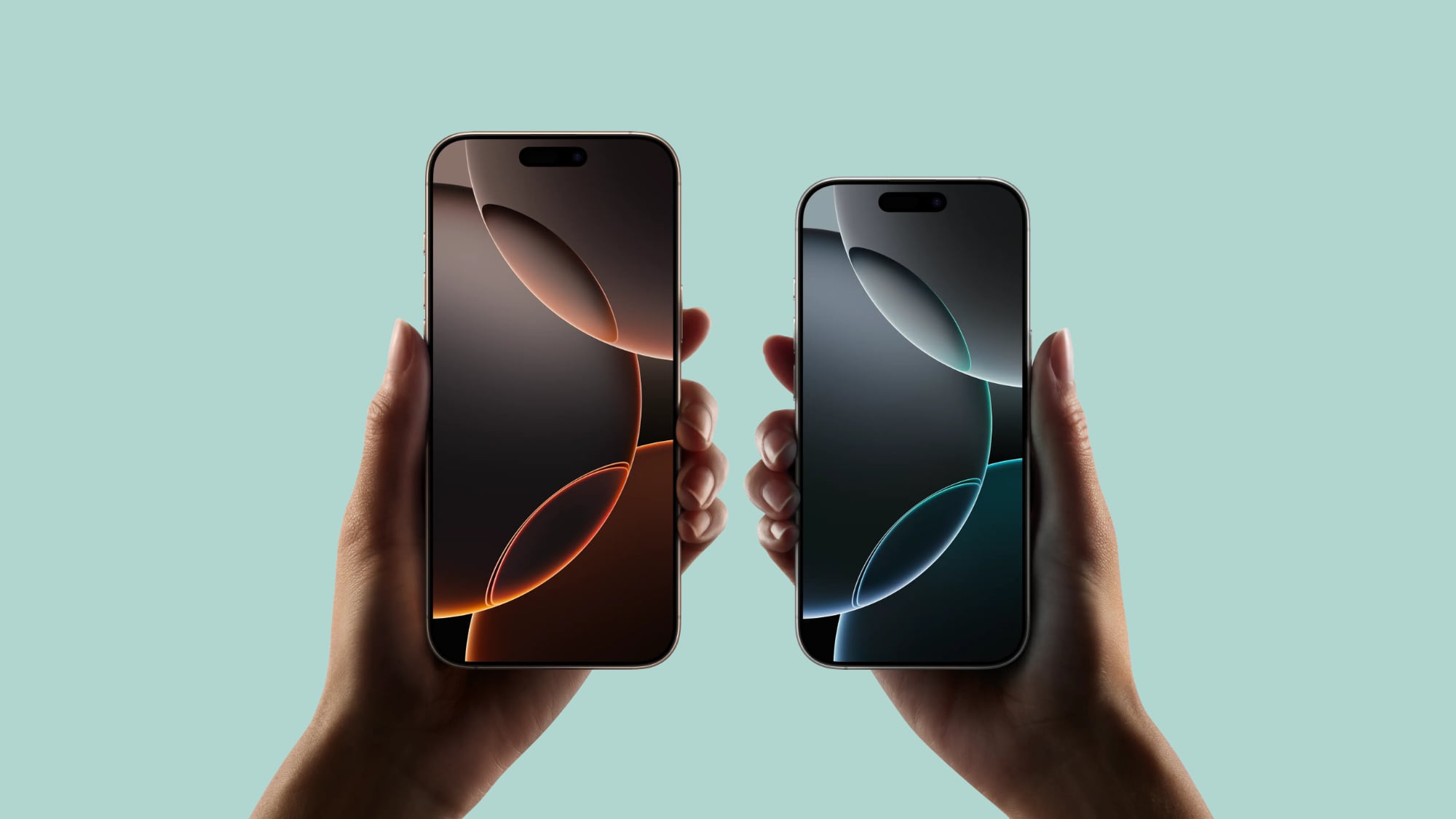
It's Friday, September 20 in Australia and New Zealand, so customers in those countries who pre-ordered an iPhone 16, iPhone 16 Pro, Apple Watch Series 10, or AirPods 4 are starting to receive their device deliveries.
Apple fans who ordered a new product are sharing photos and first impressions of the iPhone 16, iPhone 16 Pro, Apple Watch Series 10, and AirPods 4 on Instagram, Reddit, the MacRumors forums, and other social networks. If you've already received one of the new devices, let us know in the comments below and make sure to share pictures and your initial thoughts!
iPhone in an Apple Store. Available in-store stock in Australia will provide insight into what we can expect in other Apple Stores around the world, but so far, there have been no rumors of shortages.
iPhone 16 Pro orders did sell out during the pre-order period, and online shipping estimates now range into October. If you missed pre-orders, you can likely get one of the new devices at an Apple Store or a nearby location like Target, Walmart, or Best Buy.
iPhone 15 models and the new Apple Watches will begin in Asia, the Middle East, Europe, and finally, North America. Many Apple Stores worldwide will be opening up early at around 8:00 a.m. local time to allow customers to pick up reserved devices and make walk-in purchases.
MacRumors, as we'll have a hands-on and unboxing tomorrow, followed by deep dives into the feature set of the new devices, camera comparisons, and more.
Related Roundups: iPhone 16, iPhone 16 Pro
Buyer's Guide: iPhone 16 (Buy Now), iPhone 16 Pro (Buy Now)
This article, "iPhone 16 and iPhone 16 Pro Orders Start Arriving to Customers" first appeared on MacRumors.com
Discuss this article in our forums
https://www.macrumors.com/2024/09/19/iphone-16-now-arriving-to-customers/
Apple Seeds First iOS 18.1, iPadOS 18.1, and macOS Sequoia Public Betas With Apple Intelligence
Apple today released the first public betas of iOS 18.1, iPadOS 18.1, and macOS Sequoia 15.1, allowing non-developers to test the software ahead of its October launch.
Public beta testers who have signed up for Apple's beta testing program can download the iOS 18.1, iPadOS 18.1, and macOS Sequoia 15.1 updates by opening up the Settings app, tapping into the Software Update section and selecting the Public Beta option.
Siri changes, summaries, and smart replies. Note that to use Apple Intelligence features, you need an iPhone 15 Pro, iPhone 16, or M-series Mac or iPad.
Writing Tools are available whenever text can be selected and edited, and the feature can be used for spell checking, correcting grammar, rewriting your work with a new tone, and summarizing text.
Siri has been overhauled with a new design that includes a subtle glow around the display, and Type to Siri means you don't have to speak to Siri to get answers. Siri can follow along if you stumble over your words, and can maintain context between requests. Safari can summarize articles, and there's a new Reduce Interruptions Focus Mode that intelligently highlights only important notifications.
Photos has a Memory Movie feature for creating slideshows based on text descriptions, and there is a Clean Up tool for unwanted objects in your photos.
All iOS 18.1 users can now access phone call recording and transcribing, with recorded calls saved in the Notes app, but summarizing phone calls from those transcriptions is an Apple Intelligence feature. Today's update also brings spatial photo capabilities to the iPhone 15 Pro and Pro Max.
found in our Apple Intelligence guide. Image Playground, Genmoji, and other new Siri features have not yet been implemented.
Related Roundups: iOS 18, iPadOS 18
Related Forums: iOS 18, iPadOS 18
This article, "Apple Seeds First iOS 18.1, iPadOS 18.1, and macOS Sequoia Public Betas With Apple Intelligence" first appeared on MacRumors.com
Discuss this article in our forums
https://www.macrumors.com/2024/09/19/apple-seeds-first-ios-18-1-public-beta/
iPhone Driver's License Support Expands to More Californians
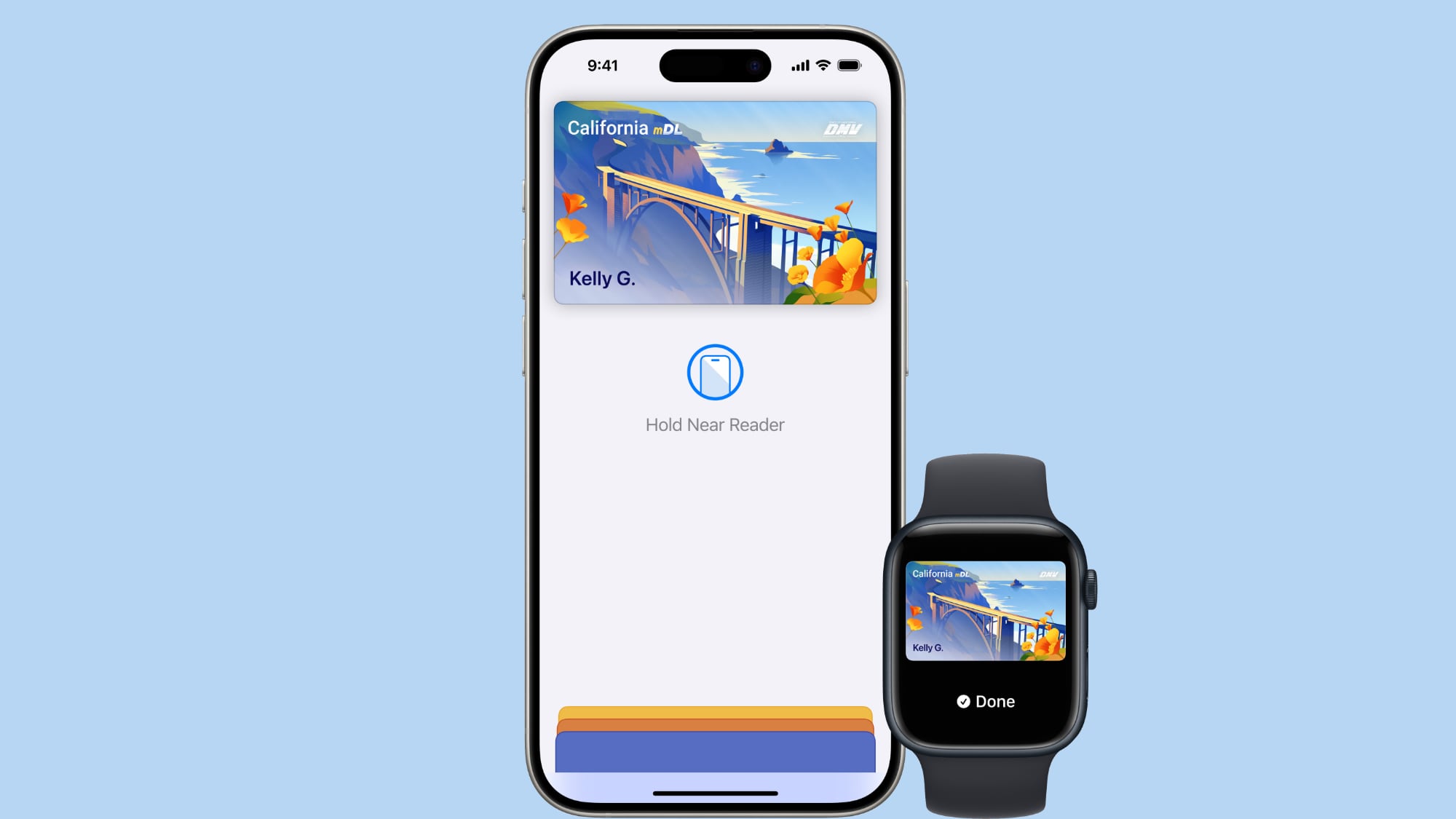
iPhone users in California can now add their digital driver's licenses and IDs in the Apple Wallet app on iPhone and Apple Watch, with California expanding an ongoing test of the digital license feature.
Several MacRumors readers have reported seeing the California license as an option in the Wallet app, under the label "California mDL Pilot." Prior to now, only a limited number of people were seeing the option.
Wallet app integration is part of California's mobile driver's license effort, which kicked off a year ago. More than 500,000 people have already added a driver's license or ID to the California DMV Wallet app, where California tested the option before starting to roll it out to the Wallet app.
back in August, and said that it was working with California to bring IDs to Apple Wallet.
"We're excited to be working with the state of California to bring IDs in Apple Wallet to Apple's home state soon, and provide residents with an easy, secure, and private way to present their California driver's license and state ID in person and in app using Apple Wallet," said Jennifer Bailey, Apple's vice president of Apple Pay and Apple Wallet. "Whether using IDs in Apple Wallet to breeze through travel, or to securely verify age or identity at businesses, California driver's licenses and state IDs in Apple Wallet make ID presentment seamless - all with the security built into iPhone and Apple Watch."
IDs and licenses stored in the Wallet app on iPhone or iPad can be used for TSA screenings at select airports (including SFO, LAX, and SJC) and for age verification at select stores. Right now, California's mobile wallet support is still in an early stage, and only 1.5 million participants are able to sign up.
#California residents can now present their ID in Apple Wallet on iPhone and Apple Watch at select TSA checkpoints when departing from @flyLAXairport, @flySFO and @FlySJC.
Not a CA resident? Stay tuned for updates! Learn more at https://t.co/f4yOHhEKTp #TravelWithEase @CA_DMV pic.twitter.com/k0ejZd7rhy
— TSA_Pacific (@TSA_Pacific) September 19, 2024
California requires people to continue to carry a physical license or ID card because the digital license is not accepted by law enforcement, state government agencies, and most businesses.
Tag: Apple Wallet
This article, "iPhone Driver's License Support Expands to More Californians" first appeared on MacRumors.com
Discuss this article in our forums
https://www.macrumors.com/2024/09/19/iphone-drivers-license-wallet-app-california/
Display Shipments for M4 MacBook Air and Low-Cost iPad Expected to Start in October
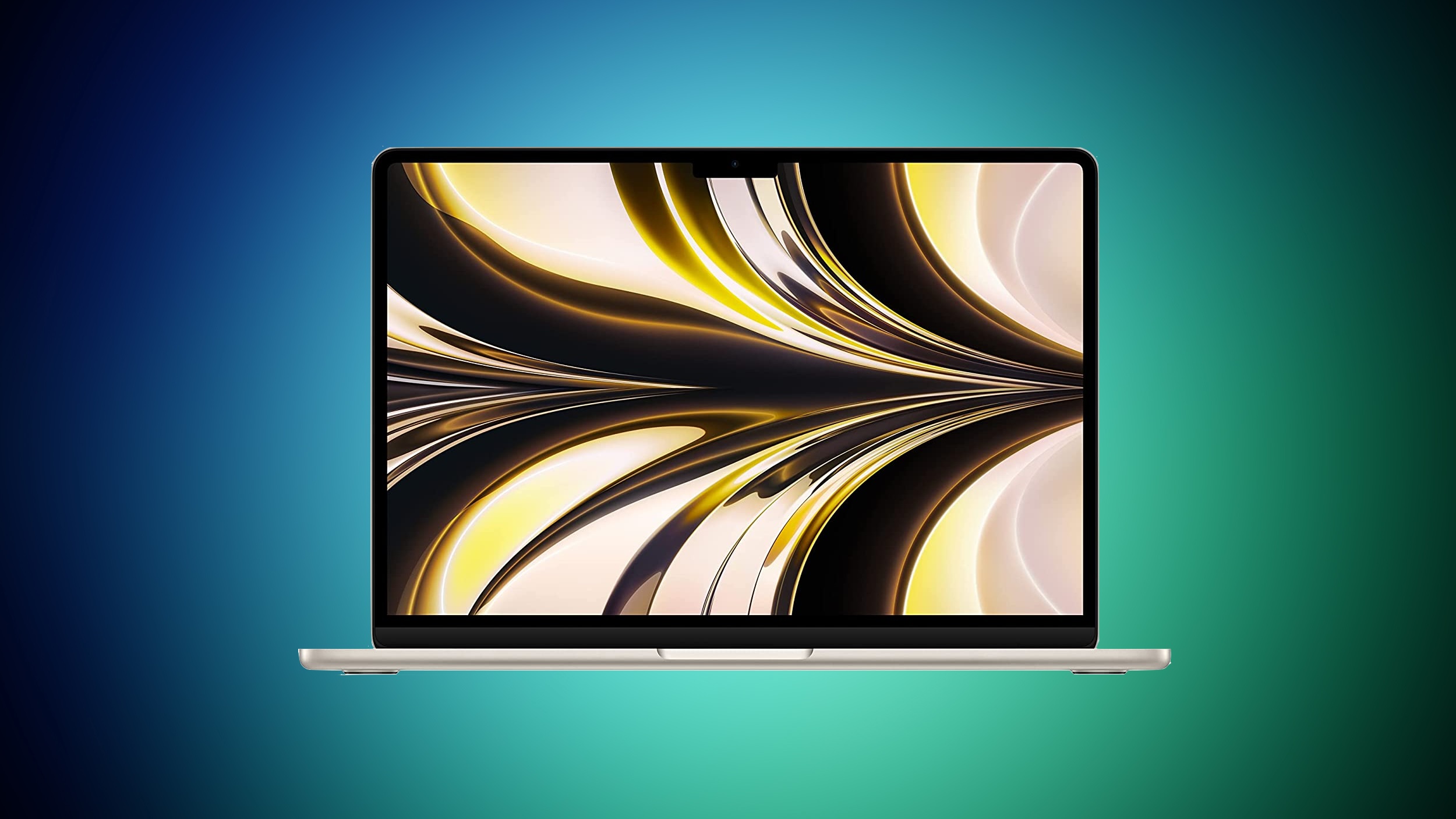
Display panel shipments for refreshed versions of the MacBook Air and the low-cost iPad will begin in October, display analyst Ross Young said in a tweet for subscribers. Apple is working on new M4 versions of the 13-inch and 15-inch MacBook Air models, as well as a new version of the 10.9-inch iPad.
The October timing is unusual for both products, based on prior rumors that we've heard. Apple is expected to refresh the MacBook Pro, Mac mini, iMac, and iPad mini in October of this year, and it would make sense for a new low-cost iPad to be introduced alongside those devices. Panel shipments that start in October suggest that the low-cost iPad would not be ready for an October event.
Bloomberg's Mark Gurman has said that new models with M4 chips will come out in spring 2025, and October display panel shipments seem early for a spring launch.
Related Roundups: iPad, MacBook Air
Buyer's Guide: iPad (Caution), 15" MacBook Air (Neutral), 13" MacBook Air (Neutral)
Related Forums: iPad, MacBook Air
This article, "Display Shipments for M4 MacBook Air and Low-Cost iPad Expected to Start in October" first appeared on MacRumors.com
Discuss this article in our forums
https://www.macrumors.com/2024/09/19/display-shipments-macbook-air-ipad-october/
Apple Reportedly Suspends MacBook Air Supplier Due to 'Quality Issues'
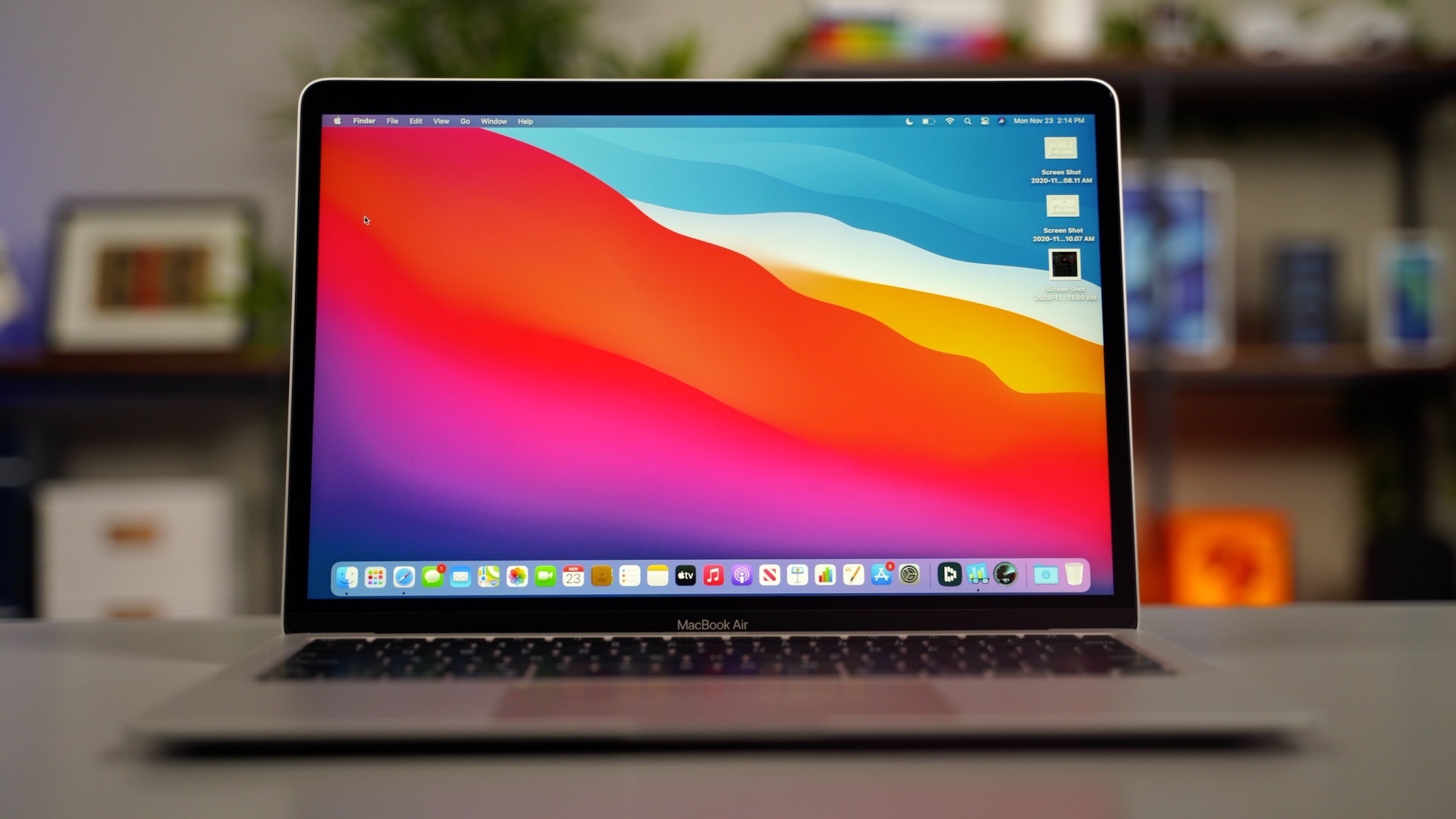
Apple has suspended MacBook bearing supplier Kersen's production for inspection purposes due to "quality issues," and shifted orders to other suppliers through the end of the year, according to a report today from Taiwanese industry publication DigiTimes.
The report said the suspension came after Apple discovered a high defect rate with the Chinese supplier's bearings in August. The bearings are used in previous-generation MacBook Air models, rather than the latest models, according to the report.
Industry insiders indicate that the defects were present from the beginning, but Apple only detected them during destructive testing later in the process. A subsequent full batch inspection revealed a high defect rate. Fortunately, none of the faulty products have reached the market. However, bearing defects typically take one to two years of use before becoming noticeable to consumers.
Related Roundup: MacBook Air
Tag: DigiTimes
Buyer's Guide: 15" MacBook Air (Neutral), 13" MacBook Air (Neutral)
Related Forum: MacBook Air
This article, "Apple Reportedly Suspends MacBook Air Supplier Due to 'Quality Issues'" first appeared on MacRumors.com
Discuss this article in our forums
https://www.macrumors.com/2024/09/19/macbook-air-supplier-quality-issues-report/
iPhone 16 Battery Capacities Revealed
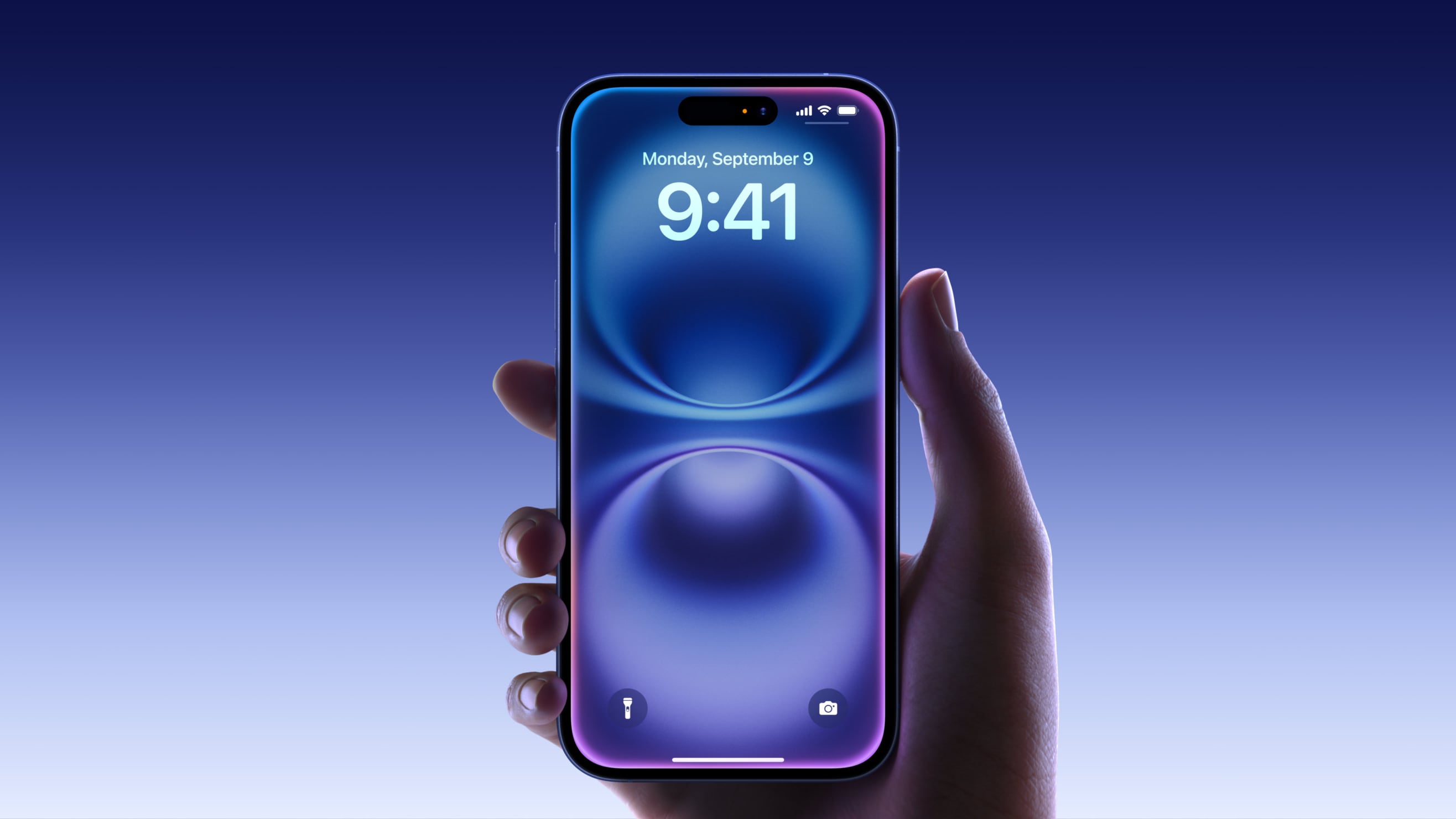
Apple was able to introduce significant gains in battery life across the entire iPhone 16 lineup, and new regulatory information from Brazilian agency Anatel (via Blog do iPhone) reveals just how much battery capacity has increased compared to the iPhone 15 lineup.
iPhone 16 - 3,561 mAh, up 6.3 percent
iPhone 16 Plus - 4,674 mAh, up 6.6 percent
iPhone 16 Pro - 3,582 mAh, up 9.4 percent
iPhone 16 Pro Max - 4,685 mAh, up 6 percent
Battery capacity increased the most in the iPhone 16 Pro at nine percent, with a ~six percent increase for other models.
The new A18 and A18 Pro chips and thermal improvements have also helped to boost battery life, with the biggest improvements seen in the iPhone 16 Pro and Pro Max.
iPhone 16 - 22 hours video playback, 18 hours streaming video, 80 hours audio.
iPhone 16 Plus - 27 hours video playback, 24 hours streaming video, 100 hours audio.
iPhone 16 Pro - 27 hours video playback, 22 hours streaming video, 85 hours audio.
iPhone 16 Pro Max - 33 hours video playback, 29 hours streaming video, 105 hours audio.
iPhone 15 - 20 hours video playback, 16 hours streaming video, 80 hours audio.
iPhone 15 Plus - 26 hours video playback, 20 hours streaming video, 100 hours audio.
iPhone 15 Pro - 23 hours video playback, 20 hours streaming video, 75 hours audio.
iPhone 15 Pro Max - 29 hours video playback, 25 hours streaming video, 95 hours audio.
MagSafe charging, but you do need one of Apple’s new MagSafe chargers to get it, and you’ll need a 30W power adapter to see the fastest wireless charging speeds. Apple also says that the new devices can charge at up to 45W over USB-C.
Related Roundups: iPhone 16, iPhone 16 Pro
Buyer's Guide: iPhone 16 (Buy Now), iPhone 16 Pro (Buy Now)
This article, "iPhone 16 Battery Capacities Revealed" first appeared on MacRumors.com
Discuss this article in our forums
https://www.macrumors.com/2024/09/19/iphone-16-battery-capacities-revealed/
50 New macOS Sequoia Features and Changes Worth Checking Out

Apple on September 16 released macOS Sequoia, the latest version of the company's Mac operating system. macOS Sequoia introduces interactive iPhone Mirroring, easier window tiling, a new Passwords app, and updated capabilities across the platform.
In this article, we've selected 50 new features and lesser-known changes that are worth checking out if you're upgrading. What do you think of macOS Sequoia so far? Let us know in the comments.
1. Distraction Control
If you are tired of pop-ups and banners interrupting your web browsing experience, it's worth getting to know Distraction Control, a new Safari feature that helps you focus on the content that matters by minimizing intrusive elements on webpages. While it's not designed as an ad blocker, Distraction Control can significantly improve your reading experience by hiding static distractions.
To nix a distracting item on a webpage, click the Page menu icon in the address bar and select Hide Distracting Items. Then simply hover your pointer over the item in question, whereupon it will be auto-selected for removal. With another click, the distraction will disintegrate before your eyes. When you're finished, click Done in the address bar. If you're on a webpage where you've hidden items, a crossed out eye icon will appear in the address bar, indicating that you can make them visible again by revisiting the Page menu and selecting Show Hidden Items.
2. Window Tiling
With macOS Sequoia, Apple has introduced a new window tiling management feature that aims to make it easy to arrange open windows into a layout that works best for you. When you drag a window to the edge of the screen, macOS Sequoia suggests a tiled position by displaying a frame, and you release the window to drop it right into place. This way, you can quickly arrange two app windows side by side, or place four windows in corners to keep several apps in view at once. When a window has been dragged to tile on one side or the other, dragging it back immediately resizes it to its original width and height.
macOS 15 also adds new tiling options to the green traffic light in the top corner of windows. Hover your pointer over the green button, and a menu appears with options to move and resize or fill and arrange all open windows.
3. Adjust AirPods Adaptive Audio
Apple's second-generation AirPods Pro have an Adaptive Audio feature that includes Adaptive Noise Control, Personalized Volume, and Conversation Awareness, which are all features that adjust sound and Active Noise Cancellation in response to the environment around you.
Previously, Adaptive Audio was an all or nothing setting, but that's changed in macOS Sequoia. Apple has added a "Customize Adaptive Audio" menu that lets you adjust the setting to allow for more or less noise.
4. AirPods Pro Head Gestures
With the new head gesture features, users can control Siri on the AirPods Pro with a shake or a nod of the head. If you get a phone call, for example, you can shake your head no if you don't want to answer it, or nod to accept the call. Siri interactions can be used for responding to incoming messages, calls, and notifications.
In Sequoia, Apple has added a section to the AirPods Pro menu in System Settings, enabling you to turn the gestures on and off.
5. Game Porting Toolkit 2
Game Porting Toolkit 2 allows developers to run unmodified Windows executables on Apple silicon Macs using the evaluation environment for Windows PC games, but end users can use it to run games too. The latest version supports an even larger set of game technologies, improved graphics and compute compatibility, ray tracing, the AVX2 instruction set, and increased performance.
6. New Dynamic Wallpapers
Sequoia features several new wallpapers, including dynamic versions. The wallpapers feature the sequoia trees that macOS Sequoia is named for. The imagery likely comes from Sequoia National Park, located in the southern Sierra Nevada mountains of California. There are three separate versions of the wallpaper for different times of day: Sequoia Sunrise, Sequoia Morning, and Sequoia Night.
Each wallpaper is animated and will shift slightly at the Lock Screen when you unlock your Mac, plus there is an option to set it as a screen saver. There's also a fun new Macintosh dynamic wallpaper and screensaver combination that highlights classic Mac icons.
7. New Chess Graphics
Apple has significantly updated the built-in Chess app in macOS Sequoia, marking its first major overhaul since macOS 10.3 in 2003. While not typically frequently used, the Chess app has received a substantial visual upgrade. It now boasts improved textures, lighting effects, and rendering for both the board and pieces. Users can also enjoy new aesthetic options with wood, metal, and marble skins for the game elements. Despite these enhancements, Apple has ensured backwards compatibility allowing users to access and continue their previously saved games in the new version.
8. Safari Video Viewer
When watching a video in Safari, click the menu icon in the left-hand side of the address bar and select the new Video Viewer option. This makes the playing video expand within the Safari window into a kind of theater mode that blurs everything out behind it, bringing the content front and center.
It also includes a native playback controls interface that replaces YouTube's – or the UI of whatever video you are playing. Options include AirPlay, volume, Picture in Picture, and playback speed.
9. Move & Resize Windows Controls
Accessed from the menu bar, a new "Move & Resize" option in the Window menu allows you to easily manage and arrange windows on your screen by offering various tiling and resizing options. You can move a window to the top, bottom, left, or right half of the screen, or position it into one of the four corners if you prefer a quarter-screen layout.
macOS also provides more flexible arrangements, such as splitting the screen horizontally or vertically, where you can tile windows side by side or one above the other. For even more control, there's a feature to quickly return a window to its previous size and position, making it easy to undo any changes.
10. Set Scenes in Freeform
In the Freeform app, Apple has introduced "scenes" to make it easier to navigate and present Freeform boards. Scenes are saved views of specific sections of your board, offering a versatile way to organize and present your work. By creating scenes, you can divide your board into distinct, labeled sections, making it easier to navigate through complex content.
To create a scene, open a board with content, then zoom and scroll until you frame the part of your board you want on the screen for your first scene. Then click the three bullets icon and click Add Scene. Simply repeat these steps until you capture all the scenes you want.
11. Collapse Sections in Notes
In the Notes app, if you have long notes with multiple headings, you can now collapse those headings down to create a more compact note.
Any section header can be collapsed, including headings, subheadings, and titles. Just click on a heading and then click on the down arrow to collapse it. Click the arrow again to open it up.
12. New Passwords App
Apple added a dedicated Passwords app in macOS Sequoia, where logins and passwords stored in iCloud Keychain can be accessed. It's essentially the Passwords section that used to be located in Safari's settings, but in a dedicated app that makes it easier to find your stored login information.
The app has a simple layout with a search bar in the top-right of the window, so you can look up the information that you're looking for. If you've already used the iCloud Keychain feature, all of your saved logins and passwords are ready to go as soon as you authenticate with Touch ID or your Mac password. There are separate sections for passwords and logins (under All), Passkeys, two-factor authentication codes, Wi-Fi passwords, security warnings, and logins that have been deleted.
You can click in to any of the sections to see what's listed there, and selecting an individual entry shows the login and password. Each entry has fields for site or app name, username, login, verification code, websites where the login is used, and notes. There's also an option for changing your password for any given entry.
13. iPhone Mirroring
Apple has added support for iPhone Mirroring, one of the main updates coming to the Mac. iPhone Mirroring is a Continuity feature that lets you control your iPhone from your Mac. When you're signed in to the same Apple Account on a Mac and an iPhone, you can use iPhone Mirroring to interact with your iPhone even when the iPhone is locked. You can open up and use apps, deal with notifications, send messages, and more.
You can use your Mac keyboard, trackpad, or mouse with your iPhone, which is useful for typing up long emails and other documents on the iPhone, and it provides an easy way to keep up with your iPhone notifications without having to pull out your device and check it. When you click on a notification on your Mac when using iPhone Mirroring, it is supposed to open up right into the app on your iPhone.
In a future update, iPhone Mirroring will allow files, photos, and videos to be dragged and dropped between your iPhone and Mac and vice versa.
14. Screen Recording Permissions
If you use an app that can record or share your screen, a new permissions popup will appear that allows you to permit access for one month. You'll encounter the same popup for the same app on a monthly basis, as part of Apple's efforts to improve macOS security measures.
15. iPhone Notifications
In System Settings ➝ Notifications, there's an "Allow notifications from iPhone" menu that gives you several options. These include options to enable or disable sounds for notifications from iPhone, select which specific app notifications to mirror, and turn the entire feature on and off.
16. Show Passwords in Menu Bar
If you want to make access to the new Passwords app a lot more convenient, go to Passwords ➝ Settings... and check the box next to "Show Passwords in Menu Bar." When you're next on a website in Safari that you have login credentials for, click the key icon in the menu bar, and you'll see the dropdown menu automatically detect which login details you're looking for, ready for you to select. This also works with other browsers that have the iCloud Passwords browser extension installed.
17. Highlight Text in Notes
Aa button to get to the color options when a word or phrase is selected.
18. Change Which iPhone to Mirror
In the event that you own more than one iPhone, in System Settings ➝ Desktop & Dock, under "Widgets," there's a new iPhone option that lets you choose which iPhone to mirror on your desktop.
19. Safari Highlights
When you're browsing in Safari, look for a purple sparkle over the tool icon in the browser bar. This indicates Highlights are available. Think of Highlights as a kind of smart assistant within Safari, saving you time and effort by eliminating the need to manually search through lengthy web content.
Click the sparkle to open the Highlights window. This can display address details and operating hours for businesses, and give you quick access to directions. When browsing pages about people, it might show brief biographical information, and for entertainment content it can offer direct links to play songs or summarize reviews for movies and TV shows.
20. Remove Margins From Tiled Windows
If you're not a fan of the spaces between tiled windows and don't like how the desktop seeps through the margins, there's a new option in System Settings ➝ Desktop & Dock that lets you remove them. Under the "Windows" section, look for the toggle called "Tiled windows have margins."
21. Math Notes
Apple has added a powerful new feature to your Mac's Calculator app: Math Notes. This integration between Calculator and Notes offers a versatile tool for all your calculation needs. It's particularly handy for splitting bills, calculating group expenses, or working through more complex mathematical problems.
Math Notes allows you to type equations directly into a note, with automatic solving when you add an equals sign. You can perform a wide range of calculations, including defining variables for more complex math. For example, if you're planning a night out, you could write "dinner = $57" and "movies = $24" in a note, then simply type "dinner + movies =" to get the total cost. To access the feature, click the calculator symbol at the bottom left of the calculator window and select Math Notes.
You're not limited to accessing Math Notes through the Calculator app – you can also use the feature directly within the Notes app using any new or existing note. In fact, you can get Math results almost anywhere in the operating system. If you type an equation into Spotlight, for example, you'll get a result, and the same goes for apps like Messages.
22. New AirDrop Interface
Sequoia includes a new UI for AirDrop that shows you a progress bar and even gives you the option to show the file in Finder once the transfer is complete, making it a lot easier to find what you've received on your Mac.
23. iPhone Mirroring Controls
When using iPhone Mirroring, if you hover your pointer just above the iPhone screen it will reveal its window and two buttons to quickly access the Home Screen and the App Switcher. There are also keyboard shortcuts to access apps, while pressing Command and the +/- keys increases and decreases the size of the mirroring window.
24. New Window Sharing Options
macOS Sequoia's Presenter Preview feature improves screen sharing by allowing you to share specific apps or windows instead of the entire screen. You can adjust what's being shared during a call, adding or removing windows as needed. There are also buttons to show all windows and change the presenter overlay size, giving you more control over the content being presented.
macOS uses a video controller at the top-right corner of the screen during video calls, which includes controls for webcam features when in use. This panel also now shows a preview of what's being shared, helping you stay aware of what others can see on your desktop during screen sharing sessions.
25. New FaceTime Backgrounds
macOS Sequoia includes a set of new backgrounds for FaceTime calls, including several that showcase features of Apple Park. There are nine backgrounds in all, featuring iconic locations around the company's circular headquarters in Cupertino, California.
Other new built-in backgrounds that can be used for FaceTime and other video calls to blur out and hide what's behind you include different color gradients, along with the ability to use photos from your photo library.
26. Private Wi-Fi Address Options
In System Settings ➝ Wi-Fi, if you click the Details button next to the currently connected network, there's a new Private Wi-Fi address option that may be familiar to users with iOS devices. A fixed private address reduces cross-network tracking by using a unique Wi-Fi address on the network. You can make it Fixed, Rotating, or turn off the option.
27. Record and Transcribe Voice Notes
Apple has made a significant enhancement to the Notes app, introducing a built-in audio recording feature that streamlines the process of capturing and transcribing voice notes. The new audio recording tool in Notes offers more than just simple voice capture. As users record, the app automatically generates a real-time transcript, making it easier to review and search through recorded content.
To record a voice note, simply click the new waveform icon in the Notes toolbar. An interface will appear on the right showing the audio recording controls, as well as a speech bubble icon that you can use to view the transcript. When you've finished your recording, it will be saved in the note along with the accompanying transcription.
28. Web App Content Blocker Support
In Sequoia, web apps now support content blockers and Safari extensions, making the webpage content they present more customizable. You can control these settings by selecting Settings in the web app's menu bar, and clicking the Extensions tab.
29. Window Title Bar Double-Click Options
In System Settings ➝ Desktop & Dock, there's a new option to change the behavior of a window when you double-click its title bar. In Sonoma, the default behavior is to zoom the window, but in Sequoia you can change "Double-click a window's title bar to" Fill, Zoom, Minimize, or Do Nothing.
30. Hover Typing
If you struggle to see what you're typing in a text field in macOS, this new feature should be very welcome. In System Settings ➝ Accessibility ➝ Hover Text, there's a new Hover Typing option that when enabled will enlarge any input field that you're typing into so that it's displayed more clearly across the center of the screen.
31. Calculator Changes
In line with iOS 18, the Calculator app for macOS has been updated, so that it now shows full expressions as you type them out. You can click on this display to undo the last thing you typed, or use the backspace button that appears when you begin pressing buttons.
By clicking the button with the calculator icon, you can now also switch between Basic, Scientific, and Programmer calculators, open your Math Notes, or switch to a plethora of conversion options using Convert. The new Convert option supports unit conversions for length, weight, currencies, and more. Here's the full list of conversions that it supports:
Angle
Area
Currency
Data
Energy
Force
Fuel
Length
Power
Pressure
Speed
Temperature
Time
Volume
Weight
32. App Store Free Space Requirements
App downloads and installations from the Mac App Store will no longer require double the amount of local storage space available. Instead, the free space requirement now matches the final install size of the app, plus a small buffer.
Apple has told developers to update any messaging related to app size requirements to reflect the change, which should reduce confusion about how much free space is needed for new app installations. The new space requirement in macOS 15 should benefit users who download large games in particular.
33. RCS Messaging
Rich Communication Services (RCS) is a messaging standard Apple has adopted in macOS Sequoia and iOS 18 to bridge the gap between green and blue bubbles. With RCS Messaging (Settings ➝ Messages ➝ RCS Messaging) and Text Message Forwarding enabled on your iPhone (Settings ➝ Messages ➝ Text Message Forwarding) for your Mac, you can enjoy all the capabilities RCS brings cross-platform conversations right on your desktop.
Wireless carrier support webpage.
34. New iCloud Settings Panel
Just like on iPhone with iOS 18, the iCloud section in System Settings ➝ Apple Account has been completely redesigned for macOS Sequoia. The panel is divided into neater sections showing your storage, files saved to iCloud, and any iCloud+ features you may have, making everything just a little bit easier to comprehend. You can also manage how individual apps and features on your Mac sync with iCloud by clicking the See All button.
35. Vocal Shortcuts
In System Settings ➝ Accessibility, there's an option to set up the new Vocal Shortcuts feature, which allows you to teach your Mac to recognize a custom phrase that you can say to quickly perform an action. These phrases can be used for anything from triggering Siri requests to shortcuts on your Mac.
36. Use Emoji as Messages Tapback Reactions
Apple has introduced significant updates to its Messages app in macOS Sequoia, with a particular focus on enhancing the popular Tapback feature. Tapbacks, the quick reactions users can add to messages by long-pressing on them, have received a colorful makeover and expanded functionality.
The six standard Tapback icons now feature more vibrant colors and intricate details. But perhaps the most notable change is the addition of emoji support for Tapbacks. While the classic six reactions remain, you now have the option to choose from a wide array of emoji characters, adding a new layer of personalization to your message responses.
37. Sign In With Apple Settings
In the Apple Account (formerly Apple ID) section of System Settings, there's a new section called Sign in with Apple that shows you a list of all the websites and services where you use the sign-in with Apple service. From here, you can also opt to share your sign-ins with other members of your family members and close friends via the Passwords app.
38. Home and Work Locations in Weather
In the Weather app's Settings, there's a new Home and Work option under "Locations," so if you have two different places where you live and where you work, you can have them labeled as such in the app. Home and work locations can be updated by editing your Contacts card.
If you click on the daily forecasts in the main Weather screen, you'll also see a more comprehensive consolidation of weather conditions for that day.
39. Messages Text Effects and Formatting
Among the new features in the Messages app, you can now add neat text effects to your messages to make them more expressive. The new animated text effects can be applied to your entire message, a single word, a phrase, or even an emoji or sticker. The options include Big, Small, Shake, Nod, Explode, Ripple, Bloom, and Jitter.
Using the same contextual menu, you can also now add emphasis to your text messages using bold, italic, underline, and strikethrough formatting. You can now apply these formatting options to entire messages, individual words, or even specific letters, offering a higher degree of customization in how you communicate.
40. Make Siri Listen for Atypical Speech
In System Settings ➝ Accessibility, under the "Siri" section, there's a new option to make Siri listen for atypical speech. This feature expands the speech patterns Siri will listen for to help improve speech recognition, according to Apple's description.
41. HDMI Passthrough Support
In macOS Sequoia, several Apple apps have gained a new HDMI Passthrough feature that enables a Mac to send an unaltered Dolby Atmos audio signal to a connected AV receiver or soundbar. The new functionality appears in various places in macOS 15, including Apple's TV, Music, and QuickTime Player apps. Apple says turning on the option lets users "Play supported audio in Dolby Atmos and other Dolby Audio formats using HDMI Passthrough when connected to a supported device."
This feature is likely to be welcomed by users who connect their Mac to an external device that supports Dolby Atmos, such as an AV receiver or soundbar. When conected via HDMI cable, the device will be able to decode and output the full immersive Dolby Atmos audio as it was meant to be experienced by the creators, while sending any accompanying video signal to a connected TV.
42. Reminders in Calendar
Like iOS 18, macOS Sequoia introduces long-awaited Calendar app integration with Reminders. Adding a reminder to a day or hour is as easy as right-clicking and selecting Add reminder. The Calendar interface includes all the reminder functions you'd want to have access to, without having to open the Reminders app.
43. Headphone Accommodations
In System Settings ➝ Accessibility ➝ Audio, you'll now find Headphone Accommodations, a feature previously only available on iOS and iPadOS. This tool allows you to customize audio output for select Apple and Beats headphones to suit your hearing needs.
To use this feature, you engage in a "Custom Audio Setup" process. This involves resetting your EQ and Balance settings to their defaults, then listening to various audio samples, and selecting the sample that sounds best to you. Choosing "Use Custom Settings" will apply these preferences.
44. System Settings Default Behavior
Apple has made changes to the System Settings interface to improve accessibility and navigation. A key modification is the new default view: Upon opening System Settings, you'll now see the General tab first, rather than the Appearance menu as in previous versions. This change places frequently used options in a more prominent position and reduces the number of steps required to access common settings.
45. Inline Math in Many Fields
You're not limited to accessing the new Math features through the Calculator – you can also use the feature directly within the Notes app using any new or existing note. In fact, you can get Math results almost anywhere in the operating system where you type. If you type a calculation into Spotlight, you'll still get a result, but the same now goes for apps like TextEdit and Messages.
46. Open Contextual Menu Shortcut
Windows has had this feature for ages, and finally it's come to Mac. In Sequoia, you can now open a contextual menu in text-based apps by pressing Control+Enter, so if you make a text selection or just want to choose a contextual option while you're typing away, your fingers no longer need to leave the keyboard.
47. iPhone Mirroring Touch ID Support
If you're mirroring your iPhone to your desktop and attempt to open an app that requires authentication, you don't need to pick up your iPhone or resign yourself to an inaccessible app – you can just use Touch ID on your Mac.
48. Redesigned Safari Reader View Options
A longstanding feature in Safari, Reader Mode allows users to view web pages in a simplified format, stripping away ads, videos, and other distractions to focus solely on the text and images. This clean interface has been a favorite among users who prefer a more streamlined reading experience, especially for longer articles or text-heavy websites.
In macOS Sequoia, Apple has redesigned the Reader interface so that it's easier to define your readability and customization options, allowing you to quickly tailor your reading experience to your preferences.
49. Schedule Messages to Send Later
This addition to the Messages app now allows users to schedule text messages for future delivery. Available exclusively for iMessage conversations via the + button, the Send Later function enables you to compose messages in advance and set a specific time or date for them to be sent by editing the clock. This feature is particularly useful for remembering important dates or managing communication across different time zones.
The feature works for both individual and group chats, provided all participants are using Apple devices with iMessage enabled. Scheduled messages are displayed at the bottom of a conversation. If you want to cancel a scheduled message or edit, simply right-click it and select the desired option. Note that messages can be scheduled up to 14 days in advance.
50. Hiking Trails in Maps
The Maps app now features detailed trail networks and hikes, including all 63 U.S. national parks. You can do a search for "hikes" or "hiking routes" in the Maps app to see nearby trail options, with Apple including hike length, elevation, ratings, and other details where available. Hikes can be filtered by length, route type (loop, point to point, or out and back), and elevation, and can be saved for offline access. If you click on a trail, You can also see a full overview of the trail's path and get lengths for each section.
Maps also supports custom routes, so you can plan out a specific hiking route that you want to take. At a trailhead, you can click on the "Create a Custom Route" option to initiate the custom routing experience. From there, click on the map to begin setting points for your route, and the Maps app will provide length and elevation details. You can also have the Maps app finish a route automatically by selecting the Reverse, Out and Back, or Close Loop options (shown in the image in the top-right corner).
Related Roundup: macOS Sequoia
Related Forum: macOS Sequoia
This article, "50 New macOS Sequoia Features and Changes Worth Checking Out" first appeared on MacRumors.com
Discuss this article in our forums
https://www.macrumors.com/guide/50-new-macos-sequoia-features-and-changes/
Apple's First 5G Chip for iPhones Reportedly Won't Support mmWave
Apple is rumored to have been working on its own 5G modem for iPhones since 2018, but the first version of the chip might lack mmWave support.
Taiwanese industry publication DigiTimes today reported that Apple's in-house 5G modem has yet to incorporate mmWave technology. Until that changes, Apple will likely continue to rely on its existing 5G chip supplier Qualcomm for iPhone models that support mmWave, including U.S. models of all iPhone 12 models and newer.
two iPhone models with an Apple-designed 5G modem will be released in 2025, including a new iPhone SE in the first quarter of the year and an ultra-thin iPhone 17 model in the third quarter. As a lower-priced device, it would make sense for the next iPhone SE to lack mmWave support, and it might also be a necessary compromise in order for the ultra-thin iPhone 17 to achieve a slimmer design.
mmWave is a set of 5G frequencies that promise ultra-fast speeds at short distances, which is ideal for dense urban areas. By comparison, sub-6GHz 5G is generally slower than mmWave, but the signals travel further, better serving suburban and rural areas. sub-6GHz networks are still more common than mmWave networks in many countries.
extended its 5G modem supply agreement with Qualcomm for iPhone launches through 2026, so Apple still has plenty of time.
acquired the majority of Intel's smartphone modem business, as part of its efforts to design its own 5G chip. It is unclear if Apple's chip would have any consumer benefits over Qualcomm's modems, but it would reduce Apple's reliance on an external supplier. In 2017, Apple sued Qualcomm over alleged anticompetitive practices and $1 billion in unpaid royalty rebates. The two companies settled the lawsuit in 2019.
Tags: Apple 5G Modem, DigiTimes
This article, "Apple's First 5G Chip for iPhones Reportedly Won't Support mmWave" first appeared on MacRumors.com
Discuss this article in our forums
https://www.macrumors.com/2024/09/19/apples-first-5g-chip-no-mmwave-rumor/
New iPads in 2025 Rumored to Feature Apple-Designed Wi-Fi Chip
Apple's rumored in-house Wi-Fi chip might debut in devices as early as next year, according to Taiwanese industry publication DigiTimes.
The report cites insiders from Apple's supply chain who suggested that at least some new iPad models launching in 2025 might be equipped with an Apple-designed Wi-Fi chip, although they said there is a chance that the chip might not debut until the iPhone 18 series in 2026. Apple's plans to design its own Wi-Fi chip were first reported in 2021, so the project has seemingly been in development for quite some time now.
While it is unclear if an Apple-designed Wi-Fi chip would have any consumer benefits, it would allow the company to reduce its reliance on its current Wi-Fi chip supplier Broadcom, as part of Apple's effort to design more components in house.
support Wi-Fi 7, which is advertised as being up to 4× as fast as Wi-Fi 6E. A router with Wi-Fi 7 is also required.
new iPhone SE and the tentatively-named iPhone 17 Air. This chip would allow Apple to move away from its current 5G chip supplier Qualcomm.
Tag: DigiTimes
This article, "New iPads in 2025 Rumored to Feature Apple-Designed Wi-Fi Chip" first appeared on MacRumors.com
Discuss this article in our forums
https://www.macrumors.com/2024/09/19/2025-ipads-with-apple-wifi-chip-rumor/
iOS 18: Recording Audio With Transcripts in Notes
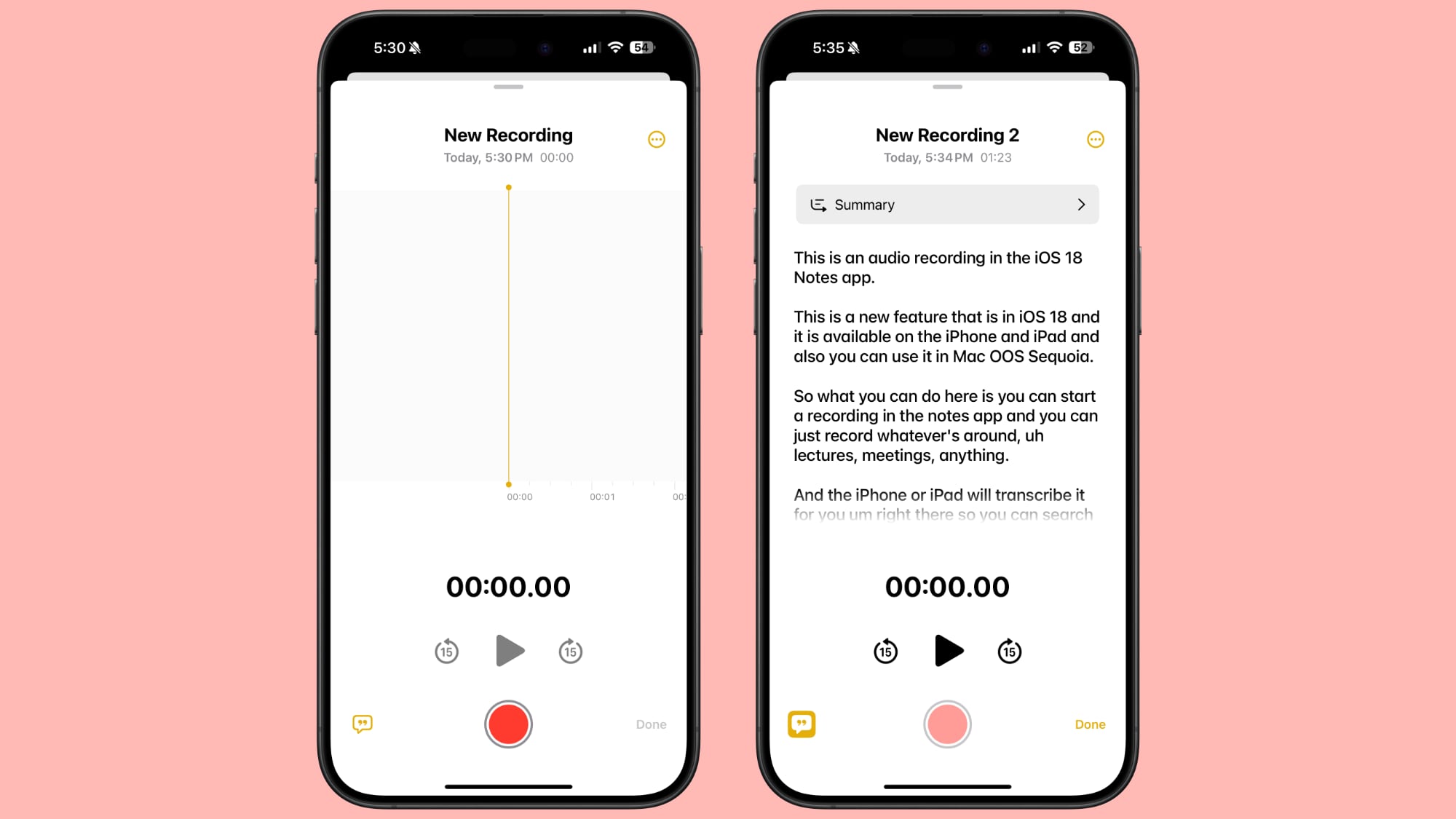
In iOS 18, Apple has made a significant enhancement to the Notes app, introducing a built-in audio recording feature that streamlines the process of capturing and transcribing voice notes. The new functionality is available on iPhone 12 and later models, and allows you to record audio directly within a note, eliminating the need to use separate apps or share files.
The new audio recording tool in Notes offers more than just simple voice capture. As users record, the app automatically generates a real-time transcript, making it easier to review and search through recorded content. This feature is particularly useful for students attending lectures, professionals in meetings, or anyone who needs to quickly capture and reference spoken information.
Record a Voice Note and Get a Transcript
To use the new audio recording feature in iOS 18's Notes app, simply follow these steps:
Open the Notes app and create a new note or open an existing one.
Tap inside the note, then select the paperclip icon from the menu above the keyboard.
Choose Record Audio from the pop-up menu.
Press the red record button to start recording, and tap it again to stop. To view the transcript, tap the quote bubble icon in the bottom-left corner.
To add the full transcript to the note, tap the three-dot menu in the upper right corner.
Select Add Transcript to Note from the dropdown menu.
That's all there is to it. While the audio recording feature offers new note-taking abilities, it's worth noting that it currently only supports English, but Apple will likely bring support for additional languages in a future update.
Tag: Apple Notes
This article, "iOS 18: Recording Audio With Transcripts in Notes" first appeared on MacRumors.com
Discuss this article in our forums
https://www.macrumors.com/how-to/ios-record-audio-transcribe-notes-app/
iOS 18: How to Use New Text Effects in Messages
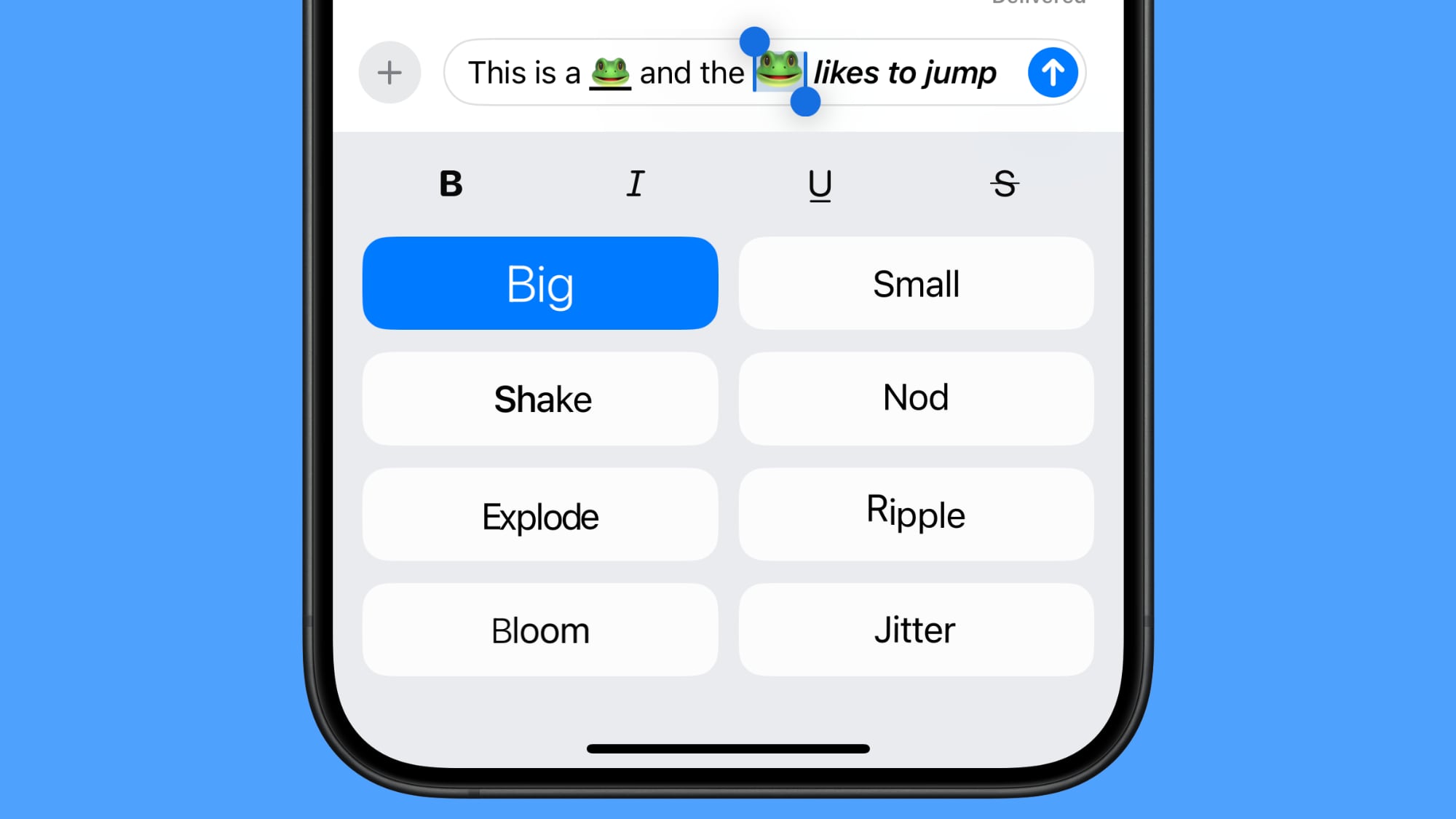
In iOS 18, Apple has added several new features to its Messages app, one being the ability to add neat text effects to your messages to make them more expressive.
The new animated text effects can be applied to your entire message, a single word, a phrase, or even an emoji or sticker. The options include Big, Small, Shake, Nod, Explode, Ripple, Bloom, and Jitter.
Here's how to add a text effect in the Messages app in iOS 18:
Select the text, emoji, or sticker that you want to add an effect to with a double tap. (You can use the anchors to shorten and widen your selection.)
Tap the "A" icon in the suggestions bar above the keyboard, or select the Text Effects option in the popup menu (tap the right chevron button to reveal it).
Choose the text effect that you'd like to use.
Tag: Messages
This article, "iOS 18: How to Use New Text Effects in Messages" first appeared on MacRumors.com
Discuss this article in our forums
https://www.macrumors.com/how-to/use-new-text-effects-messages/
Everything New in the iOS 18 Messages App
iOS 18 is bringing major changes to the Messages app, with Apple adding Tapback reaction changes new formatting, updated effects, satellite support, better texting with green bubble people, and eventually, several fun Apple Intelligence features.
This guide highlights everything that's new in the iOS 18 Messages app, and what's coming later.
Send Later
iOS 18 adds the option to schedule an iMessage to be sent to someone at a later time or date. If you know someone's birthday is coming up, for example, you can schedule a happy birthday text to them ahead of the date so it's ready to go.
Scheduling a message can be only be done in conversations with other iMessage users, and it is not an option when texting with an Android user. It works in both individual and group chats, as long as all participants have an Apple device and access to iMessage.
To schedule a message, follow these steps:
Open up a conversation in the Messages app.
Tap on the "+" button on the left side of the text box.
Tap on More.
Choose Send Later.
Type in your Message.
To change the send time, tap on the blue bubble that defaults to Tomorrow 9:00 am. From there, you will have a slider that lets you input a date and a time.
With your time selected and your message typed in, tap on the blue arrow to schedule it.
iPhone is offline without a Wi-Fi or cellular connection.
Scheduled messages are displayed at the bottom of a conversation. If you want to change the time of a message or cancel it, tap on the "Edit" button. You will have options to edit the time, delete the message, or send it immediately.
Tapback Reactions
Tapbacks are those little characters you can use to respond to a message by long pressing on it, so you don't need to type out a whole response to something that can be answered with a thumbs up or a heart. iOS 18 has two key updates for Tapbacks.
Updated Design
The six standard Tapback icons now feature color and more detail. You can see the new look when long pressing on a text to respond, and in the Tapbacks that you receive.
When you tap on a Tapback you've received on a message, you can now see who sent what, which is useful if you are in a group chat and get multiple Tapback responses.
Emoji Support
Along with the six classic Tapback responses, you can now choose any emoji character when using Tapback. After long pressing to respond to a message, swipe to the left to see common emoji responses or tap on the generic emoji icon thought bubble to bring up the emoji picker.
You can choose any emoji, but you can also select from your stickers or your Memoji. Tap on the Memoji icon at the bottom left to get to Memoji, or the sticker icon to see your sticker selections. To add one as a Tapback, just tap on your selection.
Stickers can be hard to see at the small size of a Tapback, but most emoji characters and Memoji work well.
RCS
RCS, or Rich Communication Services, is a new text message protocol replacing SMS and MMS. You'll see it when texting people who don't have iMessage, such as Android users. RCS has nothing to do with iMessage conversations, aka the conversations you have with other Apple device owners (blue bubbles), but it does improve texts with green bubble Android users.
RCS is a more modern technology than SMS, and it allows for more feature parity in iPhone to Android text message conversations. Many of the frustrations you might have encountered when texting someone with an Android device are resolved with RCS, such as errors sending photos and videos.
Here's what you'll get with RCS:
Support for higher resolution photos and videos.
Support for larger file sizes and file sharing.
Audio messages.
Real-time typing indicators.
Read receipts.
Ability to send messages over cellular or Wi-Fi (SMS is cellular only). There is no cost to send an RCS message over Wi-Fi.
Improved group chats.
Again, RCS only comes into play when you're texting someone who has an Android device. iMessage is still the default for conversations between Apple device owners, and blue bubbles and green bubbles are not changing.
have a full guide on RCS if you want to know more about what to expect.
Messages via Satellite
Messages via satellite is a new feature that lets you send texts even when you don't have a Wi-Fi or cellular connection, leveraging the satellites that Apple uses for the Emergency SOS via satellite feature.
Messages via satellite is available on the iPhone 14 or later, and you can send and receive both iMessage and SMS messages, so you're not limited to texting with just iPhone users.
Right now, Messages via satellite is free, just like Emergency SOS via satellite. Apple offers two free years of satellite access with an iPhone 14 or later, but the company has expanded free access for the iPhone 14 until November 2025. Apple has not provided any insight into how much it will eventually charge for satellite access.
Smart Replies (Apple Intelligence - iOS 18.1)
Using Apple Intelligence, your iPhone can analyze the content in a message that you've received, suggesting Smart Reply options that you can tap for a quick response.
If someone asks a question like "Do you want to go to the movies?" Messages suggests responses like "Sure!" or "Sorry, busy tomorrow." Smart Replies aren't an option for every message that you receive, but Apple often has a suggestion.
Smart Replies show up at the top of the keyboard, where suggestions have been in prior versions of iOS. Smart Replies are similar to suggestions, but are more intelligent and are often complete phrases and responses rather than word suggestions that pop up as you type.
To use a Smart Reply, just tap it and it'll populate the text box so you can send it. If you don't care for the suggestion, just ignore it, and type in your own response. You'll still see suggestions once you disregard a Smart Reply.
Smart Replies are an Apple Intelligence Messages feature in iOS 18.1, which Apple is currently beta testing.
Writing Tools (Apple Intelligence - iOS 18.1)
Writing Tools aren't specific to the Messages app, but are a systemwide option anywhere you can input text. In Messages, you can write out a text and then select it with a tap and drag gesture to bring up the Writing Tools interface.
Here's what Writing Tools can do for a text message:
Proofread what you've written for spelling and grammar errors, including word choice and sentence structure.
Rewrite with a different tone, with options that include Friendly, Professional, and Concise.
Summarize what you've written. You can get a quick summary, pull out key points, create a list of topics, or make a table.
You can tap on the various options to use the Writing Tools, and you can preview changes and decide not to use them or swap them in for what you've written.
The Writing Tools feature is set to be available in iOS 18.1.
Notification Summaries (Apple Intelligence - iOS 18.1)
If you have multiple notifications from the Messages app, Apple Intelligence will summarize them for you so you can catch up at a glance and see what's most important without having to read through everything.
This works for both individual conversations and group conversations, and you can see the summaries on the Lock Screen. You'll get notification summaries in iOS 18.1.
Emoji Design Updates
When you send a single emoji to someone in iOS 18, the emoji now appears much larger than before so the detail is easier to see. Emojis in other quantities are still displayed at the same size.
Apple has also updated the emoji picker. Emoji are displayed larger and with more space between them, plus the Sticker and Memoji interfaces have been integrated into the emoji window.
Tapping on the two icons on the bottom left of the emoji picker will take you to Memoji and Stickers, respectively. You can create Memoji and make new stickers directly from the two sections that are in the emoji picker. For stickers, select the sticker section and tap on the blank sticker icon. For Memoji, tap into the Memoji section, tap the three dots, and then choose New, Edit, or Duplicate.
Stickers and Memoji as Emoji
Stickers and Memoji have new dedicated sections in the emoji picker because you can now use a sticker or a Memoji just like an emoji. If you add a sticker when typing a text, for example, it is added to the end of your text rather than sent as a separate image.
You can still send a full-size sticker as long as you send it separate from text.
Stickers and Memoji sent as emoji only display as emoji on devices running iOS 18, iPadOS 18, macOS Sequoia, visionOS 2, and watchOS 11. On earlier versions of iOS, stickers are sent as separate images as before.
Text Formatting
You can enhance your text messages with new formatting options. After typing something, tap on the "A" icon above the keyboard. What you've typed is selected, and you can add bold, italic, underline, or strikethrough formatting.
To add formatting to just one word, double tap on the word to select it and then tap on the "A" icon. You can also use the Text Effects option from the popup menu. Formatting can be used with emoji, but the bold and italic options don't do anything.
Text Effects
Along with the bold, italic, underline, and strikethrough formatting, there are new animated text effects that can be applied to your entire message, a single word, a phrase, or even an emoji or sticker.
Just select the text that you want to add an effect to with a double tap and then tap on the "A" icon to get to the text effects interface.
Options include Big, Small, Shake, Nod, Explode, Ripple, Bloom, and Jitter.
In a conversation with someone running iOS 18 or one of its sister updates, the text or emoji that has an effect applied to it will continually animate when viewed. These effects do not work on earlier versions of Apple's operating systems and simply don't show up.
Math Notes
The systemwide Math Notes feature that lets your iPhone solve equations for you works in Messages. To see it in action, type in an equation and you'll get an immediate answer when you add in an equals sign.
Math Notes also works for conversions in the Messages app, including currency conversions, temperature conversions, measurement conversions, and more. You can use it by typing in your conversion, such as "20 euros to dollars" and then adding in an equals sign to get the result.
Link Card Update
Apple tweaked the design of link cards in the Messages app, and the cards now have colorful backgrounds that match the color of the main image in the link, if available.
You can see link card previews before a link is sent, and if you long press, you can get customization options. Link cards can be converted to a simpler card style or transformed into a text link that only shows the hyperlink with no preview at all.
Image Playground (Apple Intelligence - Coming Later This Year)
Image Playground is an upcoming Apple Intelligence feature that is designed to let you create images using text-based prompts, much like you can do with other AI image generation platforms.
Apple is integrating Image Playground into the Messages app, so you can create and send images without having to swap over to another app. Apple Intelligence can glean the gist of your conversation from the Messages app and come up with suggestions for images that you might want to send.
Image Playground can even incorporate images of your friends and family, so if you're chatting with a friend, you can create a silly image that uses the friend's contact photo. Apple adds a style to each image, so there is no option to generate something that could be mistaken for a real photo.
You can choose from Animation, Illustration, and Sketch styles, and all image generation is done on-device.
Genmoji (Apple Intelligence - Coming Later This Year)
Based on Image Playground, Genmoji lets you create custom emoji with a text prompt. Have you always wanted an emoji of a mint chocolate chip ice cream cone? It can be made with Genmoji.
Need a cat made from pizza, or a flower that's not a rose or a sunflower? Genmoji will make it possible. With the Genmoji interface, you can describe a Genmoji and Apple Intelligence will generate several options for you to choose from.
You can even create an emoji based on the contact image of a friend or family member, similar to Image Playground.
Genmoji behave just like emoji and can be used in place of emoji.
Apple Intelligence Notes
To use the upcoming Apple Intelligence features Apple will add to iOS 18 in iOS 18.1 and beyond, you need an iPhone 15 Pro, iPhone 15 Pro Max, or any iPhone 16 model. M-series iPads and Macs also support Apple Intelligence.
Read More
Additional information on new features that Apple has added in iOS 18 can be found in our iOS 18 roundup.
Related Roundups: iOS 18, iPadOS 18
Related Forums: iOS 18, iPadOS 18
This article, "Everything New in the iOS 18 Messages App" first appeared on MacRumors.com
Discuss this article in our forums
Everything New in the iOS 18 Messages App
iOS 18 is bringing major changes to the Messages app, with Apple adding Tapback reaction changes new formatting, updated effects, satellite support, better texting with green bubble people, and eventually, several fun Apple Intelligence features.
This guide highlights everything that's new in the iOS 18 Messages app, and what's coming later.
Send Later
iOS 18 adds the option to schedule an iMessage to be sent to someone at a later time or date. If you know someone's birthday is coming up, for example, you can schedule a happy birthday text to them ahead of the date so it's ready to go.
Scheduling a message can be only be done in conversations with other iMessage users, and it is not an option when texting with an Android user. It works in both individual and group chats, as long as all participants have an Apple device and access to iMessage.
To schedule a message, follow these steps:
Open up a conversation in the Messages app.
Tap on the "+" button on the left side of the text box.
Tap on More.
Choose Send Later.
Type in your Message.
To change the send time, tap on the blue bubble that defaults to Tomorrow 9:00 am. From there, you will have a slider that lets you input a date and a time.
With your time selected and your message typed in, tap on the blue arrow to schedule it.
iPhone is offline without a Wi-Fi or cellular connection.
Scheduled messages are displayed at the bottom of a conversation. If you want to change the time of a message or cancel it, tap on the "Edit" button. You will have options to edit the time, delete the message, or send it immediately.
Tapback Reactions
Tapbacks are those little characters you can use to respond to a message by long pressing on it, so you don't need to type out a whole response to something that can be answered with a thumbs up or a heart. iOS 18 has two key updates for Tapbacks.
Updated Design
The six standard Tapback icons now feature color and more detail. You can see the new look when long pressing on a text to respond, and in the Tapbacks that you receive.
When you tap on a Tapback you've received on a message, you can now see who sent what, which is useful if you are in a group chat and get multiple Tapback responses.
Emoji Support
Along with the six classic Tapback responses, you can now choose any emoji character when using Tapback. After long pressing to respond to a message, swipe to the left to see common emoji responses or tap on the generic emoji icon thought bubble to bring up the emoji picker.
You can choose any emoji, but you can also select from your stickers or your Memoji. Tap on the Memoji icon at the bottom left to get to Memoji, or the sticker icon to see your sticker selections. To add one as a Tapback, just tap on your selection.
Stickers can be hard to see at the small size of a Tapback, but most emoji characters and Memoji work well.
RCS
RCS, or Rich Communication Services, is a new text message protocol replacing SMS and MMS. You'll see it when texting people who don't have iMessage, such as Android users. RCS has nothing to do with iMessage conversations, aka the conversations you have with other Apple device owners (blue bubbles), but it does improve texts with green bubble Android users.
RCS is a more modern technology than SMS, and it allows for more feature parity in iPhone to Android text message conversations. Many of the frustrations you might have encountered when texting someone with an Android device are resolved with RCS, such as errors sending photos and videos.
Here's what you'll get with RCS:
Support for higher resolution photos and videos.
Support for larger file sizes and file sharing.
Audio messages.
Real-time typing indicators.
Read receipts.
Ability to send messages over cellular or Wi-Fi (SMS is cellular only). There is no cost to send an RCS message over Wi-Fi.
Improved group chats.
Again, RCS only comes into play when you're texting someone who has an Android device. iMessage is still the default for conversations between Apple device owners, and blue bubbles and green bubbles are not changing.
have a full guide on RCS if you want to know more about what to expect.
Messages via Satellite
Messages via satellite is a new feature that lets you send texts even when you don't have a Wi-Fi or cellular connection, leveraging the satellites that Apple uses for the Emergency SOS via satellite feature.
Messages via satellite is available on the iPhone 14 or later, and you can send and receive both iMessage and SMS messages, so you're not limited to texting with just iPhone users.
Right now, Messages via satellite is free, just like Emergency SOS via satellite. Apple offers two free years of satellite access with an iPhone 14 or later, but the company has expanded free access for the iPhone 14 until November 2025. Apple has not provided any insight into how much it will eventually charge for satellite access.
Smart Replies (Apple Intelligence - iOS 18.1)
Using Apple Intelligence, your iPhone can analyze the content in a message that you've received, suggesting Smart Reply options that you can tap for a quick response.
If someone asks a question like "Do you want to go to the movies?" Messages suggests responses like "Sure!" or "Sorry, busy tomorrow." Smart Replies aren't an option for every message that you receive, but Apple often has a suggestion.
Smart Replies show up at the top of the keyboard, where suggestions have been in prior versions of iOS. Smart Replies are similar to suggestions, but are more intelligent and are often complete phrases and responses rather than word suggestions that pop up as you type.
To use a Smart Reply, just tap it and it'll populate the text box so you can send it. If you don't care for the suggestion, just ignore it, and type in your own response. You'll still see suggestions once you disregard a Smart Reply.
Smart Replies are an Apple Intelligence Messages feature in iOS 18.1, which Apple is currently beta testing.
Writing Tools (Apple Intelligence - iOS 18.1)
Writing Tools aren't specific to the Messages app, but are a systemwide option anywhere you can input text. In Messages, you can write out a text and then select it with a tap and drag gesture to bring up the Writing Tools interface.
Here's what Writing Tools can do for a text message:
Proofread what you've written for spelling and grammar errors, including word choice and sentence structure.
Rewrite with a different tone, with options that include Friendly, Professional, and Concise.
Summarize what you've written. You can get a quick summary, pull out key points, create a list of topics, or make a table.
You can tap on the various options to use the Writing Tools, and you can preview changes and decide not to use them or swap them in for what you've written.
The Writing Tools feature is set to be available in iOS 18.1.
Notification Summaries (Apple Intelligence - iOS 18.1)
If you have multiple notifications from the Messages app, Apple Intelligence will summarize them for you so you can catch up at a glance and see what's most important without having to read through everything.
This works for both individual conversations and group conversations, and you can see the summaries on the Lock Screen. You'll get notification summaries in iOS 18.1.
Emoji Design Updates
When you send a single emoji to someone in iOS 18, the emoji now appears much larger than before so the detail is easier to see. Emojis in other quantities are still displayed at the same size.
Apple has also updated the emoji picker. Emoji are displayed larger and with more space between them, plus the Sticker and Memoji interfaces have been integrated into the emoji window.
Tapping on the two icons on the bottom left of the emoji picker will take you to Memoji and Stickers, respectively. You can create Memoji and make new stickers directly from the two sections that are in the emoji picker. For stickers, select the sticker section and tap on the blank sticker icon. For Memoji, tap into the Memoji section, tap the three dots, and then choose New, Edit, or Duplicate.
Stickers and Memoji as Emoji
Stickers and Memoji have new dedicated sections in the emoji picker because you can now use a sticker or a Memoji just like an emoji. If you add a sticker when typing a text, for example, it is added to the end of your text rather than sent as a separate image.
You can still send a full-size sticker as long as you send it separate from text.
Stickers and Memoji sent as emoji only display as emoji on devices running iOS 18, iPadOS 18, macOS Sequoia, visionOS 2, and watchOS 11. On earlier versions of iOS, stickers are sent as separate images as before.
Text Formatting
You can enhance your text messages with new formatting options. After typing something, tap on the "A" icon above the keyboard. What you've typed is selected, and you can add bold, italic, underline, or strikethrough formatting.
To add formatting to just one word, double tap on the word to select it and then tap on the "A" icon. You can also use the Text Effects option from the popup menu. Formatting can be used with emoji, but the bold and italic options don't do anything.
Text Effects
Along with the bold, italic, underline, and strikethrough formatting, there are new animated text effects that can be applied to your entire message, a single word, a phrase, or even an emoji or sticker.
Just select the text that you want to add an effect to with a double tap and then tap on the "A" icon to get to the text effects interface.
Options include Big, Small, Shake, Nod, Explode, Ripple, Bloom, and Jitter.
In a conversation with someone running iOS 18 or one of its sister updates, the text or emoji that has an effect applied to it will continually animate when viewed. These effects do not work on earlier versions of Apple's operating systems and simply don't show up.
Math Notes
The systemwide Math Notes feature that lets your iPhone solve equations for you works in Messages. To see it in action, type in an equation and you'll get an immediate answer when you add in an equals sign.
Math Notes also works for conversions in the Messages app, including currency conversions, temperature conversions, measurement conversions, and more. You can use it by typing in your conversion, such as "20 euros to dollars" and then adding in an equals sign to get the result.
Link Card Update
Apple tweaked the design of link cards in the Messages app, and the cards now have colorful backgrounds that match the color of the main image in the link, if available.
You can see link card previews before a link is sent, and if you long press, you can get customization options. Link cards can be converted to a simpler card style or transformed into a text link that only shows the hyperlink with no preview at all.
Image Playground (Apple Intelligence - Coming Later This Year)
Image Playground is an upcoming Apple Intelligence feature that is designed to let you create images using text-based prompts, much like you can do with other AI image generation platforms.
Apple is integrating Image Playground into the Messages app, so you can create and send images without having to swap over to another app. Apple Intelligence can glean the gist of your conversation from the Messages app and come up with suggestions for images that you might want to send.
Image Playground can even incorporate images of your friends and family, so if you're chatting with a friend, you can create a silly image that uses the friend's contact photo. Apple adds a style to each image, so there is no option to generate something that could be mistaken for a real photo.
You can choose from Animation, Illustration, and Sketch styles, and all image generation is done on-device.
Genmoji (Apple Intelligence - Coming Later This Year)
Based on Image Playground, Genmoji lets you create custom emoji with a text prompt. Have you always wanted an emoji of a mint chocolate chip ice cream cone? It can be made with Genmoji.
Need a cat made from pizza, or a flower that's not a rose or a sunflower? Genmoji will make it possible. With the Genmoji interface, you can describe a Genmoji and Apple Intelligence will generate several options for you to choose from.
You can even create an emoji based on the contact image of a friend or family member, similar to Image Playground.
Genmoji behave just like emoji and can be used in place of emoji.
Apple Intelligence Notes
To use the upcoming Apple Intelligence features Apple will add to iOS 18 in iOS 18.1 and beyond, you need an iPhone 15 Pro, iPhone 15 Pro Max, or any iPhone 16 model. M-series iPads and Macs also support Apple Intelligence.
Read More
Additional information on new features that Apple has added in iOS 18 can be found in our iOS 18 roundup.
Related Roundups: iOS 18, iPadOS 18
Related Forums: iOS 18, iPadOS 18
This article, "Everything New in the iOS 18 Messages App" first appeared on MacRumors.com
Discuss this article in our forums
Everything New in the iOS 18 Messages App
iOS 18 is bringing major changes to the Messages app, with Apple adding Tapback reaction changes new formatting, updated effects, satellite support, better texting with green bubble people, and eventually, several fun Apple Intelligence features.
This guide highlights everything that's new in the iOS 18 Messages app, and what's coming later.
Send Later
iOS 18 adds the option to schedule an iMessage to be sent to someone at a later time or date. If you know someone's birthday is coming up, for example, you can schedule a happy birthday text to them ahead of the date so it's ready to go.
Scheduling a message can be only be done in conversations with other iMessage users, and it is not an option when texting with an Android user. It works in both individual and group chats, as long as all participants have an Apple device and access to iMessage.
To schedule a message, follow these steps:
Open up a conversation in the Messages app.
Tap on the "+" button on the left side of the text box.
Tap on More.
Choose Send Later.
Type in your Message.
To change the send time, tap on the blue bubble that defaults to Tomorrow 9:00 am. From there, you will have a slider that lets you input a date and a time.
With your time selected and your message typed in, tap on the blue arrow to schedule it.
iPhone is offline without a Wi-Fi or cellular connection.
Scheduled messages are displayed at the bottom of a conversation. If you want to change the time of a message or cancel it, tap on the "Edit" button. You will have options to edit the time, delete the message, or send it immediately.
Tapback Reactions
Tapbacks are those little characters you can use to respond to a message by long pressing on it, so you don't need to type out a whole response to something that can be answered with a thumbs up or a heart. iOS 18 has two key updates for Tapbacks.
Updated Design
The six standard Tapback icons now feature color and more detail. You can see the new look when long pressing on a text to respond, and in the Tapbacks that you receive.
When you tap on a Tapback you've received on a message, you can now see who sent what, which is useful if you are in a group chat and get multiple Tapback responses.
Emoji Support
Along with the six classic Tapback responses, you can now choose any emoji character when using Tapback. After long pressing to respond to a message, swipe to the left to see common emoji responses or tap on the generic emoji icon thought bubble to bring up the emoji picker.
You can choose any emoji, but you can also select from your stickers or your Memoji. Tap on the Memoji icon at the bottom left to get to Memoji, or the sticker icon to see your sticker selections. To add one as a Tapback, just tap on your selection.
Stickers can be hard to see at the small size of a Tapback, but most emoji characters and Memoji work well.
RCS
RCS, or Rich Communication Services, is a new text message protocol replacing SMS and MMS. You'll see it when texting people who don't have iMessage, such as Android users. RCS has nothing to do with iMessage conversations, aka the conversations you have with other Apple device owners (blue bubbles), but it does improve texts with green bubble Android users.
RCS is a more modern technology than SMS, and it allows for more feature parity in iPhone to Android text message conversations. Many of the frustrations you might have encountered when texting someone with an Android device are resolved with RCS, such as errors sending photos and videos.
Here's what you'll get with RCS:
Support for higher resolution photos and videos.
Support for larger file sizes and file sharing.
Audio messages.
Real-time typing indicators.
Read receipts.
Ability to send messages over cellular or Wi-Fi (SMS is cellular only). There is no cost to send an RCS message over Wi-Fi.
Improved group chats.
Again, RCS only comes into play when you're texting someone who has an Android device. iMessage is still the default for conversations between Apple device owners, and blue bubbles and green bubbles are not changing.
have a full guide on RCS if you want to know more about what to expect.
Messages via Satellite
Messages via satellite is a new feature that lets you send texts even when you don't have a Wi-Fi or cellular connection, leveraging the satellites that Apple uses for the Emergency SOS via satellite feature.
Messages via satellite is available on the iPhone 14 or later, and you can send and receive both iMessage and SMS messages, so you're not limited to texting with just iPhone users.
Right now, Messages via satellite is free, just like Emergency SOS via satellite. Apple offers two free years of satellite access with an iPhone 14 or later, but the company has expanded free access for the iPhone 14 until November 2025. Apple has not provided any insight into how much it will eventually charge for satellite access.
Smart Replies (Apple Intelligence - iOS 18.1)
Using Apple Intelligence, your iPhone can analyze the content in a message that you've received, suggesting Smart Reply options that you can tap for a quick response.
If someone asks a question like "Do you want to go to the movies?" Messages suggests responses like "Sure!" or "Sorry, busy tomorrow." Smart Replies aren't an option for every message that you receive, but Apple often has a suggestion.
Smart Replies show up at the top of the keyboard, where suggestions have been in prior versions of iOS. Smart Replies are similar to suggestions, but are more intelligent and are often complete phrases and responses rather than word suggestions that pop up as you type.
To use a Smart Reply, just tap it and it'll populate the text box so you can send it. If you don't care for the suggestion, just ignore it, and type in your own response. You'll still see suggestions once you disregard a Smart Reply.
Smart Replies are an Apple Intelligence Messages feature in iOS 18.1, which Apple is currently beta testing.
Writing Tools (Apple Intelligence - iOS 18.1)
Writing Tools aren't specific to the Messages app, but are a systemwide option anywhere you can input text. In Messages, you can write out a text and then select it with a tap and drag gesture to bring up the Writing Tools interface.
Here's what Writing Tools can do for a text message:
Proofread what you've written for spelling and grammar errors, including word choice and sentence structure.
Rewrite with a different tone, with options that include Friendly, Professional, and Concise.
Summarize what you've written. You can get a quick summary, pull out key points, create a list of topics, or make a table.
You can tap on the various options to use the Writing Tools, and you can preview changes and decide not to use them or swap them in for what you've written.
The Writing Tools feature is set to be available in iOS 18.1.
Notification Summaries (Apple Intelligence - iOS 18.1)
If you have multiple notifications from the Messages app, Apple Intelligence will summarize them for you so you can catch up at a glance and see what's most important without having to read through everything.
This works for both individual conversations and group conversations, and you can see the summaries on the Lock Screen. You'll get notification summaries in iOS 18.1.
Emoji Design Updates
When you send a single emoji to someone in iOS 18, the emoji now appears much larger than before so the detail is easier to see. Emojis in other quantities are still displayed at the same size.
Apple has also updated the emoji picker. Emoji are displayed larger and with more space between them, plus the Sticker and Memoji interfaces have been integrated into the emoji window.
Tapping on the two icons on the bottom left of the emoji picker will take you to Memoji and Stickers, respectively. You can create Memoji and make new stickers directly from the two sections that are in the emoji picker. For stickers, select the sticker section and tap on the blank sticker icon. For Memoji, tap into the Memoji section, tap the three dots, and then choose New, Edit, or Duplicate.
Stickers and Memoji as Emoji
Stickers and Memoji have new dedicated sections in the emoji picker because you can now use a sticker or a Memoji just like an emoji. If you add a sticker when typing a text, for example, it is added to the end of your text rather than sent as a separate image.
You can still send a full-size sticker as long as you send it separate from text.
Stickers and Memoji sent as emoji only display as emoji on devices running iOS 18, iPadOS 18, macOS Sequoia, visionOS 2, and watchOS 11. On earlier versions of iOS, stickers are sent as separate images as before.
Text Formatting
You can enhance your text messages with new formatting options. After typing something, tap on the "A" icon above the keyboard. What you've typed is selected, and you can add bold, italic, underline, or strikethrough formatting.
To add formatting to just one word, double tap on the word to select it and then tap on the "A" icon. You can also use the Text Effects option from the popup menu. Formatting can be used with emoji, but the bold and italic options don't do anything.
Text Effects
Along with the bold, italic, underline, and strikethrough formatting, there are new animated text effects that can be applied to your entire message, a single word, a phrase, or even an emoji or sticker.
Just select the text that you want to add an effect to with a double tap and then tap on the "A" icon to get to the text effects interface.
Options include Big, Small, Shake, Nod, Explode, Ripple, Bloom, and Jitter.
In a conversation with someone running iOS 18 or one of its sister updates, the text or emoji that has an effect applied to it will continually animate when viewed. These effects do not work on earlier versions of Apple's operating systems and simply don't show up.
Math Notes
The systemwide Math Notes feature that lets your iPhone solve equations for you works in Messages. To see it in action, type in an equation and you'll get an immediate answer when you add in an equals sign.
Math Notes also works for conversions in the Messages app, including currency conversions, temperature conversions, measurement conversions, and more. You can use it by typing in your conversion, such as "20 euros to dollars" and then adding in an equals sign to get the result.
Link Card Update
Apple tweaked the design of link cards in the Messages app, and the cards now have colorful backgrounds that match the color of the main image in the link, if available.
You can see link card previews before a link is sent, and if you long press, you can get customization options. Link cards can be converted to a simpler card style or transformed into a text link that only shows the hyperlink with no preview at all.
Image Playground (Apple Intelligence - Coming Later This Year)
Image Playground is an upcoming Apple Intelligence feature that is designed to let you create images using text-based prompts, much like you can do with other AI image generation platforms.
Apple is integrating Image Playground into the Messages app, so you can create and send images without having to swap over to another app. Apple Intelligence can glean the gist of your conversation from the Messages app and come up with suggestions for images that you might want to send.
Image Playground can even incorporate images of your friends and family, so if you're chatting with a friend, you can create a silly image that uses the friend's contact photo. Apple adds a style to each image, so there is no option to generate something that could be mistaken for a real photo.
You can choose from Animation, Illustration, and Sketch styles, and all image generation is done on-device.
Genmoji (Apple Intelligence - Coming Later This Year)
Based on Image Playground, Genmoji lets you create custom emoji with a text prompt. Have you always wanted an emoji of a mint chocolate chip ice cream cone? It can be made with Genmoji.
Need a cat made from pizza, or a flower that's not a rose or a sunflower? Genmoji will make it possible. With the Genmoji interface, you can describe a Genmoji and Apple Intelligence will generate several options for you to choose from.
You can even create an emoji based on the contact image of a friend or family member, similar to Image Playground.
Genmoji behave just like emoji and can be used in place of emoji.
Apple Intelligence Notes
To use the upcoming Apple Intelligence features Apple will add to iOS 18 in iOS 18.1 and beyond, you need an iPhone 15 Pro, iPhone 15 Pro Max, or any iPhone 16 model. M-series iPads and Macs also support Apple Intelligence.
Read More
Additional information on new features that Apple has added in iOS 18 can be found in our iOS 18 roundup.
Related Roundups: iOS 18, iPadOS 18
Related Forums: iOS 18, iPadOS 18
This article, "Everything New in the iOS 18 Messages App" first appeared on MacRumors.com
Discuss this article in our forums
Everything New in the iOS 18 Messages App
iOS 18 is bringing major changes to the Messages app, with Apple adding Tapback reaction changes new formatting, updated effects, satellite support, better texting with green bubble people, and eventually, several fun Apple Intelligence features.
This guide highlights everything that's new in the iOS 18 Messages app, and what's coming later.
Send Later
iOS 18 adds the option to schedule an iMessage to be sent to someone at a later time or date. If you know someone's birthday is coming up, for example, you can schedule a happy birthday text to them ahead of the date so it's ready to go.
Scheduling a message can be only be done in conversations with other iMessage users, and it is not an option when texting with an Android user. It works in both individual and group chats, as long as all participants have an Apple device and access to iMessage.
To schedule a message, follow these steps:
Open up a conversation in the Messages app.
Tap on the "+" button on the left side of the text box.
Tap on More.
Choose Send Later.
Type in your Message.
To change the send time, tap on the blue bubble that defaults to Tomorrow 9:00 am. From there, you will have a slider that lets you input a date and a time.
With your time selected and your message typed in, tap on the blue arrow to schedule it.
iPhone is offline without a Wi-Fi or cellular connection.
Scheduled messages are displayed at the bottom of a conversation. If you want to change the time of a message or cancel it, tap on the "Edit" button. You will have options to edit the time, delete the message, or send it immediately.
Tapback Reactions
Tapbacks are those little characters you can use to respond to a message by long pressing on it, so you don't need to type out a whole response to something that can be answered with a thumbs up or a heart. iOS 18 has two key updates for Tapbacks.
Updated Design
The six standard Tapback icons now feature color and more detail. You can see the new look when long pressing on a text to respond, and in the Tapbacks that you receive.
When you tap on a Tapback you've received on a message, you can now see who sent what, which is useful if you are in a group chat and get multiple Tapback responses.
Emoji Support
Along with the six classic Tapback responses, you can now choose any emoji character when using Tapback. After long pressing to respond to a message, swipe to the left to see common emoji responses or tap on the generic emoji icon thought bubble to bring up the emoji picker.
You can choose any emoji, but you can also select from your stickers or your Memoji. Tap on the Memoji icon at the bottom left to get to Memoji, or the sticker icon to see your sticker selections. To add one as a Tapback, just tap on your selection.
Stickers can be hard to see at the small size of a Tapback, but most emoji characters and Memoji work well.
RCS
RCS, or Rich Communication Services, is a new text message protocol replacing SMS and MMS. You'll see it when texting people who don't have iMessage, such as Android users. RCS has nothing to do with iMessage conversations, aka the conversations you have with other Apple device owners (blue bubbles), but it does improve texts with green bubble Android users.
RCS is a more modern technology than SMS, and it allows for more feature parity in iPhone to Android text message conversations. Many of the frustrations you might have encountered when texting someone with an Android device are resolved with RCS, such as errors sending photos and videos.
Here's what you'll get with RCS:
Support for higher resolution photos and videos.
Support for larger file sizes and file sharing.
Audio messages.
Real-time typing indicators.
Read receipts.
Ability to send messages over cellular or Wi-Fi (SMS is cellular only). There is no cost to send an RCS message over Wi-Fi.
Improved group chats.
Again, RCS only comes into play when you're texting someone who has an Android device. iMessage is still the default for conversations between Apple device owners, and blue bubbles and green bubbles are not changing.
have a full guide on RCS if you want to know more about what to expect.
Messages via Satellite
Messages via satellite is a new feature that lets you send texts even when you don't have a Wi-Fi or cellular connection, leveraging the satellites that Apple uses for the Emergency SOS via satellite feature.
Messages via satellite is available on the iPhone 14 or later, and you can send and receive both iMessage and SMS messages, so you're not limited to texting with just iPhone users.
Right now, Messages via satellite is free, just like Emergency SOS via satellite. Apple offers two free years of satellite access with an iPhone 14 or later, but the company has expanded free access for the iPhone 14 until November 2025. Apple has not provided any insight into how much it will eventually charge for satellite access.
Smart Replies (Apple Intelligence - iOS 18.1)
Using Apple Intelligence, your iPhone can analyze the content in a message that you've received, suggesting Smart Reply options that you can tap for a quick response.
If someone asks a question like "Do you want to go to the movies?" Messages suggests responses like "Sure!" or "Sorry, busy tomorrow." Smart Replies aren't an option for every message that you receive, but Apple often has a suggestion.
Smart Replies show up at the top of the keyboard, where suggestions have been in prior versions of iOS. Smart Replies are similar to suggestions, but are more intelligent and are often complete phrases and responses rather than word suggestions that pop up as you type.
To use a Smart Reply, just tap it and it'll populate the text box so you can send it. If you don't care for the suggestion, just ignore it, and type in your own response. You'll still see suggestions once you disregard a Smart Reply.
Smart Replies are an Apple Intelligence Messages feature in iOS 18.1, which Apple is currently beta testing.
Writing Tools (Apple Intelligence - iOS 18.1)
Writing Tools aren't specific to the Messages app, but are a systemwide option anywhere you can input text. In Messages, you can write out a text and then select it with a tap and drag gesture to bring up the Writing Tools interface.
Here's what Writing Tools can do for a text message:
Proofread what you've written for spelling and grammar errors, including word choice and sentence structure.
Rewrite with a different tone, with options that include Friendly, Professional, and Concise.
Summarize what you've written. You can get a quick summary, pull out key points, create a list of topics, or make a table.
You can tap on the various options to use the Writing Tools, and you can preview changes and decide not to use them or swap them in for what you've written.
The Writing Tools feature is set to be available in iOS 18.1.
Notification Summaries (Apple Intelligence - iOS 18.1)
If you have multiple notifications from the Messages app, Apple Intelligence will summarize them for you so you can catch up at a glance and see what's most important without having to read through everything.
This works for both individual conversations and group conversations, and you can see the summaries on the Lock Screen. You'll get notification summaries in iOS 18.1.
Emoji Design Updates
When you send a single emoji to someone in iOS 18, the emoji now appears much larger than before so the detail is easier to see. Emojis in other quantities are still displayed at the same size.
Apple has also updated the emoji picker. Emoji are displayed larger and with more space between them, plus the Sticker and Memoji interfaces have been integrated into the emoji window.
Tapping on the two icons on the bottom left of the emoji picker will take you to Memoji and Stickers, respectively. You can create Memoji and make new stickers directly from the two sections that are in the emoji picker. For stickers, select the sticker section and tap on the blank sticker icon. For Memoji, tap into the Memoji section, tap the three dots, and then choose New, Edit, or Duplicate.
Stickers and Memoji as Emoji
Stickers and Memoji have new dedicated sections in the emoji picker because you can now use a sticker or a Memoji just like an emoji. If you add a sticker when typing a text, for example, it is added to the end of your text rather than sent as a separate image.
You can still send a full-size sticker as long as you send it separate from text.
Stickers and Memoji sent as emoji only display as emoji on devices running iOS 18, iPadOS 18, macOS Sequoia, visionOS 2, and watchOS 11. On earlier versions of iOS, stickers are sent as separate images as before.
Text Formatting
You can enhance your text messages with new formatting options. After typing something, tap on the "A" icon above the keyboard. What you've typed is selected, and you can add bold, italic, underline, or strikethrough formatting.
To add formatting to just one word, double tap on the word to select it and then tap on the "A" icon. You can also use the Text Effects option from the popup menu. Formatting can be used with emoji, but the bold and italic options don't do anything.
Text Effects
Along with the bold, italic, underline, and strikethrough formatting, there are new animated text effects that can be applied to your entire message, a single word, a phrase, or even an emoji or sticker.
Just select the text that you want to add an effect to with a double tap and then tap on the "A" icon to get to the text effects interface.
Options include Big, Small, Shake, Nod, Explode, Ripple, Bloom, and Jitter.
In a conversation with someone running iOS 18 or one of its sister updates, the text or emoji that has an effect applied to it will continually animate when viewed. These effects do not work on earlier versions of Apple's operating systems and simply don't show up.
Math Notes
The systemwide Math Notes feature that lets your iPhone solve equations for you works in Messages. To see it in action, type in an equation and you'll get an immediate answer when you add in an equals sign.
Math Notes also works for conversions in the Messages app, including currency conversions, temperature conversions, measurement conversions, and more. You can use it by typing in your conversion, such as "20 euros to dollars" and then adding in an equals sign to get the result.
Link Card Update
Apple tweaked the design of link cards in the Messages app, and the cards now have colorful backgrounds that match the color of the main image in the link, if available.
You can see link card previews before a link is sent, and if you long press, you can get customization options. Link cards can be converted to a simpler card style or transformed into a text link that only shows the hyperlink with no preview at all.
Image Playground (Apple Intelligence - Coming Later This Year)
Image Playground is an upcoming Apple Intelligence feature that is designed to let you create images using text-based prompts, much like you can do with other AI image generation platforms.
Apple is integrating Image Playground into the Messages app, so you can create and send images without having to swap over to another app. Apple Intelligence can glean the gist of your conversation from the Messages app and come up with suggestions for images that you might want to send.
Image Playground can even incorporate images of your friends and family, so if you're chatting with a friend, you can create a silly image that uses the friend's contact photo. Apple adds a style to each image, so there is no option to generate something that could be mistaken for a real photo.
You can choose from Animation, Illustration, and Sketch styles, and all image generation is done on-device.
Genmoji (Apple Intelligence - Coming Later This Year)
Based on Image Playground, Genmoji lets you create custom emoji with a text prompt. Have you always wanted an emoji of a mint chocolate chip ice cream cone? It can be made with Genmoji.
Need a cat made from pizza, or a flower that's not a rose or a sunflower? Genmoji will make it possible. With the Genmoji interface, you can describe a Genmoji and Apple Intelligence will generate several options for you to choose from.
You can even create an emoji based on the contact image of a friend or family member, similar to Image Playground.
Genmoji behave just like emoji and can be used in place of emoji.
Apple Intelligence Notes
To use the upcoming Apple Intelligence features Apple will add to iOS 18 in iOS 18.1 and beyond, you need an iPhone 15 Pro, iPhone 15 Pro Max, or any iPhone 16 model. M-series iPads and Macs also support Apple Intelligence.
Read More
Additional information on new features that Apple has added in iOS 18 can be found in our iOS 18 roundup.
Related Roundups: iOS 18, iPadOS 18
Related Forums: iOS 18, iPadOS 18
This article, "Everything New in the iOS 18 Messages App" first appeared on MacRumors.com
Discuss this article in our forums
Everything New in the iOS 18 Messages App
iOS 18 is bringing major changes to the Messages app, with Apple adding Tapback reaction changes new formatting, updated effects, satellite support, better texting with green bubble people, and eventually, several fun Apple Intelligence features.
This guide highlights everything that's new in the iOS 18 Messages app, and what's coming later.
Send Later
iOS 18 adds the option to schedule an iMessage to be sent to someone at a later time or date. If you know someone's birthday is coming up, for example, you can schedule a happy birthday text to them ahead of the date so it's ready to go.
Scheduling a message can be only be done in conversations with other iMessage users, and it is not an option when texting with an Android user. It works in both individual and group chats, as long as all participants have an Apple device and access to iMessage.
To schedule a message, follow these steps:
Open up a conversation in the Messages app.
Tap on the "+" button on the left side of the text box.
Tap on More.
Choose Send Later.
Type in your Message.
To change the send time, tap on the blue bubble that defaults to Tomorrow 9:00 am. From there, you will have a slider that lets you input a date and a time.
With your time selected and your message typed in, tap on the blue arrow to schedule it.
iPhone is offline without a Wi-Fi or cellular connection.
Scheduled messages are displayed at the bottom of a conversation. If you want to change the time of a message or cancel it, tap on the "Edit" button. You will have options to edit the time, delete the message, or send it immediately.
Tapback Reactions
Tapbacks are those little characters you can use to respond to a message by long pressing on it, so you don't need to type out a whole response to something that can be answered with a thumbs up or a heart. iOS 18 has two key updates for Tapbacks.
Updated Design
The six standard Tapback icons now feature color and more detail. You can see the new look when long pressing on a text to respond, and in the Tapbacks that you receive.
When you tap on a Tapback you've received on a message, you can now see who sent what, which is useful if you are in a group chat and get multiple Tapback responses.
Emoji Support
Along with the six classic Tapback responses, you can now choose any emoji character when using Tapback. After long pressing to respond to a message, swipe to the left to see common emoji responses or tap on the generic emoji icon thought bubble to bring up the emoji picker.
You can choose any emoji, but you can also select from your stickers or your Memoji. Tap on the Memoji icon at the bottom left to get to Memoji, or the sticker icon to see your sticker selections. To add one as a Tapback, just tap on your selection.
Stickers can be hard to see at the small size of a Tapback, but most emoji characters and Memoji work well.
RCS
RCS, or Rich Communication Services, is a new text message protocol replacing SMS and MMS. You'll see it when texting people who don't have iMessage, such as Android users. RCS has nothing to do with iMessage conversations, aka the conversations you have with other Apple device owners (blue bubbles), but it does improve texts with green bubble Android users.
RCS is a more modern technology than SMS, and it allows for more feature parity in iPhone to Android text message conversations. Many of the frustrations you might have encountered when texting someone with an Android device are resolved with RCS, such as errors sending photos and videos.
Here's what you'll get with RCS:
Support for higher resolution photos and videos.
Support for larger file sizes and file sharing.
Audio messages.
Real-time typing indicators.
Read receipts.
Ability to send messages over cellular or Wi-Fi (SMS is cellular only). There is no cost to send an RCS message over Wi-Fi.
Improved group chats.
Again, RCS only comes into play when you're texting someone who has an Android device. iMessage is still the default for conversations between Apple device owners, and blue bubbles and green bubbles are not changing.
have a full guide on RCS if you want to know more about what to expect.
Messages via Satellite
Messages via satellite is a new feature that lets you send texts even when you don't have a Wi-Fi or cellular connection, leveraging the satellites that Apple uses for the Emergency SOS via satellite feature.
Messages via satellite is available on the iPhone 14 or later, and you can send and receive both iMessage and SMS messages, so you're not limited to texting with just iPhone users.
Right now, Messages via satellite is free, just like Emergency SOS via satellite. Apple offers two free years of satellite access with an iPhone 14 or later, but the company has expanded free access for the iPhone 14 until November 2025. Apple has not provided any insight into how much it will eventually charge for satellite access.
Smart Replies (Apple Intelligence - iOS 18.1)
Using Apple Intelligence, your iPhone can analyze the content in a message that you've received, suggesting Smart Reply options that you can tap for a quick response.
If someone asks a question like "Do you want to go to the movies?" Messages suggests responses like "Sure!" or "Sorry, busy tomorrow." Smart Replies aren't an option for every message that you receive, but Apple often has a suggestion.
Smart Replies show up at the top of the keyboard, where suggestions have been in prior versions of iOS. Smart Replies are similar to suggestions, but are more intelligent and are often complete phrases and responses rather than word suggestions that pop up as you type.
To use a Smart Reply, just tap it and it'll populate the text box so you can send it. If you don't care for the suggestion, just ignore it, and type in your own response. You'll still see suggestions once you disregard a Smart Reply.
Smart Replies are an Apple Intelligence Messages feature in iOS 18.1, which Apple is currently beta testing.
Writing Tools (Apple Intelligence - iOS 18.1)
Writing Tools aren't specific to the Messages app, but are a systemwide option anywhere you can input text. In Messages, you can write out a text and then select it with a tap and drag gesture to bring up the Writing Tools interface.
Here's what Writing Tools can do for a text message:
Proofread what you've written for spelling and grammar errors, including word choice and sentence structure.
Rewrite with a different tone, with options that include Friendly, Professional, and Concise.
Summarize what you've written. You can get a quick summary, pull out key points, create a list of topics, or make a table.
You can tap on the various options to use the Writing Tools, and you can preview changes and decide not to use them or swap them in for what you've written.
The Writing Tools feature is set to be available in iOS 18.1.
Notification Summaries (Apple Intelligence - iOS 18.1)
If you have multiple notifications from the Messages app, Apple Intelligence will summarize them for you so you can catch up at a glance and see what's most important without having to read through everything.
This works for both individual conversations and group conversations, and you can see the summaries on the Lock Screen. You'll get notification summaries in iOS 18.1.
Emoji Design Updates
When you send a single emoji to someone in iOS 18, the emoji now appears much larger than before so the detail is easier to see. Emojis in other quantities are still displayed at the same size.
Apple has also updated the emoji picker. Emoji are displayed larger and with more space between them, plus the Sticker and Memoji interfaces have been integrated into the emoji window.
Tapping on the two icons on the bottom left of the emoji picker will take you to Memoji and Stickers, respectively. You can create Memoji and make new stickers directly from the two sections that are in the emoji picker. For stickers, select the sticker section and tap on the blank sticker icon. For Memoji, tap into the Memoji section, tap the three dots, and then choose New, Edit, or Duplicate.
Stickers and Memoji as Emoji
Stickers and Memoji have new dedicated sections in the emoji picker because you can now use a sticker or a Memoji just like an emoji. If you add a sticker when typing a text, for example, it is added to the end of your text rather than sent as a separate image.
You can still send a full-size sticker as long as you send it separate from text.
Stickers and Memoji sent as emoji only display as emoji on devices running iOS 18, iPadOS 18, macOS Sequoia, visionOS 2, and watchOS 11. On earlier versions of iOS, stickers are sent as separate images as before.
Text Formatting
You can enhance your text messages with new formatting options. After typing something, tap on the "A" icon above the keyboard. What you've typed is selected, and you can add bold, italic, underline, or strikethrough formatting.
To add formatting to just one word, double tap on the word to select it and then tap on the "A" icon. You can also use the Text Effects option from the popup menu. Formatting can be used with emoji, but the bold and italic options don't do anything.
Text Effects
Along with the bold, italic, underline, and strikethrough formatting, there are new animated text effects that can be applied to your entire message, a single word, a phrase, or even an emoji or sticker.
Just select the text that you want to add an effect to with a double tap and then tap on the "A" icon to get to the text effects interface.
Options include Big, Small, Shake, Nod, Explode, Ripple, Bloom, and Jitter.
In a conversation with someone running iOS 18 or one of its sister updates, the text or emoji that has an effect applied to it will continually animate when viewed. These effects do not work on earlier versions of Apple's operating systems and simply don't show up.
Math Notes
The systemwide Math Notes feature that lets your iPhone solve equations for you works in Messages. To see it in action, type in an equation and you'll get an immediate answer when you add in an equals sign.
Math Notes also works for conversions in the Messages app, including currency conversions, temperature conversions, measurement conversions, and more. You can use it by typing in your conversion, such as "20 euros to dollars" and then adding in an equals sign to get the result.
Link Card Update
Apple tweaked the design of link cards in the Messages app, and the cards now have colorful backgrounds that match the color of the main image in the link, if available.
You can see link card previews before a link is sent, and if you long press, you can get customization options. Link cards can be converted to a simpler card style or transformed into a text link that only shows the hyperlink with no preview at all.
Image Playground (Apple Intelligence - Coming Later This Year)
Image Playground is an upcoming Apple Intelligence feature that is designed to let you create images using text-based prompts, much like you can do with other AI image generation platforms.
Apple is integrating Image Playground into the Messages app, so you can create and send images without having to swap over to another app. Apple Intelligence can glean the gist of your conversation from the Messages app and come up with suggestions for images that you might want to send.
Image Playground can even incorporate images of your friends and family, so if you're chatting with a friend, you can create a silly image that uses the friend's contact photo. Apple adds a style to each image, so there is no option to generate something that could be mistaken for a real photo.
You can choose from Animation, Illustration, and Sketch styles, and all image generation is done on-device.
Genmoji (Apple Intelligence - Coming Later This Year)
Based on Image Playground, Genmoji lets you create custom emoji with a text prompt. Have you always wanted an emoji of a mint chocolate chip ice cream cone? It can be made with Genmoji.
Need a cat made from pizza, or a flower that's not a rose or a sunflower? Genmoji will make it possible. With the Genmoji interface, you can describe a Genmoji and Apple Intelligence will generate several options for you to choose from.
You can even create an emoji based on the contact image of a friend or family member, similar to Image Playground.
Genmoji behave just like emoji and can be used in place of emoji.
Apple Intelligence Notes
To use the upcoming Apple Intelligence features Apple will add to iOS 18 in iOS 18.1 and beyond, you need an iPhone 15 Pro, iPhone 15 Pro Max, or any iPhone 16 model. M-series iPads and Macs also support Apple Intelligence.
Read More
Additional information on new features that Apple has added in iOS 18 can be found in our iOS 18 roundup.
Related Roundups: iOS 18, iPadOS 18
Related Forums: iOS 18, iPadOS 18
This article, "Everything New in the iOS 18 Messages App" first appeared on MacRumors.com
Discuss this article in our forums