

Wtf you are right! My following list was nuked😮💨 thanks man, i gotta follow a bunch of people now


I am on plebstr..
But I have the same issue with all clients. I think it's a matter of relays at this point.. gonna try with another nsec

Wtf is going on
Oh no wait, I only see my notes on my feed wtffff

What??? almost 5 euros commission just to withdraw?
Oh okay good. But why can't I see shit from others? 🤔
https://nostrcheck.me/media/public/nostrcheck.me_3231456485824304341690743193.webp

Thanks man 😁
I do have a small collection (a dozen or so) but I do like buying them vintage and restore them back to functionality and appearence.
Magnificent hobby, glad I discovered it
I don't know why but I have all my feeds frozen like it is 3 hours ago. Tried tinkering with relays, tried different clients, nothing. If I still was on twitter, I'd say I was being banned.
I don't even know if this note will be broadcasted :|

plebstr is elite, amethyst is features packed and primal is awesome.

iris.to is looking clean
Are there problems with habla or am I heavily retarded? I can't even read my own articles 😮💨


The only instance when being a commie is not only allowed, but also encouraged.
gg

I tried a while ago dumbing my phone down to a bare minimum, no apps, no nothing.
Unfortunately work still anchors me to certain apps, only available on smartphones.
But this idea resonates a lot with me. I love my laptop, waaaay more than my phone.
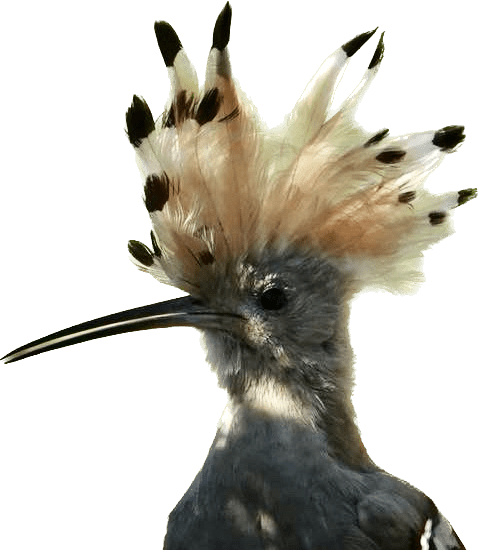

This guy is fucking crazy
https://www.youtube.com/watch?v=kNEfs8aFJOo
He has a patience that I've never witnessed before.
Takes trash and makes art, really mesmerizing.

Good luck, if you need help, feel free to shout
Look into GrapheneOS, iodeOS, /e/ foundation device or here's a quick guide to degooglize any ROM (taken from xda a whilr back).
"Note: This won't be too noob-friendly, so do your research before following this. If your phone catches fire, nothing I can do!
Also I'll be referring to LineageOS for microG as LMM throughout the guide
Safetynet also currently seems to be broken
Pre-requisites before using this guide:
- A phone ready for custom ROM'ing (unlocked bootloader, custom recovery installed yada yada)
- A user willing to sacrifice 90% Google apps (microG still has it's limitations you know)
- PC with everything ready (just to make the process smooth)
- TWRP backup of your previous ROM (just in case something goes wrong)
Let's begin!
Stage 1: Check and download
1) Check if your phone has official support for LineageOS for microG
2) If it's there; congratulations! Your life has been made 50% easier.
If it isn't, well, you'll have to check if you have official/unofficial ROM support for the standard LineageOS.
If that isn't there, you'll have to go with any other deODEX'd ROM (which means your results may vary compared to the one here)
3) Download the respective ROM zips, Magisk (for root) and Aurora Store.
If you're not downloading LMM, download NanoDroid Patcher (signature spoofing), NanoDroid microG (the microG package)
[Fun fact: If you're using the latest version of Magisk (which you should), rename the APK to "install.zip" to be able to flash it in recovery]
4) Copy the downloaded media to your SD Card (Internal Storage works too)
Stage 2 Option 1: If you have LMM support
1) Boot to TWRP or your TWRP fork of choice
2) Go to Wipe; Advanced Wipe; Tick System, Data, Cache, Dalvik and swipe # This will format your ROM + your app data
3) Go back; Install; Search for the Lineage zip.
4) Flash it.
5) Then flash Magisk and reboot.
Stage 2 Option 2: If you don't have LMM support
1) Boot to TWRP or your TWRP fork of choice
2) Go to Wipe; Advanced Wipe; Tick System, Data, Cache, Dalvik and swipe # This will format your ROM + your app data
3) Flash LineageOS / your ROM
4) Reboot your system
5) Do the initial setup
-> Check if you have Signature Spoofing support by installing this
-> If there's no Signature Spoofing support:
-> Boot to TWRP
-> Flash NanoDroid Patcher to patch your system
-> Flash NanoDroid microG and Magisk
-> Reboot your system
-> If there is Signature Spoofing support:
-> Boot to TWRP
-> Only flash NanoDroid microG and Magisk
-> Reboot your system
Stage 3: Post-Installation
1) Open microG settings app. Press Self-Check
2) Make sure no checkboxes are unticked. If they are, tick them
3) Go back; Add an account, do Device Registration and enable Cloud Messaging.
Also configure the location backends if you need location
4) microG setup should be done!
5) Now install Aurora Store, and configure it. (should be simple enough)
6) Grab yourself a good VPN and a nice wallpaper
[-] That's it!"
Enjoy your notifications <3