


for sure, also deadlines ale closer 😅

 .
. 

good job 😁

Interesting... I ran the same prompt 5times on Llama3.1:8b.
4x the prompt was at least understood correctly. The results were not too bad - can't test them (I use arch and nixos, btw😄).
Once it totally missed the task (second try). Not bad for a 4.3GB model, that anyone can easily selfhost.
Your script is more OS agnostic. (MAC & Linux)
I will try to paste all results below:
#####################
1st attempt - went for bash
#####################
Here's a bash script that does what you're asking for:
file_timestamp_and_metadata.sh
bash
Copy Code
#!/bin/bash
for file in *.mp4; do
filename=$(basename "$file")
date_str=${filename:0:-4}
timestamp=$(date -j -f "%Y-%m-%d %H%M%S" "$date_str" "+%s")
touch -t "$timestamp" "$file"
done
for file in *.jpeg; do
filename=$(basename "$file")
date_str=${filename:7:-5}
timestamp=$(date -j -f "%Y-%m-%d %H%M%S" "$date_str" "+%s")
exiftool -overwrite_original -datetime_original="$date_str" "$file"
done
for file in *.mp4; do
filename=$(basename "$file")
date_str=${filename:0:-4}
timestamp=$(date -j -f "%Y-%m-%d %H%M%S" "$date_str" "+%s")
exiftool -overwrite_original -createdate="$timestamp" -modifydate="$timestamp" "$file"
done
Let me explain how this script works:
The first loop goes through all files with the extension .mp4 and uses basename to extract just the filename (without directory). It then extracts the date and time from the filename using parameter expansion.
It uses touch -t to set the modification time of each file to the extracted timestamp.
The second loop goes through all files with the extension .jpeg and repeats steps 1-2, but this time it uses exiftool (a command-line tool for reading and writing metadata in image files) to add a new "datetime_original" tag with the extracted date and time.
The third loop repeats steps 1-3 for all files with the extension .mp4, but this time it also sets the creation date and modification date using exiftool.
You'll need to make sure that you have exiftool installed on your Mac. If not, you can install it using Homebrew:
Copy Code
brew install exiftool
Save the script as a file (e.g., file_timestamp_and_metadata.sh) and run it in the terminal by typing:
bash
Copy Code
chmod +x file_timestamp_and_metadata.sh
./file_timestamp_and_metadata.sh
Note: Make sure to test this script on a small subset of files before running it on all your files, just in case!
#####################
2nd attempt - misses the point
#####################
You can achieve this using exiftool, which is a powerful tool for reading, writing, and editing EXIF metadata in image files.
Changing file modification time:
First, install touch if you haven't already:
bash
Copy Code
brew install touch
Then, use the following command to change the modification time of all files:
bash
Copy Code
for f in *.mp4 *.jpeg; do touch -r "$f"; done
This will set the modification time of each file to its creation time.
Adding metadata to images/videos:
Next, install exiftool if you haven't already:
bash
Copy Code
brew install exiftool
Then, use the following commands to add metadata to your files. You'll need to specify the relevant details for each file type:
For JPEG images:
bash
Copy Code
for f in *.jpeg; do exiftool -artist="Your Name" -copyright="Copyright 2024 Your Name" "$f"; done
For MP4 videos:
bash
Copy Code
for f in *.mp4; do exiftool -artist="Your Name" -copyright="Copyright 2024 Your Name" -description="Video recording" "$f"; done
Note: Make sure to replace "Your Name" with your actual name.
Example usage:
Here's a complete example that changes the modification time and adds metadata to all JPEG images and MP4 videos:
bash
Copy Code
for f in *.jpeg; do touch -r "$f"; exiftool -artist="Your Name" -copyright="Copyright 2024 Your Name" "$f"; done
for f in *.mp4; do touch -r "$f"; exiftool -artist="Your Name" -copyright="Copyright 2024 Your Name" -description="Video recording" "$f"; done
This will modify all JPEG images and MP4 videos in the current directory, changing their modification time to their creation time and adding metadata with your specified details.
#####################
3rd attempt - goes for both bash and python script variants
#####################
I'll provide you with a bash script that will update the timestamps for all files in the directory and its subdirectories, and then use Exiftool (a powerful metadata editing tool) to add metadata to images.
Prerequisites:
Install Exiftool using Homebrew by running brew install exiftool in your terminal.
Make sure you have the necessary permissions to modify the files.
Update timestamps.sh script:
bash
Copy Code
#!/bin/bash
# Set the output format for timestamp updates (optional)
OUTPUT_FORMAT="%Y-%m-%d %H:%M:%S"
# Loop through all files and directories
for file in */*; do
# Get the base name of the file (without path or extension)
base_name=$(basename "$file" .*)
# Extract date and time from the file name
date_str=${base_name%%-*}
time_str=${base_name#*-}
# Set new timestamps for the file
new_date=$(date -j -f "%Y-%m-%d %H:%M:%S" "$date_str $time_str" +%s)
new_timestamp=$OUTPUT_FORMAT
# Update the timestamp of the file
touch -t "$new_timestamp" "$file"
# Check if the file is an image or video and update its metadata
if [[ ${base_name: -4} == "jpeg" || ${base_name: -4} == "mp4" ]]; then
exiftool -overwrite_original=true -datetime_original="$date_str $time_str" "$file"
echo "Updated metadata for file: $file"
fi
done
echo "Timestamps updated and metadata added to all files."
Save this script as update_timestamps.sh (or any other name you prefer).
How to use the script:
Make sure the script has execute permissions by running chmod +x update_timestamps.sh.
Run the script using ./update_timestamps.sh.
The script will loop through all files and directories, update their timestamps according to the date and time extracted from their names, and add metadata to images and videos.
Python alternative:
If you prefer using Python, here's an equivalent script:
python
Copy Code
import os
from PIL import Image
from moviepy.editor import VideoFileClip
import datetime
for root, dirs, files in os.walk('.'):
for file in files:
base_name = os.path.splitext(file)[0]
date_str = base_name[:10]
time_str = base_name[11:19]
new_date = datetime.datetime.strptime(f"{date_str} {time_str}", "%Y-%m-%d %H:%M:%S")
timestamp = f"{new_date.strftime('%Y-%m-%d %H:%M:%S')}"
# Update the timestamp of the file
os.utime(file, (int(timestamp), int(timestamp)))
if file.endswith('.jpeg') or file.endswith('.mp4'):
# Add metadata to images and videos
exiftool = 'exiftool' # Make sure you have Exiftool installed
command = f"{exiftool} -overwrite_original=true -datetime_original='{date_str} {time_str}' '{file}'"
os.system(command)
This Python script uses the os module for file operations and the datetime module for timestamp manipulation. It uses the same logic as the bash script to update timestamps and add metadata.
Save this script as a .py file (e.g., update_timestamps.py) and run it using Python (e.g., python3 update_timestamps.py).
#####################
4th attempt - chooses python
#####################
I'll provide you with a Python script using Exiftool (a powerful tool for reading, writing and editing image, audio and video metadata) to achieve this.
Note: Make sure you have Exiftool installed on your Mac. You can download it from here.
Here's the Python script:
python
Copy Code
import os
from PIL import Image
# Define the directory path where your files are located
directory_path = '/path/to/your/files'
# Get a list of all files in the directory
files = [f for f in os.listdir(directory_path) if os.path.isfile(os.path.join(directory_path, f))]
for file_name in files:
# Check if the file is an image or video
if file_name.endswith('.jpeg') or file_name.endswith('.mp4'):
# Get the date and time from the file name
date_time = file_name.split('-')[2] + ' ' + file_name.split('-')[3].split('_')[0]
# Use Exiftool to change the created/modified time of the file
exiftool_cmd = f'exiftool -datetimeoriginal="{date_time}" "{directory_path}/{file_name}"'
os.system(exiftool_cmd)
# Add metadata to images/videos using PIL and Exiftool
if file_name.endswith('.jpeg'):
image = Image.open(f"{directory_path}/{file_name}")
exiftool_cmd = f'exiftool -tagsFromFile "{directory_path}/{file_name}" -author="Your Name" -description="Description of the image"'
os.system(exiftool_cmd)
elif file_name.endswith('.mp4'):
# Add metadata to videos using Exiftool
exiftool_cmd = f'exiftool -tagsFromFile "{directory_path}/{file_name}" -title="Title of the video" -description="Description of the video"'
os.system(exiftool_cmd)
Here's how you can use this script:
Replace '/path/to/your/files' with the actual path where your files are located.
Save this script as a Python file (e.g., script.py) in a directory of your choice.
Run the script using the terminal: python script.py
The script will iterate over all files in the specified directory, change their created/modified time to match the date and time extracted from their names, and add metadata to images/videos as described above.
Note: Be cautious when running this script, as it will modify the metadata of your files. Make sure you have a backup of your files before running the script.
#####################
5th attempt - uses MAC tools heavily
#####################
Based on your file naming convention, it seems like you're using a format of signal-YYYY-MM-DD-HHMMSS_XXX.ext. To change the created/modified time and add metadata to images/videos, we'll need to use a combination of command-line utilities.
Step 1: Change modified time
We can use the touch command to set the modification time for each file. However, since you have multiple files with different extensions, we'll need to create a loop that handles both .jpeg and .mp4 files separately.
Create a new shell script (e.g., change_modified_time.sh) with the following content:
bash
Copy Code
#!/bin/bash
# Define the date format
DATE_FORMAT="%Y-%m-%d %H:%M:%S"
for file in *.jpeg; do
# Extract the timestamp from the filename
TIMESTAMP=$(echo "$file" | cut -d'-' -f4- | sed 's/.*-\([0-9]\+\)-/\1/')
# Set the modification time to the extracted timestamp
touch -t "${TIMESTAMP}" "$file"
done
for file in *.mp4; do
# Extract the timestamp from the filename
TIMESTAMP=$(echo "$file" | cut -d'-' -f4- | sed 's/.*-\([0-9]\+\)-/\1/')
# Set the modification time to the extracted timestamp
touch -t "${TIMESTAMP}" "$file"
done
Make the script executable by running chmod +x change_modified_time.sh.
Step 2: Add metadata
For adding metadata, we'll use two different command-line utilities depending on the file type. For images (.jpeg files), we can use the sips utility:
bash
Copy Code
for file in *.jpeg; do
sips -s format=JPEG "$file"
done
However, since you also have .mp4 files, we'll use a separate command for them. Unfortunately, there isn't a straightforward way to add metadata to video files on macOS using built-in command-line utilities.
As an alternative, we can use the iMovie app or another third-party video editing software to add metadata to your video files. Here's how you can modify the script above to run sips for images only:
bash
Copy Code
#!/bin/bash
# Define the date format
DATE_FORMAT="%Y-%m-%d %H:%M:%S"
for file in *.jpeg; do
# Extract the timestamp from the filename
TIMESTAMP=$(echo "$file" | cut -d'-' -f4- | sed 's/.*-\([0-9]\+\)-/\1/')
# Set the modification time to the extracted timestamp
touch -t "${TIMESTAMP}" "$file"
# Add metadata using sips for JPEG files only
if [ ! -z "$file" ]; then
sips -s format=JPEG "$file"
fi
done
for file in *.mp4; do
# Extract the timestamp from the filename
TIMESTAMP=$(echo "$file" | cut -d'-' -f4- | sed 's/.*-\([0-9]\+\)-/\1/')
# Set the modification time to the extracted timestamp
touch -t "${TIMESTAMP}" "$file"
done
Make sure to save this updated script as change_modified_time_and_add_metadata.sh, then run it with ./change_modified_time_and_add_metadata.sh.
After running these scripts, your files should have their modified times set to the original timestamps embedded in their filenames and metadata added to the images.
I did not expect this to be the case, but for coding shell script, I had much better success today with the new LLaMA-3.1-405B (through venice.ai) than through paid chatgpt. ChatGPT did not even get what I wanted, LLaMA wrote almost correct shell script in the first run.
In case you want to fix the metadata of media transmitted through Signal for importing to some photo app:
https://gist.github.com/jooray/032343f81885b4fdfd633e0ed4116526
is there a big difference in the model size?
can you please share the prompt? I will try to run it on the llama3.1:8b to see the difference 🙂



yep, they can't afford internet anymore... poor bastards
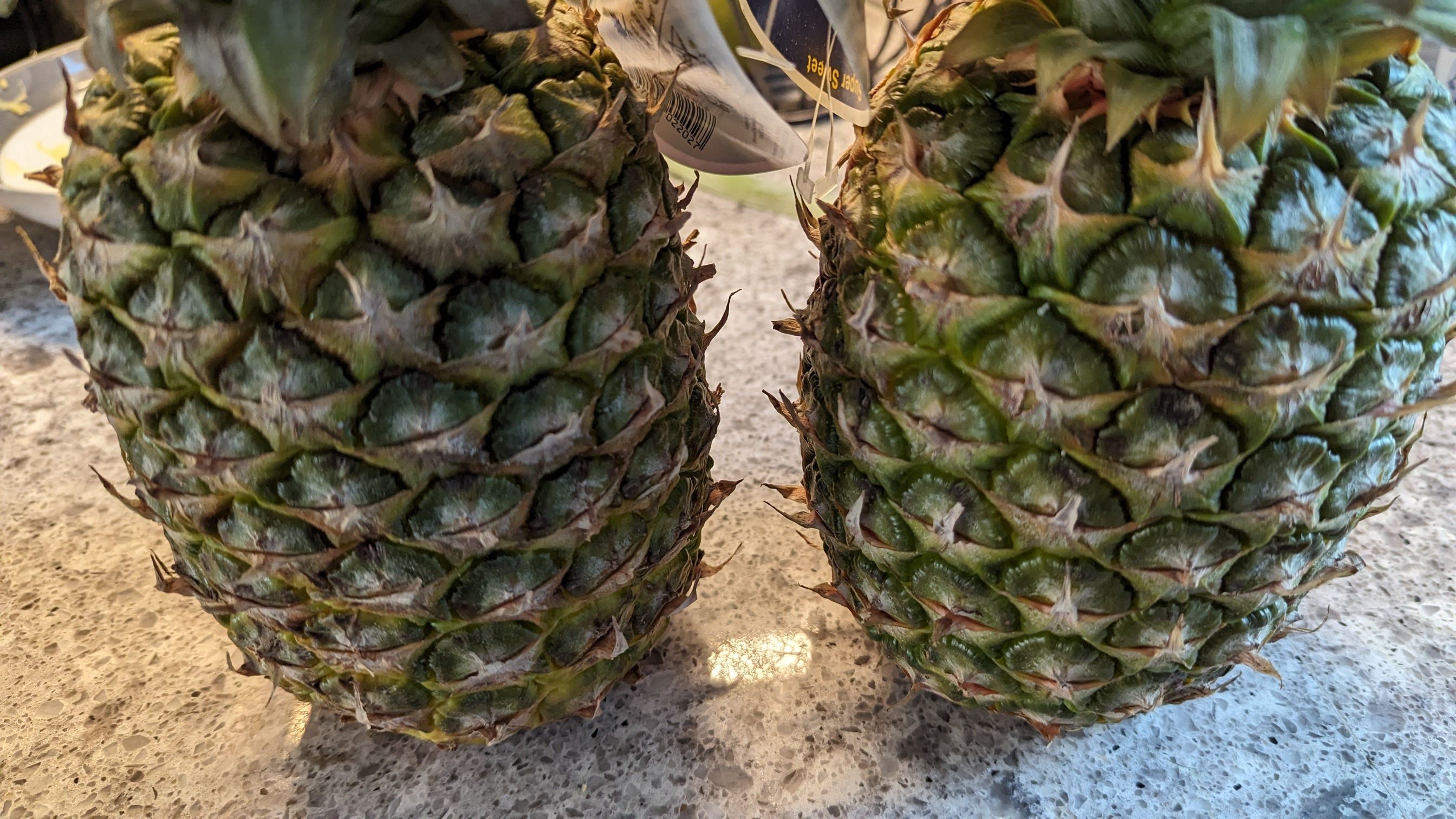

Extreme Privacy's 5th edition by Michael Brazell is out. https://inteltechniques.com/blog/2024/08/08/extreme-privacy-5th-edition-now-available/
lol, imagine purchasing this book with your creditcard... what an oxymoron 🤪
Hello there! My limit is 0.01, or rather 1M sats (to feel rich) 😉
No blockchain can scale globally. Blockchains scales linearly (the more transactions per second you need, the more bytes per minute and bigger blocks needs stronger nodes [look at the fucking shitcoin Solana and their node requirements]).
Linear scaling is not enough - Lightning scales exponentially.

I spend and replace double... that makes me stack even harder :D

*can't, right?
I agree with you. Idk why #bitcoin2024 sold to politics.. i am really disapointed...

enjoy!
Once we organized a meetup with beers over the default meshtastic channel and 8 guys showed up, it was lot of fun
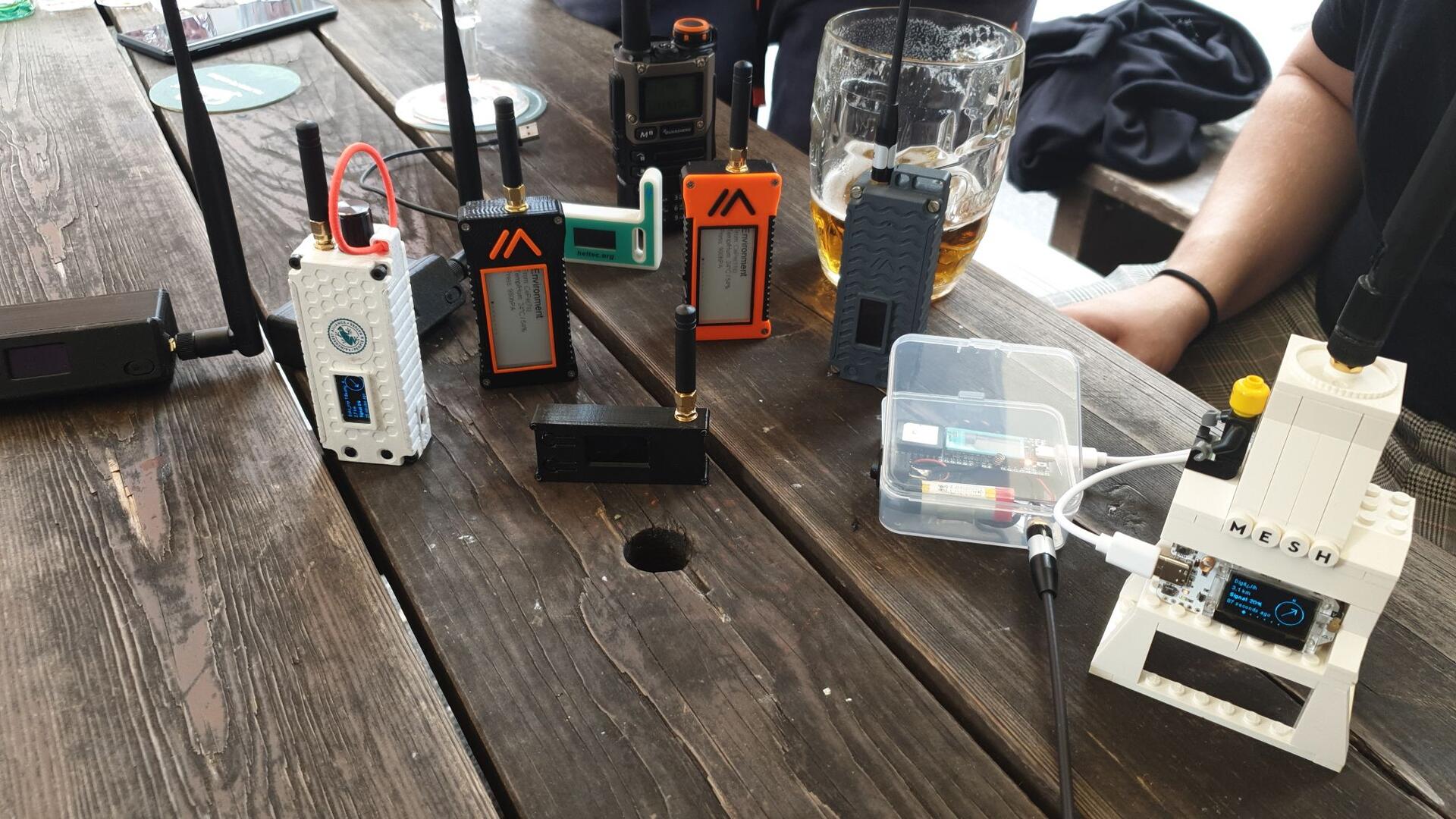
#meshtastic

One day I’m going to sign a #Bitcoin transaction with my nostr:npub17tyke9lkgxd98ruyeul6wt3pj3s9uxzgp9hxu5tsenjmweue6sqq4y3mgl and then broadcast it to my nostr:npub126ntw5mnermmj0znhjhgdk8lh2af72sm8qfzq48umdlnhaj9kuns3le9ll node using #meshtastic
It’s all possible now, but today isn’t the day.
check out https://reticulum.network/ #meshtastic #reticulum