


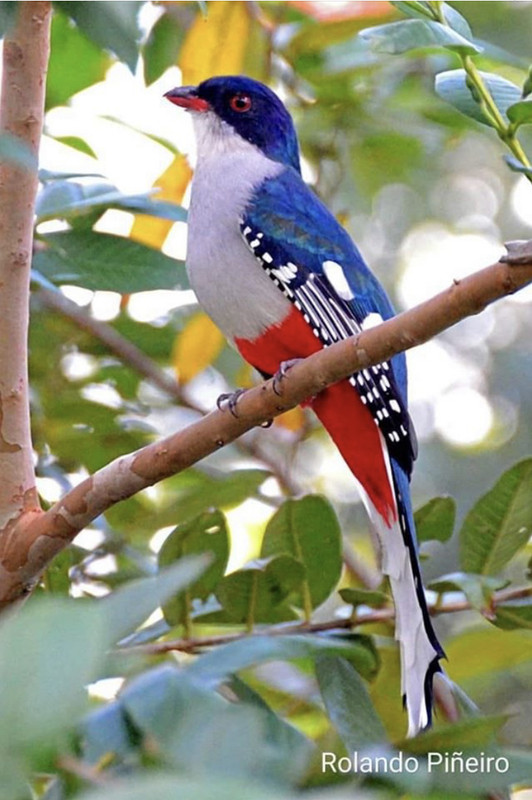
Next wave incoming

Nostr will mal wieder nicht, dass ich Memes uploade ... joar ... dann halt nicht, ne... folgt mir auf telegram: https://t.me/RosaroterPanzerBackup
Lol

Swan collaborated with the Tuttle Twins on their Bitcoin Sequel featuring Max Keiser, nostr:npub1pq2ll9l7qdmxsfqyrd5w9gul8c7ftqy9yepcqvc8a2l2ys9zhd6sk42rew, nostr:npub1ahxjq4v0zlvexf7cg8j9stumqp3nrtzqzzqxa7szpmcdgqrcumdq0h5ech Brunell, Cory Klippsten, Peter McCormack, nostr:npub1rxysxnjkhrmqd3ey73dp9n5y5yvyzcs64acc9g0k2epcpwwyya4spvhnp8 And nostr:npub1gdu7w6l6w65qhrdeaf6eyywepwe7v7ezqtugsrxy7hl7ypjsvxksd76nak Ammous
Debut on Oct 16th at LABITCOINWEEK.COM
#Bitcoin #TuttleTwins #AngelStudio #Swan

We need this in German too 🫶



DAY 3 of creating this Dutch translation of the nostr:npub18kpw3akvdsyk239lx0jgwksr74sq4nlha3r8u9g2rnrhztfpfhysy469c4 website.
Still happy I got started on this little project, means a lot to me tbh.
Credits to nostr:npub1mpz30qp2gdr403t2apjzhla56fh94hs8zgznw5pp26q0tztw27dsu60pxm to help me get started
✌🏻
#bitcoin #proofofwork 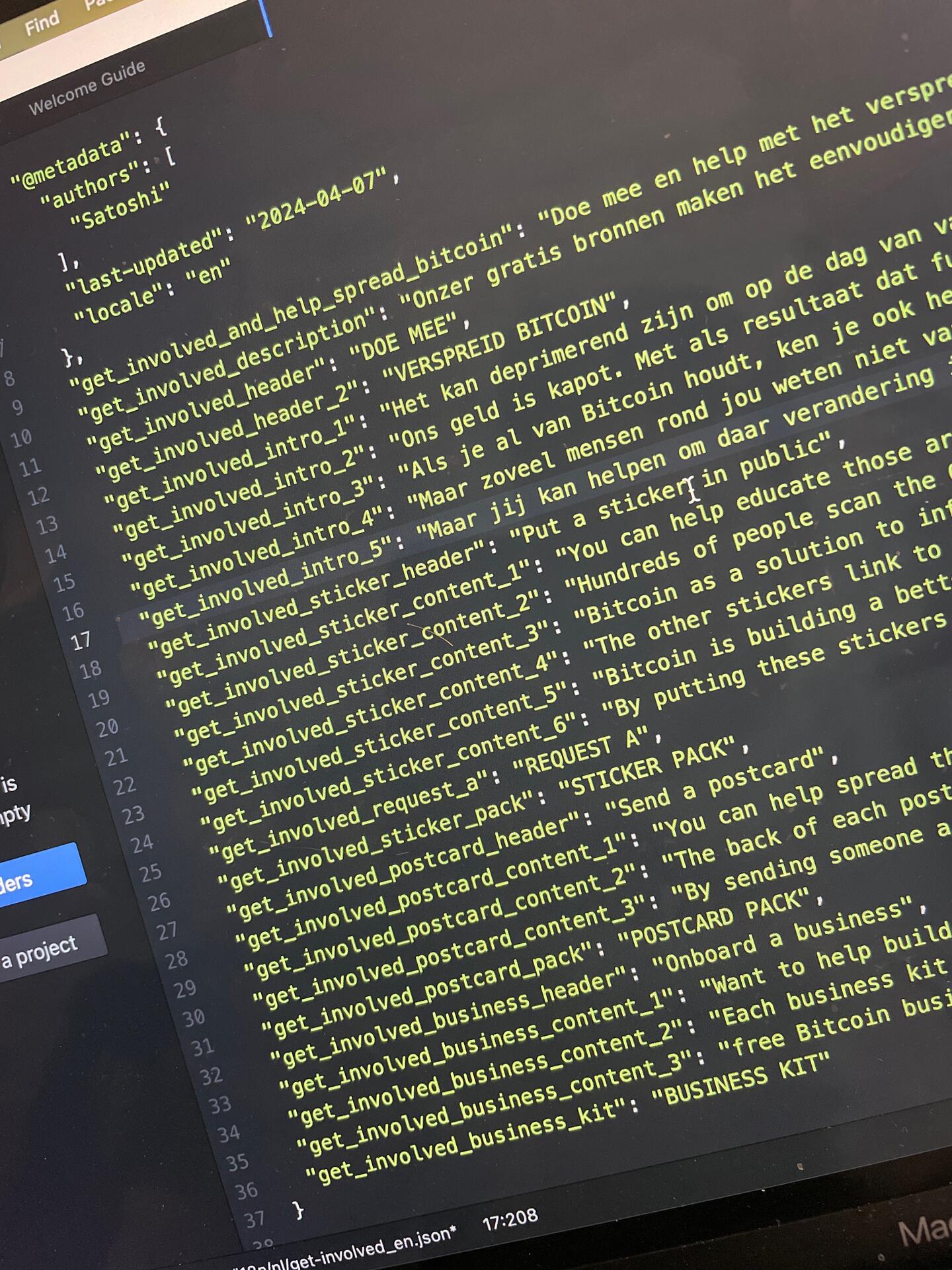
👍




Grapes looking great! Congratz bro!



Avoid Vehicle Motion Sickness With This New iOS 18 Feature
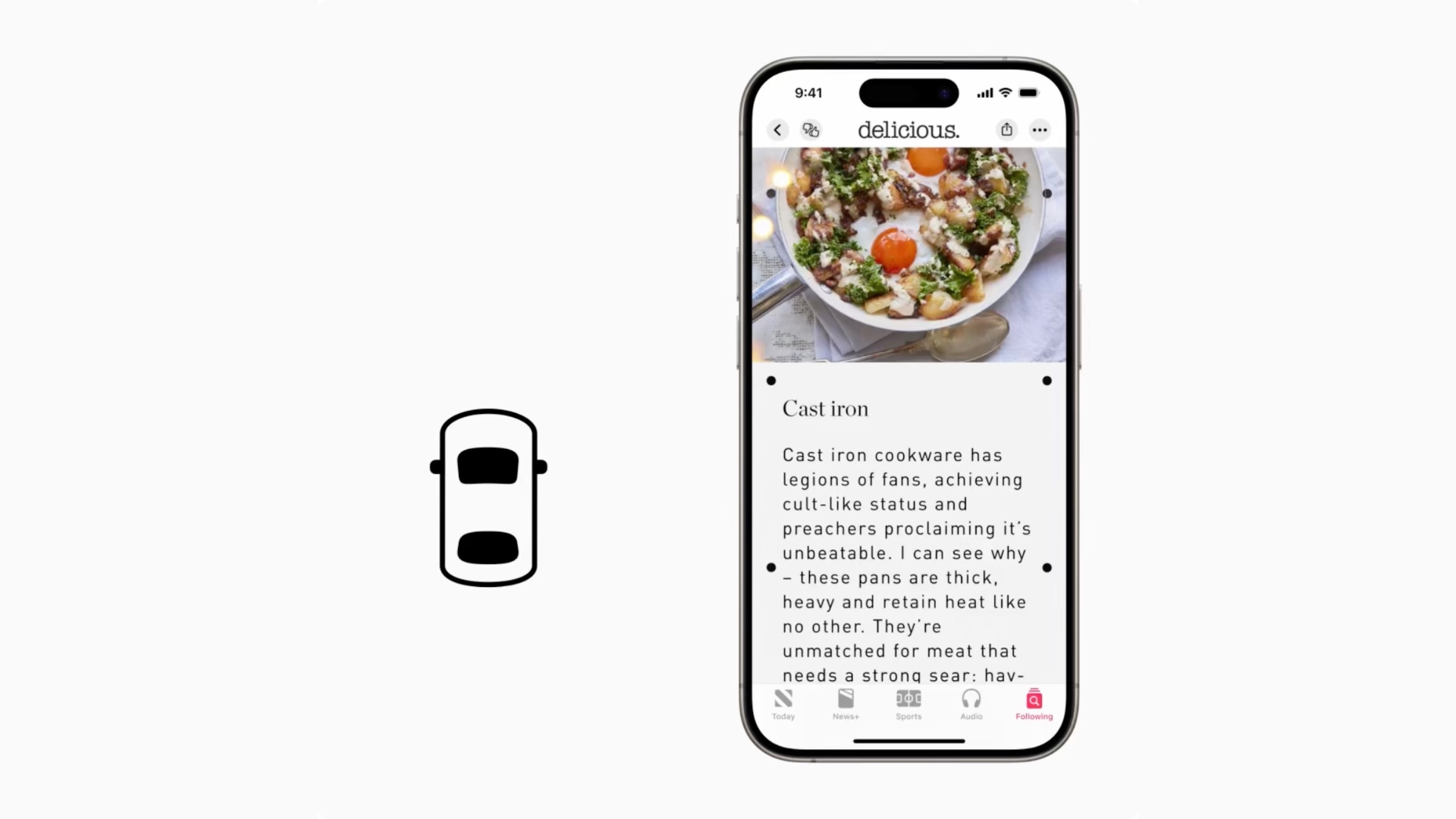
In iOS 18, Apple added several new accessibility features, and one feature in particular that is likely to have widespread appeal among car passengers is Vehicle Motion Cues, which aims to prevent motion sickness when looking at an iPhone or iPad.
According to Apple, research shows that motion sickness is commonly caused by a sensory conflict between what a person sees and what they feel, which can prevent some users from comfortably using an iPhone or iPad while riding in a moving vehicle.
Vehicle Motion Cues are designed to avoid this sensory conflict with the use of visual elements on the display that indicate real-time changes in motion. Apple explains:
With Vehicle Motion Cues, animated dots on the edges of the screen represent changes in vehicle motion to help reduce sensory conflict without interfering with the main content. Using sensors built into iPhone and iPad, Vehicle Motion Cues recognizes when a user is in a moving vehicle and responds accordingly. The feature can be set to show automatically on iPhone, or can be turned on and off in Control Center.
The following steps show you how to enable Vehicle Motion Cues in iOS 18 and iPadOS 18:
Open Settings on your iPhone or iPad.
Tap Accessibility.
Tap Motion.
Tap Show Vehicle Motion Cues.
Choose On or Automatic.
Note that choosing On shows the dots until you turn them off, while choosing Automatic shows the dots when vehicle motion is detected and hides them when the motion stops. If you turned on the feature, you should now see the motion cues – roving little dots around the edges of your iPhone or iPad screen. If you opted for the automatic activation, wait until you're in a moving vehicle for the cues to appear.
Enable Vehicle Motion Cues From Control Center
Alternatively, you can add a Vehicle Motion Cues button to the Control Center. Here's how:
Invoke Control Center with a diagonal swipe from the top-right corner of the screen (or with a swipe up from the bottom if your iPhone or iPad has a Home button).
Press and hold on any space in the Control Center to enter the customize mode, then tap Add a Control at the bottom.
Swipe up to the "Vision Accessibility" controls or search "Motion" in the input field, then choose Vehicle Motion Cues.
Press and hold a space in the Control Center to exit the customize mode.
Tap the Vehicle Motion Cues button, then choose On or Only in Vehicle.
There's no guarantee that the feature will work for everyone, but with a bit of luck, it will allow you or your kids to look at what's on the screen for the duration of the journey without starting to feel nauseous.
Tag: Accessibility
This article, "Avoid Vehicle Motion Sickness With This New iOS 18 Feature" first appeared on MacRumors.com
Discuss this article in our forums
https://www.macrumors.com/how-to/ios-motion-sickness-prevention/
Welcome to Nostr!

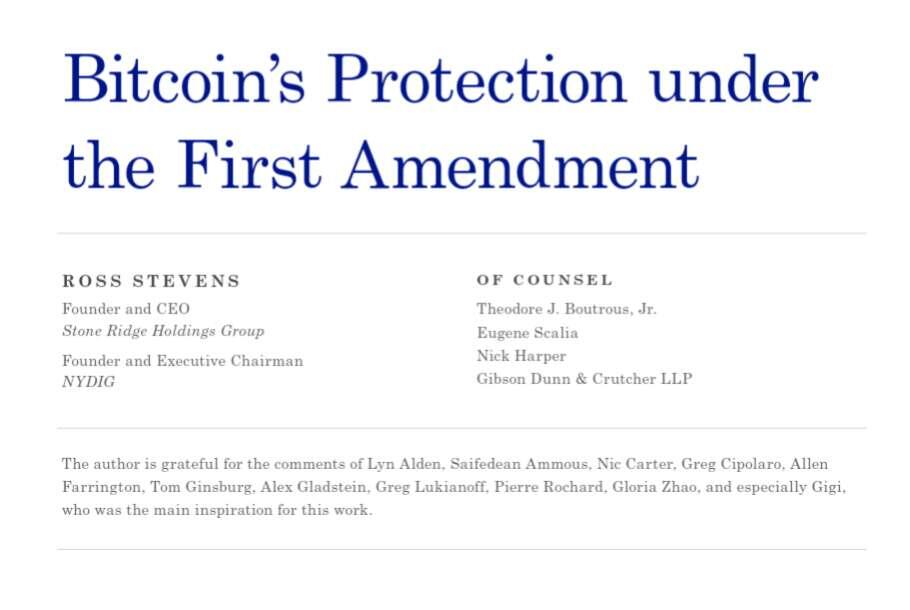
Still few
New #AustrianAudible episode just dropped on nostr:npub10qrssqjsydd38j8mv7h27dq0ynpns3djgu88mhr7cr2qcqrgyezspkxqj8
Nice you make a podcast for native austrian 😘😅

100k gang incoming 😅