
I need easy. I already have an Exodus wallet, and Strike. What would you suggest? And thank you very much for your help!
It sounds like you bought the cloud version of Alby Hub, and you may not have been aware of what that entails. Alby Hub is a self-custody Lightning node. That means, before you can connect it to your Alby account, you will need to set up Lightning channels and all that jazz.
Were you wanting to run a self-custody Lightning node in the cloud, or do you just want a custodial wallet you can link to your Alby account? If the latter, I would reach out to the nostr:npub1getal6ykt05fsz5nqu4uld09nfj3y3qxmv8crys4aeut53unfvlqr80nfm folks and ask for a refund, since you weren't aware of what you were buying.
From there, I can help you get set up with a custodial wallet like nostr:npub1h2qfjpnxau9k7ja9qkf50043xfpfy8j5v60xsqryef64y44puwnq28w8ch or even nostr:npub1kvaln6tm0re4d99q9e4ma788wpvnw0jzkz595cljtfgwhldd75xsj9tkzv, which can be connected to your Alby account if you desire.
Discussion
Well, you are going to want something that allows you to both send and receive zaps, right?
Strike works for receiving zaps, since they give you a lightning address, but not so well for sending, because they don't have Nostr Wallet Connect. (Yet?)
I am not familiar with Exodus wallet, but it seems to be a multi-coin wallet, so I doubt it really has anything for Lightning and Nostr focused features.
My recommendation for dead simple Nostr integration from a custodial wallet is nostr:npub1h2qfjpnxau9k7ja9qkf50043xfpfy8j5v60xsqryef64y44puwnq28w8ch, hands down.
Setting up an account is free, and no KYC at https://coinos.io/
Once you do, you can go one of two ways.
1. Switch everything to Coinos. Put the lightning address they give you into your profile in place of the one you have from Alby so you can receive zaps, and copy/paste the Nostr Wallet Connect string from your Coinos settings into whichever Nostr client you are using, assuming it supports Nostr Wallet Connect, so you can send zaps.
2. Use Coinos WITH Alby by copying your Coinos Nostr Wallet Connect string into where your Alby account wants you to connect a wallet. Then you don't need to change your lightning address, as your Alby lightning address will send payments to your Coinos wallet. You'll still need to also paste the Nostr Wallet Connect string from Coinos into your Nostr client for sending zaps, though.
What Nostr client(s) are you using?
I'm working on choice number 2 and so far so good! I'm stuck on: "paste the Nostr Wallet Connect string from Coinos into your Nostr client". Where would I find that? I use both Damus and Primal.
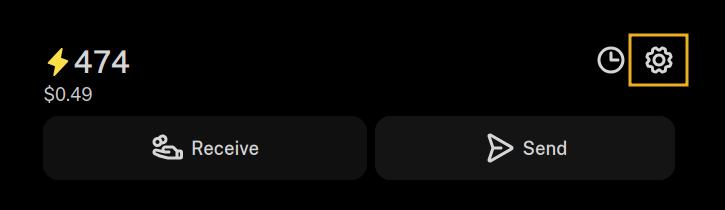
In Coinos, go to the settings cog.
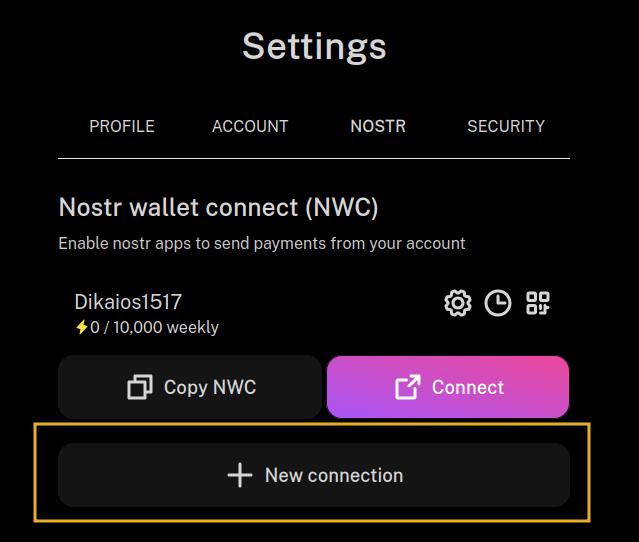
Select "New Connection."
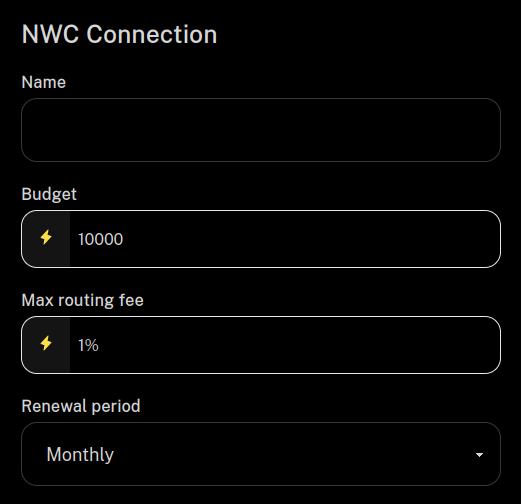
Give it a name, like which Nostr app you are connecting to. You can also set a budget and how often it renews. Then scroll down and click "Submit." No need to mess with any of the other options.
Now you should have a connection set up that looks something like the one below. Select "Copy NWC."
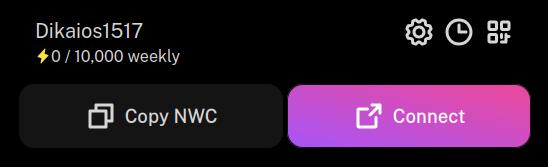
At this point you'll need to go over to Damus to paste that NWC connection string into the proper place in that client. I am on Android, so I don't have Damus to be able to tell you exactly where to paste it in, but maybe nostr:npub1xtscya34g58tk0z605fvr788k263gsu6cy9x0mhnm87echrgufzsevkk5s, nostr:npub13v47pg9dxjq96an8jfev9znhm0k7ntwtlh9y335paj9kyjsjpznqzzl3l8, or nostr:npub1yaul8k059377u9lsu67de7y637w4jtgeuwcmh5n7788l6xnlnrgs3tvjmf can point you in the right direction.
Unfortunately, Primal on iOS does not support connecting an external wallet, so you won't be able to zap from Primal until they add it. Given the recent court ruling against Apple and in favor of Epic Games, I would not be surprised if Primal adds this in the near future, as the app on Android already includes it.
Another app you might want to try on iOS is Nostur. nostr:npub1n0sturny6w9zn2wwexju3m6asu7zh7jnv2jt2kx6tlmfhs7thq0qnflahe is the dev behind that app, and he's packed a ton of features into it! He can tell you where to paste your NWC connection string from nostr:npub1h2qfjpnxau9k7ja9qkf50043xfpfy8j5v60xsqryef64y44puwnq28w8ch into Nostur.
Almost there! I don't know where on Damus to paste it in, but I'm looking around...maybe one of your account links can help me out there. Thank you so much, I feel closer to getting it all done.