



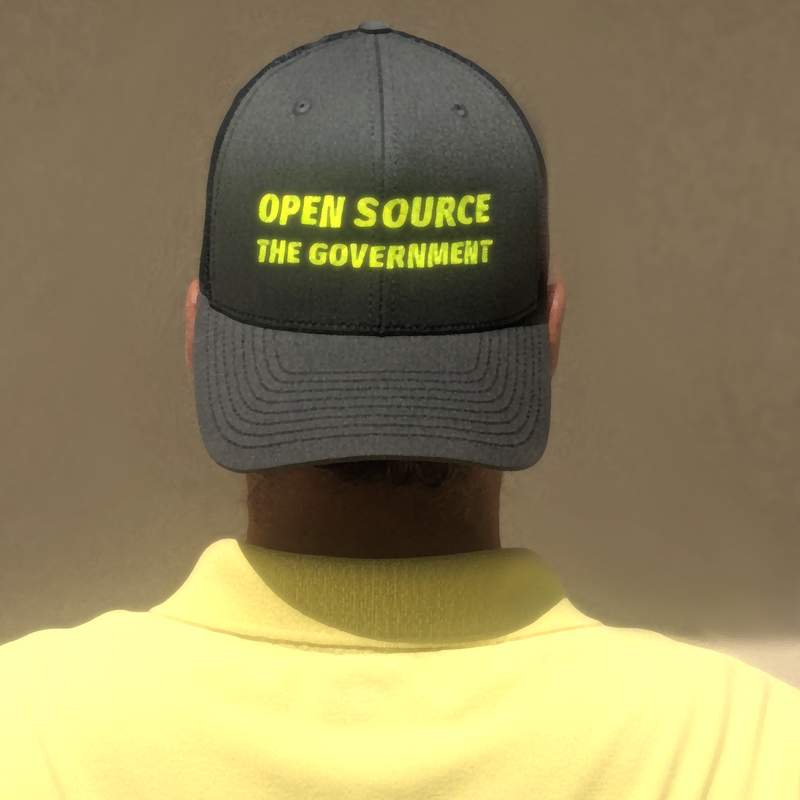
The most efficient thing the federal government could do is to take a fucking hike.

Worried about the apocalypse? Wondering how to climb out of the sludge? nostr:npub1qhxy598vvcefs8zy0tyqtx0jdpgvcg0h3fv9gjx050g8ccmva66qm2xytl created a series for you. https://video.nostr.build/08240d10d637fcb96794a2ff33d1f5cec87d0ef8d92d8c5e8028ce4ffe1cf227.mp4
This is amazing

Thank you nostr:npub1h8nk2346qezka5cpm8jjh3yl5j88pf4ly2ptu7s6uu55wcfqy0wq36rpev for this incredible show! Truly an honour having me and making this possible! 🙏 🥹
Talking about the energy the Bitcoin and Nostr Ecosystem is offering us and so much more …
Now a available on nostr:npub1v5ufyh4lkeslgxxcclg8f0hzazhaw7rsrhvfquxzm2fk64c72hps45n0v5
#grownostr
#nostr
Great interview nostr:npub1h8nk2346qezka5cpm8jjh3yl5j88pf4ly2ptu7s6uu55wcfqy0wq36rpev . It’s refreshing seeing people diving headfirst into the new sovereign economy and decentralized media world 🌎 nostr:npub1hz5alqscpp8yjrvgsdp2n4ygkl8slvstrgvmjca7e45w6644ew7sewtysa

I just get straight to it and ask how many #scamdemic boosters they received before their critical thinking faculties took over.

Fun things this week. Alby Hub on nostr:nprofile1qqs9df4h2deu3aae83fmet5xmrlm4w5l9gdnsy3q2n7dklem7ezmwfcpz3mhxue69uhhyetvv9ujuerpd46hxtnfduq5xamn8ghj7dnvv45xs7tywde8g6rpvakkjuekw46nvar4vdhxgan6wumkxatzwpckk6rk0puhjdm2da5k7ce5x4kkkumjx3jkzepwdahxjmmwqyt8wumn8ghj7un9d3shjtnwdaehgu3wd9hxvmckqw0xz really makes life easier. I got my wife set up with a wallet and a ln address using our own bank and she is going to try Nostr out again. And now Amethyst has Tor built in for default privacy. nostr:nprofile1qqsyvrp9u6p0mfur9dfdru3d853tx9mdjuhkphxuxgfwmryja7zsvhqpzamhxue69uhhv6t5daezumn0wd68yvfwvdhk6tcppemhxue69uhkummn9ekx7mp0qyghwumn8ghj7mn0wd68ytnhd9hx2tcewvzaw and all of you other devs never cease to amaze. I'm grateful for all you do.
Similar journey for me this week. The “friends and family” feature on nostr:npub1getal6ykt05fsz5nqu4uld09nfj3y3qxmv8crys4aeut53unfvlqr80nfm hub is trés cool.

Men want one thing, and it's...
https://archive.org/download/one-mans-alaska/One%20Man%27s%20Alaska.mp4
#film #movies #kinostr #documentary
One of my fav documentary films
I would post it on Nostr with the #Latamtour hashtag.

🌟 Join the Bitcoin Education Revolution with 21 Lectures! 🌟
At 21 Lectures, we're committed to the #Value4Value model and spreading knowledge about Bitcoin. We believe in giving back to those who help us share this mission!
💥 Zap Giveaway 💥
We’ve got 500,000 sats to give away as a thank you to our amazing community! Here’s how you can earn your share while promoting Bitcoin education:
🔁 Repost & Follow – Earn 840 sats
💬 Comment & Tag a Friend – Earn 420 sats
❤️ Like this Post – Earn 210 sats
It's that simple! Spread the word, share the knowledge, and help others discover the power of Bitcoin.
Let’s grow the community and educate more people together. Every repost, comment, and like helps illuminate the path for others. 🌍💡
To learn more, visit https://21lectures.com/
Nice initiative 🤙🏽! nostr:npub1q6ya7kz84rfnw6yjmg5kyttuplwpauv43a9ug3cajztx4g0v48eqhtt3sh
In addition to the reams of material that one ultimately ends up reading and listening to as a result of studying Bitcoin and finance, the biggest positive impact is that “the Bitcoin way” lowers your time preference across the board…You begin delaying gratification and investing in other areas of your life, for larger gains later, as well. Your diet. Your health. Your relationships. It helps you to adopt the mindset of the fisherman who decides to build a gill net and a boat on the shore for a week, rather than continuing to race out into the surf for fruitless days on end with a spear.
2030 is going to be here before we know it. And I’d say the fed only has one big round of printing left in them before some portion of the national debt needs to be written off, much to the chagrin of anyone who has been foolish enough to invest in US debt in the past handful of years or leave all of their wealth in a bank. There’s going to be an entire generation of workers that see their entire life savings and their pensions evaporate overnight.
I think two of the most important things you can teach a young person to give them a “leg up” in life are:
1) the concepts of time preference (and, by extension, delayed gratification).
2) the idea that financial security today can really only be attained by ACQUIRING ASSETS or building a business. Not working a J.O.B. as an overtaxed farm animal.
Backpack Meal: Dehydrated Beef Bowtie Pasta Soup
1.5 cup dehydrated cooked bowtie pasta
1/4 cup dehydrated cooked ground beef
1/4 cup dehydrated cooked broccoli
1/8 cup dehydrated cooked barley
1/4 cup dehydrated tomato slices
1/8 cup dehydrated celery
1/8 cup dehydrated onion
3 tbsp Oxo beef bullion powder in separate ziplock bag
2 oxygen absorbers
Instructions:
Open vac bag. Open Mylar package. Empty into medium saucepan. Remove oxygen absorbers. Add 6 cups of water. Let stand at room temperature with lid on for 90 minutes. Add more water as desired. Add bullion powder packet. Stir. Bring to a boil and simmer for 10 minutes. Serves 2 adults. Welcome to the apocalypse.
Homemade Eatmore Bars
Great snack for your hunting pack!
Ingredients
1 1/4 cups chocolate chips
1 cup corn syrup
1/2 cup peanut butter
1/2 cup rolled oats
1 cup chopped peanuts
Instructions
Line 8×8 pan with aluminum foil.
Spray with baking spray and set aside.
Melt chocolate chips, corn syrup and peanut butter over a medium heat stirring constantly.
Remove from heat and add oats and chopped peanuts.
Pour into prepared pan
Let sit in the fridge for about 1 hour.
Cut into desired sizes.
Enjoy and share.
A Note to My Daughter
Back when I was born, a family could live quite comfortably on a single income with a Dad working 40 hours per week. One of the biggest things that has been stolen from us through the government’s rampant money printing and the devaluation and destruction of our dollar is the free time for at least one parent to do the things that inspire kids to be hungry for knowledge. Things that my mom used to be able to do with me. Like getting us excited just to go to the library to get a new book, back in the day when we had only two TV channels and the internet didn’t exist. Nowadays with that having been taken away from us and schools having turned into basically daycares full of teachers that don’t give a shit, you really have to take ownership over your own education. Be hungry for knowledge. And realize that graduating high school is just the beginning of your learning years. Don’t be like the 95 percenter mouth breathers that think they are done learning just because they made it through 12th grade. This world is in for a real shitstorm over the next 20 years. The government is going to try to fool you into accepting a digital ID and a digital dollar that they can turn on or off depending on whether or not they think you are being an obedient little debt slave worker bee or not. Knowledge is the key. Look for any opportunity you can find to opt out of their system and learn about how to establish your own physical security (guns and ammo), food security (growing your own and preserving it), money security (Bitcoin), and energy security (how to make your own power and heat). The great days of this country are gone for all but the political elite rich families. The middle class has been erased. It’s up to you to succeed and flip them the middle finger and not play along. 🧡₿
Linux Commands List
The commands found in the downloadable cheat sheet are listed below.
Hardware Information
pp
Show bootup messages:
dmesg
See CPU information:
cat /proc/cpuinfo
Display free and used memory with:
free -h
List hardware configuration information:
lshw
See information about block devices:
lsblk
Show PCI devices in a tree-like diagram:
lspci -tv
Display USB devices in a tree-like diagram:
lsusb -tv
Show hardware information from the BIOS:
dmidecode
Display disk data information:
hdparm -i /dev/disk
Conduct a read-speed test on device/disk:
hdparm -tT /dev/[device]
Test for unreadable blocks on device/disk:
badblocks -s /dev/[device]
Run a disk check on an unmounted disk or partition:
fsck [disk-or-partition-location]
Searching
Search for a specific pattern in a file with grep:
grep [pattern] [file_name]
Recursively search for a pattern in a directory:
grep -r [pattern] [directory_name]
Find all files and directories related to a particular name:
locate [name]
List names that begin with a specified character [a] in a specified location [/folder/location] by using the find command:
find [/folder/location] -name [a]
See files larger than a specified size [+100M] in a folder:
find [/folder/location] -size [+100M]
Note: Some commands are not recommended to use. Learn about them in our list of dangerous Linux commands.
File Commands
List files in the directory:
ls
List all files (shows hidden files):
ls -a
Show directory you are currently working in:
pwd
Create a new directory:
mkdir [directory]
Remove a file:
rm [file_name]
Remove a directory recursively:
rm -r [directory_name]
Recursively remove a directory without requiring confirmation:
rm -rf [directory_name]
Copy the contents of one file to another file:
cp [file_name1] [file_name2]
Recursively copy the contents of one file to a second file:
cp -r [directory_name1] [directory_name2]
Rename [file_name1] to [file_name2] with the command:
mv [file_name1] [file_name2]
Create a symbolic link to a file:
ln -s /path/to/[file_name] [link_name]
Create a new file using touch:
touch [file_name]
Show the contents of a file:
more [file_name]
or use the cat command:
cat [file_name]
Append file contents to another file:
cat [file_name1] >> [file_name2]
Display the first 10 lines of a file with head command:
head [file_name]
Show the last 10 lines of a file with tail command:
tail [file_name]
Encrypt a file:
gpg -c [file_name]
Decrypt a file:
gpg [file_name.gpg]
Show the number of words, lines, and bytes in a file using wc:
wc
List number of lines/words/characters in each file in a directory with the xargs command:
ls | xargs wc
Cut a section of a file and print the result to standard output:
cut -d[delimiter] [filename]
Cut a section of piped data and print the result to standard output:
[data] | cut -d[delimiter]
Print all lines matching a pattern in a file:
awk '[pattern] {print $0}' [filename]
Note: Learn also about gawk command, the GNU version of awk.
Overwrite a file to prevent its recovery, then delete it:
shred -u [filename]
Compare two files and display differences:
diff [file1] [file2]
Read and execute the file content in the current shell:
source [filename]
Sort file contents and print the result in standard output:
sort [options] filename
Store the command output in a file and skip the terminal output:
[command] | tee [filename] >/dev/null
Note: Want to read more about file creation? Check out an article about how to create a file in Linux using the command line.
And if you want to find out how to determine the type of a file and its data, read our article about Linux file command. To view a file's contents one screen at a time read about less command in Linux.
Directory Navigation
Move up one level in the directory tree structure:
cd ..
Change directory to $HOME:
cd
Change location to a specified directory:
cd /chosen/directory
File Compression
Archive an existing file:
tar cf [compressed_file.tar] [file_name]
Extract an archived file:
tar xf [compressed_file.tar]
Create a gzip compressed tar file by running:
tar czf [compressed_file.tar.gz]
Compress a file with the .gz extension:
gzip [file_name]
Note: For a more comprehensive overview of how to use tar refer to our guide tar Command in Linux With Examples.
File Transfer
Copy a file to a server directory securely using the Linux scp command:
scp [file_name.txt] [server/tmp]
Synchronize the contents of a directory with a backup directory using the rsync command:
rsync -a [/your/directory] [/backup/]
Users and Groups
See details about the active users:
id
Show last system logins:
last
Display who is currently logged into the system with the who command:
who
Show which users are logged in and their activity:
w
Add a new group by typing:
groupadd [group_name]
Add a new user:
adduser [user_name]
Add a user to a group:
usermod -aG [group_name] [user_name]
Temporarily elevate user privileges to superuser or root using the sudo command:
sudo [command_to_be_executed_as_superuser]
Delete a user:
userdel [user_name]
Modify user information with:
usermod
Change directory group:
chgrp [group-name] [directory-name]
Note: If you want to learn more about users and groups, take a look at our article on how to add a user to a group in Linux.
Package Installation
List all installed packages with yum:
yum list installed
Find a package by a related keyword:
yum search [keyword]
Show package information and summary:
yum info [package_name]
Install a package using the YUM package manager:
yum install [package_name.rpm]
Install a package using the DNF package manager:
dnf install [package_name.rpm]
Install a package using the APT package manager:
apt install [package_name]
Install an .rpm package from a local file:
rpm -i [package_name.rpm]
Remove an .rpm package:
rpm -e [package_name.rpm]
Install software from source code:
tar zxvf [source_code.tar.gz]
cd [source_code]
./configure
make
make install
Process Related
See a snapshot of active processes:
ps
Show processes in a tree-like diagram:
pstree
Display a memory usage map of processes:
pmap
See all running processes:
top
Terminate a Linux process under a given ID:
kill [process_id]
Terminate a process under a specific name:
pkill [proc_name]
Terminate all processes labelled “proc”:
killall [proc_name]
List and resume stopped jobs in the background:
bg
Bring the most recently suspended job to the foreground:
fg
Bring a particular job to the foreground:
fg [job]
List files opened by running processes with lsof command:
lsof
Catch a system error signal in a shell script:
trap "[commands-to-execute-on-trapping]" [signal]
Pause terminal or a Bash script until a running process is completed:
wait
Run a Linux process in the background:
nohup [command] &
Note: If you want to learn more about shell jobs, how to terminate jobs or keep them running after you log off, check out our article on how to use disown command.
System Management and Information
Show system information via uname command:
uname -r
See kernel release information:
uname -a
Display how long the system has been running, including load average:
uptime
See system hostname:
hostname
Show the IP address of the system:
hostname -i
List system reboot history:
last reboot
See current time and date:
date
Query and change the system clock with:
timedatectl
Show current calendar (month and day):
cal
List logged in users:
w
See which user you are using:
whoami
Show information about a particular user:
finger [username]
View or limit system resource amounts:
ulimit [flags] [limit]
Schedule a system shutdown:
shutdown [hh:mm]
Shut Down the system immediately:
shutdown now
Add a new kernel module:
modprobe [module-name]
Disk Usage
You can use the df and du commands to check disk space in Linux.
See free and used space on mounted systems:
df -h
Show free inodes on mounted filesystems:
df -i
Display disk partitions, sizes, and types with the command:
fdisk -l
See disk usage for all files and directory:
du -ah
Show disk usage of the directory you are currently in:
du -sh
Display target mount point for all filesystem:
findmnt
Mount a device:
mount [device_path] [mount_point]
SSH Login
Connect to host as user:
ssh user@host
Securely connect to host via SSH default port 22:
ssh host
Connect to host using a particular port:
ssh -p [port] user@host
Connect to host via telnet default port 23:
telnet host
Note: For a detailed explanation of SSH Linux Commands, refer to our 19 Common SSH Commands in Linux tutorial.
File Permission
Chown command in Linux changes file and directory ownership.
Assign read, write, and execute permission to everyone:
chmod 777 [file_name]
Give read, write, and execute permission to owner, and read and execute permission to group and others:
chmod 755 [file_name]
Assign full permission to owner, and read and write permission to group and others:
chmod 766 [file_name]
Change the ownership of a file:
chown [user] [file_name]
Change the owner and group ownership of a file:
chown [user]:[group] [file_name]
Note: To learn more about how to check and change permissions, refer to our Linux File Permission Tutorial.
Network
List IP addresses and network interfaces:
ip addr show
Assign an IP address to interface eth0:
ip address add [IP_address]
Display IP addresses of all network interfaces with:
ifconfig
See active (listening) ports with the netstat command:
netstat -pnltu
Show tcp and udp ports and their programs:
netstat -nutlp
Display more information about a domain:
whois [domain]
Show DNS information about a domain using the dig command:
dig [domain]
Do a reverse lookup on domain:
dig -x host
Do reverse lookup of an IP address:
dig -x [ip_address]
Perform an IP lookup for a domain:
host [domain]
Show the local IP address:
hostname -I
Download a file from a domain using the wget command:
wget [file_name]
Receive information about an internet domain:
nslookup [domain-name]
Save a remote file to your system using the filename that corresponds to the filename on the server:
curl -O [file-url]
Variables
Assign an integer value to a variable:
let "[variable]=[value]"
Export a Bash variable:
export [variable-name]
Declare a Bash variable:
declare [variable-name]= "[value]"
List the names of all the shell variables and functions:
set
Display the value of a variable:
echo $[variable-name]
Shell Command Management
Create an alias for a command:
alias [alias-name]='[command]'
Set a custom interval to run a user-defined command:
watch -n [interval-in-seconds] [command]
Postpone the execution of a command:
sleep [time-interval] && [command]
Create a job to be executed at a certain time (Ctrl+D to exit prompt after you type in the command):
at [hh:mm]
Display a built-in manual for a command:
man [command]
Print the history of the commands you used in the terminal:
history
Linux Keyboard Shortcuts
Kill process running in the terminal:
Ctrl + C
Stop current process:
Ctrl + Z
The process can be resumed in the foreground with fg or in the background with bg.
Cut one word before the cursor and add it to clipboard:
Ctrl + W
Cut part of the line before the cursor and add it to clipboard:
Ctrl + U
Cut part of the line after the cursor and add it to clipboard:
Ctrl + K
Paste from clipboard:
Ctrl + Y
Recall last command that matches the provided characters:
Ctrl + R
Run the previously recalled command:
Ctrl + O
Exit command history without running a command:
Ctrl + G
Run the last command again:
!!
Log out of current session:
exit
Beef Broccoli Orzo Pasta Backpack Meal
1/2 cup dehydrated cooked Orzo
1 cup dehydrated cooked Broccoli
1/4 cup dehydrated cooked Barley
1/4 cup dehydrated raw Onion
1/4 cup dehydrated raw Tomato slices
1 Tablespoon dehydrated raw Celery
3 Tablespoons Beef Bouillon powder in a separate ziplock bag
Salt & Pepper
2 small oxygen absorbers
Place in Mylar bag. Evacuate air from bag or vacuum seal if preferred.
Empty dry ingredients into a saucepan. Remove oxygen absorbers. Add 5 cups of boiling water. Let stand for one and a half hours. Add bullion powder from separate ziplock bag. Bring to boil and simmer on low heat for 10 minutes. Serves two adults.